You have a working site on one host and need it on another. The honest question to ask of any WordPress migration plugin is not how many features it lists but what you will have to do by hand when the site is bigger than the demo. Usually the answer is the same: export a package, download it, upload it again, and run an installer. That works until the file is larger than your new host’s upload limit.
A disclosure first. We make Sitecarry, the plugin used in the steps below, and it is free on WordPress.org. That makes this guide practical and not neutral, so where another WordPress migration plugin is the better choice we say so. The seven steps themselves apply to any WordPress migration plugin that moves a package between two servers.
Why a WordPress migration plugin still means downloading files
The classic migration has four stages. The old site builds an archive of its files and database. You download that archive to your computer. You upload it to the new server, by the browser or by FTP. And an importer or an installer unpacks it and fixes the addresses. Three of those four stages are about carrying a file between two machines that could simply talk to each other.
That carrying is where the trouble sits. A browser upload is limited by the new host’s upload_max_filesize and post_max_size, often 2 MB to 64 MB on shared hosting. An FTP upload of a gigabyte can take an hour on a home connection and break halfway. And when a script runs for too long the host ends it, which is the error our guide to the PHP maximum execution time covers. None of this is the plugin’s fault, but every WordPress migration plugin that relies on your computer inherits it.
The official guidance has not changed in years: back up everything, move the files, move the database, and update the addresses. The WordPress developer documentation on migrating WordPress lays the manual version out, and it is worth reading once so you know what any plugin is automating.
Four kinds of WordPress migration plugin, and where each one wins
It helps to sort the field by how the package travels, because that decides what breaks. There are four patterns, and a good WordPress migration plugin belongs to one of them.
| Pattern | How the site moves | Typical example | Where it wins | Where it hurts |
|---|---|---|---|---|
| Installer and archive | You download an archive and an installer, upload both, run the installer | Duplicator | Works on a server with no WordPress at all | Two files to carry by hand; large sites need the paid format |
| Single-file import | You export one file and import it into a WordPress that already exists | All-in-One WP Migration | One file, very simple screens | Import size limit set by the plugin or the host |
| Cloud-assisted | A third-party service copies the site to its own servers and writes it to the new one | Migrate Guru | Big sites without touching your host’s limits | Your site’s files and database pass through someone else’s servers |
| Server to server | The new site pulls the package from the old site with a link and a key | Sitecarry’s migration link | No download, no upload, no third party | Both sites need the plugin; the old site must be online |
The details move over time, so check the vendors’ own pages. At the time of writing, the free All-in-One WP Migration caps imports at 512 MB and sells an extension to lift it, as its own comparison with Duplicator explains. Duplicator’s free edition builds a standard zip archive with an installer, and its free versus Pro page lists the larger-site and drag-and-drop features that are paid. Migrate Guru is free and does the heavy lifting on its own infrastructure, which is exactly why it is the one whose data path you should read about before you use it.
Where do the competitors win outright? Duplicator beats everything here when the destination has no WordPress yet, because the installer needs none. Migrate Guru wins when the old host is struggling and you do not want your own server doing the work. A server-to-server WordPress migration plugin wins on the case that is actually most common: two working WordPress sites, an ordinary shared host on each end, and a package that is too big to be comfortable to carry.
How a migration link moves a site without a download
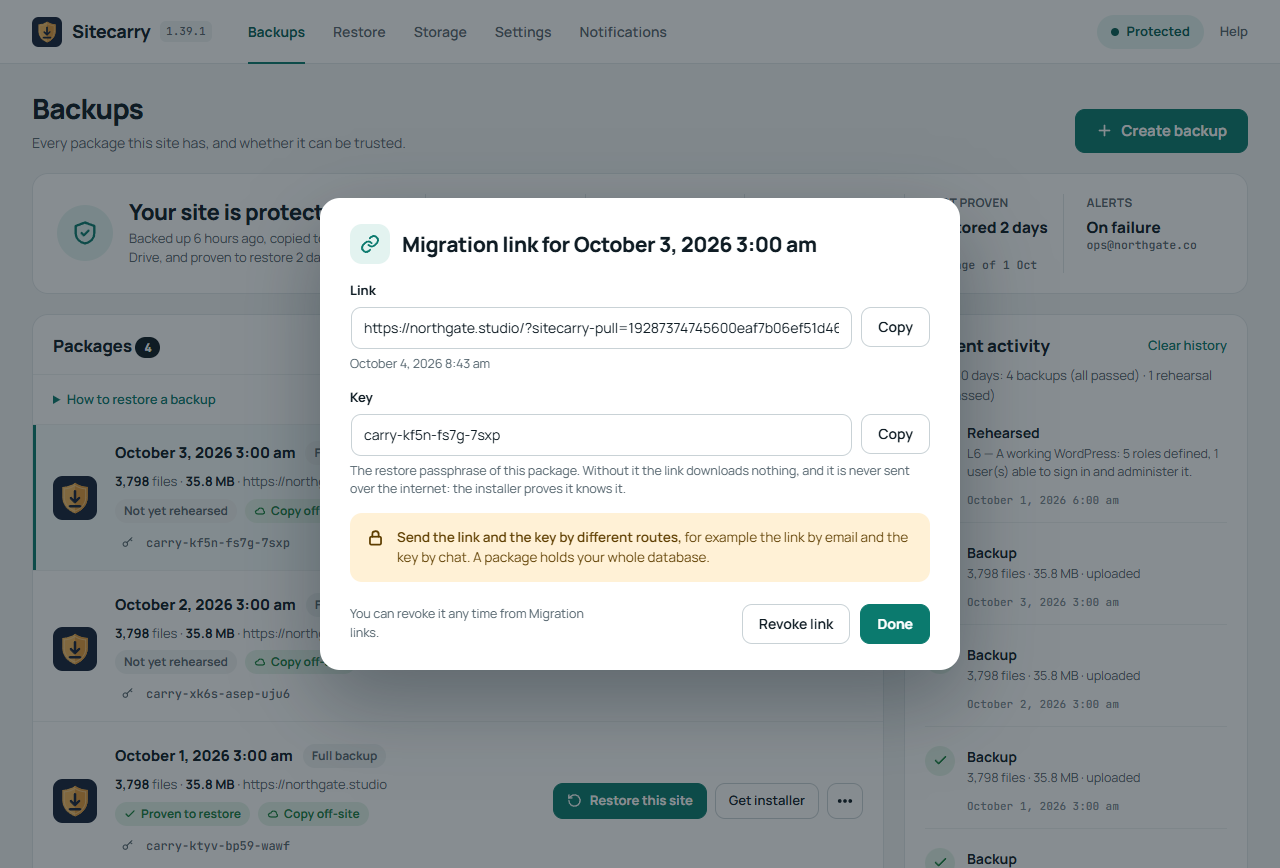
A migration link turns the transfer around for a WordPress migration plugin. Instead of the old site pushing a file to you, the new site pulls it from the old one. You create a link on the old site, paste it into the new one together with a key, and the new server fetches the package itself, a piece at a time. Your computer only carries two short strings of text.
The pieces matter. The new site asks for the package in 8 MB slices, writes them to a partial file, and checks the whole thing against a SHA-256 checksum before it counts as a package. If the connection drops, the next request carries on from the bytes already on disk. That is why a WordPress migration plugin built this way copes with hosts that cut a request after thirty seconds: no single request needs to last that long.
On our own test sites, two ordinary shared-hosting accounts, a package of 66 MB with 11,349 files was pulled in about two and a half seconds. The restore that followed, including a safety backup of the target site, took 22 seconds. Those numbers are small on purpose; the point is that nothing in the path depends on your home connection.
Is a one-use link safe enough for a whole database?
Any WordPress migration plugin that serves a package over the web owes you a plain account of how it is protected. A package holds your files and a full database export, so the link has to be treated as something dangerous. Two things are needed to get a single byte out of the old site, and neither is enough alone. The first is the token inside the link, which names one package and runs out. The second is a signature made with the package’s restore passphrase, which is the key.
The key is never sent. Each request carries a timestamp and a signature made with it, and the old site checks that signature against its own copy of the key. Requests more than ten minutes old are refused, so a captured one cannot be replayed later. Anyone who guesses at the link gets the same plain refusal as someone who has a real link and the wrong key, so a guess learns nothing about what exists. You can see this yourself:
A request with no signature, from any computer
# the old site answers a bare link with a generic refusal
curl -s "https://old-site.com/?sitecarry-pull=0123456789abcdef0123456789abcdef01234567"
# {"ok":false,"message":"This link is not valid."}
Beyond that, a link works for one download, and it counts as used only once the last byte has been served, so an interrupted download can be resumed. It lasts an hour, a day or a week, as you choose, and you can revoke it from the Backups screen at any time. Repeated wrong attempts from one address are throttled. Send the link and the key by different routes, for example the link by email and the key by chat, because a package holds your whole database.
Move a site with a WordPress migration plugin in 7 steps
The steps assume the new site already has WordPress installed and an empty or disposable database. They use Sitecarry, but the order is the same for any WordPress migration plugin that works server to server. Plan on about thirty minutes for a typical site, most of it waiting: a WordPress migration plugin should not need your attention while the package copies.
- Prepare the new site. Install WordPress on the new host, then install and activate the plugin. From the command line that is two commands, shown below. Note the PHP and WordPress versions; the Restore screen compares them with the package later.
- Take a full backup on the old site. Open Sitecarry, Backups, and press Create backup. A migration link can only be made from a full backup; an incremental package is only part of a backup and is refused.
- Create the migration link. Open the More menu of that backup, choose Create migration link, and pick how long it should last. The box shows the link and the key. The key is the package’s restore passphrase.
- Send the link and the key separately. Paste the link into an email and the key into a chat. If you are moving your own site, this still applies: the link will sit in your mailbox for as long as it lives.
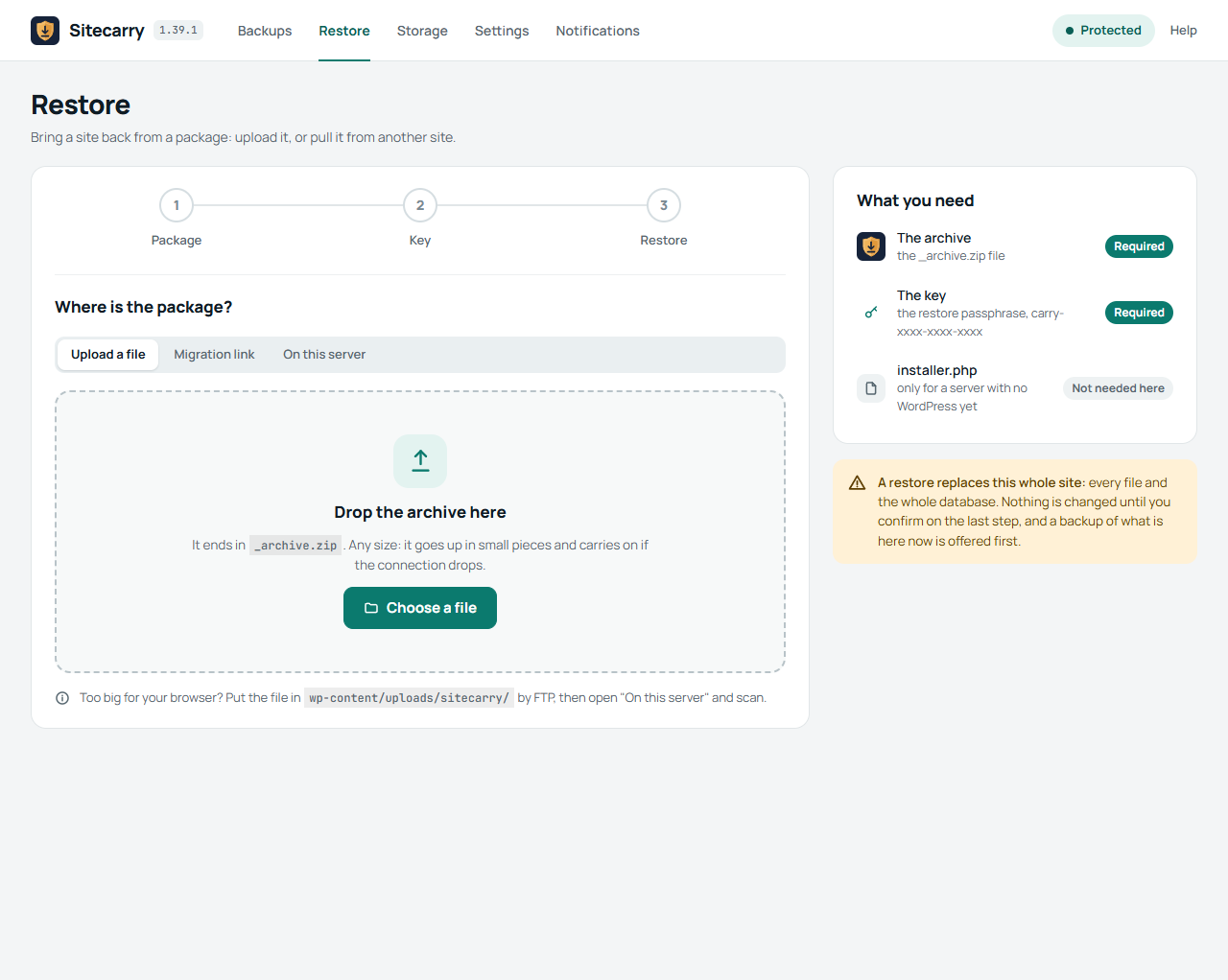
- Open Restore on the new site. Choose Migration link, paste the link and the key, and press Check link. The screen answers with the old site’s address, the number of files and the size, without using the link up.
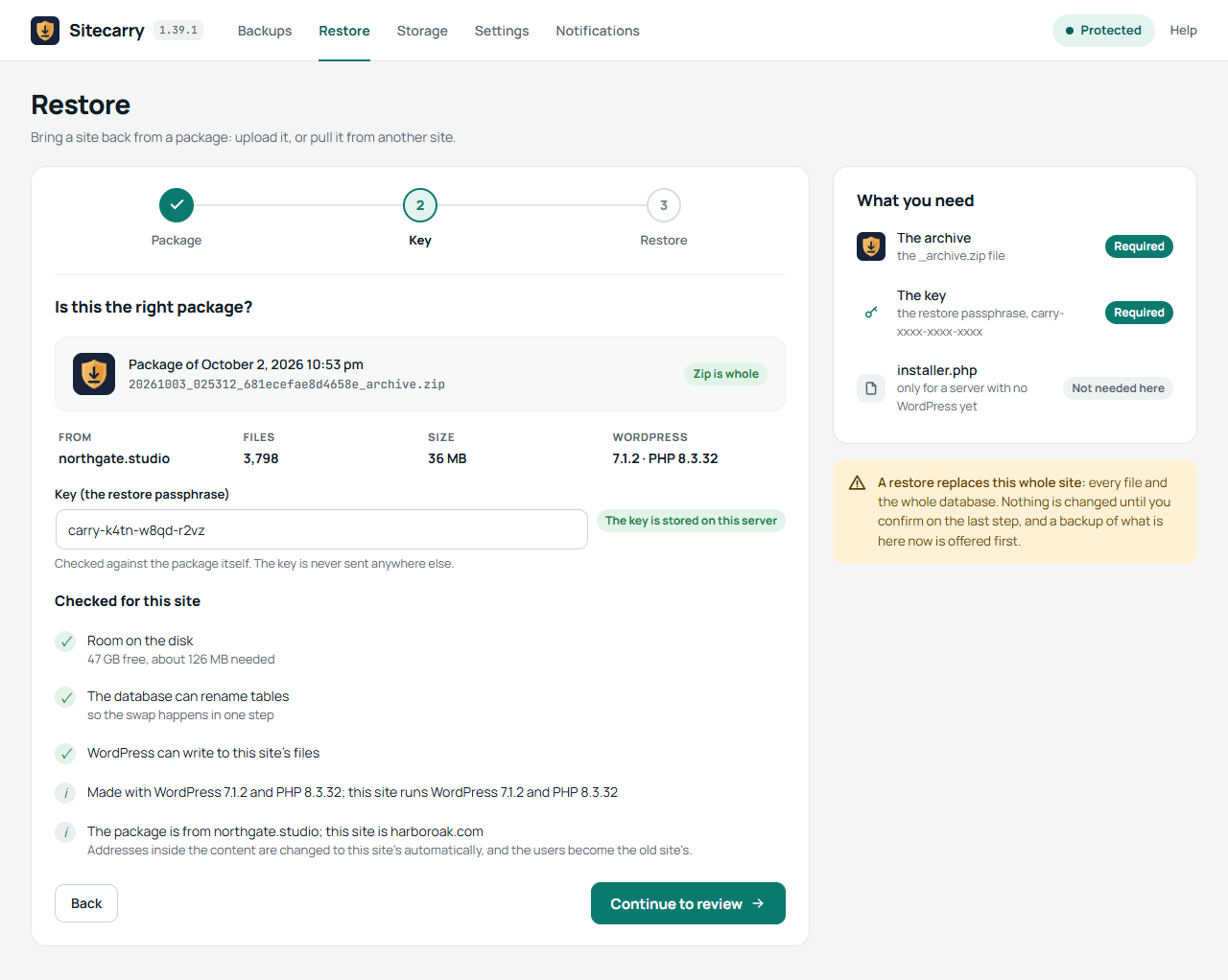
- Download, check, and confirm. Press Download and continue. The package arrives in pieces, the key is checked against the package itself, and the screen lists the checks made against the new site: disk space, the database’s ability to rename tables, and the versions on both ends. Then you confirm, with an optional safety backup of what is there now.
- Sign in again and finish. The restore swaps the database in, puts the files back and rewrites every address. The users are now the old site’s, so you are signed out: log in with the old site’s administrator.
Step 1 from the command line, on the new site
# WordPress is installed; add the plugin and switch it on
wp plugin install sitecarry --activate
wp core version
wp option get siteurl
A server with no WordPress at all is the one case this does not cover, and that is what the installer is for: upload installer.php alone, open it, enter the key, and paste the same link where it says the archive is missing. It downloads the package the same way, then asks for the database details and does the rest.
What changes when the address changes
The old site’s address is written all over its database: in post content, in options, in widget and menu settings, in the page builder’s data. A WordPress migration plugin that moves a site to a different address has to rewrite all of it, and the rewriting is where careless tools damage sites.
The trap is serialized data. PHP stores a string as, for example, s:19:"https://old-site.com", where 19 is the length in bytes. Replace the address with a longer or shorter one without fixing that number and the value can no longer be read, so a widget or a setting silently disappears. A plain find-and-replace over the database is the most common way a WordPress migration plugin, or a person with a script, ruins a site. Sitecarry reads the serialized form directly, so the lengths come out right, and it also handles the escaped form that page builders store, where slashes appear as \/.
It does this in spare tables before anything live is touched. The package’s database is imported under a scratch prefix, the addresses are rewritten there, and only then is the whole set swapped in with a single rename, so a failure leaves the target site exactly as it was. That is the difference between a WordPress migration plugin that moves a site and one that merely copies files. The site’s own tables are kept beside them for two days as a way back. If you want the same discipline for any other tool, the principle is in our guide to testing a WordPress backup: prove it on a copy before you trust it.
Checks to run after any WordPress migration plugin has finished
A WordPress migration plugin that reports success has proved the files arrived and the database imported. It has not proved the site works. Spend ten minutes on the checks below before you point DNS at the new server, and keep the old site running until they pass. The things a migration never transfers are the usual cause of a move that looked finished and was not.
| Check | How | What it catches |
|---|---|---|
| Front page and an inner page | Open both in a private window | Missing files, broken permalinks |
| Log in as the old administrator | Use the old site’s username and password | Users not carried over, a wrong table prefix |
| Old address left in the database | wp search-replace as a dry run | Hard-coded addresses a rewrite missed |
| Permalinks | Settings, Permalinks, Save | 404 on every inner page |
| Forms and email | Submit a test form | Mail that depended on the old server |
| Scheduled jobs | Check that a backup or a cron task runs | A cron job that was tied to the old host |
Prove no copy of the old address is left (a dry run changes nothing)
wp search-replace 'old-site.com' 'new-site.com' --all-tables --dry-run --report-changed-only
wp rewrite flush
wp cache flush
wp plugin list --status=active
If the dry run reports zero replacements, nothing in the database still names the old site. A handful of rows in a log table is harmless; a hundred in the options table is not.
Where a WordPress migration plugin goes wrong, and the fix
Every WordPress migration plugin has limits, and the useful ones are the ones you can plan around. This is what we have actually seen, including from moving our own test sites.
| Symptom | Cause | Fix |
|---|---|---|
| “The other site did not accept this link and key” | The link was already used, has expired or was revoked, or the key belongs to a different package | Make a new link and copy the link and key from the same box |
| The download stops part way | The host cut a request, or the old site went offline | Press Check link again; the download resumes from the bytes already saved |
| Check link fails from the new site only | The old host’s firewall or bot protection blocks requests from servers | Allow the new server’s address, or pause the protection for the transfer |
| “Not enough disk space” | The new account has less room than the package plus its extracted files | Free space first; the screen shows free and needed amounts |
| The restore stops after the database swap | A file could not be written, often a permissions problem | Fix the permission, sign in as the old administrator and press Resume |
| A page builder shows broken layouts | Cached CSS still names the old address | Regenerate the builder’s files and clear every cache layer |
The limits that no setting fixes are worth stating plainly. Both sites need WordPress, and for the link route both need Sitecarry. The old site has to be online and able to answer web requests while the package is copied. Only a full backup can be offered; a chain of incremental packages cannot. A multisite network is refused, and so is a host where WordPress cannot write to its own files. DNS, email accounts and SSL certificates are not part of a WordPress migration plugin’s job on any host, so plan them separately, as our guide to WordPress domain migration describes.
Disk and time limits deserve one more mention. If a restore fails with a memory error, the cause is usually the host’s limit rather than the plugin; the fix is in our guide to the PHP allowed memory size error. And if you are changing hosts for reasons beyond one move, read what to ask before you change WordPress hosting first.
How to choose a WordPress migration plugin for your site
Choose by the situation, not by the feature list. A short rule of thumb covers most sites.
- Moving to a server with no WordPress yet: use an installer-based tool. Duplicator is the established choice; Sitecarry’s installer does the same job when you paste a link into it.
- A small site and a host with a generous upload limit: a single-file import is the quickest, as long as you check the size limit before you start.
- A very large site on a host that is struggling: a cloud-assisted service takes the load off your server, and you accept that the data passes through theirs.
- Two working WordPress sites, any size, and no wish to download or upload anything: a server-to-server WordPress migration plugin with a migration link.
Whichever WordPress migration plugin you pick, take a fresh backup of the old site first and keep it until the new one has run for a week. A migration is the moment your backup earns its keep, which is why our checklist for a WordPress backup plugin asks whether it has ever been restored, not only whether it ran. For the longer view on keeping copies, see how to keep WordPress backups done right.
If the move is the kind that carries real risk, such as a store with live orders or a site with a dozen integrations, it is reasonable to have someone do it with you. That is what our website migration service is for, and we use the same WordPress migration plugin and checks described here.
Frequently asked questions about a WordPress migration plugin
Is a WordPress migration plugin safe for a large site?
It is as safe as the way it moves the package. A WordPress migration plugin that pulls the site in checked pieces, verifies a checksum and leaves the target untouched until the new database is complete is safe for large sites too, and the transfer can resume after a drop. Take a backup of both sides first regardless.
Can I migrate WordPress without downloading the backup?
Yes. With a migration link the new site fetches the package directly from the old one, so nothing is downloaded to your computer and uploaded again. You only copy a link and a key between the two sites.
How long does a migration link last?
You choose one hour, 24 hours or seven days when you create it. It works for one complete download, and it can be revoked at any time from the Backups screen. A download that was interrupted can be resumed with the same link.
Does a WordPress migration plugin move my plugins and themes too?
Yes. A full package holds the whole site folder, so plugins, themes and uploads come across with the database. The exceptions are the live wp-config.php, the stored packages, and Sitecarry itself, which are left exactly as they are so the new site keeps its own database connection.
Does the new site have to be on the internet?
No. It is the new site that makes the request, so it can be a local development site, as long as it can reach the old site over the web. The old site is the one that must be online and reachable while the package is copied.
Will my admin login change after the migration?
Yes, to the old site’s. The users table comes from the package, so the account you used on the new site before the move no longer exists afterwards. You are signed out when the database is swapped in, and you log in with the old site’s administrator. If you want the new account back, create it again from Users.
Which WordPress migration plugin should I use for a small site?
For a small site on a normal host almost any WordPress migration plugin works, and the best one is the one whose screens you will not have to relearn. Check the import size limit, check that it rewrites serialized data, and prove the result on a test copy before you move the real site.