Most guides on how to change WordPress hosting describe a copy-and-pray: move the files, import the database, point the domain, hope. That is where the downtime and the lost orders come from.
Run it as a parallel build with a planned cutover instead and the site never goes down. Here is the sequence we use.
Before you touch anything
Four things to settle before you change WordPress hosting, because each one causes problems later if it is left vague.
| Decide | Why it matters |
|---|---|
| Where DNS is managed | You need access on the day. Often it is not the old host. |
| PHP and MySQL versions on both | A version jump is a separate change. Do not stack them. |
| Whether email moves too | Mail is separate from hosting and breaks loudly if forgotten. |
| Who owns the domain | If it is registered to the old host, sort that first. |
Take an inventory of the current server so nothing is discovered missing afterwards:
wp core version
wp plugin list --status=active --fields=name,version
wp theme list --status=active
wp eval 'echo PHP_VERSION . "\n";'
wp db size --human-readable
du -sh wp-content/uploads
That output is your acceptance checklist. When you change WordPress hosting, the new server should match it — same versions, same plugins active, same content sizes.
Do not change PHP version in the same move. If something breaks you will not know which change caused it. Move first, confirm the site is healthy, then upgrade PHP as its own deliberate step — see when a PHP upgrade breaks your site.
Lower the DNS TTL — 48 hours ahead
This is the step that turns a nervous change of WordPress hosting into a routine one, and it has to happen days before the move.
TTL is how long resolvers cache your DNS record. At the common default of 86400 seconds, a change takes up to 24 hours to reach everyone — and so does undoing it. At 300 seconds, both take five minutes.
# What is it now?
dig +noall +answer yoursite.com A
The number before IN A is the TTL. Set it to 300 in your DNS panel, then wait for the old value to expire before the cutover — that wait is why this is a 48-hour-ahead job and not a cutover-day one.
Copy the site to the new server
The mechanics of how you change WordPress hosting are simple: files first, database second.
# Files — rsync so you can repeat it cheaply at cutover
rsync -avz --delete \
  -e "ssh -p 22" \
  ~/public_html/ newuser@newhost:~/public_html/

# Database
wp db export ~/site.sql
scp ~/site.sql newuser@newhost:~/
On the new server:
wp db import ~/site.sql
wp config set DB_NAME 'new_db_name'
wp config set DB_USER 'new_db_user'
wp config set DB_PASSWORD 'new_password'
wp config set DB_HOST 'localhost'
rsync rather than a zip is deliberate: at cutover you re-run the same command and only the changed files move, which takes seconds instead of repeating the whole transfer.
If neither host offers SSH, a migration plugin will do the same job through the browser. It is slower and less repeatable, but the sequence in this article still applies.
Test before anyone can see it
Never change WordPress hosting without seeing the new server on the real domain first. It is live, but DNS still points at the old one. To reach the new copy in a browser without changing DNS, override it locally with your hosts file.
# Windows: C:\Windows\System32\drivers\etc\hosts (run editor as admin)
# Mac / Linux: /etc/hosts
203.0.113.45   yoursite.com
203.0.113.45   www.yoursite.com
Now your machine sees the new server on the real domain while the world still sees the old one. This is the single most useful trick when you change WordPress hosting, because it lets you test the real URLs — no temporary domain, no search-replace to undo later.
Work through this list on the new server:
- Homepage, and three deep pages including one with a form.
- Log into wp-admin.
- Submit a form and confirm the notification actually arrives.
- For a shop: add to basket and complete a test order.
- Check images load — a broken uploads path shows here.
- Confirm permalinks work on a deep URL, not just the homepage.
- Compare PHP version, plugin list and database size with the inventory.
- Check the error log is clean.
# Quick sanity check from the new server
wp option get siteurl
wp option get home
wp plugin list --status=active --field=name | wc -l
tail -20 ~/logs/error.log
URLs and search-replace
If the domain is not changing — the normal case when you change WordPress hosting — you should not need a search-replace at all. Leave the URLs alone.
If you tested on a temporary domain, you do need one, and it must be serialisation-safe. A plain SQL find-and-replace corrupts serialised arrays in the options and meta tables:
# Always dry-run first
wp search-replace 'https://temp.newhost.com' 'https://yoursite.com' --dry-run --all-tables
wp search-replace 'https://temp.newhost.com' 'https://yoursite.com' --all-tables
This is the main argument for the hosts-file method: no replacement, nothing to corrupt.
Cutover day
Change WordPress hosting in your quietest hours. Not a Friday, and not during a campaign.
- Freeze changes on the old site. No publishing, no orders being edited.
- Re-run the file sync. The same
rsynccommand; only recent uploads move. - Re-export and re-import the database. This captures orders, comments and posts created since the first copy.
- Change the DNS A record to the new IP. With TTL at 300 this propagates in minutes.
- Issue the SSL certificate on the new host and confirm HTTPS works.
- Verify — the full checklist above, now on the real DNS.
- Remove your hosts file entries, or you will keep seeing the new server regardless of what everyone else gets.
Watch which server is answering:
dig +short yoursite.com
curl -sI https://yoursite.com/ | grep -i '^server:\|^x-'
Step 3 is the one people skip. If you copied the database a week ago and do not re-import at cutover, every order, comment and post from that week disappears. The delta sync is not optional — it is the difference between a migration and a data loss.
The two weeks after
Having changed WordPress hosting, keep the old one running. It is a small monthly cost against a total rollback if something surfaces later.
| Watch | Warning sign |
|---|---|
| Error log, daily for a week | Path or permission errors from the move |
| Search Console coverage | A spike in crawl errors or 5xx |
| Form submissions arriving | Silence — the new server’s mail is not configured |
| Scheduled posts and cron | Missed schedules mean cron did not follow you |
| Page speed | Slower than before means the plan is smaller than you thought |
| Orders per day | A drop points at checkout or payment configuration |
Two things that reliably need attention on a new server: email, because sending IP and configuration changed, and cron, because a server-level cron entry does not travel with the files. Set both up deliberately rather than assuming they came along.
Choosing the new host
Worth a paragraph, because the reason people change WordPress hosting twice is that the first move was to the wrong place. Marketing pages are useless here; these six questions are not.
| Ask | Why |
|---|---|
| Which PHP versions, and how do you upgrade them? | A host that pins you to old PHP is a future emergency |
| Is there a staging environment included? | Without one, every update goes straight to production |
| Do I get SSH and WP-CLI? | Everything in this article is faster with them |
| What are the actual resource limits? | “Unlimited” means limits you have not been told |
| How are backups taken and how do I restore one? | Retention is often shorter than people assume |
| Is email included, and on the same server? | Decides how complicated the move gets |
Test support before you commit, not after. Send a technical pre-sales question and judge the reply — that is the same team you will reach at 6pm on a Friday.
Email moves separately
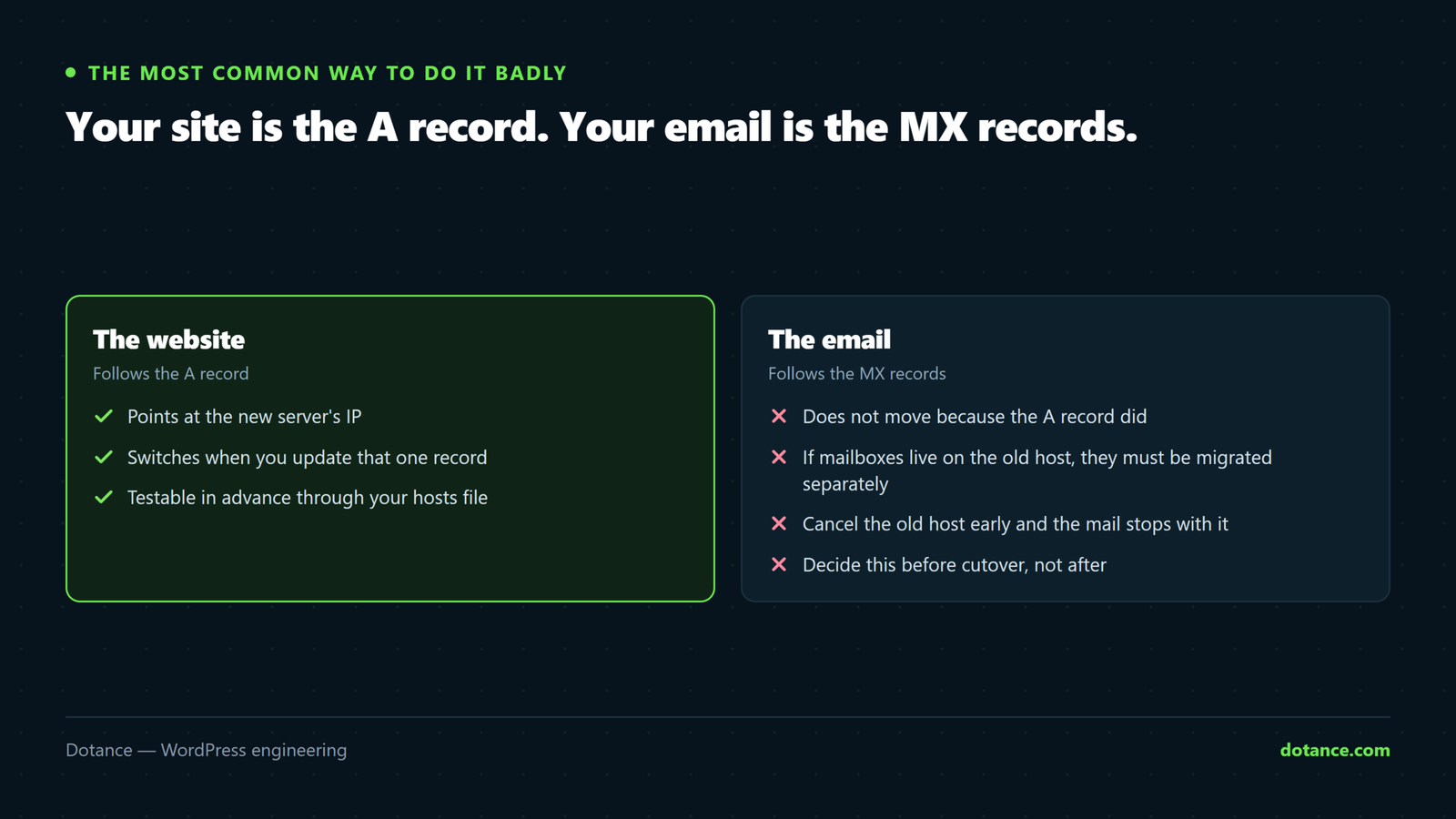
The most common way to change WordPress hosting badly is to forget that email is a different system pointed at by different DNS records.
Your site is the A record. Your email is the MX records, plus SPF, DKIM and DMARC in TXT records. Changing the A record does not move email — but changing nameservers wholesale moves everything, and mail stops the moment the new host’s empty DNS zone takes over.
# Record what you have before touching anything
dig +short MX yourdomain.com
dig +short TXT yourdomain.com
dig +short TXT _dmarc.yourdomain.com
If you switch nameservers rather than editing one A record, recreate every MX and TXT record on the new provider first. Mail outages from a host move are almost always this, and they are noticed by customers before they are noticed by you.
Safest sequence: change only the A record, keep DNS where it already is. You move hosting without touching mail at all.
Large sites, and when the simple method stops working
The rsync-and-export way to change WordPress hosting handles most sites comfortably. Above roughly 5 GB of uploads or a database of a few gigabytes it needs adjusting.
- Sync uploads days in advance, then re-sync at cutover. The second run moves only what changed.
- Export the database in pieces if the export times out —
wp db export --tables=...a few tables at a time. - Watch for max_allowed_packet on import. A large
wp_optionsrow will fail against a low limit; your new host can raise it. - Clean before you move. Expired transients, revisions and spam make the database larger and the move slower for no benefit — see database optimisation.
- For a busy shop, shorten the freeze window by doing the file sync early and only the database at cutover.
# Trim first — often removes most of the size
wp transient delete --expired
wp post delete $(wp post list --post_status=trash --format=ids) --force
wp db optimize
Rehearse it
For anything that earns money, change WordPress hosting once in rehearsal before the real day. You are not testing whether you can change WordPress hosting — you are timing it and finding the surprise.
A rehearsal is the same steps, stopping short of the DNS change: copy, import, configure, test through the hosts file, then write down how long each step took and what went wrong. On the real day you are repeating something you have already done, with the delta sync being the only new work.
Every migration we have run has surfaced something in rehearsal — a hard-coded path, a licence tied to a domain, a cron job nobody documented. Finding those with the old site still serving traffic is the entire point.
Where changing hosts goes wrong
| Mistake | Cost |
|---|---|
| TTL not lowered in advance | Up to 24 hours of split traffic, and a slow rollback |
| No delta sync at cutover | Whatever arrived in between is gone |
| Cancelling the old host immediately | Nothing to roll back to |
| Changing PHP version at the same time | Two suspects for every fault |
| Forgetting email is separate | Mail stops the moment DNS changes |
| SQL find-and-replace on serialised data | Corrupted options and widgets |
| Migrating during your busiest week | Every small problem at maximum cost |
Is changing host actually the answer?
Worth asking, because a slow site does not always get faster on new hardware. You can change WordPress hosting and arrive with the same problem. If the cause is an unindexed query, a bloated database or a heavy theme, you will change WordPress hosting and arrive with the same problem and a migration to unpick.
Measure first — why your site is slow covers separating server time from everything else. Good reasons to move: genuine resource limits, poor support, no staging environment, an unhappy sending reputation, or a host that will not keep PHP current.
A timeline you can hand to anyone
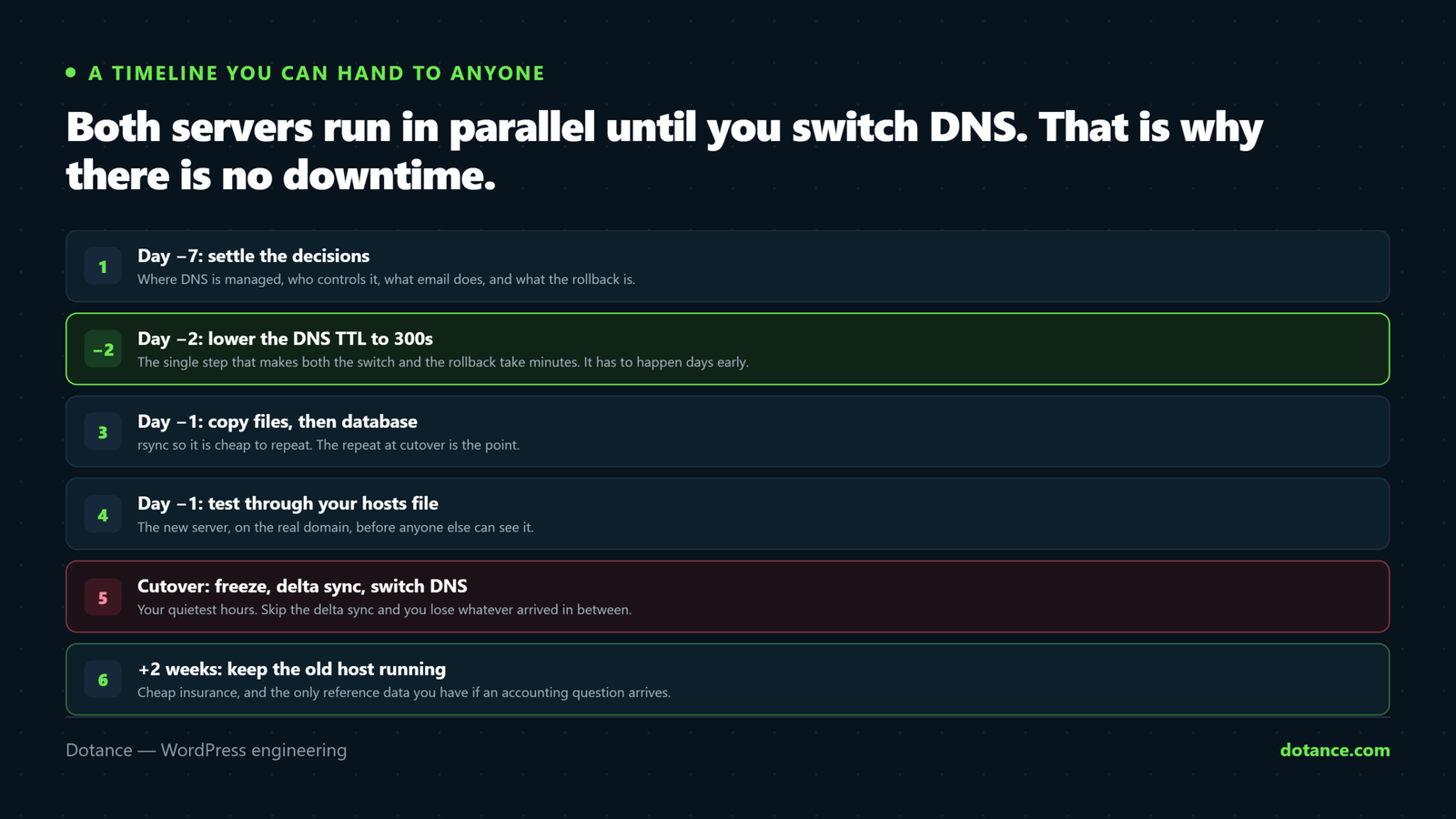
Set out as days, the plan to change WordPress hosting looks far less alarming than it sounds. This is the schedule we run, and it fits comfortably around a working week.
| When | Do | Site status |
|---|---|---|
| Day 1 | Choose the host, take the inventory, order the plan | Live on the old host |
| Day 2 | Copy files and database; configure the new server | Live on the old host |
| Day 3 | Rehearse: test through the hosts file, fix what surfaces | Live on the old host |
| Day 4 | Lower the DNS TTL to 300 | Live on the old host |
| Day 6 | Cutover: freeze, delta sync, switch DNS, verify | Live on the new host, no downtime |
| Day 6–20 | Watch logs, email, cron, speed, orders | Old host still standing by |
| Day 20 | Cancel the old hosting | Done |
The two-day gap between lowering the TTL and the cutover is not padding — it is the old TTL expiring in resolvers around the world. Skip it and you change WordPress hosting with a slow rollback, which defeats the purpose of the whole plan.
Note what is missing from that table: a maintenance page. Done this way there is never a moment when the site is unavailable, because the old server keeps serving until DNS moves and the new one is already tested and waiting.
The tool we use for the move itself: Sitecarry builds one package of files plus database with a standalone installer. Upload both to the new host, open the installer, give it the new database and URL, and it rewrites every address — including the serialized ones inside page-builder data that a plain search-and-replace corrupts.
Common questions
How long does it take to change WordPress hosting?
The cutover is under an hour. Preparing to change WordPress hosting properly takes longer than the switch itself. The preparation and testing take a day or two of elapsed time, most of it waiting for the TTL to expire and working through the checklist.
Will I lose search rankings?
No. Changing WordPress hosting does not move your URLs, and Google indexes URLs rather than IP addresses. Google cares about the URLs, not the IP. A slower new server can hurt over time, which is why speed is on the post-move watch list.
What if something goes wrong after the switch?
Point the DNS A record back at the old server — the rollback for a change of WordPress hosting is one record. With TTL at 300 you are trading again in minutes — which is exactly why the old host stays up.
Do I need to tell Google?
Not for a host change with the same domain. There is nothing to submit; the URLs did not move.
Can I do this without SSH?
Yes, with a migration plugin through the browser. It is slower and harder to repeat for the delta sync, so plan a shorter freeze window between the copy and the cutover.
Should I change WordPress hosting and redesign at the same time?
No. Change WordPress hosting first and confirm the site is healthy on the new server, then redesign. Stacking them means any problem has two possible causes and twice the time to find.
What about staging — does it move too?
Rebuild it on the new host rather than copying it. A staging environment that still points at the old server is a reliable way to edit the wrong site for a week after you change WordPress hosting.