Ask a site owner whether they have backups and they say yes. Ask when they last restored one and the answer is usually never, or once, three hosts ago. That gap is where sites are lost: the day the restore is needed is the first time anyone discovers the package is incomplete, the database export is empty, or the installer cannot run on the new server. The only way to know is to test WordPress backup restores before the day you need them, and this guide is the five checks that make up a real test, from the thirty-second version to the one that proves the site would come back whole.
Why you must test WordPress backup restores, not just make them
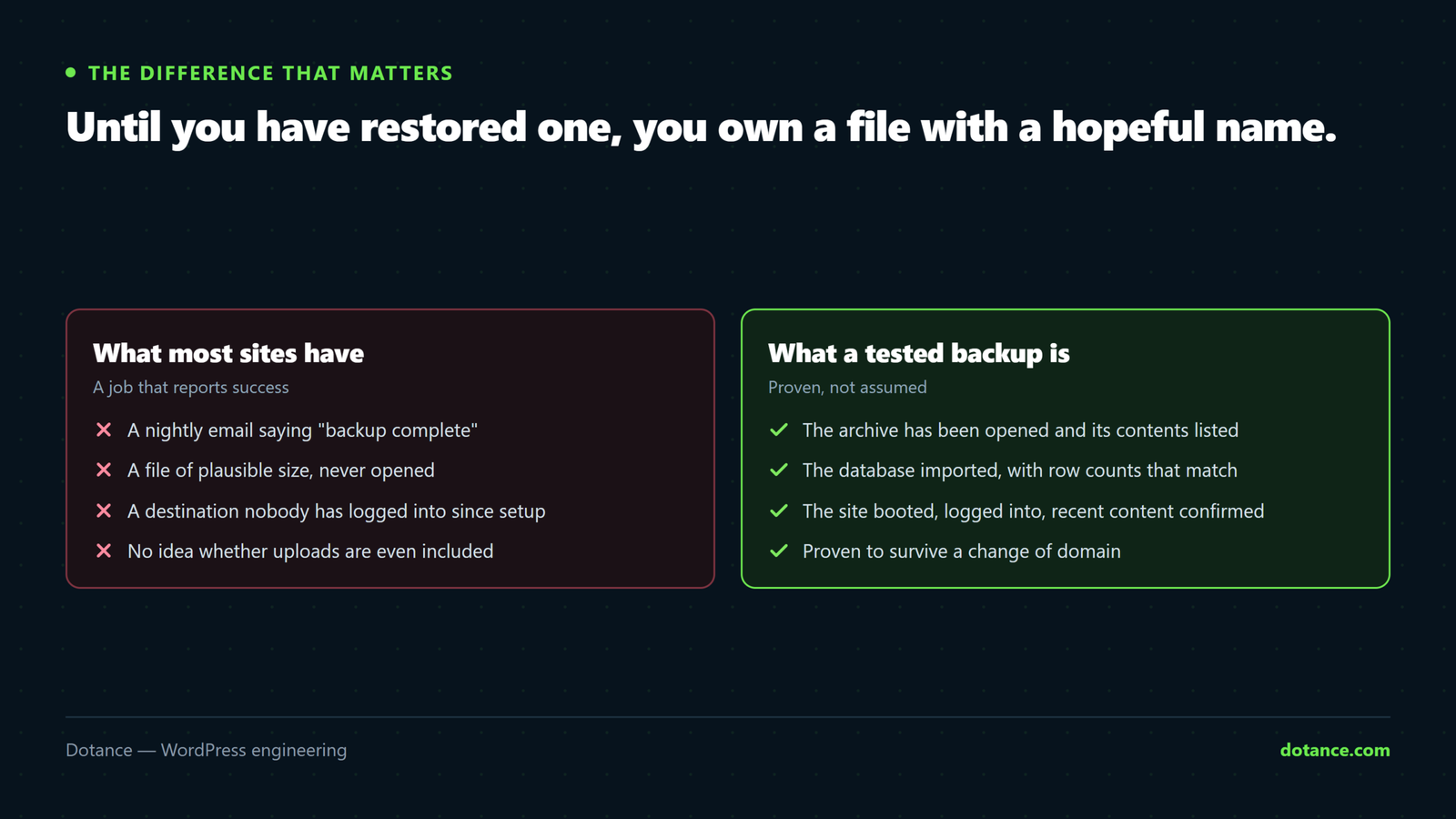
A backup has one purpose, which is to restore, and the WordPress backup documentation says the same in its first paragraph. Everything about it — size, schedule, destination — is in service of that, and none of it can be judged until a restore is attempted. The failure modes are not exotic; they are the same handful, and we have met each of them on a client site:
| What the dashboard said | What the restore found | Caught by check |
|---|---|---|
| “Backup complete, 2.0 GB” | The archive stopped at the host’s size limit; half the uploads missing | 1 |
| “Database exported” | Table structure only; a memory limit killed the data rows | 2 |
| “Files backed up nightly” | A cache folder and 40 GB of logs; no wp-config.php | 1, 3 |
| “Uploaded to Google Drive” | The OAuth token expired months ago; local copies only, on the failing server | 5 |
| “Restore successful” | Every Elementor page blank after the domain change | 4 |
Each row was a site with backups. Each would have been a total loss on the day. To test WordPress backup restores is to move that discovery from the worst day to a quiet Tuesday, which is the whole point.
Five checks to test WordPress backup restores
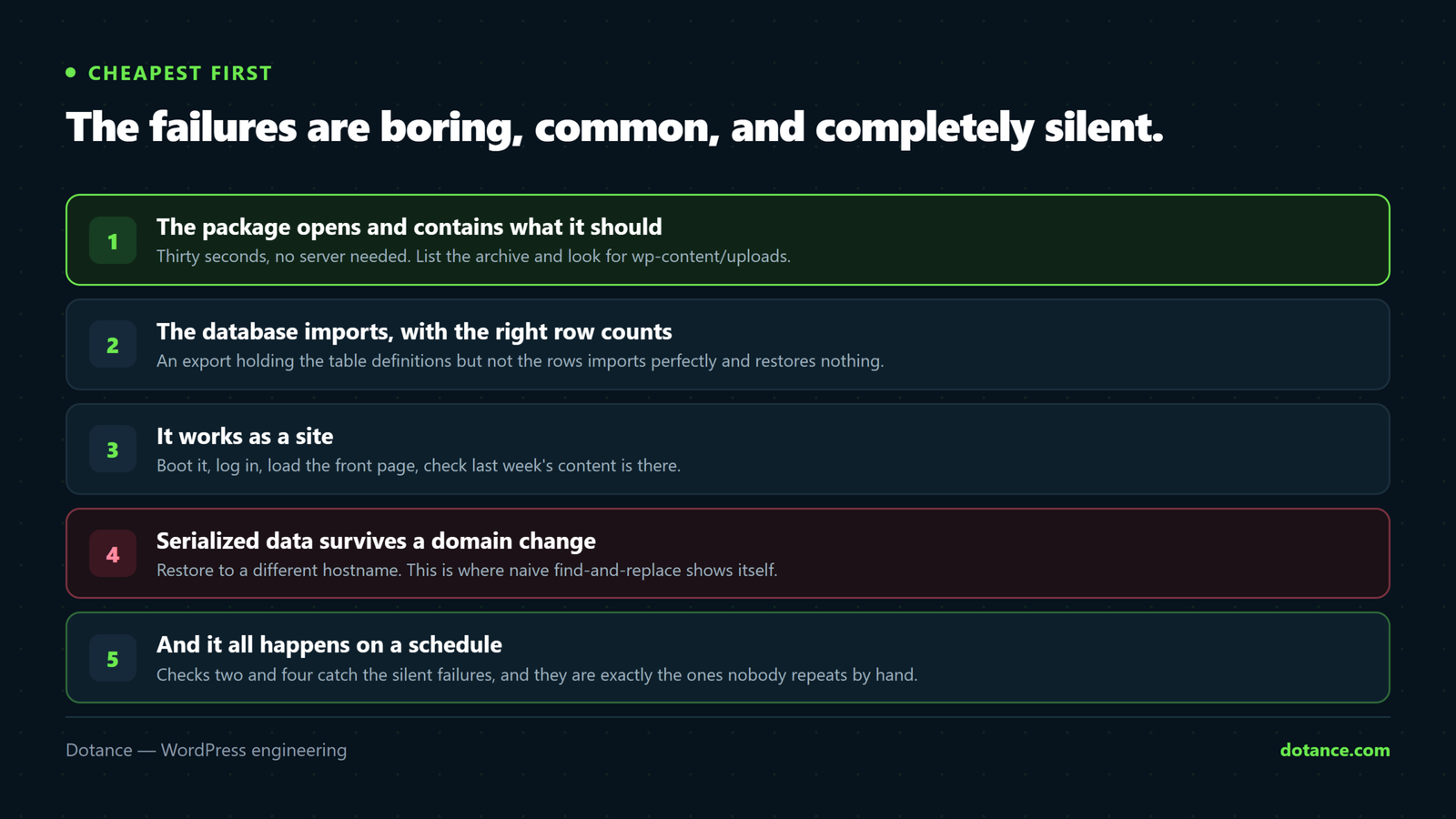
1. The package opens and contains what it should
Thirty seconds, no server needed, and the first way to test WordPress backup files. Download the latest package and list it:
List the archive without extracting
# zip
unzip -l site-backup.zip | tail -3
unzip -l site-backup.zip | grep -c "wp-content/uploads/"
unzip -l site-backup.zip | grep -E "wp-config.php|\.sql$"

# tar.gz
tar -tzf site-backup.tgz | grep -E "wp-config.php|\.sql$"
You want three things: a total size in the right ballpark for the site, a count of upload files close to what the media library reports, and both wp-config.php and a .sql file present. An archive that lists fine but is truncated fails with “unexpected end of archive” on the first command; that is the size-limit failure, and it means the tool needs to build in smaller parts or the host needs a bigger limit.
2. The database imports and the row counts match
This is where the empty-export failure is caught, and the most important way to test WordPress backup data. It does not need a second site. Import the SQL into a scratch database — or, cleverer, into the same database under a different table prefix — and count rows against the live tables:
Import into scratch tables and compare
# Rewrite the prefix on the way in, so wp_posts becomes scratch_posts
sed 's/`wp_/`scratch_/g' backup.sql > scratch.sql
mysql --defaults-file=~/.my.cnf dbname < scratch.sql

# Compare the tables that matter
mysql --defaults-file=~/.my.cnf dbname -N -e "
  SELECT 'posts',   (SELECT COUNT(*) FROM wp_posts),   (SELECT COUNT(*) FROM scratch_posts)
  UNION SELECT 'options', (SELECT COUNT(*) FROM wp_options), (SELECT COUNT(*) FROM scratch_options)
  UNION SELECT 'users',   (SELECT COUNT(*) FROM wp_users),   (SELECT COUNT(*) FROM scratch_users);"

# Then throw the scratch tables away
mysql --defaults-file=~/.my.cnf dbname -N -e "SHOW TABLES LIKE 'scratch_%'" | xargs -I{} mysql --defaults-file=~/.my.cnf dbname -e "DROP TABLE {}"
Counts within a day’s activity of each other are a pass, and the whole reason to test WordPress backup exports this way rather than trusting the file size. A scratch table with zero rows where the live one has thousands is the structure-only export, and the fix is usually the tool’s memory or time limit — the memory-exhausted guide and the execution-time guide cover both. Note the sed only works on a dump with backticked table names; check the first few lines of yours.
3. The restored site works as a site
Rows are not a website. The third way to test WordPress backup packages is to bring one up somewhere and click around: a subfolder on the same host, a free staging slot, a local install, a throwaway VPS. Then a short script of things that break:
The ten-minute walk-through
1. Home page loads with images and styles.
2. A deep post and a page load — permalinks survived.
3. Log in. The admin loads; plugins are active; no "table missing" notices.
4. Media library shows thumbnails, and one upload works.
5. Open the busiest page-builder page in the editor — it renders, not a blank canvas.
6. Contact form submits; a test order or booking completes if the site sells.
7. wp plugin list shows nothing "inactive" that was active on live.
Write down what you found the first time you test WordPress backup restores this way, because the second time is a comparison rather than a discovery: the same package size, the same table count, the same ten steps passing. Anything that differs is the thing to investigate.
Do this once per backup tool and again whenever the tool has a major update. It is the check that finds a missing wp-config.php, an installer that cannot run under the new PHP version, and a package that restores everything except the one plugin table that holds the orders. If you have never done it, the first run is the most valuable hour you will spend on the site this year.
4. Serialized data survives a domain change
Restoring to the same domain is the easy case, and a test WordPress backup routine that stops there misses the disaster scenario. Restoring to a new one — the disaster case, when the old host is gone — means every stored URL must be rewritten, and a share of them are inside serialized arrays where the string length is stored beside the value. A naive replace corrupts them, and the symptom is a site where the settings are “reset” and every Elementor page is blank. The domain-migration guide explains the mechanism; the test is short:
Prove the rewrite is serialization-aware
# On the restored copy under its new URL, after the tool's rewrite:
wp option get elementor_settings --format=json | head -c 120
# → a JSON object. If it prints false or "", serialized data was corrupted.

# Count leftovers of the old domain; should be 0
wp search-replace 'old.com' 'new.com' --all-tables --dry-run | tail -2
If your backup tool’s restore rewrites URLs, this is the check that proves it did so correctly. If it does not rewrite at all, you know now that a domain-change restore needs wp search-replace afterwards, and you can write that into the runbook rather than discover it.
5. It all happens on a schedule, off-site, without you
A backup you have to remember to take is a backup that stops when you are busy, and no amount of effort to test WordPress backup packages helps if the packages stop arriving. The fifth check is about the process, and it has three parts. The schedule runs: look at the destination, not the dashboard, and confirm a package from last night is there with the expected size.
The destination is off the server: a backup on the same disk as the site dies with it. And failures reach you: a token that expired or a run that timed out should be an email, not a surprise. The backup-plugin checks go through the tool side; the process side is simply looking, once a month, at the last file in the bucket.
Trust the destination, not the dashboard
# Amazon S3 or compatible: is last night there?
aws s3 ls s3://my-backups/site/ --human-readable | tail -3

# Google Drive via rclone
rclone lsl gdrive:backups/site/ | tail -3
How to test WordPress backup restores without SSH
Shared hosting without a terminal changes the tools, not the checks. Check one is the file manager: download the package, open it locally with the operating system’s archive viewer, and look for the SQL file, wp-config.php and a plausible uploads folder. Check five is the destination’s own interface: open the Drive folder or the bucket and look at the newest file’s date and size.
Check two, the row counts, works in phpMyAdmin. Create a second database in the hosting panel, import the SQL there (the panel’s import is capped, often at 50 MB, so a larger dump needs splitting or a tool that imports in slices), then compare a few tables’ row counts with the live database side by side. Drop the second database afterwards. Check three is a subfolder install: most panels let you point a folder like /test at its own WordPress, restore the package into it, and walk through the ten steps. That subfolder install also answers check four, because it runs under a different URL and every stored address had to be rewritten to get there.
It is slower than the command line, and it is entirely possible. The point is to test WordPress backup restores at all; how is secondary.
A test WordPress backup runbook you can keep
Write the following down once, with the real names filled in, and keep it with the site’s documentation. On the bad day, whoever is on call follows it rather than remembering it.
The runbook
Backup tool: ................   Destination: ................   Retention: ......
Package naming: ..............  Installer file: .............
Last full restore test: ......  Where: .................  Result: ......
Last row-count check: ........  Tables compared: posts, options, users, orders
PHP version live: ......  Restore target must match.
Domain-change rewrite: [ ] done by installer  [ ] needs wp search-replace afterwards
Who is notified on failure: ..............
Keep the runbook where the site documentation lives, not in one person’s inbox, and give it a date at the top that changes every time somebody uses it. A runbook nobody has opened in a year is a sign nobody has run a test WordPress backup check in a year either; the two go stale together. If the site changes hosts, PHP version or backup tool, the runbook changes the same day, because those three are exactly the things a restore depends on and the things that drift.
Half the value of a runbook is the blanks it makes you fill. A team that cannot write the installer’s file name from memory has not restored recently, and a line that says “needs wp search-replace afterwards” has saved more than one Elementor site. Review it whenever you test WordPress backup restores, and date the line.
The rehearsal: all five checks, weekly, automatically
Checks two and four are the ones that catch the silent failures, and they are also the ones nobody repeats, because each is twenty minutes of careful work. So we built the rehearsal into Sitecarry, our free backup plugin. On a schedule — weekly by default — it takes the latest package, imports the database into scratch tables on the same site, compares row counts with the live tables, checks that the result would work as a site, confirms serialized data survives a domain change, and drops the scratch tables. Nothing on the live site is touched. The result is a line on the Backups screen: rehearsed, when, passed or failed — and a notification when it fails.
That is the difference between a backup and a proven backup, and it costs nothing but a few minutes of database time in the small hours. If you use a different tool, the manual version above is the same test; put it in the calendar quarterly and do it. To test WordPress backup restores four times a year is four times more than most sites manage.
What the rehearsal does not prove. It proves the database and the URL rewrite. It does not extract every file, because doing that weekly on shared hosting would fill the disk. Check one — listing the archive — covers the files cheaply, and check three, done once per tool, covers the rest.
Where testing a WordPress backup goes wrong
| Mistake | What happens | Instead |
|---|---|---|
| Testing on the live database | The “test” overwrites production | Scratch tables or a scratch database, always |
| Restoring to the same domain only | The domain-change failure waits for the real disaster | Check four, on a subfolder or staging URL |
| Trusting “backup complete” | A truncated archive, reported as success | List the archive; compare sizes |
| Leaving the scratch tables | They end up inside the next backup, doubling it | Drop them; a good rehearsal tool does |
| Testing once, when the tool was installed | A later update or PHP upgrade breaks the installer unnoticed | Quarterly by hand, or weekly automated |
| Restoring to a server with a different PHP version | The installer fatals; the site half-restored | Match PHP first — see what a PHP upgrade breaks |
The first row is the one that turns a test into a disaster. Never point a restore at the live database to “see if it works”. Every check above is designed to run beside the live site, not over it, and to test WordPress backup restores safely is to keep that line.
Questions about how to test WordPress backup restores
How often should I test WordPress backup restores?
The cheap checks — the archive lists, the destination has last night’s file — monthly. The database and domain-change checks quarterly by hand, or weekly if a tool does them for you. A full restore to a scratch site once per backup tool and after any major update to it.
Can I test WordPress backup restores without a second server?
Yes. Checks one, two and four run against a scratch database or scratch tables on the same host, and check five is looking at the destination. Only check three, the walk-through, needs a running copy, and a subfolder on the same hosting account is enough for that.
My backup plugin says the restore succeeded. Is that not a test?
It proves the tool ran its restore routine without an error it noticed. It does not prove the package was complete, the data rows were there, or the site works. The walk-through is ten minutes and answers those.
What is the most common thing a test WordPress backup run finds?
In our experience, a database export with structure but no data — a memory or time limit killed it silently — followed by an off-site destination that stopped receiving files months earlier. Both are invisible from the dashboard and obvious from the checks.
Is a host’s backup enough?
Host backups are a fine second copy and a poor only copy, and they are the copy people most often assume exists without ever having seen it listed. They are on the host’s terms — retention, restore speed, and whether they exist at all if the account is suspended. Test WordPress backup restores from the host’s tool too, once, so you know what it gives you and how long it takes.
Should a test WordPress backup check include the files or just the database?
Both, but at different frequencies, and for different reasons. The database changes daily and fails silently, so it gets the frequent check. Files change less and fail loudly, so listing the archive monthly and one full restore per tool covers them.
What does Sitecarry’s rehearsal actually run?
Import the latest package’s database into scratch tables, compare row counts with the live tables, load the result as WordPress would, confirm serialized values survive a URL rewrite, and drop the scratch tables — then record pass or fail and notify on fail. Weekly by default, or on demand from the Backups screen.