Every WordPress admin has the same screen, and almost nobody knows which half of it to take seriously. WordPress Site Health lists critical issues and recommended improvements side by side, in the same visual weight, with a percentage on top that looks like a score out of a hundred. It is not one. Here is which warnings actually cost you something, which are safe to decline, and why the number itself is the least useful thing on the page.
What WordPress Site Health actually measures
WordPress Site Health runs about thirty tests, some immediately and some by background request. Each returns good, recommended or critical, and the percentage is the share that came back good.
That design has two consequences people rarely notice:
| Consequence | What it means for you |
|---|---|
| All tests weigh the same | “Consider a persistent object cache” counts as much as “PHP is out of date” |
| Plugins can add tests | Your score can drop because you installed something, not because anything broke |
| Some tests need a working loopback | If loopbacks fail, several results are wrong rather than bad |
| Results are cached | A fixed problem can keep showing until the page is reloaded |
So the WordPress Site Health percentage tells you how many boxes are ticked, not how much risk you are carrying. A site at 92% with a broken scheduler is in worse shape than a site at 71% whose only complaints are optional caching layers.
The Info tab is the better half of the screen. It lists your PHP version, memory limits, active theme, every plugin and its version, and the server software — all in one copyable block. When you open a support ticket with your host, that tab is what you paste.
The six WordPress Site Health warnings that actually matter
| # | Warning | What it really costs you |
|---|---|---|
| 1 | Search engines are discouraged | Your entire organic traffic |
| 2 | Scheduled events are not running | Backups, publishing, renewals |
| 3 | The site could not complete a loopback request | Cron, updates, the editor |
| 4 | PHP is out of date | Security, and plugin compatibility |
| 5 | Background updates are not working | Security patches never apply |
| 6 | Not using HTTPS | Trust, rankings, and blocked features |
1. “Search engines are discouraged from indexing this site”
This is the most expensive checkbox in WordPress, and the one WordPress Site Health warning worth interrupting your day for. It is one click away in Settings → Reading. It gets ticked on a staging site, and then the staging site becomes the live site.
# 1 means discouraged. You want 0.
wp option get blog_public
If WordPress Site Health is telling you this, stop reading and fix it now. Nothing else on the screen costs you as much per day. The full recovery path, including how long re-indexing takes, is in why a WordPress site is not showing on Google.
2 and 3. Scheduled events and loopback requests
These two WordPress Site Health warnings are usually the same fault, and they are the pair most often dismissed as technical noise.
WordPress runs scheduled work by calling its own URL. If that call fails, scheduled posts do not publish, backups do not run, renewals are not charged and update checks never happen — all silently. The WordPress Site Health warning is frequently the only notice you will ever get.
wp cron test
wp cron event list --fields=hook,next_run_relative
Negative times in that second output confirm it. The six causes and the durable fix are in WordPress cron not running — and note that a loopback failure also breaks the plugin editor, plugin installation and several other Site Health tests, which is why it can make the whole screen look worse than reality.
4 and 5. PHP version and background updates
Both are real, and both need care. An unsupported PHP version stops receiving security fixes, and plugin authors drop support for it within a year or two. This is a real warning, and it is also the one where “just update it” is bad advice — a PHP jump breaks sites that were never tested on the new version.
Do it deliberately, on staging first. The failure modes are catalogued in when a PHP upgrade breaks WordPress.
Background updates matter for the same reason in a different direction: if they are not working, WordPress cannot apply a security release automatically, and you find out at the worst possible moment. Fix the loopback first — the two are usually the same underlying problem.
6. HTTPS
A site not served over HTTPS in 2026 is losing trust, rankings and access to browser features that require a secure context. The related trap is a site that has a certificate but still loads insecure assets, which produces a different complaint and the same practical damage — see mixed content warnings.
The nine you can usually decline
WordPress Site Health flags these in the same red-adjacent styling as the six above, which is why so much unnecessary work starts here.
These are recommendations, and WordPress Site Health is explicit that they are optional. Declining them on purpose is a legitimate engineering decision; being unable to explain why you declined is not.
| Warning | When to ignore it | When not to |
|---|---|---|
| No persistent object cache | Brochure sites, low traffic | Busy shops and membership sites |
| Page cache not detected | Caching happens at the CDN or edge | Nothing is caching anywhere |
| No opcode cache detected | Often present but undetectable | Genuinely absent on a VPS you control |
| Optional PHP modules missing | You do not use the feature | imagick or curl are missing |
| PHP default timezone | Informational on most hosting | Your dates are visibly wrong |
| PHP sessions detected | One plugin legitimately uses them | They are breaking your page cache |
| Could not reach WordPress.org | A transient network blip | It persists — updates will fail |
| Authorization header missing | You use no header-based REST auth | An app or integration needs it |
| SQL server should be updated | Managed hosting, not your decision | You run the server |
The object cache row is the one that sells the most unnecessary work. Redis or Memcached genuinely helps a site doing thousands of uncached database queries a minute. On a twelve-page business site it adds a moving part, a service to monitor and a class of cache-invalidation bug, in exchange for milliseconds nobody experiences. WordPress Site Health cannot tell the difference, so you have to.
“Page cache not detected” is frequently wrong. The test measures response times and looks for known cache headers. A site behind Cloudflare or a host-level cache can fail it while being comprehensively cached. Check your actual response headers before buying a caching plugin to satisfy a test.
Why the percentage misleads
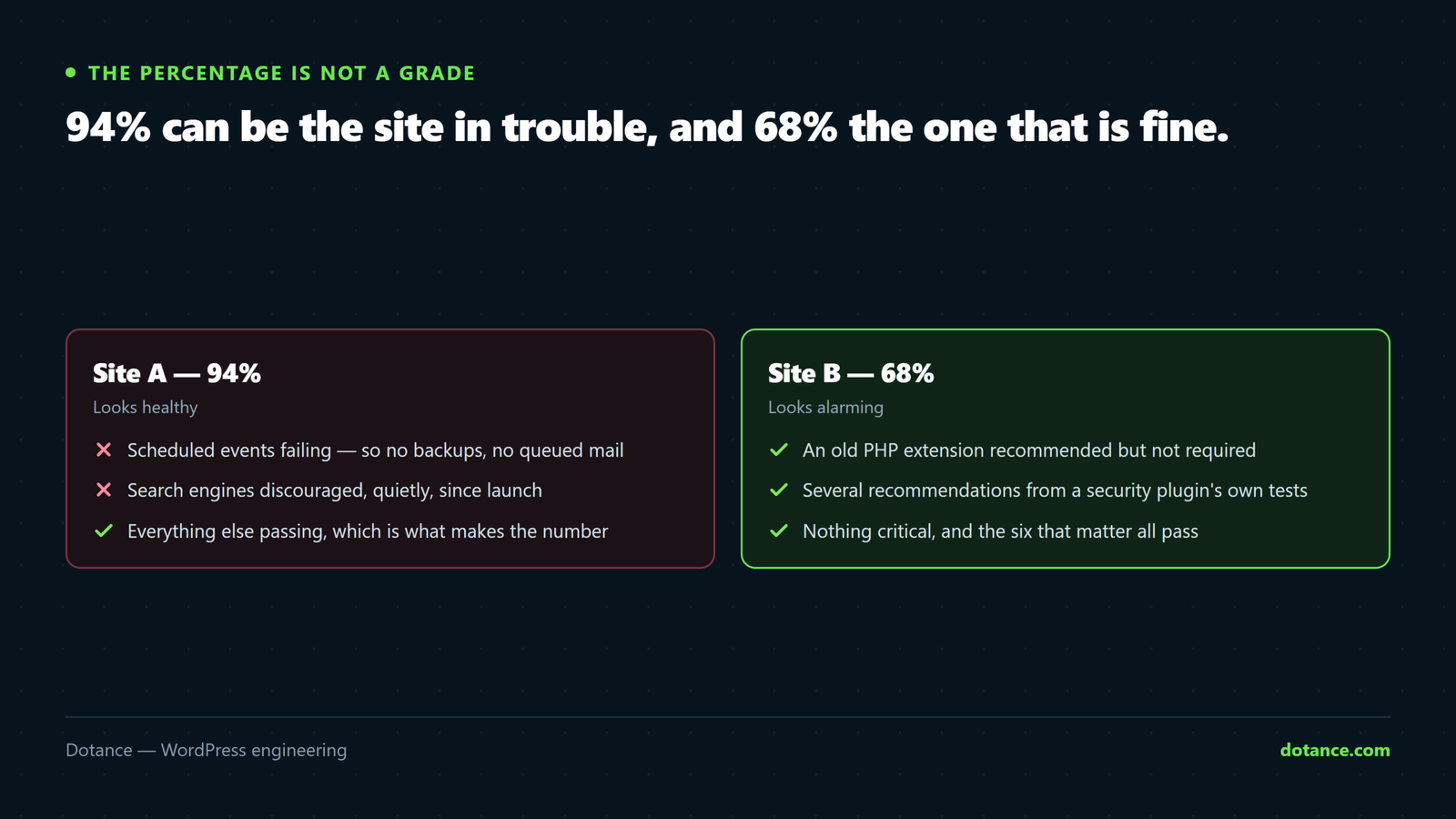
Two sites with the same WordPress Site Health screen, very different situations:
| Site A | Site B | |
|---|---|---|
| WordPress Site Health score | 94% | 68% |
| Scheduled events | Failing | Fine |
| Search engine visibility | Discouraged | Fine |
| Object cache | Present | Absent, deliberately |
| Optional PHP modules | All present | Three missing, unused |
| Actually at risk? | Yes, badly | No |
Site A has two critical problems and a good-looking number. Site B has a poor-looking number and nothing wrong. If you report the percentage to a client as a health figure, you will eventually have to explain why 68% was fine — so do not report it. Report the six.
There is a second reason the number moves on its own: plugins register their own tests. Install a security plugin and the score can drop ten points overnight while nothing about the site has changed. Before investigating a fall, check what was installed that week.
A sane monthly WordPress Site Health routine
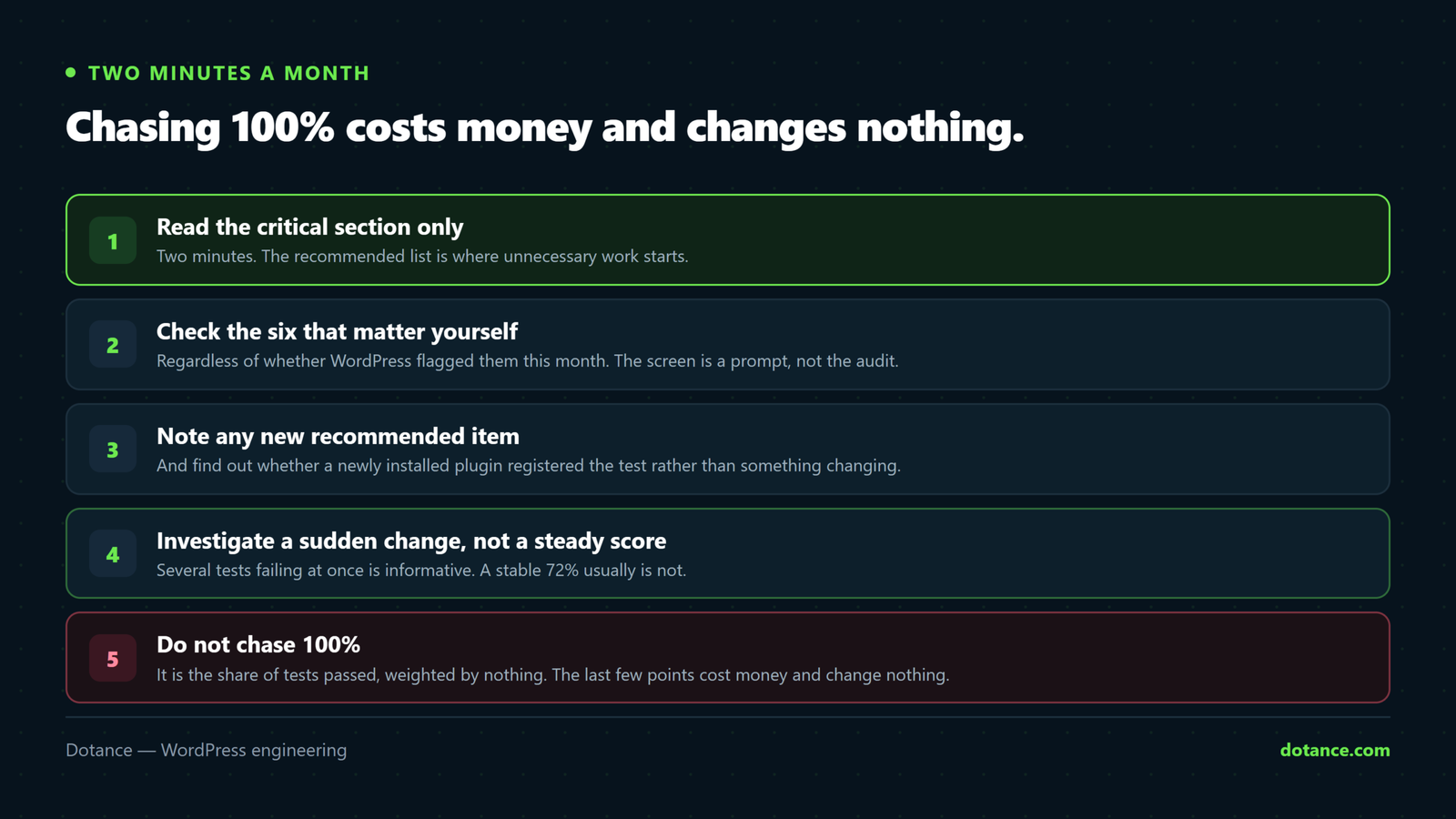
- Open the Status tab and read the critical section only. Two minutes.
- Check the six above, regardless of whether WordPress flagged them.
- Note any new recommended item and decide once whether you are declining it.
- Write the declined ones down so the next person does not re-investigate them.
- Copy the Info tab into your maintenance notes if anything is about to change.
Step four is the one that saves real time on every future WordPress Site Health review. A documented “we do not use an object cache on this site, deliberately, because traffic is 400 sessions a month” ends that conversation permanently. Without it, every developer who touches the site rediscovers the same warning and quotes for the same work. This belongs in the same document as the rest of your maintenance checklist.
Turning WordPress Site Health into something a client can read
If you maintain sites for other people, the WordPress Site Health screen is a reporting problem as much as a technical one. The percentage invites the wrong conversation and the test names are written for developers.
What works is a three-line summary that replaces the number entirely:
| Line | Example |
|---|---|
| What is at risk right now | “Nothing. Backups ran every night this month.” |
| What we changed | “PHP moved to 8.3 on the 4th, tested on staging first.” |
| What we are deliberately not doing | “No object cache — your traffic does not need one. Revisit above 5,000 sessions a month.” |
That third line is the one clients remember, because it is the only place anyone tells them what they are not being sold. It also inoculates against the next agency who opens WordPress Site Health, points at a recommendation and quotes for it.
Keep the raw screen available if they want it. The point is not to hide anything — it is that a number which weighs “PHP is unsupported” the same as “consider an object cache” is not a summary of anything, and handing it over unexplained does the client no favours.
The tests your plugins added
Any plugin at all can register a WordPress Site Health test, and plenty do. Security plugins add half a dozen; backup plugins add one about the last successful run; performance plugins add their own caching checks.
| Plugin-added test | Worth acting on? |
|---|---|
| “Your last backup was N days ago” | Yes — that is a real fact about your site |
| “File editing is enabled” | Yes — a two-line hardening fix |
| “You are not using our premium features” | No — that is an advertisement in a warning box |
| “Recommended settings not applied” | Depends entirely on the plugin’s opinion |
| “Your licence is expiring” | Commercial, not technical |
The third row is worth naming plainly. Several popular plugins put upsells into the recommended list, where they sit in the same typeface as WordPress’s own security warnings. A WordPress Site Health screen is not a neutral document once you have thirty plugins installed, and reading it as one is how people end up buying things to clear a warning somebody wrote in order to sell them something.
Backup-related tests are the honourable exception and the most useful addition of the lot, because a backup that stopped running four weeks ago is exactly the sort of thing nobody notices — the argument for checking is the same one made in backups done right.
Where this goes wrong
| The mistake | What happens | Do this instead |
|---|---|---|
| Treating the percentage as a grade | Effort spent on the wrong warnings | Read the critical section |
| Installing Redis to clear one warning | A service to maintain, no benefit | Decline it, and write down why |
| Ignoring “search engines discouraged” | Months of invisible traffic loss | Check blog_public today |
| Upgrading PHP straight on live | A white screen at the worst time | Staging first, then live |
| Dismissing cron warnings as technical | Backups that quietly stopped | Run wp cron test |
| Chasing 100% | Money spent to satisfy a test | Six items, then stop |
| Assuming a falling score means damage | Investigating a new plugin’s tests | Check what was installed |
The Redis row is not hypothetical. It is one of the most common pieces of unnecessary work sold off the back of this screen, and WordPress Site Health has no idea what your traffic looks like when it recommends it.
When a low score is worth investigating
None of this means WordPress Site Health is useless. A sudden change is informative even when the individual items are not.
| Pattern | What it suggests |
|---|---|
| Several tests fail at once | Loopbacks are broken — fix that first |
| Score drops after an update | A plugin added tests, or one broke |
| Score drops after a migration | Cron, permissions or PHP version changed |
| Critical items appear overnight | Something was reconfigured — check with whoever has access |
| Same recommendation for two years | Decline it formally and move on |
The first row is the most useful diagnostic on this whole page. Because so many WordPress Site Health tests depend on the site being able to call itself, a single loopback failure makes five unrelated results go red. Fix the loopback and the screen often repairs itself.
The tests themselves, and the API for adding your own, are documented in the WP_Site_Health class reference — worth a look if you want to know exactly what a given warning measured before you act on it.
Frequently asked questions
What is a good WordPress Site Health score?
There is no good WordPress Site Health score, and that is the honest answer. A site with no critical issues and a handful of deliberately declined recommendations is healthy at any percentage. Judge by the critical list, not the number.
Should I install an object cache because it says to?
Only if your traffic justifies it. Under a few thousand sessions a month, no. On a busy WooCommerce store, yes — and there it will make a genuine difference rather than clearing a warning.
Why does it say my page cache is missing when I have one?
The test looks for specific headers and measures response time. Edge caching, some host-level caches and logged-in testing can all cause a false negative. Check the response headers yourself before changing anything.
Can I remove tests I have decided to decline?
Yes, with the site_status_tests filter. Be careful: removing a test hides it from everyone, including the next person, so a documented decision is usually better than a silenced warning.
How often should I check WordPress Site Health?
Monthly is plenty for a stable site, plus once after any migration, PHP change or major update. Checking it weekly does not catch anything a monthly check misses, because the warnings that matter persist until fixed.
Does the score affect SEO?
Not directly — Google never sees your WordPress Site Health screen. Indirectly, yes, because two of the six above affect indexing and speed, and those do matter. The percentage itself is invisible to search engines.
Why do results change between page loads?
Async tests run by background request and depend on loopbacks and network conditions. If results flicker, that is itself a sign of an unreliable loopback, which is cause three.
Should clients see this screen?
Only with context. A client who finds 68% on their own will believe their site is failing, and you will spend an hour explaining an optional caching recommendation. Give them the six items in plain language instead — that is a report they can act on, and it is the substance of keeping a site updated safely.