The exact message
Fatal error: Allowed memory size of 134217728 bytes exhausted
(tried to allocate 20480 bytes) in
/home/user/public_html/wp-content/plugins/some-plugin/class-import.php on line 214
Three useful facts are buried in there.
| Part | What it tells you |
|---|---|
134217728 bytes | Your ceiling. Divide by 1048576 to get MB — this is 128M. |
tried to allocate 20480 bytes | How much more it wanted. A small number here means it was already at the edge, not that one huge thing happened. |
| The file path | Which code was running when it ran out. This is your suspect. |
| Bytes | Is |
|---|---|
| 33554432 | 32M |
| 67108864 | 64M |
| 134217728 | 128M |
| 268435456 | 256M |
| 536870912 | 512M |
The three limits — and why yours will not move
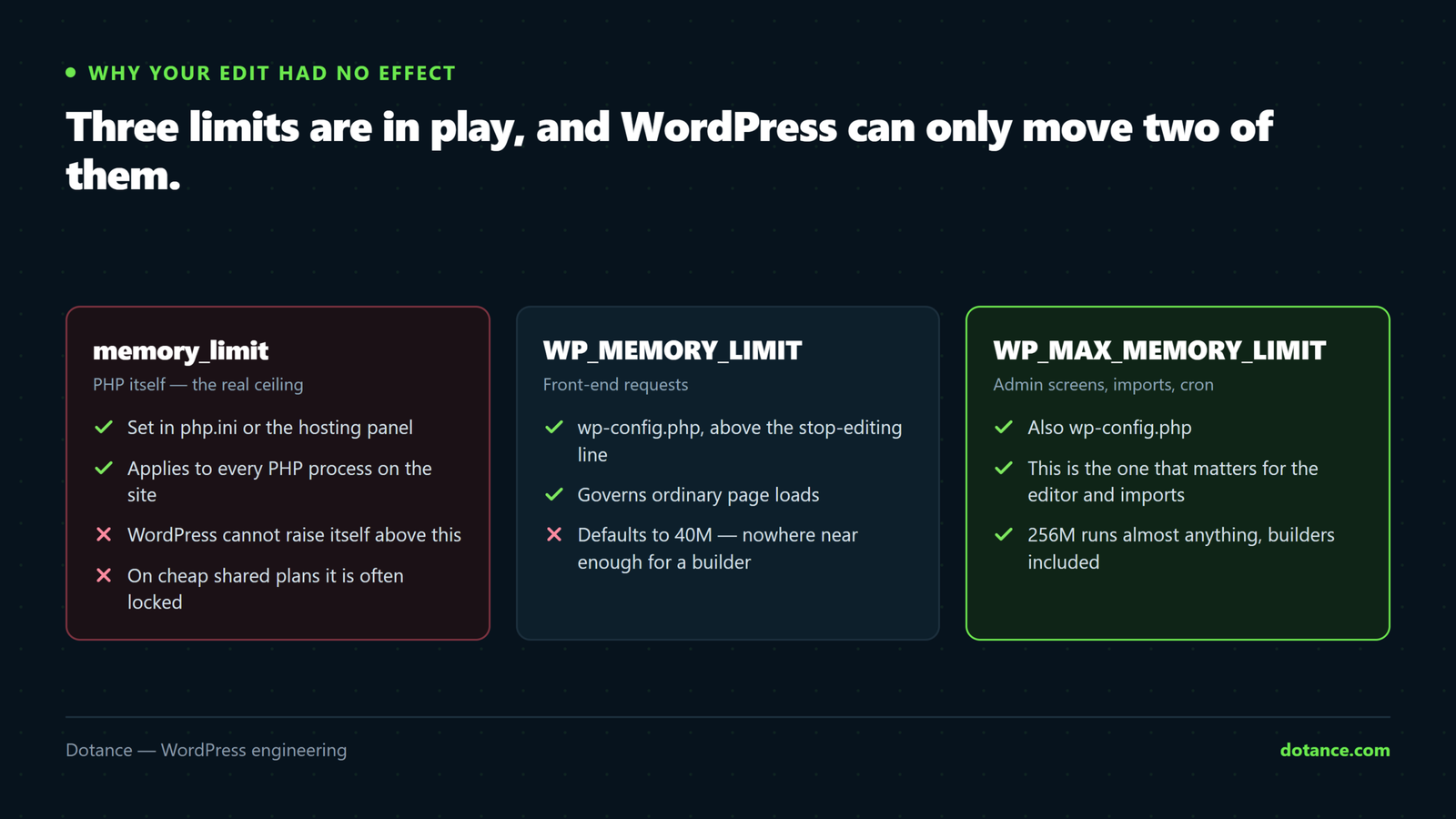
This is the part most guides skip, and it is why people edit wp-config.php five times with no effect.
| Limit | Set where | Applies to |
|---|---|---|
memory_limit | PHP — php.ini or the host panel | Everything. The hard ceiling. |
WP_MEMORY_LIMIT | wp-config.php | Front-end pages. Defaults to 40M. |
WP_MAX_MEMORY_LIMIT | wp-config.php | Admin and cron. Defaults to 256M. |
WordPress cannot exceed PHP’s memory_limit. Both WordPress constants work by calling ini_set() at runtime — so if your host sets PHP’s limit as a locked master value, or disables ini_set, WordPress asks and PHP refuses. Your edit is not being ignored; it is being denied.
That single fact explains most of the frustration with this error.
Step 1: raise it in wp-config.php
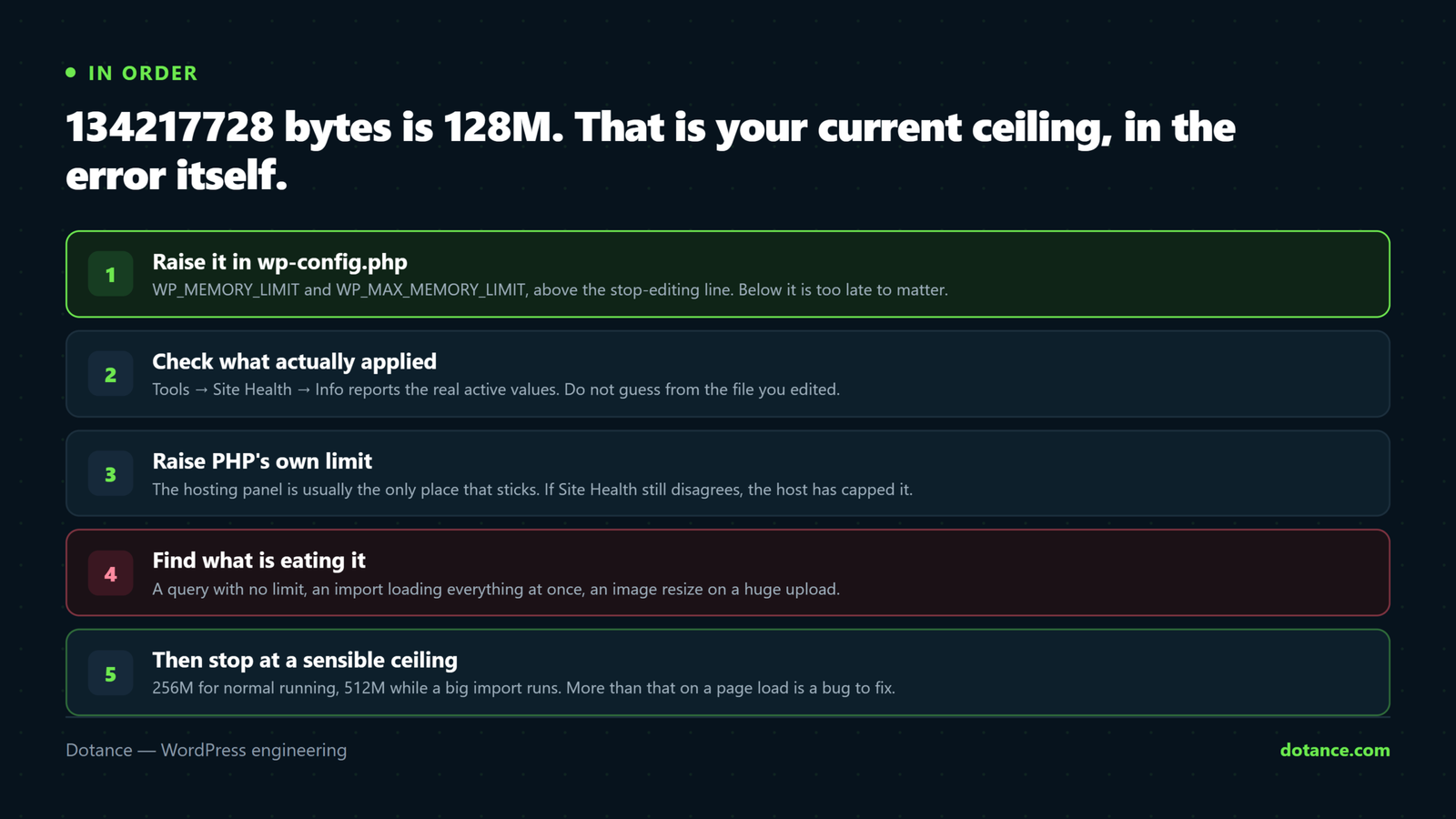
Add these above the /* That's all, stop editing! */ line — anything below it is too late to matter:
wp-config.php
define( 'WP_MEMORY_LIMIT', '256M' );
define( 'WP_MAX_MEMORY_LIMIT', '256M' );

/* That's all, stop editing! Happy publishing. */
Reload the page that was failing. If the error is gone, go to the last section — because the number moving is not the same as the problem being solved.
Step 2: check what actually applied
Do not guess. WordPress reports the real, active values:
Tools → Site Health → Info → Server — look for PHP memory limit. Then → WordPress Constants for WP_MEMORY_LIMIT.
Or with WP-CLI:
wp eval "echo ini_get('memory_limit');"If Site Health still shows 128M after your edit, PHP is capped and you need the next step.
Step 3: raise PHP’s own limit
Use whichever your hosting allows — the panel is usually the only one that sticks:
- Hostinger: hPanel → Advanced → PHP Configuration → PHP Options →
memory_limit - cPanel: Select PHP Version → Options →
memory_limit - Plesk: Websites & Domains → PHP Settings
- SiteGround: Site Tools → Devs → PHP Manager
- Cloudways: Server Management → Settings & Packages → Basic
- WP Engine, Kinsta: fixed by the platform — open a ticket
Editing files directly, if you have that access:
php.ini
memory_limit = 256M.htaccess — Apache only
php_value memory_limit 256MThe .htaccess line is Apache-only. On Nginx, LiteSpeed or PHP-FPM — most modern hosting — it is ignored, or throws a 500 Internal Server Error. If the site dies the moment you add it, that is the reason: take the line out.
Step 4: find what is eating it
If you keep raising the number and keep hitting it, the number was never the problem. Look for:
- A query with no limit —
get_posts()orWP_Querywithposts_per_page => -1on a table with thousands of rows loads every one into memory. - Image processing. Regenerating thumbnails holds the full uncompressed bitmap in memory: a 6000×4000 photo is roughly 96MB while being resized, whatever the file size on disk.
- An import or backup reading a whole file rather than streaming it.
- A plugin caching too much — object caches that never expire.
Query Monitor shows peak memory per page load and attributes queries to the plugin that made them. If a page uses 40M and one uses 400M, you have found it without guessing.
Bisecting also works and needs no tools: deactivate half your plugins, test, then halve the half that still fails.
What a sensible ceiling looks like
256M runs almost anything, WooCommerce and page builders included. 512M is reasonable while a big import runs. If normal page loads need more than that, treat it as a bug to find rather than a number to keep raising — memory that climbs forever usually means something is loading everything instead of a page at a time.
Common questions
I set 512M and Site Health still says 256M.
Your host caps it. Ask support for the ceiling on your plan — on cheap shared hosting it is often fixed and non-negotiable.
What is the difference between the two WordPress constants?
WP_MEMORY_LIMIT applies to front-end pages; WP_MAX_MEMORY_LIMIT to admin screens and cron, which WordPress already allows more of. If the error only appears in wp-admin, the second one is what you want.
Does more memory make the site faster?
No. Memory is headroom, not speed. A site with 512M and a slow query is exactly as slow — it just fails later.
It only fails during imports.
That is the normal case, and the right answer is not a permanent increase. Raise it for the job, or run the import through WP-CLI, where limits are far more generous and the browser is out of the loop.