A 500 internal server error is the least informative message on the web. It means “something went wrong and I am not going to tell you what” — which is why most advice for it is a list of things to try at random.
There is a better way. The server almost always wrote down exactly what happened; you just have to look. This article starts there, then works through the causes in the order they actually occur.
What a 500 internal server error means
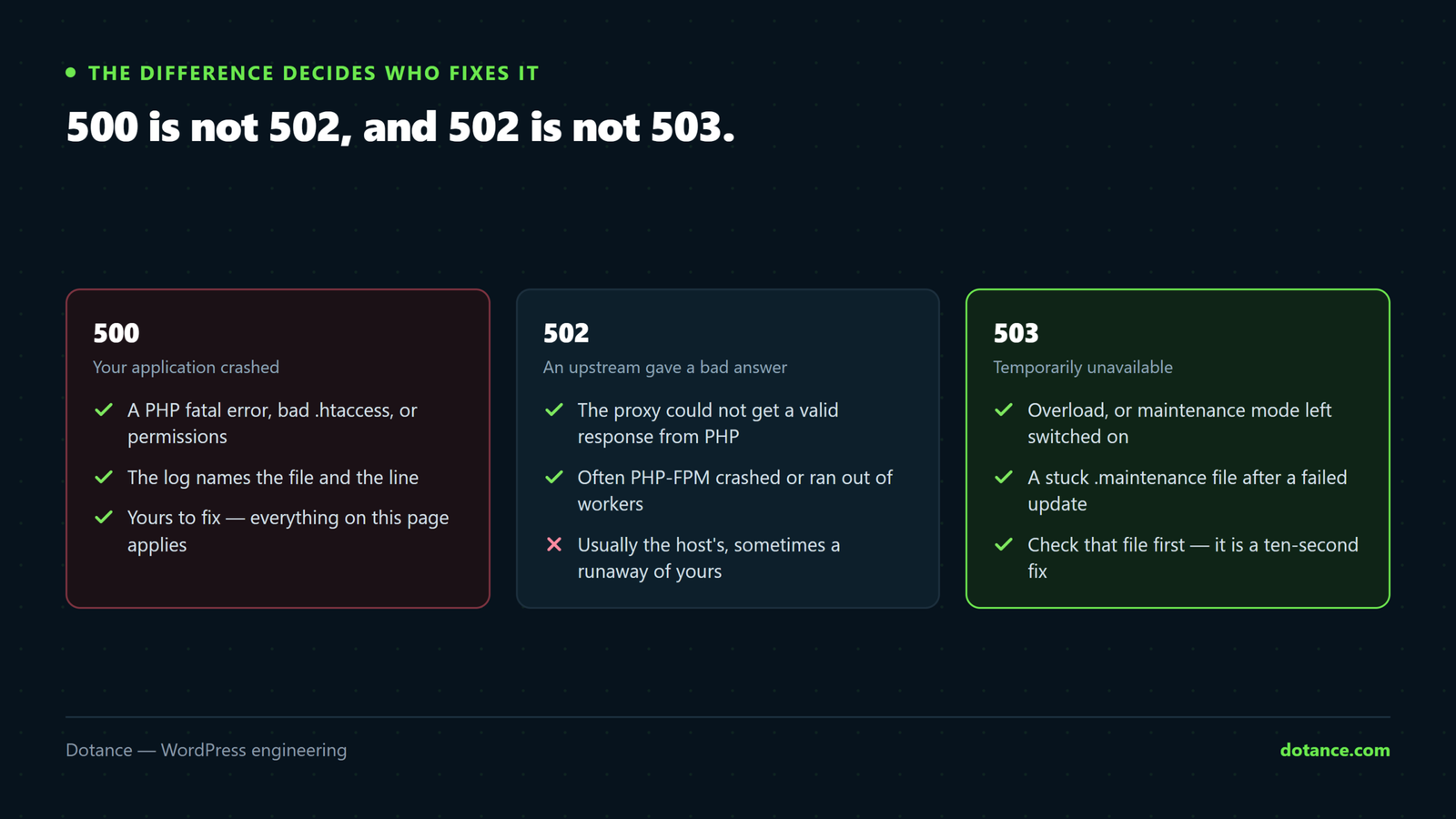
A 500 internal server error is an HTTP status code. The server accepted the request, started processing, and hit a condition that stopped it — a PHP fatal error, an invalid configuration directive, a permissions refusal, a process killed for using too much memory.
Distinguishing it from its neighbours saves time, because they point at different people:
| Code | Means | Usually whose |
|---|---|---|
| 500 | The application broke | Yours — this page |
| 502 Bad Gateway | PHP did not answer the web server | Host, or a PHP crash |
| 503 Service Unavailable | Temporarily overloaded, or maintenance mode | Load, or a stuck update |
| 504 Gateway Timeout | Something took too long | A slow query or external call |
| White screen, no code | PHP died with display off | White screen |
Confirm which you actually have rather than trusting the browser’s wording, because the page a browser shows is often its own generic message rather than what the server sent:
curl -s -o /dev/null -w "%{http_code}\n" https://yoursite.com/1. Read the log — this is the step people skip
Nearly every 500 internal server error is explained in a log file, with a filename and a line number. Finding it converts an afternoon of guessing into a five-minute fix.
# Common locations — one of these will exist
tail -50 ~/logs/error.log
tail -50 ~/domains/yoursite.com/logs/error.log
tail -50 /var/log/apache2/error.log
tail -50 ~/public_html/error_log
On shared hosting the control panel has an Error Log section that shows the same thing. Look at the newest lines, then reload the broken page and watch what gets added — that is your error, with everything older filtered out.
If the server log is empty or unhelpful, make WordPress keep its own debug log:
wp-config.php — temporarily
define( 'WP_DEBUG', true );
define( 'WP_DEBUG_LOG', true );
define( 'WP_DEBUG_DISPLAY', false );   // keep errors off the page
@ini_set( 'display_errors', 0 );
Reload the page, then read wp-content/debug.log. Turn all of this off again afterwards — a public debug log is an information leak.
The log line is the answer. “PHP Fatal error: Uncaught Error: Call to undefined function … in /wp-content/plugins/x/y.php on line 42” names the plugin, the file and the line. Read it before trying anything below; the rest of this article is what to do when the log is genuinely silent.
2. A broken .htaccess
On Apache and LiteSpeed, a single invalid directive in .htaccess produces a 500 internal server error on every URL, instantly. Plugins write to this file — caching, security, redirects — and occasionally leave it malformed.
A 500 internal server error caused by this clears the instant the file is out of the way. Test by renaming it:
mv .htaccess .htaccess.broken
curl -s -o /dev/null -w "%{http_code}\n" https://yoursite.com/
If that returns 200, the file was the cause. Regenerate a clean one — in WordPress, visiting Settings → Permalinks and clicking Save rewrites it — then re-add anything you actually needed, one block at a time.
A minimal, correct WordPress .htaccess is short:
# BEGIN WordPress
<IfModule mod_rewrite.c>
RewriteEngine On
RewriteBase /
RewriteRule ^index\.php$ - [L]
RewriteCond %{REQUEST_FILENAME} !-f
RewriteCond %{REQUEST_FILENAME} !-d
RewriteRule . /index.php [L]
</IfModule>
# END WordPress
Two things that break it reliably: a directive your host has not enabled (php_value lines on a PHP-FPM setup are a classic), and two plugins both writing their own block until the file contradicts itself.
3. PHP ran out of memory
A process killed for exceeding the memory limit often surfaces as a 500 internal server error rather than a clear message. The log line says “Allowed memory size of X bytes exhausted”.
wp eval 'echo ini_get( "memory_limit" ) . "\n";'Raise it in wp-config.php, above the “stop editing” comment:
define( 'WP_MEMORY_LIMIT', '256M' );
define( 'WP_MAX_MEMORY_LIMIT', '512M' );
If that does not take effect, the ceiling is set at the server and your host controls it. Note that raising the limit treats the symptom — something is using that memory, and the full diagnosis is in allowed memory size exhausted.
4. A plugin or theme
If the log behind your 500 internal server error names a file under wp-content/plugins/ or wp-content/themes/, you already have your answer. If it does not, bisect.
With WP-CLI, and no admin access needed:
# Record what is on, so you can put it back exactly
wp plugin list --status=active --field=name > ~/active-plugins.txt

wp plugin deactivate --all
curl -s -o /dev/null -w "%{http_code}\n" https://yoursite.com/
If that returns 200, reactivate in halves rather than one at a time — ten plugins is four rounds instead of ten:
wp plugin activate $(head -5 ~/active-plugins.txt | tr '\n' ' ')
curl -s -o /dev/null -w "%{http_code}\n" https://yoursite.com/
No WP-CLI? Rename wp-content/plugins to plugins-off over SFTP. WordPress deactivates everything it cannot find. Rename it back, then move plugins out one folder at a time.
For the theme, switch to a default:
wp theme activate twentytwentyfour5. The PHP version changed
Hosts upgrade PHP, sometimes automatically, and a 500 internal server error is the usual first sign. Code that used a function removed in a newer version throws a fatal error, and a 500 internal server error is what visitors see.
wp eval 'echo PHP_VERSION . "\n";'If the version changed recently and the log names a deprecated or undefined function, that is your cause. Roll back the PHP version in your control panel to get the site up, then fix properly — the sequence is in when a PHP upgrade breaks your site. Staying on an unsupported PHP version is not a fix; it is a deadline.
6. File permissions
Wrong permissions produce a 500 internal server error because the server refuses to execute or read what it needs. This usually appears after a manual upload, a restore, or a migration between servers.
| What | Should be |
|---|---|
| Directories | 755 |
| Files | 644 |
wp-config.php | 640 or 600 |
| Anything | Never 777 |
find . -type d -exec chmod 755 {} \;
find . -type f -exec chmod 644 {} \;
chmod 600 wp-config.php
If a support article ever tells you to chmod 777, stop. It makes the file writable by every account on the server and is a common route into shared-hosting sites.
7. Corrupted core files
An interrupted update can leave core half-written, which shows up as a 500 internal server error on every URL. Verify against WordPress’s own checksums:
wp core verify-checksumsAnything reported as modified or missing that you did not change is suspect. Reinstall core without touching your content:
wp core download --skip-content --forceThat replaces wp-admin, wp-includes and the root files, leaving wp-content and wp-config.php alone. If checksums report files you never edited as modified, treat it as a possible compromise and read the signs of a hacked site before continuing.
Narrow it down: which URLs actually fail?
A 500 internal server error on every URL and a 500 on one URL are different problems. Establish the scope before you start changing things — it eliminates most of the causes on this page immediately.
for u in / /wp-admin/ /wp-login.php /?p=1 /wp-json/; do
  printf "%-14s %s\n" "$u" "$(curl -s -o /dev/null -w '%{http_code}' "https://yoursite.com$u")"
done| Pattern | Points at |
|---|---|
Everything 500s, including wp-login.php | .htaccess, PHP, or a must-use plugin |
| Front end fine, admin 500s | Memory, or an admin-only plugin path |
| One page 500s | A block, shortcode or widget on that page |
Only /wp-json/ 500s | A REST endpoint a plugin registered |
| Only under load | Resources, not code |
That third row is worth knowing about. A 500 internal server error on a single page is almost never the server — it is something rendering on that page, and switching theme or emptying .htaccess will tell you nothing.
Must-use plugins and drop-ins
Deactivating all plugins does not disable everything. Two categories keep running and are a genuinely common source of a 500 internal server error that survives every plugin test:
- Must-use plugins in
wp-content/mu-plugins/. They load automatically, cannot be deactivated from the admin, and hosts frequently install their own. - Drop-ins —
object-cache.php,advanced-cache.php,db.php. Left behind by a caching plugin that has since been removed, these break loudly.
ls -la wp-content/mu-plugins/ 2>/dev/null
ls -la wp-content/object-cache.php wp-content/advanced-cache.php wp-content/db.php 2>/dev/null
To test, move them aside rather than deleting:
mv wp-content/mu-plugins wp-content/mu-plugins-off
mv wp-content/object-cache.php wp-content/object-cache.php.off
curl -s -o /dev/null -w "%{http_code}\n" https://yoursite.com/
A stale object-cache.php is a classic. Redis or Memcached goes away — a plan change, a server move — and the drop-in keeps trying to reach it. Every request fails and you get a 500 internal server error that no amount of plugin deactivation touches, because the drop-in is not a plugin.
When the 500 is not coming from your site
If a CDN or proxy sits in front of WordPress, the error page you are reading may be generated there. Find out who is answering:
curl -sI https://yoursite.com/ | grep -iE '^server:|^cf-|^x-cache|^x-powered-by'Then bypass the proxy entirely and ask the origin directly:
# Replace with your server's real IP
curl -s -o /dev/null -w "%{http_code}\n" --resolve yoursite.com:443:203.0.113.45 https://yoursite.com/
If the origin returns 200 and the public URL returns 500, the fault is in the CDN or proxy configuration, not WordPress. That is a completely different investigation, and hours get lost debugging a site that was working the whole time.
The order to work through it
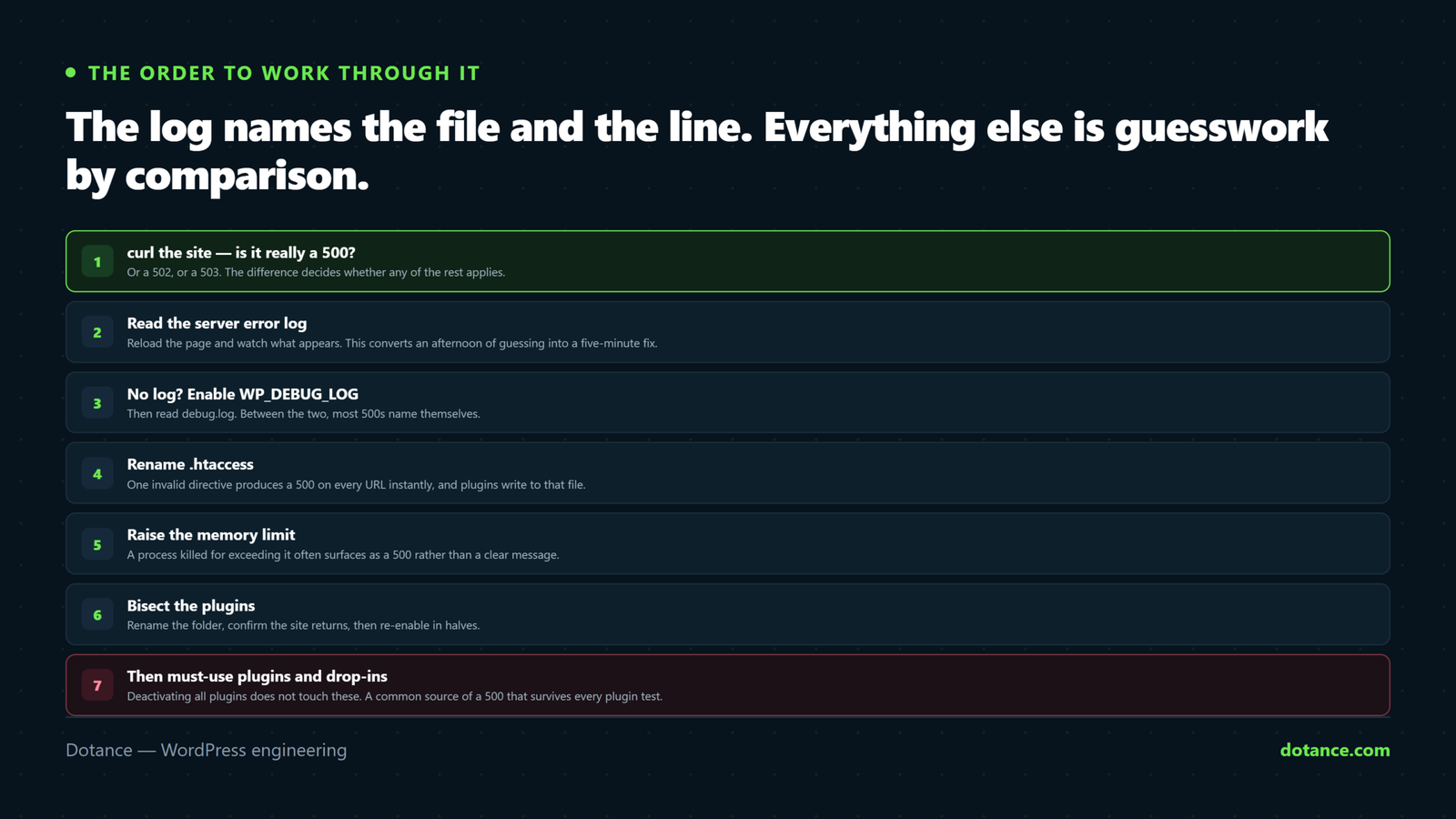
curlthe site — is it really 500, or 502/503?- Read the server error log. Reload the page and watch what appears.
- No log? Enable
WP_DEBUG_LOGand readdebug.log. - Rename
.htaccessand retest. - Deactivate all plugins, then bisect.
- Switch to a default theme.
- Check memory, PHP version and permissions.
wp core verify-checksums.
Steps 2 and 3 solve the large majority of 500 internal server error cases. Everything after them is for the rare case where nothing was logged.
What makes it worse
| Mistake | Why it hurts |
|---|---|
| Changing several things at once | It starts working and you never learn what it was |
chmod -R 777 | Opens the site to anyone on the server |
Deleting .htaccess instead of renaming | Custom redirects gone with no copy |
Leaving WP_DEBUG_DISPLAY on | Leaks paths and versions to visitors |
| Reinstalling WordPress over the top | Rarely the cause; risks customisations |
| Fixing on live | Every attempt is visible to customers — use staging |
Preventing the next 500 internal server error
- Know where your error log is before you need it. Finding it under pressure is the slowest part of the whole job.
- Update on staging first. Most 500s we are called about arrived with an update applied straight to production.
- Keep PHP supported and move deliberately, not when the host forces it.
- Have a restorable backup. The fastest fix for a 500 internal server error is sometimes to restore and investigate calmly afterwards.
- Monitor uptime, so you learn about it from an alert rather than a customer.
When it only happens sometimes
An intermittent 500 internal server error is the hardest version, because every time you look the site is fine. Configuration faults are constant; intermittent ones are almost always resources or timing.
| Pattern | Usually |
|---|---|
| Under traffic spikes | PHP worker or memory limits |
| At the same time each day | A scheduled task — backup, import, cron |
| Only on a search or filter | A slow query timing out |
| Only in the admin, when saving | Long-running save hitting an execution limit |
| After a deploy, clearing later | Opcode cache serving a half-updated file |
To catch an intermittent 500 internal server error you have to be recording when it happens rather than checking by hand:
# Poll every 30s and log any non-200 with a timestamp
while true; do
  C=$(curl -s -o /dev/null -w '%{http_code}' https://yoursite.com/)
  [ "$C" != "200" ] && echo "$(date -u +%H:%M:%S) $C" >> ~/500-watch.log
  sleep 30
done &
Leave that running for a few hours, then line the timestamps up against your error log and your cron schedule. A 500 internal server error that lands every hour on the hour is a scheduled job; one that clusters around your busiest period is capacity. Those need completely different answers, and guessing between them is how weeks get lost.
Uptime monitoring does the same job permanently and tells you before a customer does — it is one of the reasons a maintenance plan earns its cost.
Common questions about the 500 internal server error
Why do I see it only in wp-admin?
Usually memory. A 500 internal server error confined to wp-admin happens because the admin loads more than the front end, so it hits the ceiling first. Raise the limit and read the log for what is consuming it.
Is my site hacked?
Not necessarily — a 500 internal server error is far more often an update or a config change. But if checksums report modified core files, or the error arrived with other odd behaviour, check properly rather than assuming.
It works for me but not for visitors.
A 500 internal server error that only visitors see means you are probably reading a cached copy, or the error only occurs for logged-out users. Test in a private window and with curl, which caches nothing.
Nothing appears in any log at all.
Then the process is dying before PHP can log — usually memory, or a segfault in a PHP extension. Ask your host to check the server-level logs, which you cannot see.
Can I just restore a backup?
Yes, and with a 500 internal server error on a site that is earning, it is often the right call. Restore to get trading, then reproduce the fault on staging where nobody is watching.
Does a 500 internal server error hurt my SEO?
Briefly, no — Google retries. Sustained over days it does real damage, because pages that keep returning 500 get dropped from the index. Treat a persistent one as urgent for that reason alone.
The host says it is my code, my developer says it is the host.
The origin test above settles it. If the server answers 200 directly and the public URL returns a 500 internal server error, it is not the application. Send both results rather than arguing.