Two checks before you touch anything
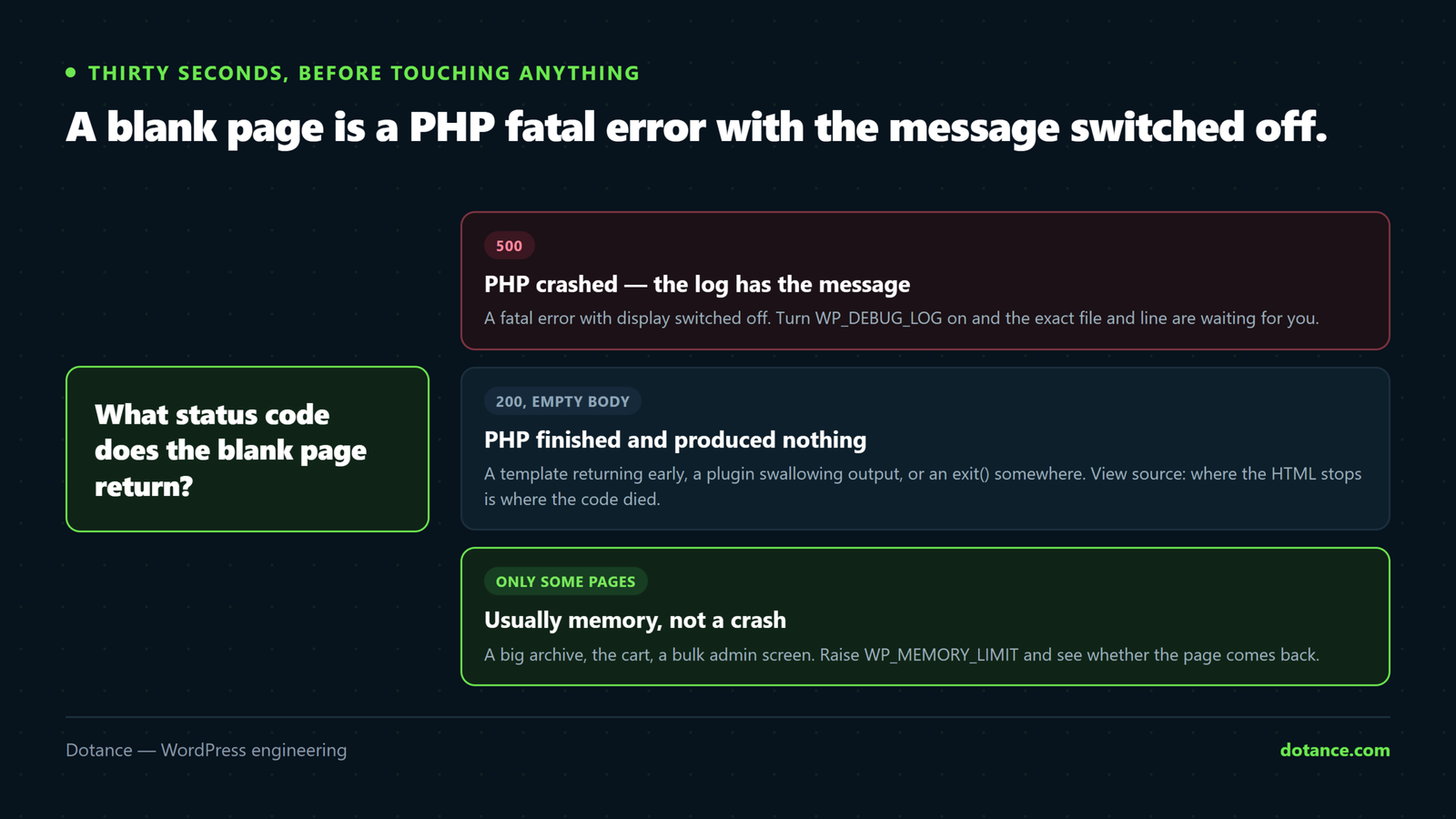
Thirty seconds here decides which half of this article you need.
1. What status code is it?
Open DevTools (F12) → Network → reload → click the first row. Or from a terminal:
curl -s -o /dev/null -w "%{http_code}\n" https://yoursite.com/| Status | What it means |
|---|---|
| 500 | PHP crashed. A fatal error — the debug log will name it. |
| 200 | PHP finished “successfully” and printed nothing. Usually a plugin exiting early, a bad redirect, or a theme rendering an empty template. |
| 503 | Not a WSOD. The site is in maintenance mode — often a stuck .maintenance file after a failed update. Delete it from the site root. |
2. Where does the HTML stop?
Right-click the blank page → View Source. If you see the opening <head> and part of the page then nothing, PHP died at that point in the render — the last thing rendered tells you which template or widget was running. A truly empty source means it died before output began, which usually means a plugin loaded at startup.
The shortcut most people miss
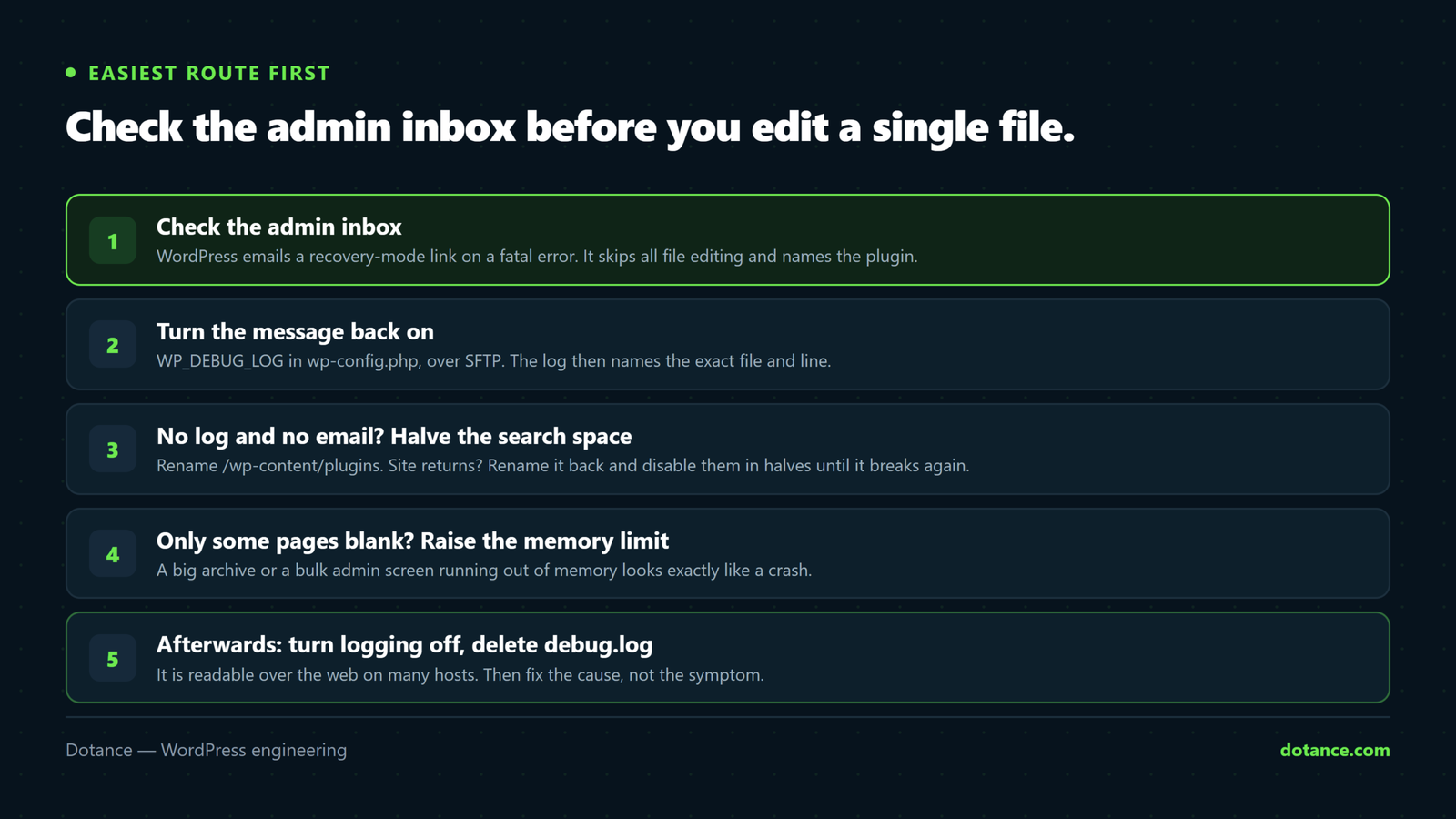
Since WordPress 5.2, a fatal error triggers recovery mode: WordPress emails the admin address a special login link, deactivates the offending plugin for that session, and lets you fix it from a working dashboard. No FTP at all.
Check the admin inbox — and the spam folder — for a mail titled “Your site is experiencing a technical issue”. It names the plugin and includes the link.
No email arriving is itself a clue. It usually means the site cannot send mail — which is worth fixing regardless. It can also mean the admin address is one nobody reads. Check wp_options → admin_email if you are not sure where it went.
With WP-CLI you can bypass the email entirely:
# Generate a recovery-mode link without waiting for the email
wp admin recovery-mode-link
Turn the message back on
Edit wp-config.php over SFTP or the host’s file manager, above the stop-editing line:
wp-config.php
define( 'WP_DEBUG', true );
define( 'WP_DEBUG_LOG', true );
define( 'WP_DEBUG_DISPLAY', false );
@ini_set( 'display_errors', 0 );
Reload the broken page, then read /wp-content/debug.log. The last entry is your crash:
PHP Fatal error:  Uncaught Error: Call to undefined function
some_removed_function() in /home/user/public_html/wp-content/plugins/
old-plugin/includes/render.php:212
That path is the culprit. Nothing else in this article is needed once you have that line.
Use WP_DEBUG_DISPLAY = false, not true, on a live site. Printing errors to the screen exposes file paths and can itself cause a “headers already sent” cascade. Log them instead — and turn logging off again when you are finished.
If there is no log, isolate by halving
No log and no email means working blind — so make the search space smaller each time rather than guessing.
- Plugins. Rename
/wp-content/pluginstoplugins-off. Site returns? Rename it back, then rename individual plugin folders until it breaks. On twenty plugins, halving finds it in five reloads, not twenty. - Theme. Still blank with plugins gone? Rename your active theme’s folder — WordPress falls back to a bundled one. If that fixes it, the fault is in your theme, and usually in a recent
functions.phpedit. - Core. Rare, but a failed update can leave core half-written. Reinstall it without touching your content:
wp core download --force --skip-contentWhen only some pages are blank
A site that works everywhere except one page — a big archive, the cart, a bulk admin screen — is usually running out of memory rather than crashing:
wp-config.php
define( 'WP_MEMORY_LIMIT', '256M' );
define( 'WP_MAX_MEMORY_LIMIT', '256M' );
If that changes nothing, your host caps PHP itself — the full explanation is in our guide to “Allowed memory size exhausted”.
Blank only in wp-admin while the front end is fine points the same way: admin screens are heavier, so they hit the ceiling first.
Once it is back
- Turn debug logging off and delete
debug.log. It is readable over the web on many hosts. - Fix the cause, not the symptom. A deactivated plugin is a workaround; an updated or replaced one is a fix.
- Find out what changed. A WSOD almost never arrives on its own — an update, an edit or a PHP version bump preceded it. If it was a PHP upgrade, see what each version broke.
Common questions
I get “There has been a critical error on this website” instead of a blank page.
Same thing, newer wrapper. WordPress 5.2+ shows that message instead of nothing — and it is the version that sends the recovery email. Everything here still applies.
The front end is fine but wp-admin is blank.
Usually memory, sometimes a plugin that only loads in admin. Try recovery mode first; it is built for exactly this.
It came back on its own.
Then it was almost certainly memory or a timeout under load, not broken code. It will return at the next traffic peak — treat the quiet period as time to find it, not proof it is fixed.
Can I just enable display_errors to see it faster?
On staging, yes. On a live site it prints your server paths to every visitor, including whoever caused the error. Log it instead.