Most migration guides on this site go the other way, from Squarespace to WordPress. But people search for the reverse every month, and they deserve a straight answer too. Moving from WordPress to Squarespace is a reasonable choice for some sites and an expensive mistake for others. This guide covers how to tell which you are, what Squarespace’s importer actually carries across, and the steps that keep your search traffic intact. The import details come from Squarespace’s own help centre, not from memory.
Why people move from WordPress to Squarespace
The reasons we hear are consistent, and most of them are fair. WordPress asks you to look after software: core updates, plugin updates, PHP versions, backups and security. Squarespace does all of that for you in exchange for less freedom.
| Reason given | Does Squarespace fix it? | Could WordPress fix it instead? |
|---|---|---|
| “I’m tired of updates” | Yes. There is nothing for you to update | Yes, with a maintenance plan or managed hosting |
| “My site got hacked” | Largely. You cannot install vulnerable plugins | Yes, with hardening and fewer plugins |
| “It’s slow” | Sometimes. Squarespace sites are not automatically fast | Usually, with better hosting and fewer plugins |
| “I want to edit it myself” | Yes. The editor is simpler | Partly, depending on how the site was built |
| “My developer disappeared” | Yes. No developer needed for small changes | Yes, if someone documents the setup |
| “Hosting plus plugins costs too much” | Sometimes. Compare the full yearly bill | Sometimes, by removing paid plugins you no longer use |
Notice the last column. Every reason on the list has a WordPress answer too. The question is not whether a WordPress to Squarespace move solves the problem, but whether it solves it more cheaply and with less loss than fixing what you have. Our article on WordPress plugin bloat covers the most common cause of slow, fragile sites.
When a WordPress to Squarespace move makes sense
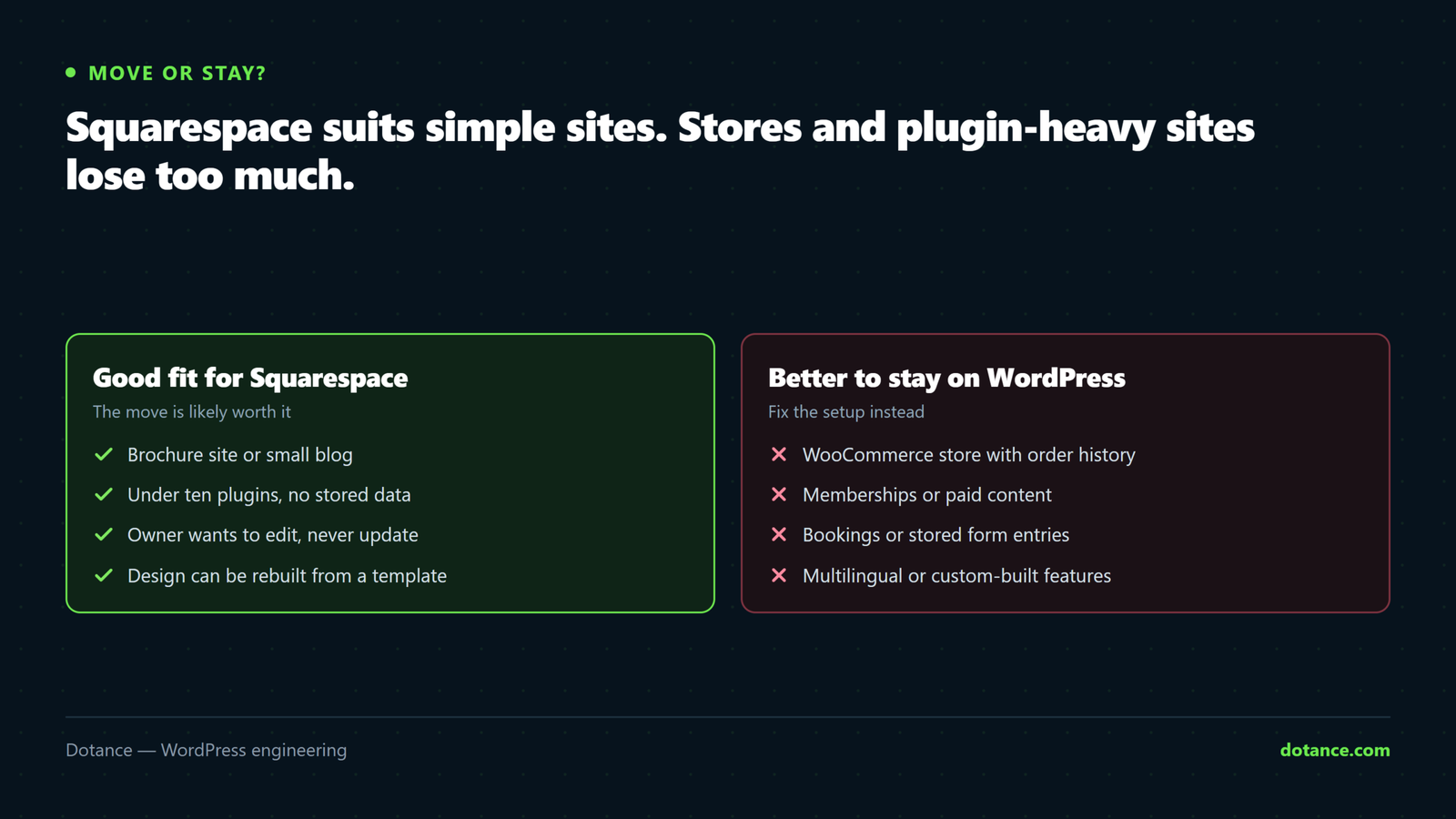
Squarespace is a good home for a specific kind of site. If most of these describe you, the move is likely to be worth it:
- The site is a brochure site or a blog with fewer than a few hundred pages and posts.
- You use fewer than ten plugins, and none of them hold data you need to keep, such as bookings, memberships or form entries.
- You want to edit text and images yourself and never think about updates again.
- You are happy to rebuild the design from a Squarespace template rather than copy your current one exactly.
- Search traffic matters, but you have time to set up redirects properly.
A photographer’s portfolio, a restaurant site, a consultant’s five-page site or a personal blog fit that profile well. So does a small business whose WordPress site has not been touched in two years because nobody is sure how it works.
When to stay on WordPress
Some sites lose too much in a WordPress to Squarespace move. These are the cases where we tell people to fix their WordPress setup instead:
| Your site has… | Why the move hurts |
|---|---|
| A WooCommerce store with order history | Orders, customer accounts and subscriptions do not come across with the WordPress importer |
| Memberships or paid content | Members and their access rules have to be rebuilt and members invited again |
| Bookings, forms with stored entries, or a CRM plugin | Plugin content is not imported; that data needs its own export |
| Several languages | Multilingual plugin content does not map onto Squarespace’s structure |
| Hundreds of posts with galleries | Gallery images are not imported, and each post needs checking by hand |
| Custom functionality built for you | There is nowhere to run custom PHP on Squarespace |
If your site is in this table, a cheaper answer is usually a cleaner WordPress setup with someone else responsible for it. Our guide to what a maintenance plan should include shows what that looks like, and changing WordPress hosting fixes many speed and reliability complaints on its own.
What the WordPress to Squarespace importer brings over
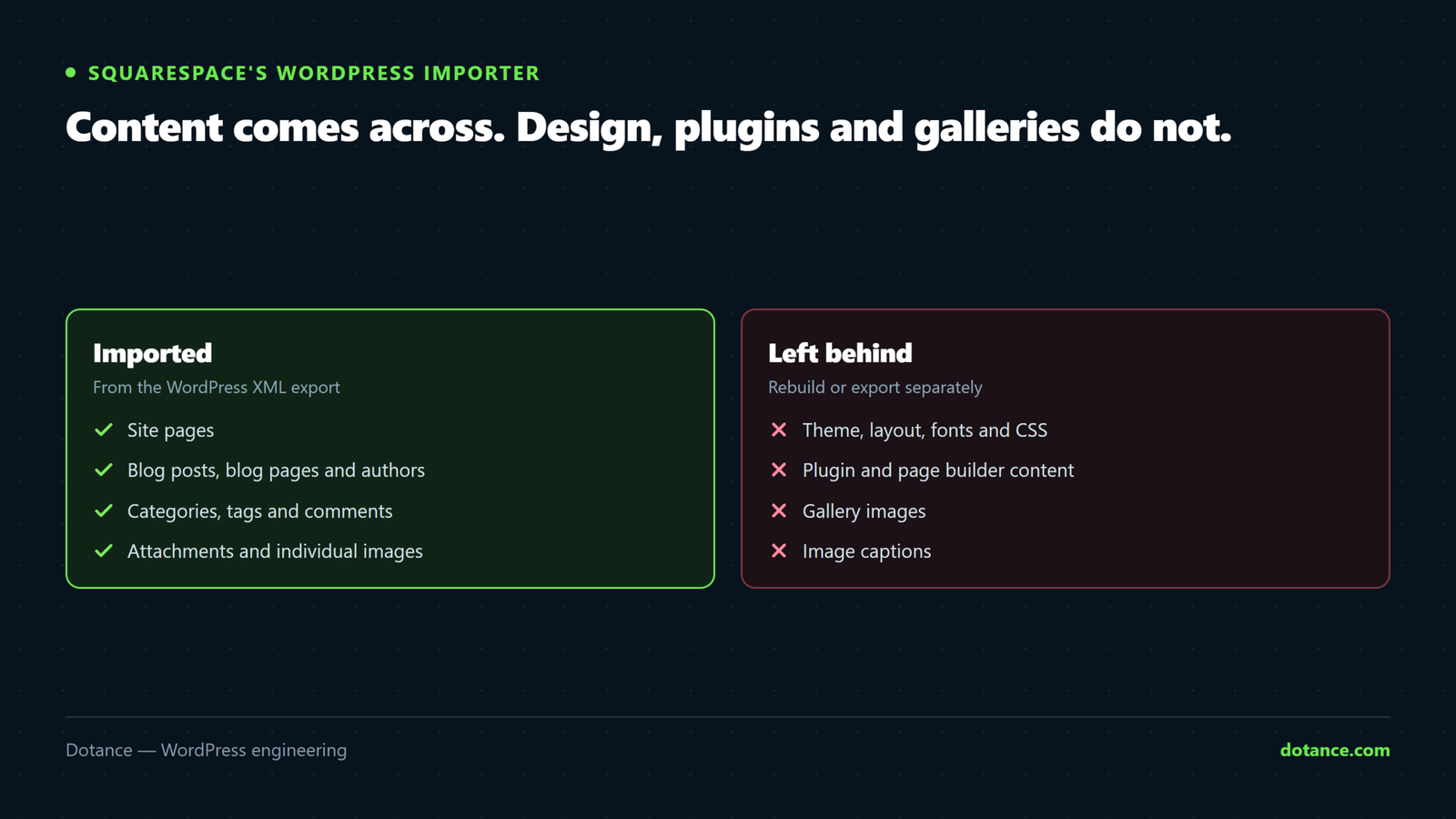
Squarespace’s help centre article on importing from WordPress lists exactly what the WordPress to Squarespace importer handles. It is a one-time copy, not a sync, and it works from the XML file that WordPress exports.
| Imported | Not imported |
|---|---|
| Site pages | Your theme, layout, fonts and custom CSS |
| Blog posts, blog pages and authors | Content created by plugins, including page builders |
| Categories and tags | Gallery images |
| Comments | Image captions |
| Attachments and individual images | Media Library images not attached to a post or page |
A few limits from the same documentation are worth knowing before you start. Tags are cut off at 80 characters and categories at 25.
Pages or posts with more than 100 images lose their images when edited, and Squarespace recommends no more than 60 blocks per page. Imported content lands in the “Not linked” section of the Pages panel, switched off, so nothing goes live until you choose. Authors arrive as basic authors without permissions.
Page builders are the big gap. If your WordPress pages were built with Elementor, Divi or a similar builder, the layout lives in the builder’s own data, not in plain post content. The WordPress to Squarespace importer will bring over little more than text, sometimes with stray shortcodes. Plan to rebuild those pages by hand.
Replacing your plugins on Squarespace
Squarespace has no plugin directory, so each plugin you use needs a built-in feature, a third-party embed or a decision to drop it. This is the part of a WordPress to Squarespace move that most people underestimate, because plugins hide how much work a site does.
| WordPress plugin type | Squarespace option | Data to carry across |
|---|---|---|
| Contact forms | Built-in Form block | Export old entries to CSV; they will not import |
| SEO plugin | Built-in SEO fields per page | Copy titles and meta descriptions by hand |
| Newsletter sign-up | Squarespace Email Campaigns or your existing provider’s embed | Subscriber list, if you change provider |
| Booking plugin | Acuity Scheduling, which Squarespace owns | Upcoming appointments and client list |
| Analytics | Built-in analytics, or your Google Analytics tag | Nothing; keep the same GA property |
| Membership plugin | Squarespace Member Areas | Members must be invited again |
| Security and caching plugins | Not needed | Nothing |
Count the rows that say “export” or “invite again”. If there are more than two, add a day to your plan for the WordPress to Squarespace move, and check each third-party tool’s own export options before you switch anything off.
What a WordPress to Squarespace move really costs
The subscription is the visible cost and the smallest one. The real cost of a WordPress to Squarespace move is time, and it scales with three things: how many pages were built with a page builder, how many plugins hold data, and how many URLs need mapping.
For a ten-page brochure site with a simple blog, a confident owner can finish in a weekend. A blog with three hundred posts and galleries takes much longer, because every gallery has to be rebuilt by hand. Compare that honestly with the yearly cost of hosting, premium plugins and maintenance on WordPress, and include the hours you spend on updates today. Our guide to what a WordPress website costs gives typical numbers for the WordPress side.
How to move from WordPress to Squarespace in 7 steps
This is the order we would follow for a WordPress to Squarespace move, with the importer steps taken from Squarespace’s own instructions.
Step 1: Inventory the old site
Before the WordPress to Squarespace import, list every URL that gets traffic or has backlinks. The quickest source is your sitemap, plus the top pages report in Google Search Console. On the command line, WP-CLI gives you a complete list:
# Every published page and post with its URL
wp post list --post_type=page,post --post_status=publish --fields=ID,post_type,url --format=csv > old-urls.csv
# Plugins, so you know what each one did
wp plugin list --status=active --fields=name,title
Next to each plugin, write down what it does and what replaces it on Squarespace. Forms, newsletter sign-ups and analytics usually have a Squarespace equivalent. Bookings, memberships and stores need a decision.
Step 2: Back up everything
Take a full backup of files and database, and download the Media Library separately. Squarespace itself recommends this because gallery images and unattached media will not import. Our guide on WordPress backups done right covers what a complete backup contains.
Step 3: Export the WordPress XML file
In WordPress, go to Tools → Export, choose “All content” and download the file. Squarespace asks you to disable plugins before exporting, and warns that very large exports may fail. If yours is large, export by date range into several smaller files.
# Or with WP-CLI, split into files of 500 posts each
wp export --dir=./export --max_num_posts=500
Step 4: Run the Squarespace import
In Squarespace, open the Import & export content panel, click Import, then WordPress. Choose the Standard WordPress processor unless your posts were written in Markdown or Textile, upload the XML file and wait for the success message. Do this before you move your domain. If the domain already points to Squarespace, the importer cannot fetch your images from the old site.
Step 5: Rebuild the design and fix each page
Pick a template, then open every imported page and post from the WordPress to Squarespace import. Check images, headings, embeds and internal links, which still point at old WordPress URLs. Pages built with a page builder will need rebuilding rather than fixing.
Step 6: Map every old URL
This is the step that protects your rankings after a WordPress to Squarespace move. WordPress and Squarespace use different URL patterns, especially for blog posts, which usually sit under the blog page’s slug on Squarespace. Squarespace’s URL Mappings panel takes one redirect per line:
Squarespace URL Mappings
/about-us -> /about 301
/2024/05/spring-menu -> /blog/spring-menu 301
/category/news -> /blog 301
/wp-content/uploads/2023/brochure.pdf -> /s/brochure.pdf 301
Do not skip PDFs and other files that people link to directly. Our guide to redirects without losing rankings explains why a 301 to the closest matching page beats sending everything to the home page.
Step 7: Move the domain, then test
Point your domain at Squarespace, or transfer it. Do this last in any WordPress to Squarespace move. Before you touch DNS, write down your current MX records, because email usually lives somewhere else and breaks if those records are lost. Then test the old URLs from your inventory. Every one should land on a real page.
# Check every old URL returns a redirect to a live page
while read url; do
  curl -s -o /dev/null -w "%{http_code} %{redirect_url} $url\n" "$url"
done < old-urls.txt
Will a WordPress to Squarespace move hurt my SEO?
Not if the redirects are right. A WordPress to Squarespace move changes the platform, not the things search engines measure. Search engines care about URLs, content and links, not about which platform serves them. The traffic losses we see after a WordPress to Squarespace move come from three avoidable mistakes: old URLs that 404, pages whose content was cut down during the rebuild, and missing titles and meta descriptions. Squarespace lets you set SEO titles and descriptions per page, so copy them across from your old SEO plugin before you switch it off.
Expect a few weeks of movement while Google recrawls. Submit your new sitemap in Search Console on the day you move, and check the Pages report after a week. Our article on what never transfers in a website migration lists the less obvious things to carry across, such as tracking codes and structured data.
The first 30 days after the move
The launch is not the finish line. Most problems show up in the weeks after, when visitors and search engines find the gaps you missed.
- Day 1: submit the new sitemap in Search Console and send a test message through every form.
- Week 1: open the Pages report in Search Console and fix any “Not found (404)” URLs with new mappings.
- Week 2: compare traffic to your top ten pages with the same weeks last year, not last month.
- Week 4: check that backlinks from other sites still land on the right pages, and that email is still arriving.
- Day 90: if everything is stable, cancel the old hosting, but keep the final backup somewhere safe.
A dip of a few percent in the first month is normal while Google recrawls. A drop of half your traffic is not; it almost always means a batch of URLs without redirects.
Where this goes wrong
| Mistake | What happens | Do this instead |
|---|---|---|
| Moving the domain before importing | Images do not import | Import first, switch DNS last |
| No URL mappings | Old links 404 and rankings drop | Map every URL from your inventory |
| Forgetting MX records | Email stops arriving | Copy all DNS records before changing anything |
| Assuming page builder pages import | Pages arrive as broken text | Budget time to rebuild them |
| Deleting WordPress too early | No way back, no source for missing files | Keep the old site and backup for 90 days |
| Not exporting plugin data | Form entries, bookings or subscribers lost | Export each plugin’s data before you switch |
Our honest take
We build on WordPress, so read this with that in mind. But we would still tell a café owner with a seven-page site and no time to choose Squarespace. It is a good product for that job.
What we would not do is move a store, a membership site or a site with years of plugin data, because the cost of the move and the loss of features is usually larger than the cost of a well-run WordPress site. If you are unsure which side you are on, the tables in this guide are the test we use. You can also read our comparison of Wix and WordPress, since the trade-offs for Squarespace are very similar.
Common questions about WordPress to Squarespace
Can Squarespace import my WordPress site automatically?
It imports content, not design. Pages, posts, authors, categories, tags, comments and attached images come across from the WordPress XML export. Your theme, CSS, galleries and plugin content do not.
Does a WordPress to Squarespace import work with WordPress.com?
Yes. Both WordPress.com and self-hosted WordPress produce the same XML export from Tools → Export, and Squarespace needs WordPress 3.2 or later.
How long does a WordPress to Squarespace move take?
The WordPress to Squarespace import itself usually finishes within hours. Squarespace says most interrupted imports complete within six hours. The rebuild, checks and redirects take a few days for a small site and longer for a big blog.
Will my blog URLs stay the same?
Squarespace tries to keep post URLs, but they often change because posts sit under the blog page’s slug. Check each one and add a URL mapping for any that moved.
Can I move my WooCommerce store to Squarespace?
Products can be recreated, but orders, customers and subscriptions do not come across with the WordPress importer. For most established stores, staying on WooCommerce and fixing what is wrong is cheaper.