Somebody looks at your plugins screen, counts thirty-four, and pronounces the site bloated. It might be. It might also be perfectly healthy while a twelve-plugin site next door is crawling. WordPress plugin bloat is about what your plugins load and query, not how many rows are on that screen — and the difference matters, because deleting the wrong six costs you functionality and buys you nothing.
What WordPress plugin bloat actually is
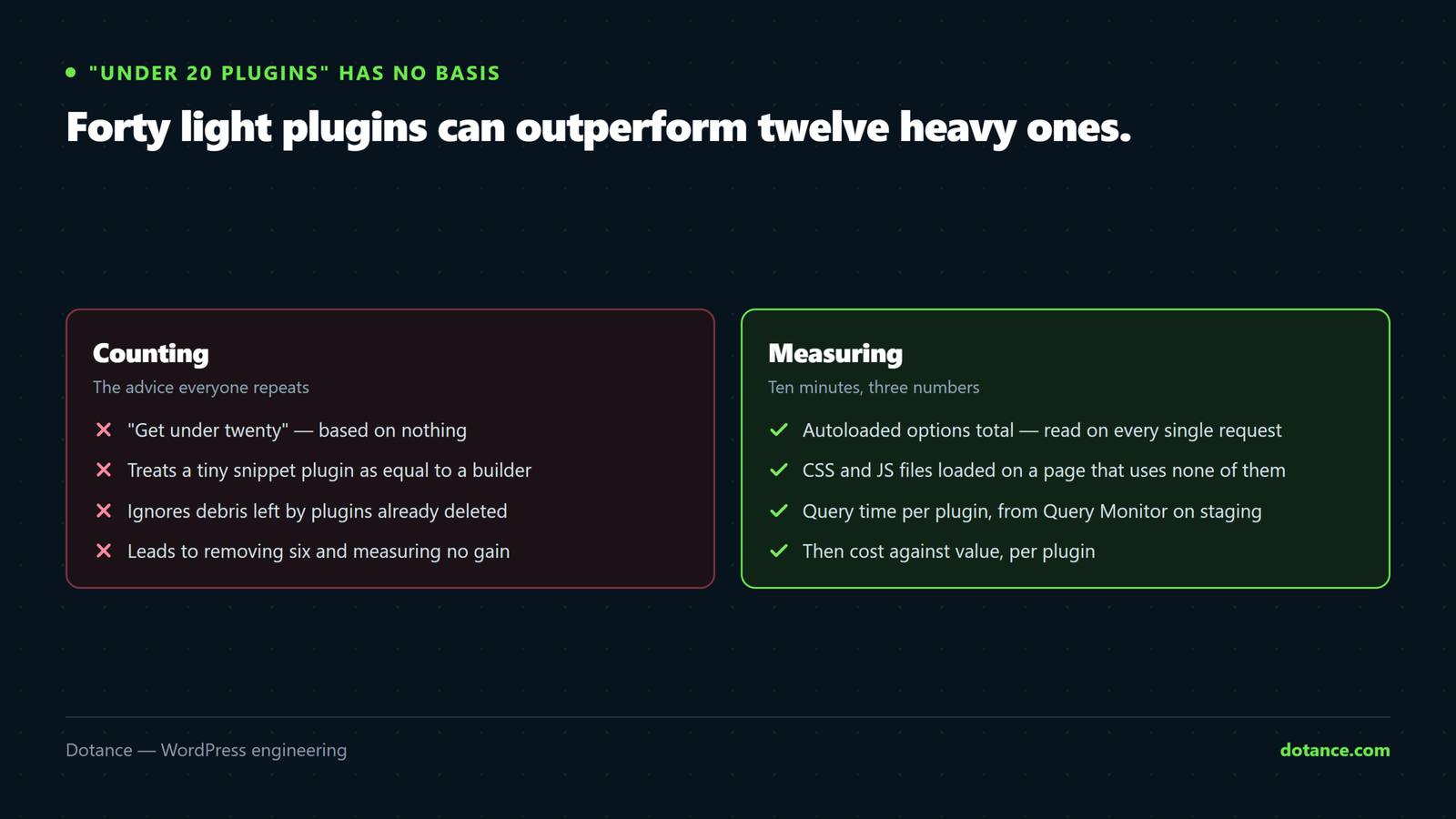
WordPress plugin bloat costs you in four separate ways, and most of them are invisible on the plugins screen.
| Cost | What it looks like | Who pays |
|---|---|---|
| PHP executed on every request | Slower time to first byte | Every visitor |
| Database queries | More work per page | Every visitor |
| Autoloaded options | Data loaded before anything renders | Every request, including admin |
| Front-end CSS and JS | More requests, more bytes | Every visitor, especially on mobile |
A well-written plugin that only loads on one admin screen costs almost nothing. A badly written one that enqueues a stylesheet on every page of the site and autoloads a megabyte of settings costs you on every request forever. That gap is why WordPress plugin bloat cannot be assessed by counting.
The “under 20 plugins” rule has no source. It circulates because a count is easy to check and a measurement is not. If somebody quotes you a number without measuring your site, they are guessing — and the fix they sell you will be removing functionality you chose deliberately.
Step 1: measure WordPress plugin bloat in the options table
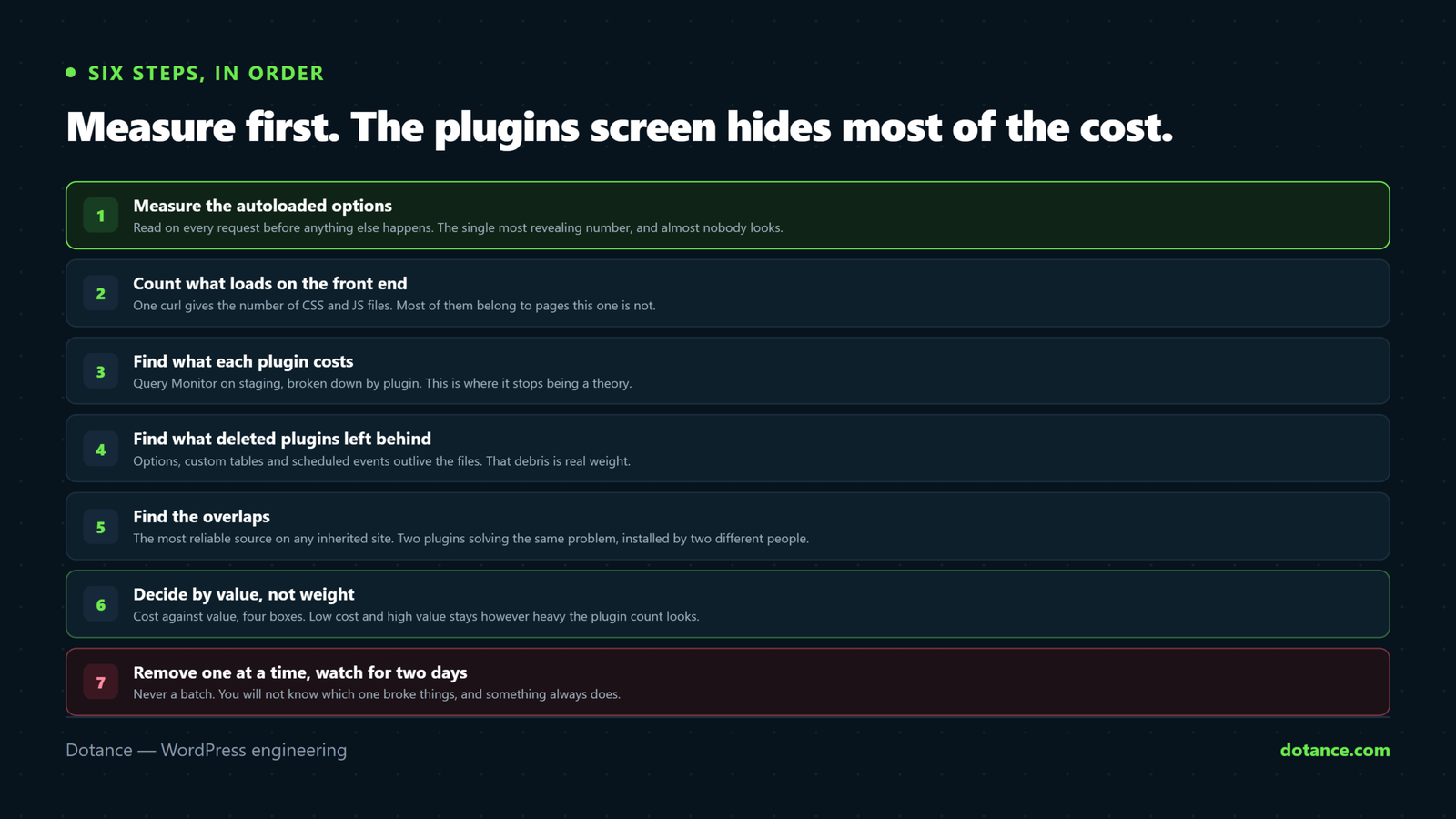
This is the single most revealing WordPress plugin bloat number, and almost nobody looks at it. Autoloaded options are read from the database on every single request before WordPress does anything else.
# Total autoloaded size in KB
wp eval 'global $wpdb;
echo round( $wpdb->get_var(
  "SELECT SUM(LENGTH(option_value)) FROM {$wpdb->options}
   WHERE autoload IN (\"yes\",\"on\",\"auto\")"
) / 1024 ) . " KB\n";'
Note the three values in that list. Modern WordPress writes on, off and auto rather than the old yes and no, so every autoload query written before that change now reports almost nothing and makes a badly bloated site look pristine. If you have run this check before and got a suspiciously small number, that is why.
| Autoloaded total | Verdict |
|---|---|
| Under 200KB | Healthy |
| 200KB – 800KB | Worth a look |
| 800KB – 3MB | Real WordPress plugin bloat, measurable on every request |
| Over 3MB | Something is storing data it should not be |
Then find the culprits. The size_bytes field exists but cannot be sorted on, so sort the output yourself:
wp option list --autoload=on --fields=option_name,size_bytes --format=csv \
  | sort -t, -k2 -rn | head -20
The names usually identify the plugin immediately. What you are looking for is a single option holding hundreds of kilobytes — a cached API response, a log, a licence payload, a settings blob that grew. Often one option is most of your problem, and it belongs to a plugin you want to keep. Turning its autoload off is then a better fix than deleting anything. This is adjacent to the wider work in WordPress database optimisation.
Step 2: count what loads on the front end
The second measurable WordPress plugin bloat cost is assets, and one command gives you it:
curl -s https://example.com/ | grep -oE '(src|href)="[^"]+\.(js|css)' | wc -lThen look at what is in that list rather than only the total. A slider plugin’s CSS on a page with no slider, a form plugin’s JavaScript on every page when you have one contact form, an icon font loaded for a single icon — that is WordPress plugin bloat you can see with your own eyes.
Before deleting, check for a setting. Many of the worst offenders have a “load assets only on pages where used” option that nobody turned on. That is a thirty-second fix that keeps the plugin and removes most of its cost.
Step 3: find out what each plugin actually costs
Per-plugin cost is where WordPress plugin bloat stops being a theory. Install Query Monitor on staging. It shows queries, timings and hooks broken down by plugin, which converts opinion into a table.
- Load a normal page and note total queries and page generation time.
- Open Query Monitor’s Queries panel and sort by component.
- Write down the three plugins responsible for the most queries.
- Deactivate one, reload, and note the new numbers.
- Reactivate it and repeat with the next.
Half an hour of this replaces every guess you could make about WordPress plugin bloat on your site. It also regularly produces a surprise: the plugin everybody assumed was the problem is cheap, and an innocuous-looking one is running forty queries per page.
Do it on staging, because deactivating plugins on a live site to measure them is how a checkout breaks during trading hours. If you do not have a copy to work on, set up a staging site first.
Step 4: find what deleted plugins left behind
Some of your WordPress plugin bloat belongs to plugins you removed years ago. Deleting a plugin removes its files. It usually does not remove its options, its custom tables, or its scheduled events — and that debris keeps costing you.
# Scheduled events with no plugin left to run them
wp cron event list --fields=hook,next_run_relative

# Tables that are not core WordPress
wp db tables --all-tables | grep -v '^wp_\(posts\|postmeta\|options\|users\|usermeta\|terms\|term_\|comments\|commentmeta\|links\)'| Leftover | What it costs | Safe to remove? |
|---|---|---|
| Autoloaded options | Every request | Yes, once you identify the plugin |
| Custom tables | Disk and backup size | Yes, after a backup |
| Orphaned cron events | A failing hook on every run | Yes |
| Post meta from a removed field plugin | A bigger wp_postmeta | Carefully — check nothing reads it |
| Uploaded files | Disk only | Check they are unused first |
Orphaned cron events deserve attention beyond their weight. A hook with no handler is harmless in itself, but a queue full of them makes diagnosing a genuine scheduling problem much harder — see WordPress cron not running for why a clean queue is worth having.
Step 5: find the overlaps
The most reliable source of WordPress plugin bloat on any inherited site is duplication. Nobody plans it; it accumulates as different people solve the same problem twice.
| Overlap | How it happens |
|---|---|
| Two SEO plugins | A migration, or a recommendation somebody followed |
| Three form plugins | One per developer who ever touched the site |
| A cache plugin plus host-level caching | Nobody checked what the host already did |
| Two image optimisers | One stopped working, the replacement was added |
| A security plugin and a firewall | Belt and braces, at double the cost |
| Four plugins for one Elementor widget each | Bought individually over years |
Duplicated SEO plugins are the dangerous one, because two of them emitting meta tags produces contradictory signals rather than merely wasted resources. The consequences are the subject of fixing duplicate content in WordPress.
Step 6: decide by value, not by weight
Now you have numbers, and WordPress plugin bloat becomes a two-column decision. Put every plugin in one of four boxes:
| Cost | Value | Decision |
|---|---|---|
| Low | High | Keep, obviously |
| Low | Low | Remove when convenient — it is clutter, not urgent |
| High | High | Keep, but configure it properly |
| High | Low | Remove first. This is the whole list you are looking for |
That bottom row is usually three or four plugins. Removing them is most of the available win, and it is a two-hour job rather than the rebuild that “you have too many plugins” implies. Everything else on your plugins screen can stay.
The high-cost, high-value row is worth dwelling on. A backup plugin is expensive and you keep it. A security plugin adds queries and you keep it. Removing genuinely useful plugins to make a count look better is not fixing WordPress plugin bloat — it is trading working features for a number nobody measures.
Removing WordPress plugin bloat safely
- Full backup, database and files, tested.
- One plugin at a time. Never a batch — you will not know which one broke things.
- Use the plugin’s own uninstall rather than deleting the folder, so its cleanup routine runs.
- Check the front end and the admin, not just the home page.
- Wait 48 hours before the next one. Some failures only appear on a scheduled task.
- Then clean the leftovers from step four.
Step five is the one people skip, and it is why removals go wrong. A plugin whose only job runs nightly will look entirely fine for a day. Forms, emails, feeds and backups all fail on a delay.
Deactivated is not removed. A deactivated plugin still needs updating, still carries any vulnerability it has, and still appears in every audit. If you are keeping it “just in case”, you have a backup — delete it properly. This is a genuine security point, not tidiness, and it belongs with the rest of hardening WordPress.
A worked audit, with real numbers
Abstract WordPress plugin bloat advice is easy to nod along to and hard to act on, so here is the shape of an audit we ran on a services site that had been told it was suffering from WordPress plugin bloat because it had thirty-one plugins.
| Measurement | Before | After |
|---|---|---|
| Active plugins | 31 | 27 |
| Autoloaded options | 2.3MB | 210KB |
| Queries on the home page | 184 | 96 |
| Front-end CSS and JS files | 41 | 23 |
| Time to first byte | 1.4s | 0.5s |
Four plugins removed, not nineteen. Most of the autoload reduction came from a single option: a marketing plugin had been caching an API response into an autoloaded row since 2023, and it had grown to 1.8MB that was read on every request including admin pages. Nobody had looked, because the plugins screen gives you no reason to.
The asset reduction came almost entirely from settings rather than removals — two plugins had a “load only where used” option that had never been switched on. That is the pattern we see most often: real WordPress plugin bloat concentrated in two or three places, fixable without removing anything the business relies on.
The site still has twenty-seven plugins. Anyone counting will still call it bloated, and they will be wrong, because the measurements say otherwise. That is the argument for measuring in one sentence.
When plugin count genuinely is the problem
To be fair to the counters, there are cases where WordPress plugin bloat really is a matter of how many, and they are worth naming.
| Situation | Why the count matters |
|---|---|
| Many plugins with no updates in two years | Unpatched code, whatever it weighs |
| Several from unknown or one-person vendors | Supply-chain risk scales with count |
| Nobody knows why half of them are there | You cannot maintain what you cannot explain |
| Every update is a gamble | Testing surface grows with each addition |
| Nulled or pirated plugins present | Remove immediately — cost is irrelevant |
These are maintenance and security arguments rather than performance ones, and they are legitimate. A plugin abandoned three years ago is a liability even if it costs two queries. So the honest position is that WordPress plugin bloat has two dimensions — weight and risk — and they need different tests. Weight you measure; risk you audit by reading the last-updated date and the vendor.
The last row is not negotiable. A nulled plugin is a plugin whose code somebody else modified before it reached you, and we have found injected licence-faking code in one often enough to treat any pirated copy as compromised until proven otherwise.
Where this goes wrong
| The mistake | What happens | Do this instead |
|---|---|---|
| Counting plugins instead of measuring | Wrong six removed, no gain | Autoload, assets, queries |
Using the old autoload='yes' query | A bloated site reports near zero | Include on and auto |
| Removing several at once | Something breaks, nobody knows which | One at a time, 48 hours apart |
| Deleting the folder over FTP | Options and tables left behind | Uninstall from the admin |
| Replacing five plugins with one suite | The suite is heavier than all five | Measure before and after |
| Leaving plugins deactivated | Security exposure, still on the list | Delete, and rely on the backup |
| Doing it on live to save time | A broken checkout at 2pm | Staging, every time |
The suite row is the one that catches well-intentioned people. Consolidating five small plugins into one large multipurpose plugin frequently increases WordPress plugin bloat, because the suite loads every module whether or not you use it. It looks better on the plugins screen and worse in the measurements, which is exactly the wrong way round.
Keeping WordPress plugin bloat from returning
| Habit | How often |
|---|---|
| Re-run the autoload check | Quarterly |
| Ask “what does this replace?” before installing | Every time |
| Delete deactivated plugins | Monthly |
| Note why each plugin is installed | On install |
| Re-measure after a big plugin update | When one changes substantially |
The fourth row costs ten seconds and saves the most. Half of every plugin audit is spent working out why something is installed, and a one-line note in your maintenance notes removes that work permanently. It also answers the harder question of whether a plugin should have been a small piece of custom code instead — the trade-off we set out in custom plugin or off the shelf.
For the measuring itself, Query Monitor is the tool to install — free, maintained, and the only one that attributes queries to the plugin that ran them.
Plugins do not only add weight; some rewrite your settings. One popular template library we tested rewrote the editor role on every admin page load. Settings Undo records every options write with the plugin that made it, so an audit like this one shows which plugins are writing, not just which are installed.
Frequently asked questions
How many plugins is too many?
There is no number, and WordPress plugin bloat has never been measured by one. A site with forty measured, well-behaved plugins is healthier than one with ten that autoload two megabytes between them. Judge by the measurements in steps one to three.
Does WordPress plugin bloat affect Core Web Vitals?
Yes, through two of the four costs. Server-side work raises time to first byte, and unnecessary CSS and JavaScript delay rendering and interaction. The full picture is in why WordPress sites are slow.
Is WordPress plugin bloat worse on shared hosting?
Yes, because you have less CPU and memory to absorb it, and because a noisy neighbour makes a borderline site tip over. The same plugin set that is comfortable on a VPS can be visibly slow on cheap shared hosting.
Are page builders plugin bloat?
They are expensive, and whether that counts as WordPress plugin bloat depends on whether you use what they provide. A builder earning its weight on a site somebody edits weekly is fine. A builder left active on a site nobody has edited in two years is not.
Should I use a plugin to find plugin bloat?
Query Monitor, on staging, yes — it is the one plugin worth adding to diagnose the problem, because it measures rather than guesses. Be wary of anything that offers a one-click cleanup: the decisions in step six need context that no plugin has.
Will Site Health tell me about this?
Partly. It warns about autoloaded options above a threshold, which is a useful nudge. It says nothing about duplication or per-plugin query cost — and how to read the rest of that screen is covered in which Site Health warnings actually matter.
Can I just disable plugins on some pages?
Conditional-loading plugins do exist and they work. They also add a layer of configuration that the next developer has to discover, so use them where a heavy plugin is genuinely needed on two pages — not as a substitute for removing something you do not need at all.
How much speed will I actually gain?
If your autoloaded options are over a megabyte, a noticeable amount. If they are 150KB and your assets are already lean, very little — and you should be honest with yourself about that before spending a day on it.