Almost every conversation about a slow WordPress site starts in the wrong place. Someone runs a testing tool, sees a number they do not like, installs a caching plugin and hopes. Sometimes it works. Usually it moves the score and not the experience.
If you are asking “why is my WordPress site slow?”, the honest answer is that it depends on which of seven things is going wrong, and each one is found a different way. This guide covers how to tell which one you have in about fifteen minutes, what each cause looks like, the commands that confirm it, and the order to fix things in so the effort goes where the seconds are.
Why a slow WordPress site can still score green
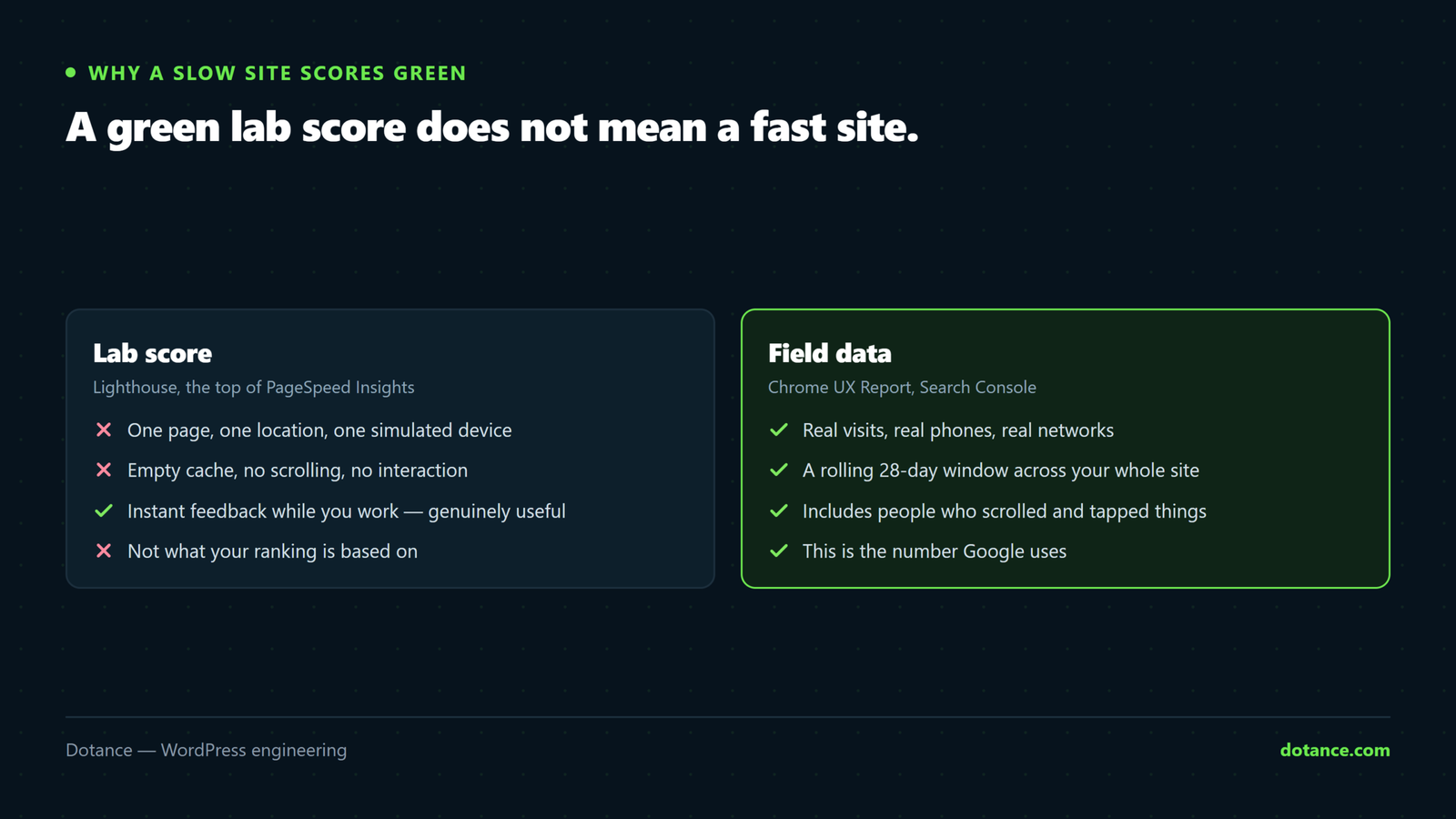
Lighthouse and the lab section of PageSpeed Insights run a simulated test on one page, from one location, with an empty cache. Your customers arrive on real phones, on real connections, often with a session cookie that bypasses your page cache entirely.
Google ranks on field data: the Chrome User Experience Report, collected from actual visitors over a rolling 28 days. Open Search Console, go to the Core Web Vitals report, and look at what real people experienced. If the lab score is green and the field data is not, the field data is the one that matters. It is entirely possible to have a slow WordPress site with a score of 95, because the test never saw what your visitors see.
These are the thresholds Google uses, measured at the 75th percentile of visits. A page passes when three quarters of real visits meet the “good” figure.
| Metric | What it measures | Good | Poor |
|---|---|---|---|
| LCP — Largest Contentful Paint | How long until the main content is visible | 2.5 s or less | Over 4 s |
| INP — Interaction to Next Paint | How quickly the page responds to taps and clicks | 200 ms or less | Over 500 ms |
| CLS — Cumulative Layout Shift | How much the layout jumps while loading | 0.1 or less | Over 0.25 |
| TTFB — Time to First Byte | How long the server takes to start answering | 0.8 s or less | Over 1.8 s |
TTFB is not a Core Web Vital itself, but it sits underneath LCP. A server that takes two seconds to answer cannot produce a 2.5 second LCP, whatever happens on the front end. Google’s own explanation of the Web Vitals goes into how each one is collected.
Find your cause in fifteen minutes
Before changing anything on a slow WordPress site, spend a quarter of an hour working out which kind of slow it is. The symptoms point to different causes surprisingly reliably.
| What you notice | Most likely cause | Where to look |
|---|---|---|
| Every page is slow, including simple ones | Server response time or the database | TTFB, then Query Monitor |
| Home page is fast, checkout and account pages are slow | Uncacheable pages hitting the database | Cache headers, object cache |
| Slow for the first visitor, fast afterwards | Cache working, but expiring or purging too often | Cache lifetime and purge rules |
| Fast on desktop, slow on phones | Heavy JavaScript, oversized images | Field data split by device |
| Content appears, but the page ignores taps for a moment | Long JavaScript tasks (poor INP) | Performance panel in Chrome DevTools |
| Admin and editor are slow, front end is fine | Database, autoloaded options, a heavy builder | Query Monitor in the dashboard |
Two commands answer the first question about a slow WordPress site quickly. The first times the server’s answer on its own. Run it three or four times, because the first request may be the one that fills the cache.
Terminal — time to first byte
curl -o /dev/null -s -w "TTFB %{time_starttransfer}s total %{time_total}sn" https://example.com/The second shows whether the page you requested came from a cache at all. The header names depend on the stack: LiteSpeed, Cloudflare, Varnish and most managed hosts each add their own.
Terminal — was this page served from cache?
curl -sI https://example.com/ | grep -i -E "x-litespeed-cache|cf-cache-status|x-cache|x-proxy-cache|age:"A consistently high TTFB on a page that reports a cache hit points below WordPress, at the server. A high TTFB with a cache miss points at WordPress itself, which is where the next sections come in.
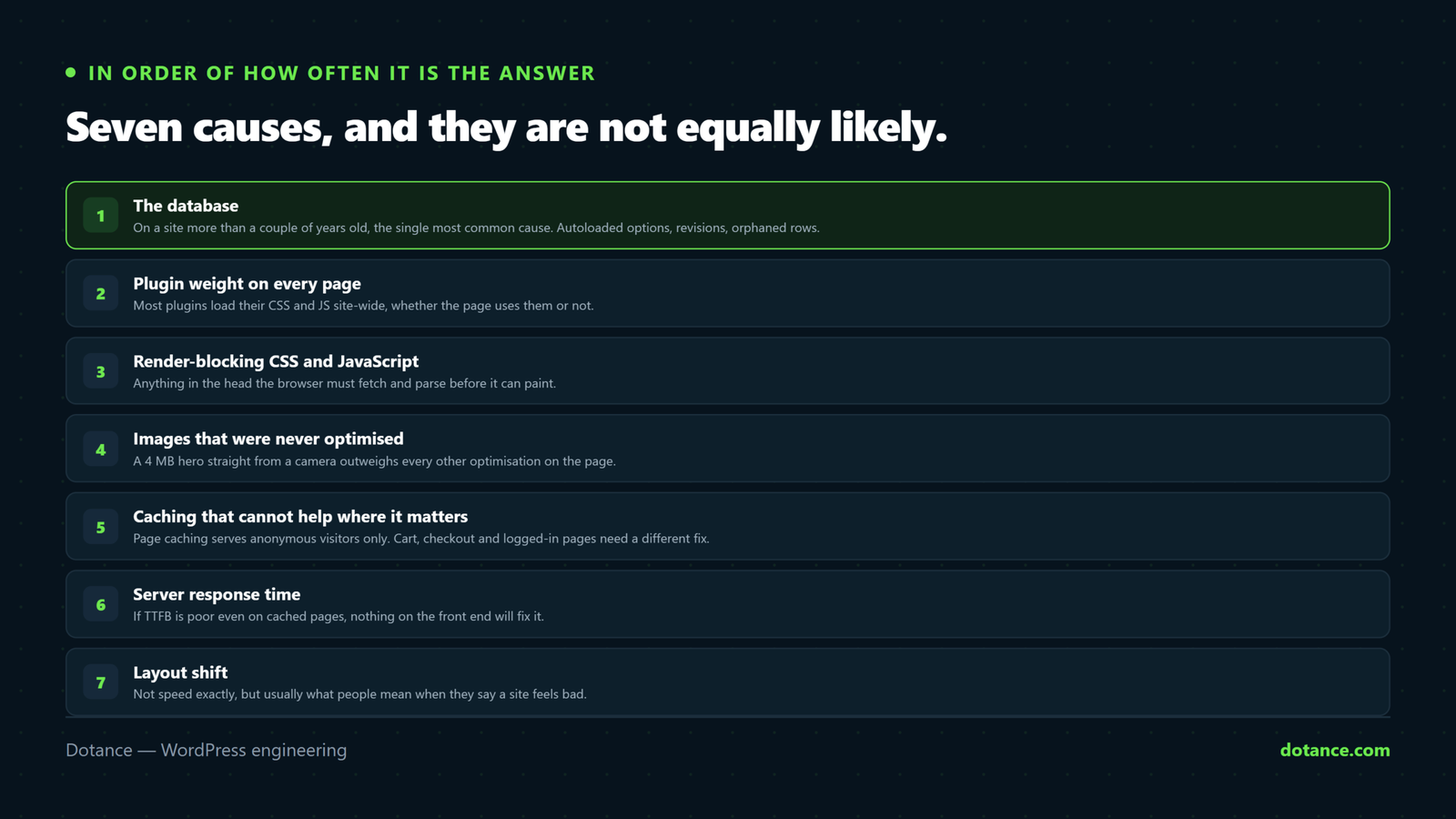
1. The database
On a slow WordPress site more than a couple of years old, this is the single most common cause, and the one most often skipped because it is invisible from the front end. Three things account for most of it.
- Autoloaded options. WordPress reads every autoloaded option on every request. Plugins that were deleted years ago often left their settings behind, sometimes megabytes of them. WordPress 6.6 added a Site Health warning when the total passes 800 KB, which tells you how common the problem is.
- Missing indexes. Meta queries across large tables, such as orders or products filtered by a custom field, scan every row without a suitable index, and they get slower every month as the table grows.
- Revisions and expired transients. Years of accumulation that nobody has pruned. Rarely the whole story, but they make everything else worse.
The first two commands only read. The third deletes transients that have already expired, which WordPress would discard anyway, so it is safe to run on a slow WordPress site in production. If you are not sure what you are looking at, try all three on a staging copy first.
WP-CLI — how heavy is autoload, and what has built up?
# total size of everything WordPress loads on every request
wp eval 'echo size_format( strlen( serialize( wp_load_alloptions() ) ) ) . PHP_EOL;'

# how many stored revisions there are
wp post list --post_type=revision --format=count

# remove only transients that have already expired — safe to run
wp transient delete --expired
For slow queries, install Query Monitor on staging and open your heaviest page. It lists every query with its time and the plugin or theme that ran it. If one query takes hundreds of milliseconds, no amount of front-end work will rescue a slow WordPress site. Our guide to database optimisation done safely covers cleaning autoload and adding indexes without breaking anything.
Do not bulk-delete options by name pattern. An option that looks abandoned can belong to an active plugin with an unhelpful prefix. Switch suspicious options to not autoload first, watch the site for a week, then remove them.
2. Plugin weight on every page
Most plugins load their CSS and JavaScript on every page of the site, whether that page uses them or not. A contact form plugin loading its assets on the home page and every blog post is very common and completely unnecessary.
The number of plugins matters less than what each one costs. One well-written plugin can be lighter than a single poorly written one, so on a slow WordPress site the audit has to measure rather than count. For each plugin, note how many database queries it adds and how much CSS and JavaScript it enqueues on a page that does not need it. Query Monitor shows both.
Then remove, replace or load conditionally. On an inherited slow WordPress site, twenty plugins doing the work of six is not unusual, and page builders deserve particular attention: they are often the heaviest single component. Whether a builder is right for your site at all is a separate question, covered in page builder or custom theme.
3. Render-blocking CSS and JavaScript
Anything in the <head> that the browser must download and parse before it can paint delays the Largest Contentful Paint directly. The browser cannot show your headline until it has processed every stylesheet and synchronous script above it.
On a slow WordPress site, third-party scripts are usually the worst offenders and the easiest wins: tag managers carrying tags nobody remembers adding, chat widgets, heatmaps, review badges and embedded video players. Each one needs a decision. Defer it, load it only after interaction, replace it with something lighter, or remove it. Most of those decisions belong to whoever owns marketing, not to the developer, which is why they tend to accumulate.
The same scripts are behind most poor INP scores. A page can look loaded while a long JavaScript task is still running, and a tap during that task waits for it to finish. Chrome DevTools’ Performance panel marks tasks longer than 50 milliseconds, which is where to look if the page looks ready but feels sticky.
4. Images that were never optimised
A 4 MB hero image uploaded straight from a camera will outweigh every other optimisation on the page. It is also the easiest cause of a slow WordPress site to spot and fix.
- Serve modern formats. WebP or AVIF is typically far smaller than JPEG at the same visual quality.
- Size images to how they are displayed. A photo shown 800 pixels wide does not need to be delivered at 4,000.
- Lazy-load below the fold, never above it. Lazy-loading the LCP image is a mistake we see constantly, often caused by an optimisation plugin applying the rule to every image.
- Mark the LCP image as a priority. Recent versions of WordPress add
fetchpriority="high"to the image they believe is the main one. Check it picked the right image.
If your LCP element is an image and the metric is poor, our walkthrough on how to fix a high LCP in WordPress goes step by step through preloading, sizing and priority hints.
5. Caching that cannot help where it matters
Page caching serves anonymous visitors a stored copy of the finished HTML, which is why it makes such a dramatic difference to a brochure page. It does nothing for the cart, checkout, My Account, or any logged-in session. On a store, that is precisely where the revenue happens.
Those pages need a different approach. A persistent object cache, usually Redis or Memcached, keeps the results of repeated database queries in memory so they are not re-run on every request. Query optimisation makes the queries that still run fast. If a store is quick on the home page and slow at checkout, this is almost always why, and our guide to speeding up a slow WooCommerce store goes further into it.
WP-CLI — is a persistent object cache actually in use?
wp cache type“Default” means WordPress is using its built-in cache, which lasts only for a single request. A real object cache reports its own name. Having the Redis extension installed on the server is not the same as WordPress using it, and that gap is behind many a slow WordPress site on otherwise good hosting.
The other caching failure behind a slow WordPress site is a cache that works but rarely gets the chance. If every post update, comment or stock change purges the whole site, most visitors hit an empty cache. Check what triggers a purge before assuming caching is doing its job.
6. Server response time
If TTFB is consistently poor even on cached pages, the problem is underneath everything else and nothing on the front end will fix it. Common causes are an outdated PHP version, too few PHP workers for the traffic, an overloaded shared server, or a database on a different machine with a slow connection to it.
Before blaming the host, rule out the site. A well-tuned site on mid-range hosting routinely beats a bloated one on expensive hosting, and moving a slow WordPress site to a faster server moves its problems with it. Once the database, plugins and caching are in order, a TTFB that is still high is a genuine hosting limit. If you do decide to move, plan it properly, as in our guide to changing WordPress hosting without downtime.
7. Layout shift
Not speed exactly, but it is a Core Web Vital, and it is often what visitors really mean when they complain about a slow WordPress site. Someone goes to tap a link and the page jumps so they tap an advert instead. It usually has one of three causes.
- Images and embeds without dimensions, so the browser does not know how much space to reserve until they arrive.
- Web fonts swapping in at a different size from the fallback font, shifting every line of text.
- Banners, cookie notices and ad slots that push content down after the page has rendered.
The fix in every case is to reserve the space before it is needed. The theme matters here too: a theme built with care rarely produces much shift, which is one of the points in choosing a theme that will not slow you down. For the specifics, see our guide to reducing CLS in WordPress.
Where fixing a slow WordPress site goes wrong
Most failed attempts to fix a slow WordPress site make one of the same few mistakes. None of them is a lack of effort.
| Mistake | Why it backfires | Do this instead |
|---|---|---|
| Chasing the lab score | The score improves; real visitors notice nothing | Judge changes by field data after 28 days |
| Stacking optimisation plugins | Two plugins minify and cache the same files and break each other | One caching layer, configured deliberately |
| Lazy-loading everything | The main image loads last and LCP gets worse | Keep the first visible image eager |
| Upgrading hosting first | An unindexed query is just as slow on a bigger server | Rule out the database and plugins first |
| Testing only the home page | It is usually the most cached, least typical page | Test product, checkout and account pages |
| Combining every file into one bundle | Modern HTTP/2 hosting often gets slower, and caching gets worse | Remove unused assets rather than merging them |
| Changing everything at once | Nobody knows which change helped or broke something | One change, measure, then the next |
What to fix first on a slow WordPress site
In order of how often it turns out to be the answer on a slow WordPress site:
- Measure with field data, so you know what you are actually solving
- The database: autoloaded options, missing indexes, slow queries
- A plugin audit: what is loading where, and why
- Images and render-blocking scripts, especially third-party ones
- Caching, including a plan for the pages that cannot be cached
- Hosting, once the causes above have been ruled out
The order matters because effort and impact are rarely proportional. People routinely spend weeks on image compression for a small gain while a single unindexed query costs two seconds on every page. On a slow WordPress site the first job is finding that query, or proving there is not one.
Then give each change time. Field data covers a rolling 28 days, so a fix made today takes up to four weeks to show fully in Search Console. Check the lab numbers for immediate confirmation that nothing broke, and the field data a month later to see whether real visitors noticed.
Common questions
Will a caching plugin fix it?
Sometimes, partly. Caching makes anonymous page views on a slow WordPress site much faster, which can be enough for a simple brochure site. It does not touch slow database queries, uncacheable pages like checkout, heavy JavaScript or a slow server, so on most sites it is one step rather than the fix.
Why is my WordPress site slow only on mobile?
Phones have slower processors and often slower connections, so heavy JavaScript and oversized images hurt far more there. The same page can be a slow WordPress site on a phone and a fast one on a laptop. Check the mobile field data separately in Search Console. If desktop passes and mobile fails, start with third-party scripts and image sizing rather than the server.
How do I know if my hosting is the problem?
Measure TTFB on a page that is being served from cache. If it is still consistently slow, the delay is at the server or network rather than inside WordPress. If cached pages are fast and uncached ones are slow, the problem is the site itself, and moving a slow WordPress site to better hosting will help much less than you hope.
Does site speed affect SEO?
Yes, but less than people fear and more than they hope. Core Web Vitals are a ranking signal that matters most between otherwise similar pages. The larger cost of a slow WordPress site is usually commercial: visitors leave before a slow page finishes, and they do not come back to check whether it improved.
How many plugins is too many?
There is no safe number. Forty lightweight plugins can outperform five heavy ones. What makes a slow WordPress site is what each plugin does on every request, so measure queries and loaded assets rather than counting entries on the plugins screen.
How long does a speed fix take?
Diagnosing a slow WordPress site takes hours, not weeks. The fixes range from an afternoon for an image or caching problem to a few weeks when the cause is the database structure, a heavy theme or a checkout that needs rebuilding. Field data then needs up to 28 days to confirm the result.