In order of impact
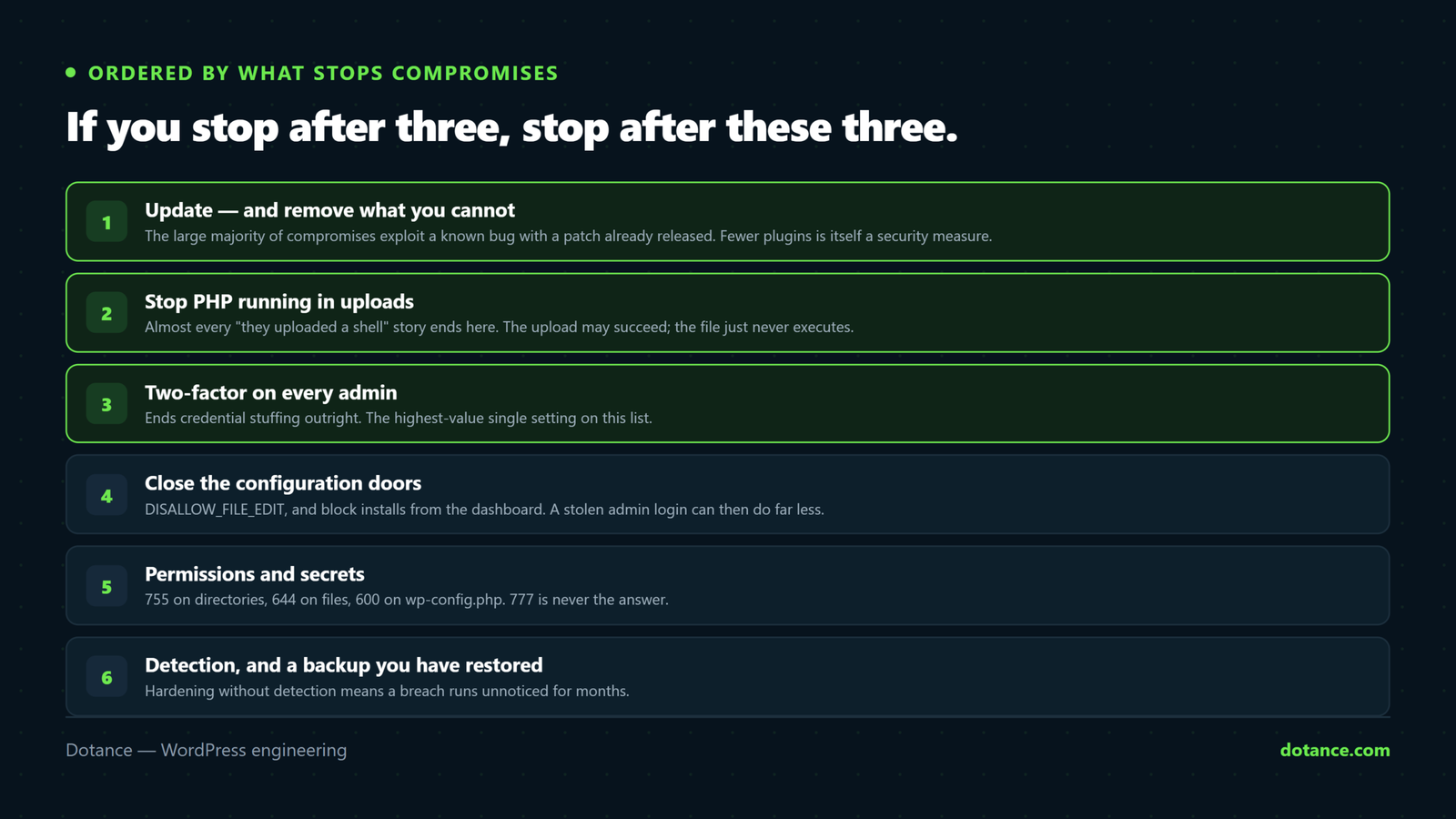
Most “security checklists” are twenty tweaks that feel productive while the real attack surface stays open. This list is ordered by what actually stops compromises, so if you only do the first three, you have done the majority of the work.
1. Update, and remove what you cannot
The large majority of WordPress compromises exploit a known vulnerability with a patch already released. The attack is automated: a script scans for the version, not for you.
Turn on automatic updates for core minor releases and plugins you trust:
wp plugin auto-updates enable --allThen audit what you are carrying:
# Anything with an update waiting
wp plugin list --update=available --fields=name,version,update_version

# Inactive plugins — still on disk, still exploitable
wp plugin list --status=inactive --field=name
A deactivated plugin is still a security risk. Its files are on the server and reachable over HTTP, and several well-known exploits work against plugins that were never activated. Deactivating is not removing — delete what you do not use.
Check what you run against the WPScan database. Anything abandoned for two years is a liability whatever it does.
2. Stop PHP running in uploads
Almost every “attacker uploaded a shell” story ends here. The upload may succeed — but if the server refuses to execute PHP in that folder, the file is inert.
wp-content/uploads/.htaccess — Apache
<Files *.php>
	Require all denied
</Files>
Nginx server block
location ~* /wp-content/uploads/.*\.php$ {
	deny all;
}
Verify it works by uploading a harmless test file and requesting it — you want a 403, not output.
3. Accounts and authentication
Credential stuffing is cheap and constant. Two-factor authentication on every admin ends it.
# Who actually has admin?
wp user list --role=administrator --fields=ID,user_login,user_email,user_registered
Then:
- Least privilege. Editors do not need admin. The marketing intern does not need to install plugins.
- Delete accounts for people who left. Reassign their content rather than keeping a dormant login.
- Two-factor for every admin, no exception for the “temporary” account, which is never temporary.
- Long unique passwords from a manager. Reused passwords are how most credential stuffing succeeds.
- Audit application passwords in each profile — they bypass 2FA by design and outlive password changes.
4. Configuration that closes real doors
wp-config.php
// A compromised admin login can no longer edit PHP from the dashboard.
define( 'DISALLOW_FILE_EDIT', true );

// Blocks plugin/theme installs and updates through the admin entirely.
// Strong, but it also blocks your own updates — only with a deploy process.
// define( 'DISALLOW_FILE_MODS', true );
DISALLOW_FILE_EDIT is the important one and costs you nothing: without it, any stolen admin session is instant code execution through Appearance → Theme File Editor.
XML-RPC multiplies brute-force attempts by allowing many login guesses per request. Block it if nothing you use needs it — the Jetpack app and some remote publishing tools do:
location = /xmlrpc.php {
	deny all;
}
5. File permissions and secrets
find . -type d -exec chmod 755 {} \;
find . -type f -exec chmod 644 {} \;
chmod 600 wp-config.php
777 is never the answer. If a plugin “requires” it, the permissions or the ownership are wrong — fix those instead. World-writable directories let any compromised account on a shared server write into your site.
Rotate the salts if they have never been changed, or if anyone with access has left:
wp config shuffle-saltsAnd give the database user only what WordPress needs — SELECT, INSERT, UPDATE, DELETE, CREATE, ALTER, INDEX, DROP. Not ALL PRIVILEGES, and never the root account.
6. Detection and a way back
Hardening without detection means a breach runs unnoticed for months.
- File integrity monitoring — alert on core, theme or plugin files changing outside a deploy.
- Login alerts for admin logins from new locations.
- Uptime monitoring — the first sign of trouble is often the site simply being down.
- Off-site backups you have restored at least once.
# A quick integrity check, worth running on a schedule
wp core verify-checksums && wp plugin verify-checksums --all
A backup nobody has ever restored is an assumption, not a backup. Restore one to a staging site and confirm the database came with it. Discovering the backup is broken during an incident is the worst possible moment.
What is not worth your time
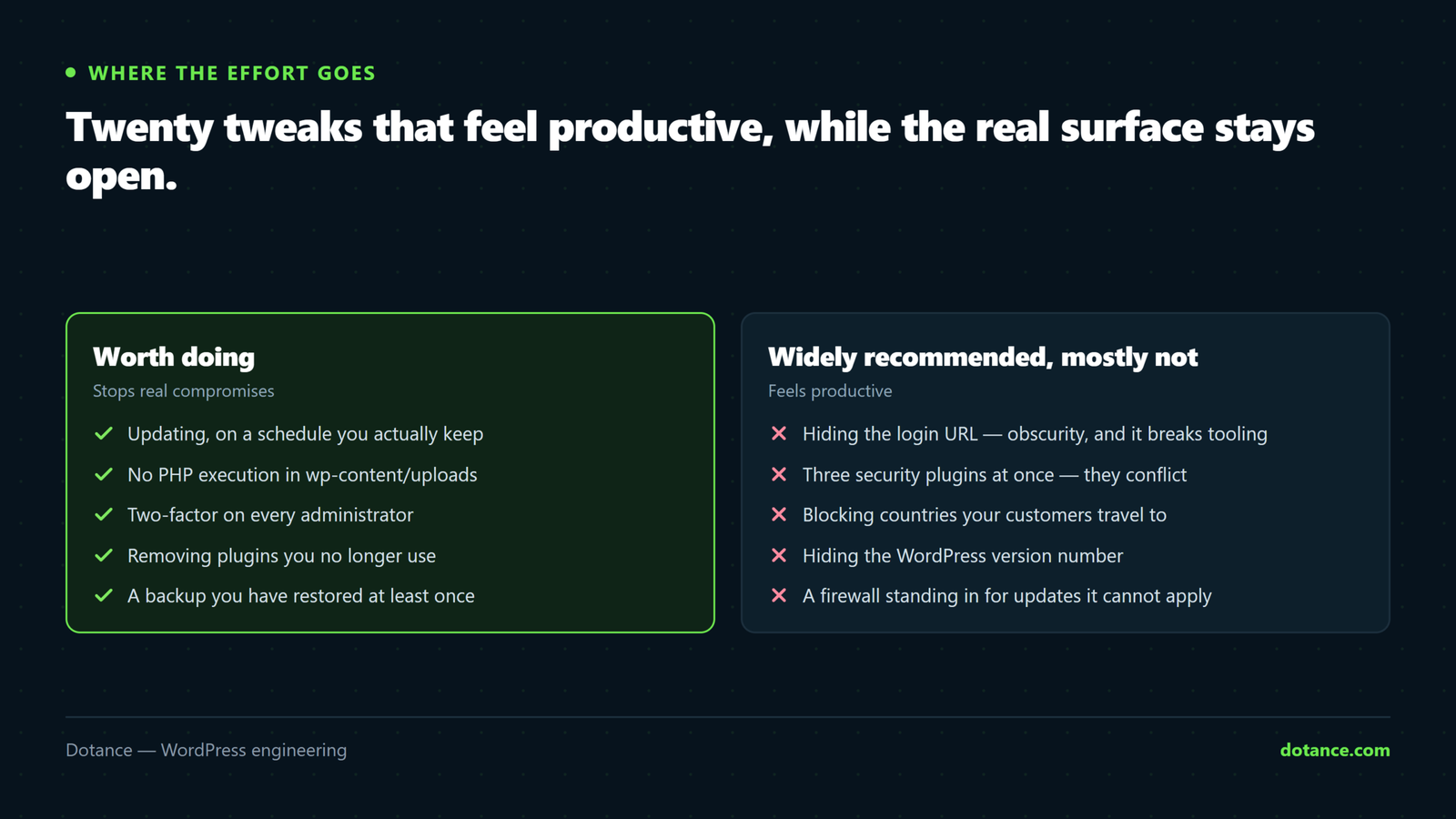
Widely recommended, mostly ineffective:
| Common advice | Reality |
|---|---|
| Hide the login URL | Obscurity, not security. Trivially discovered, and it breaks tooling. Two-factor solves the real problem. |
| Change the table prefix | Marginal at best on an existing site, and a real chance of breaking it. Not worth the risk. |
| Hide the WordPress version | Fingerprinting works from assets and markup anyway. Update instead. |
| Disable the REST API entirely | Breaks the block editor and much else. Restrict specific endpoints if needed. |
| Rename wp-content | Breaks plugins that hard-code the path. Stops nobody. |
Make it a routine, not an event
Hardening decays. New plugins arrive, staff change, someone grants admin “just for today”. A monthly pass — updates applied, users reviewed, backup restored, integrity checked — is what keeps the posture real. That routine is most of what a maintenance plan actually is.
Common questions
Which security plugin should I install?
One, not three — they conflict and each adds its own surface. But a plugin does not patch an outdated plugin, and it is not a backup. It is a layer on top of the list above, not a substitute for it.
Is a firewall worth it?
A WAF blocks known exploit patterns before they reach WordPress, which genuinely buys you time between a disclosure and your update. It does not fix the vulnerability underneath.
My site is small. Am I a target?
You are not targeted — you are scanned. Automated scripts do not check your traffic before trying a known exploit. Small sites get compromised constantly, usually to send spam or host phishing pages.
How often should I actually update?
Security releases: immediately. Everything else: weekly, on staging first if the site earns real money. The gap between disclosure and patch is when the automated attacks arrive.