Before anything: a backup you can restore
wp db export ~/before-cleanup-$(date +%F).sql
ls -lh ~/before-cleanup-*.sql
Check the file is a real size and ends properly — the method is in backups done right. If the site earns money, do this whole exercise on staging first.
Find out where the weight actually is
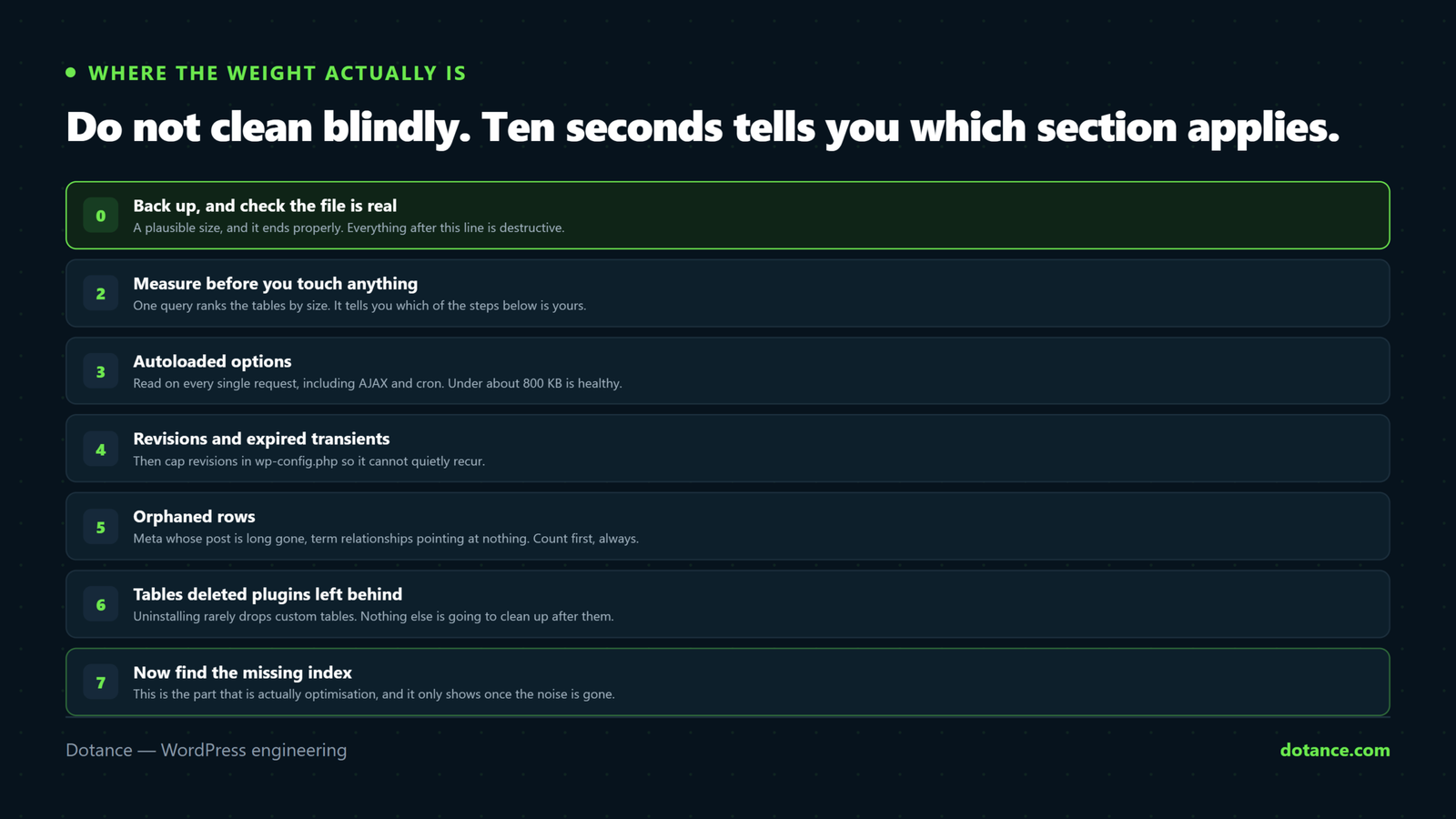
Do not clean blindly. Ten seconds tells you which section of this article applies:
wp db query "SELECT table_name,
  ROUND((data_length + index_length) / 1024 / 1024, 1) AS mb,
  table_rows
FROM information_schema.TABLES
WHERE table_schema = DATABASE()
ORDER BY (data_length + index_length) DESC
LIMIT 15;"
Usually one of four things dominates:
| Biggest table | Means |
|---|---|
wp_options | Autoload bloat or orphaned transients |
wp_postmeta | Orphaned meta, or a plugin storing per-post data forever |
wp_posts | Revisions — often more revisions than posts |
wp_actionscheduler_* | WooCommerce background jobs never pruned |
1. Autoloaded options — the silent one
Everything in wp_options marked autoload = yes loads on every single request, including AJAX and cron. Plugins dump settings, caches and logs there and rarely tidy up.
# Total autoloaded size
wp eval "global \$wpdb; echo round( \$wpdb->get_var(
  \"SELECT SUM(LENGTH(option_value)) FROM \$wpdb->options WHERE autoload='yes'\"
) / 1024 ) . \"KB\n\";"

# The twenty worst offenders
wp db query "SELECT option_name, ROUND(LENGTH(option_value)/1024) AS kb
FROM wp_options WHERE autoload = 'yes'
ORDER BY LENGTH(option_value) DESC LIMIT 20;"
Read the names. Anything belonging to a plugin you removed is safe to delete; anything you recognise but that does not need loading everywhere can stop autoloading instead:
# Keep the data, stop loading it on every request
wp db query "UPDATE wp_options SET autoload='no'
WHERE option_name = 'some_huge_plugin_log';"
Do not bulk-delete by pattern. A single wrong DELETE ... LIKE can remove live settings and there is no undo. Delete rows you have identified individually — and if you cannot say what an option is for, leave it and set it to not autoload instead.
2. Revisions and transients
# How many revisions exist?
wp post list --post_type=revision --format=count

# Expired transients
wp transient delete --expired
Cap revisions so it cannot recur:
wp-config.php
define( 'WP_POST_REVISIONS', 5 );Then clear the backlog — with the backup already taken:
wp post delete $(wp post list --post_type=revision --format=ids) --forcePage-builder sites carry far more weight per revision. Elementor stores the whole page layout as JSON in post meta, and every save copies all of it. A page edited two hundred times holds two hundred full copies — which is why builder sites see the largest single win from this step.
3. Orphaned rows
Meta whose post no longer exists, and term relationships pointing at nothing. These accumulate for years:
# Count first — never delete before you have looked
wp db query "SELECT COUNT(*) FROM wp_postmeta pm
LEFT JOIN wp_posts p ON p.ID = pm.post_id
WHERE p.ID IS NULL;"
If that number is large, remove them:
wp db query "DELETE pm FROM wp_postmeta pm
LEFT JOIN wp_posts p ON p.ID = pm.post_id
WHERE p.ID IS NULL;"
The same for comment meta:
wp db query "DELETE cm FROM wp_commentmeta cm
LEFT JOIN wp_comments c ON c.comment_ID = cm.comment_id
WHERE c.comment_ID IS NULL;"
4. What deleted plugins left behind
Uninstalling rarely removes custom tables. List them and compare against what you actually run:
wp db tables --format=csv
wp plugin list --field=name
A wp_somelongdeadplugin_logs table belonging to software you removed in 2022 is the usual answer to “why is my database 2GB?”.
For WooCommerce, Action Scheduler grows quietly into millions of rows:
wp db query "SELECT status, COUNT(*) FROM wp_actionscheduler_actions
GROUP BY status;"
Completed actions older than a month or two can go — WooCommerce → Status → Scheduled Actions has a cleanup, or prune by date.
5. The part that is actually optimisation
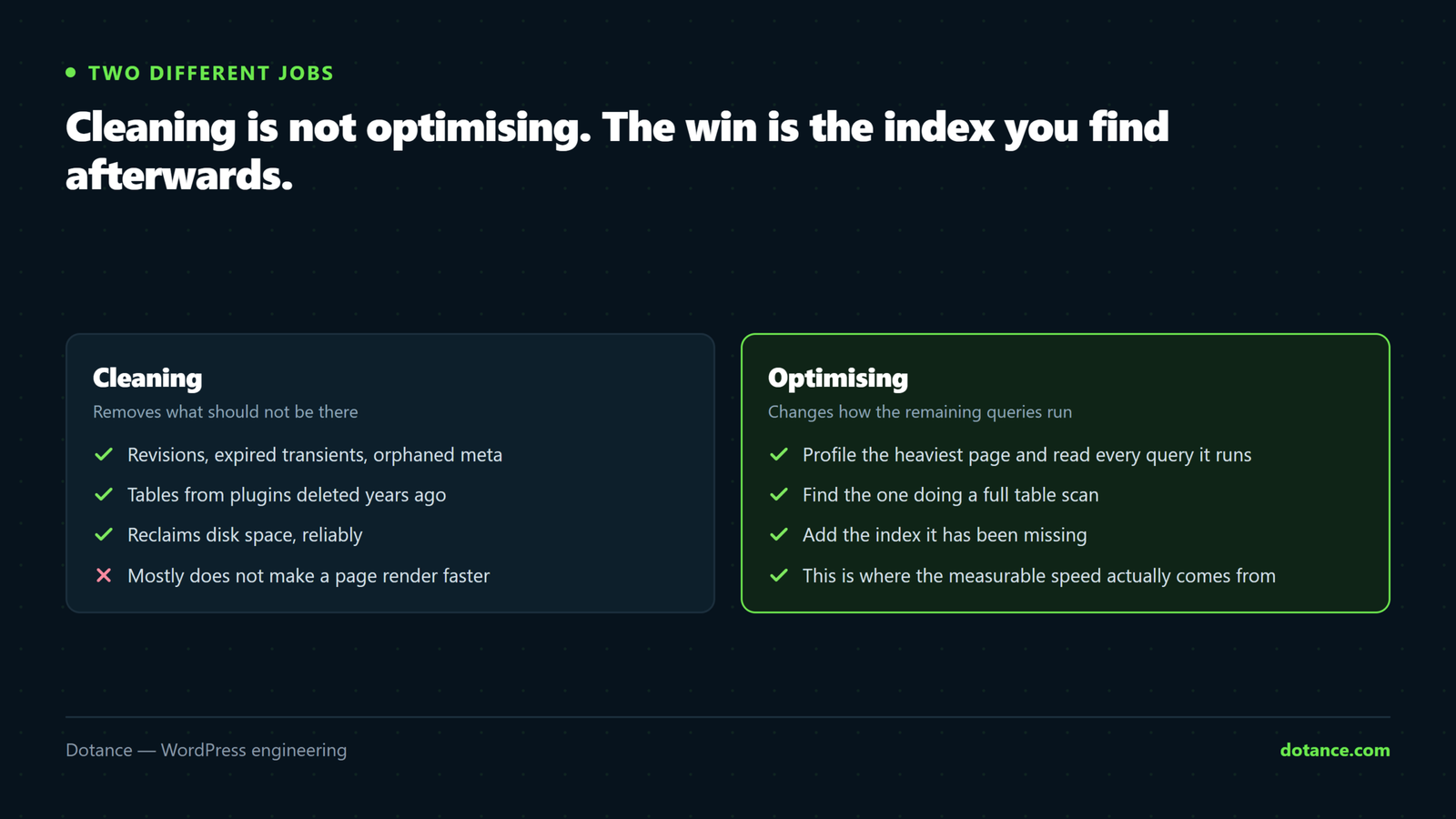
Everything above is cleaning. This is the bit that makes pages faster.
With the noise gone, profile what is left. Query Monitor on your heaviest page shows every query and its time; anything over ~50ms that runs on each load deserves attention. Or catch them at the source:
wp-config.php — staging only
define( 'SAVEQUERIES', true );The classic culprit is a meta query on a large table with no index — a plugin filtering by a custom field it never indexed. Adding one is a single statement:
# Look at what an expensive query actually does first
wp db query "EXPLAIN SELECT * FROM wp_postmeta
WHERE meta_key = 'some_key' AND meta_value = 'x';"
Indexes are not free. Each one speeds reads and slows writes, and takes disk. Add one because a specific slow query needs it — never “just in case”. And add it on staging, measure, then apply live.
Finish properly
# Reclaim space from the deletes
wp db optimize

# Confirm nothing is broken
wp db check
Then load the site, log in, open a few admin screens, and check the front end. Cleanup problems show up immediately — a missing option usually means a plugin reconfiguring itself from scratch.
Common questions
Will this make my site faster?
Trimming autoload and revisions gives a real, measurable gain on a bloated site. Deleting orphaned rows mostly reclaims space rather than time. The index is where the big win usually is.
Should I use a cleanup plugin instead?
WP-Optimize and similar are fine for revisions, transients and spam, and safer than hand-written SQL if you are unsure. They will not find your missing index or identify orphaned tables — that part is manual either way.
How often?
Quarterly is plenty once revisions are capped. Doing it monthly on a healthy database is effort without return.
Is wp db optimize risky?
It is OPTIMIZE TABLE — it reorganises storage rather than deleting anything. On very large tables it can lock them briefly, so run it during quiet hours on a busy store.