WooCommerce has been nudging stores toward custom order tables for a while now, and new installs already use them. If you run an older store you have probably seen the notice and put it off. This is what a WooCommerce HPOS migration actually changes, who benefits enough to justify the work, and the five checks that stop it going wrong.
What a WooCommerce HPOS migration actually changes
Historically, a WooCommerce order was a post. Order type shop_order, stored in wp_posts, with every detail — billing address, totals, payment method, customer note — as a row in wp_postmeta.
That worked, and it scaled badly. wp_postmeta has no useful index for the way order queries actually run, so finding “all unpaid orders from last month” meant joining a table holding every meta value on the site, orders and products and pages alike.
| Legacy storage | HPOS |
|---|---|
Orders in wp_posts | Orders in wp_wc_orders |
Everything else in wp_postmeta | Addresses and operational data in their own tables |
| Generic post indexes | Indexes designed for order queries |
| Order meta shares a table with all content | Order meta has its own table |
| Autoloaded post statuses and revisions | Order statuses as a first-class column |
So a WooCommerce HPOS migration is a data-model change, not a feature. Nothing new appears in the admin. What changes is how quickly the order screens load and how much work the database does on every shop query.
Who actually gains: the benefit scales with order count. Below a few thousand orders it is marginal and you are doing it for future-proofing. Above twenty or thirty thousand, the order list and search go from painful to instant, and the difference is not subtle.
Check 1: how many orders do you have?
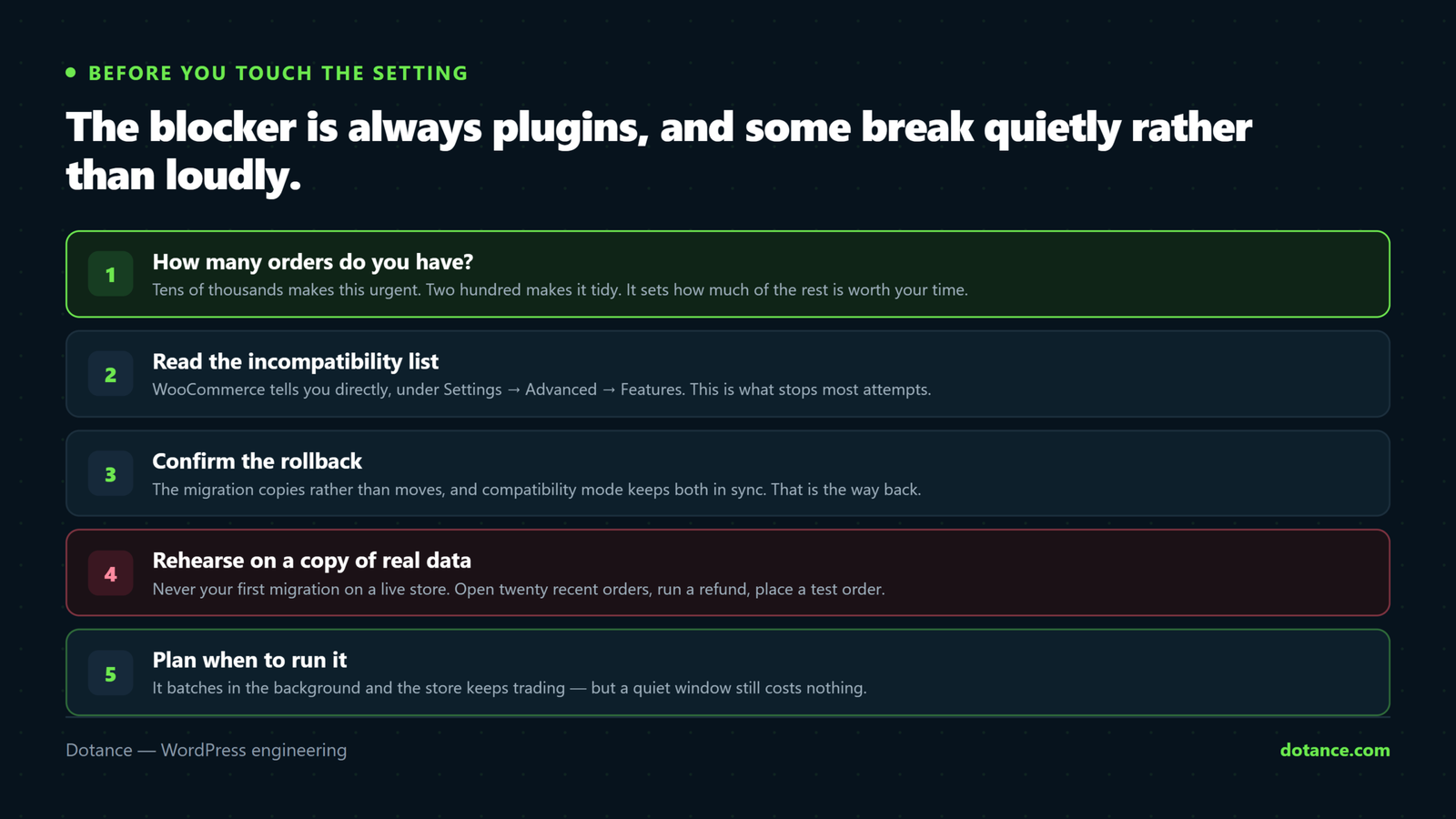
Order count decides whether a WooCommerce HPOS migration is urgent or merely tidy, so start here. It also sets how much preparation the rest of this article is worth to you.
# Rough order count, straight from the database
wp db query "SELECT COUNT(*) FROM wp_posts WHERE post_type='shop_order';"| Orders | Priority of a WooCommerce HPOS migration |
|---|---|
| Under 1,000 | Low. Do it when convenient, expect no visible change |
| 1,000 – 10,000 | Moderate. Admin gets noticeably snappier |
| 10,000 – 50,000 | High. This is where the old model starts hurting |
| Over 50,000 | Do it. Order search on legacy storage is untenable |
| New store | Already done — HPOS is the default |
Be honest with yourself about the first row. A WooCommerce HPOS migration on a small store is good housekeeping and nothing more, and if your store is slow at that size the cause is elsewhere — start with what actually makes a WooCommerce store slow instead.
Check 2: which plugins block a WooCommerce HPOS migration?
This is the check that stops most attempts, and WooCommerce tells you directly. Go to WooCommerce → Settings → Advanced → Features and read the incompatibility list before changing anything.
Plugins have to declare WooCommerce HPOS migration compatibility explicitly. A plugin that writes order meta the old way, or queries wp_posts for orders directly, will read from a table that is no longer authoritative.
| Plugin type | Risk | Why |
|---|---|---|
| Shipping and label printing | High | Frequently query orders directly |
| Accounting and ERP sync | High | Custom order meta, often raw SQL |
| Subscriptions and memberships | Medium | Well maintained, but order-heavy |
| Custom order fields | High | Nearly always written against post meta |
| Marketing and email | Low | Usually read through the CRUD layer |
| Bespoke code from a previous developer | Highest | Nobody will declare compatibility for it |
The last row is the real risk on an established store. A WooCommerce HPOS migration cannot detect a snippet in your theme’s functions.php that reads get_post_meta( $order_id, '_billing_email', true ). It will not error — it will return an empty string, and something downstream will quietly send a blank email.
# Find code that treats orders as posts
grep -rn "get_post_meta\|'shop_order'\|update_post_meta" \
  wp-content/themes/your-theme/ wp-content/plugins/your-custom-plugin/
Check 3: do you have a rollback?
A WooCommerce HPOS migration copies data rather than moving it, and compatibility mode keeps both copies in sync. That is your rollback, and it is the reason to use it rather than switching straight to HPOS-only.
- Full database backup first. Not an export of orders — the whole database, restorable.
- Enable compatibility mode so both storage systems stay current.
- Switch reads to HPOS and run the store normally for a week or two.
- Watch for anything odd in fulfilment, accounting and reporting.
- Turn off compatibility mode only once nothing has surprised you.
Step five matters for the reason people usually skip it: syncing both stores costs writes on every order. Leaving compatibility mode on forever means paying the tax of both models and getting the benefit of neither. It is a transitional setting, not a destination — but transition on your timetable, not in one evening.
If your backups are a plugin you have never restored from, fix that before you do any of this. The distinction between having backups and having restores is the subject of backups done right, and a WooCommerce HPOS migration is exactly the occasion that finds out which you have.
Check 4: have you rehearsed it on a copy?
Never perform your first WooCommerce HPOS migration on a live store. Copy it, migrate the copy, and use the real thing for an hour.
| Rehearse | Looking for |
|---|---|
| Open twenty recent orders | Addresses, totals, notes and custom fields all present |
| Search orders by email and by order number | Results, and how fast |
| Place a full test order | Created correctly, emails sent |
| Refund one | Refunds are a separate record type |
| Run your shipping or label plugin | The most common breakage |
| Export a report your accountant uses | The breakage nobody finds until month end |
The last two rows are where problems actually appear. Order screens tend to look fine because WooCommerce’s own code is correct; it is the plugin that prints a shipping label or the export that feeds your accounts that reads data the old way. A staging copy makes that an inconvenience instead of an incident — see setting up a staging site if you do not have one.
Rehearse with real data. A staging site with twelve test orders proves nothing about a WooCommerce HPOS migration on eighty thousand. Copy the production database, migrate that, and time it — the duration is also what tells you how long the maintenance window needs to be.
Check 5: when will you run it?
A WooCommerce HPOS migration runs in batches in the background, so the store keeps trading. That does not mean timing is irrelevant.
| Factor | What to plan for |
|---|---|
| Duration | Minutes for small stores, hours for large ones |
| Database load | Real, while it runs — avoid peak trading |
| Background processing | Driven by Action Scheduler, which needs working cron |
| Staff availability | Somebody who knows the store should be watching |
| Nearby events | Not the week of a sale, a stocktake or a VAT return |
The cron row catches people out. The batches are queued through Action Scheduler, which is started by WP-Cron, so a WooCommerce HPOS migration on a site with a dead scheduler simply sits there half-finished with no error at all. Confirm your queue is healthy first — the symptoms and fixes are in WordPress cron not running.
Running the WooCommerce HPOS migration
The WooCommerce HPOS migration setting lives at WooCommerce → Settings → Advanced → Features, under order data storage. Choose HPOS with compatibility mode enabled, save, and let the background process work through your orders.
To watch progress from the command line, check what your WooCommerce version offers:
# Subcommands vary by version — check before relying on them
wp wc cot --help

# How many orders are still to move?
wp wc cot count_unmigrated
Run the count periodically rather than continuously. When it reaches zero the WooCommerce HPOS migration has finished copying, and you can move to the verification list below. If the number stops falling, your background queue has stalled rather than the migration having failed — check WooCommerce → Status → Scheduled Actions.
Verifying afterwards
| Check | Pass looks like |
|---|---|
| Unmigrated count | Zero, and staying zero |
| Order list load time | Faster than before, measurably |
| Order search by email | Correct results, quickly |
| A new test order | Appears with every field populated |
| Custom fields on an old order | Still there — the big one |
| Fulfilment plugin | Prints the right address |
| Analytics and conversion tracking | Still reporting |
Do not skip the last row. Any change to how orders are created is a chance for a tracking integration to stop reporting silently, which costs you nothing today and a month of bad ad optimisation later — the full version of that story is in WooCommerce tracking broken after blocks.
Why the old model got slow, concretely
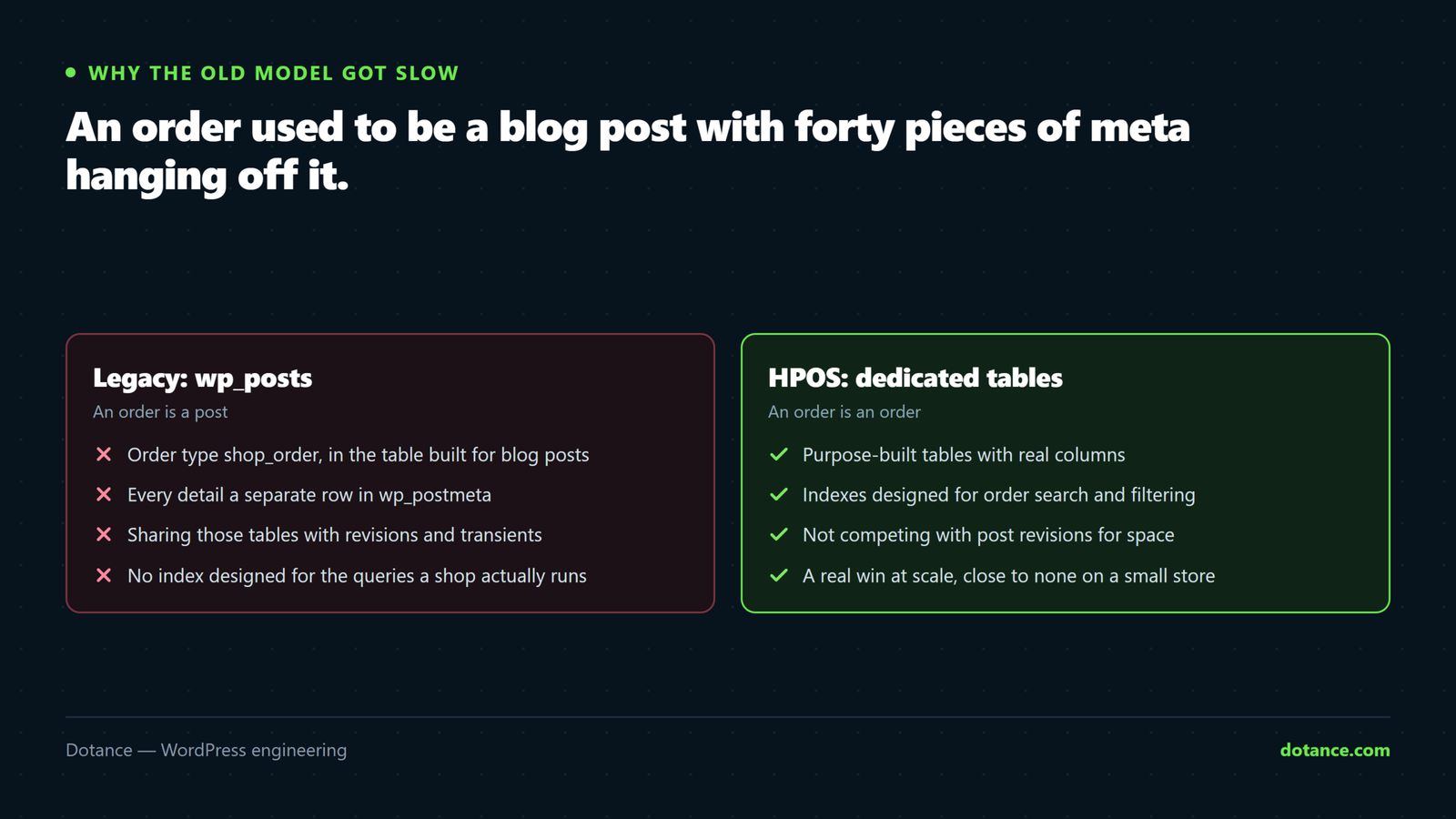
It helps to see the shape of the problem, because it explains why a WooCommerce HPOS migration helps some stores enormously and others not at all.
A single order on legacy storage is one row in wp_posts and somewhere between forty and eighty rows in wp_postmeta. Ten thousand orders is therefore perhaps six hundred thousand meta rows, sitting in the same table as every page, post, product and attachment on the site.
| Store size | Approximate order meta rows | What the admin feels like |
|---|---|---|
| 500 orders | ~30,000 | Fine |
| 5,000 orders | ~300,000 | Order list noticeably slower |
| 25,000 orders | ~1.5 million | Order search takes seconds |
| 100,000 orders | ~6 million | Filtering times out |
Now consider the query behind “show me refunded orders for this customer”. On legacy storage that is a join against that entire meta table on a column MySQL cannot index usefully. After a WooCommerce HPOS migration it is a query against a table that holds only orders, with an index on the column being filtered.
That is the whole story. It also explains the honest caveat: if your meta table is small, indexing it better changes nothing you can feel, and a WooCommerce HPOS migration is future-proofing rather than a fix. The related win — a smaller, faster wp_postmeta for everything else — is covered in WordPress database optimisation.
Who should wait
Not every store should do this now, and saying so is more useful than a blanket recommendation.
| Situation | Recommendation |
|---|---|
| Heavy bespoke integration nobody maintains | Wait. Budget the code review first |
| A critical plugin still listed as incompatible | Wait, and chase the author for a date |
| Peak trading season | Wait until it is over |
| No staging environment | Build one, then migrate |
| Small store, everything compatible | Go ahead — it is uneventful |
| Large store, everything compatible | Go ahead, with a window and someone watching |
“Wait” is a legitimate answer and it is not the same as “never”. Put a date on it. A WooCommerce HPOS migration deferred indefinitely becomes a migration done in a hurry when a plugin eventually drops legacy support, and that is the version that goes badly.
Where this goes wrong
| The mistake | What happens | Do this instead |
|---|---|---|
| Switching on live without a rehearsal | You find the broken plugin during trading | Migrate a production copy first |
| Ignoring the incompatibility list | Silent data mismatches | Read it, resolve every entry |
| Skipping compatibility mode | No clean way back | Enable it, disable it later |
| Leaving compatibility mode on forever | Double writes, no net gain | Turn it off once you are confident |
| Forgetting bespoke snippets | Blank fields, no error | grep the theme and custom plugins |
| Running it with cron broken | Migration stalls halfway, silently | Verify the scheduler first |
| Migrating the week of a big sale | Load and risk at the worst moment | A quiet week, with staff around |
The stalled-halfway row is the most unnerving in practice, because a partly-complete WooCommerce HPOS migration is not visibly different from a complete one until somebody searches for an older order. The unmigrated count is the only reliable signal, which is why it is the first row of the verification table.
WooCommerce documents the feature and the compatibility declaration API at the high-performance order storage developer docs, which is also where you check whether a plugin author has done their part.
Living with it afterwards
Once compatibility mode is off, orders exist in the new tables only, and a few habits change. Direct SQL against wp_posts for orders stops working, so any report, export or dashboard query somebody wrote by hand needs rewriting against the order tables or, better, against WooCommerce’s own CRUD methods.
That is a good thing in the long run and an annoyance in the short one. Write down which reports you had to change and where they live, because the person who inherits the store will otherwise find a query that returns zero rows and assume the data is gone. A short note in your handover document is worth an hour of somebody else’s panic.
Backups are the other habit worth revisiting. A database backup still captures everything, because the new tables are ordinary tables in the same database — but an order export you had scheduled against the old structure may silently return nothing. Test the restore path once after the WooCommerce HPOS migration settles, for the same reason you tested it before.
Frequently asked questions
Will a WooCommerce HPOS migration make my shop pages faster?
No. It speeds up order queries, which is the admin, the account area and anything reporting. Product pages and checkout speed are governed by other things entirely.
Does a WooCommerce HPOS migration need downtime?
No. The store keeps trading throughout, because orders are copied in background batches while the site runs normally. What it needs is attention rather than downtime — somebody watching the unmigrated count and the first few orders placed afterwards.
Can I go back to legacy storage?
Yes, while compatibility mode is on — both copies are current, so switching the authoritative source back is a setting. Once you turn compatibility mode off, going back means a restore from backup.
Do I lose any order data?
Core order data moves across intact, and the copy is verified rather than assumed. The risk is custom meta written by plugins or bespoke code that has not been updated, which is why checks two and four exist.
Is HPOS required now?
It is the default for new installs and the direction of travel, but an existing store on legacy storage keeps working. Treat it as something to do deliberately this year rather than something to panic about this week.
How long does the migration take?
Minutes on a small store, and the store stays open throughout. On a large one, expect hours — it runs in batches and its speed depends on your database and your background queue. Time the rehearsal and you will know.
Does it help with database bloat?
Indirectly, and more than you might expect. Orders stop adding rows to an already-enormous wp_postmeta, which makes everything else that queries post meta faster too. It does not remove the legacy rows on its own while compatibility mode is on.
What if a plugin author never adds support?
Then you are choosing between that plugin and a WooCommerce HPOS migration, and that is a real decision rather than a technical one. Ask for a date first; plenty of authors are further along than their listing suggests. If there is no date, start looking at replacements now rather than in a year.
Should I combine it with other changes?
No. Do a WooCommerce HPOS migration on its own, with nothing else changing that week. If something breaks, you want one suspect rather than three — the same principle as updating WordPress safely.