Sort the way back first
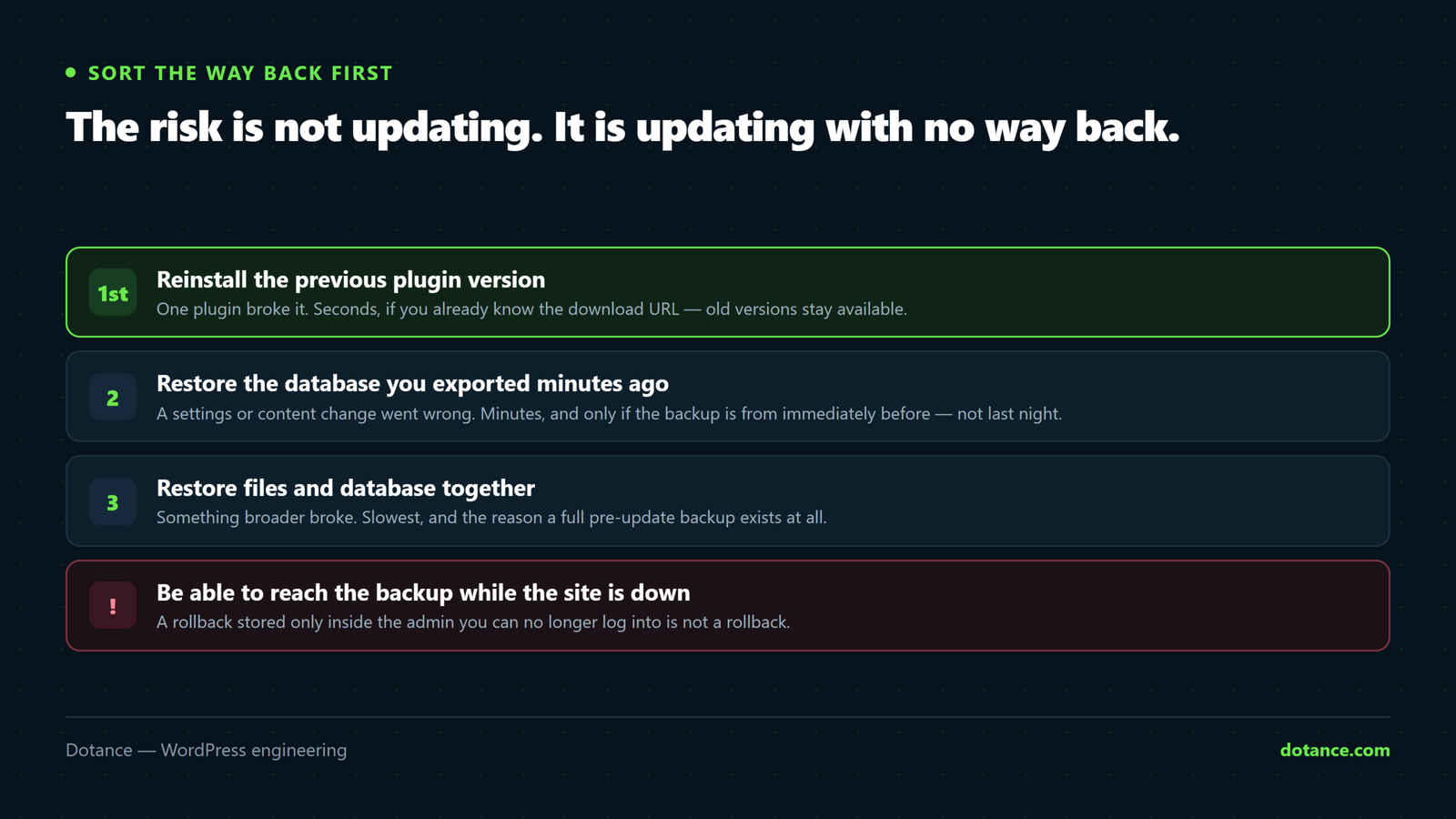
Everything else here is easier once this is settled. Three rollback routes, fastest first:
| Route | Use when | Speed |
|---|---|---|
| Reinstall the previous plugin version | One plugin broke it | Seconds |
| Restore the pre-update backup | Several things changed, or data is wrong | Minutes |
| Reinstall the previous core version | A core update broke it | Minutes |
Old plugin versions are public. On any wordpress.org plugin page, add /advanced/ to the URL — there is a version dropdown at the bottom. Or straight from the command line:
# Roll one plugin back
wp plugin install woocommerce --version=9.4.2 --force

# Roll core back
wp core update --version=6.7.1 --force
Knowing which version you were on beforehand is what makes this instant:
wp plugin list --status=active --fields=name,version > ~/versions-before-update.txtBack up immediately before, not last night
Last night’s scheduled backup loses everything since. Take one at the moment you start:
wp db export ~/pre-update-$(date +%F-%H%M).sql
tar -czf ~/pre-update-$(date +%F-%H%M).tar.gz wp-content/ wp-config.php
It must be reachable while the site is down. A backup that lives only inside a plugin’s admin screen is unreachable in exactly the situation you took it for. Host snapshot or off-site copy — see backups done right.
Not all updates carry the same risk
| Update | Risk | Approach |
|---|---|---|
| Core minor (6.7.1 → 6.7.2) | Very low | Automate it |
| Security release | Low — and waiting is riskier | Apply immediately |
| Small utility plugin | Low | Live, batched |
| Core major (6.7 → 6.8) | Medium | Staging first |
| WooCommerce, page builder | High | Staging, always |
| Anything with a major version bump | High | Staging, and read the changelog |
| PHP version | High | Its own project — see PHP upgrades |
The signal to slow down is a change in the first number. 3.9 → 4.0 means the authors expect breakage; 3.9.1 → 3.9.2 does not.
Test the risky ones properly
“Test on staging” is useless advice without saying what to test. Click the paths that pay:
- Homepage and one landing page — do they render?
- Submit a contact form. Does the email arrive?
- If you sell: add to cart, checkout, place a test order end to end.
- Log into wp-admin and edit a page in your builder.
- Open the browser console. Any new red errors?
Five minutes. It catches the overwhelming majority of update breakages, because those are the paths that involve the most plugins.
Batch, then verify
Twenty updates in one click means twenty suspects. Update in related groups:
# Related things together
wp plugin update woocommerce woocommerce-subscriptions woocommerce-stripe

# Then check before the next batch
curl -s -o /dev/null -w "%{http_code}\n" https://yoursite.com/
curl -s -o /dev/null -w "%{http_code}\n" https://yoursite.com/checkout/
After each batch: front end, one interactive flow, the console. Two minutes. When something breaks you know it was in the last three, not the last twenty.
Automate the boring layer
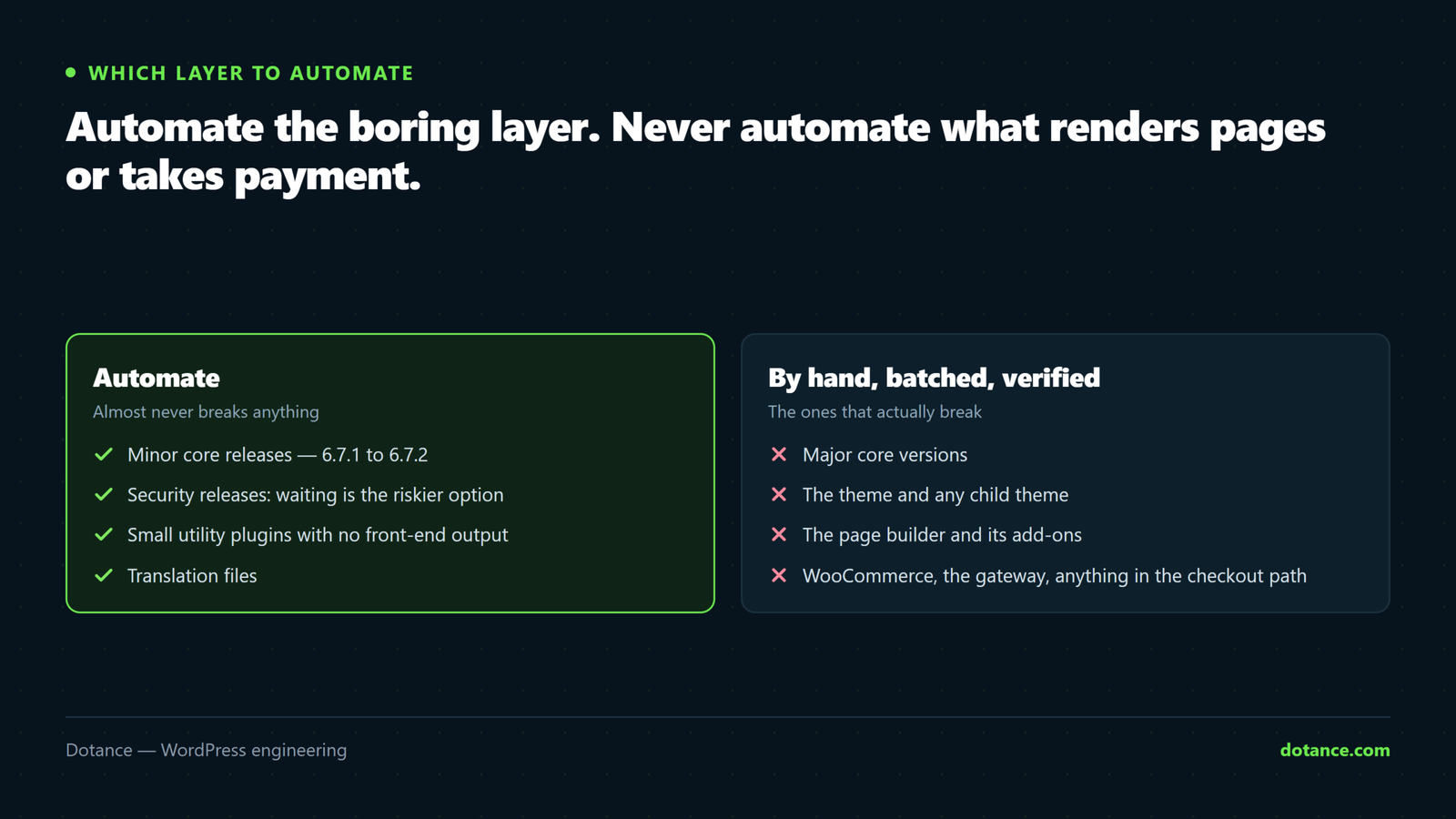
Automation is right for updates that almost never break, and wrong for the ones that do.
wp-config.php
// Minor core releases only — security and bug fixes.
define( 'WP_AUTO_UPDATE_CORE', 'minor' );
functions.php
add_filter( 'auto_update_plugin', function ( $update, $item ) {
	// Never automatically update anything that renders pages or takes money.
	$manual = array( 'woocommerce', 'elementor', 'elementor-pro' );

	if ( in_array( $item->slug, $manual, true ) ) {
		return false;
	}

	return $update;
}, 10, 2 );
Or per plugin from the command line:
wp plugin auto-updates enable --all
wp plugin auto-updates disable woocommerce elementor
Auto-updates need monitoring to be safe. They can break a site at 3am with nobody watching. Pair them with uptime monitoring that checks a real page — otherwise you have automated the risk and not the detection.
After the update
# Anything unexpected in the log?
tail -30 wp-content/debug.log

# Core files still intact?
wp core verify-checksums
Then clear your caches — including the CDN. A “broken” site after an update is often a half-cached one, with new markup and old CSS.
If you are months behind
Do not update everything at once. That guarantees a breakage with no way to attribute it.
- Take a full backup and clone to staging.
- Update core first, one major version at a time, testing between each.
- Then plugins, in small batches, most important first.
- Delete anything abandoned rather than updating it — see hardening.
- Only when staging is clean, repeat on production.
Common questions
Should I wait a week before applying updates?
For feature releases, waiting a few days lets others find the bugs. For security releases, no — the disclosure is what tells attackers where to look, and automated exploitation starts within days.
The update broke the site and I have no backup.
Ask your host — most keep automatic backups for days regardless of your own setup. Then roll the plugin back with the version command above. Then fix the backup situation before doing anything else.
Can I skip versions?
Core handles it, but test more carefully — you are absorbing several releases of changes at once. Going one major at a time makes any breakage attributable.
How do I know what changed?
The changelog, on the plugin’s wordpress.org page or in the update notice. Worth thirty seconds for anything major — “requires PHP 8.1” is the kind of line best read beforehand.