You have an Elementor page and you need a booking form on it — appointments, consultations, classes, a demo call. The Elementor editor has no booking widget of its own, and Elementor Pro’s Form is a contact form with a date field, not a scheduler. So every Elementor booking form is really a booking system from somewhere else, placed on the page one of five ways. Which way you choose decides whether you can style it, whether it previews in the editor, whether it works on a phone, and whether two people can book the same ten o’clock. This guide is the five ways, honestly compared, and the one we use.
The five ways to put an Elementor booking form on a page
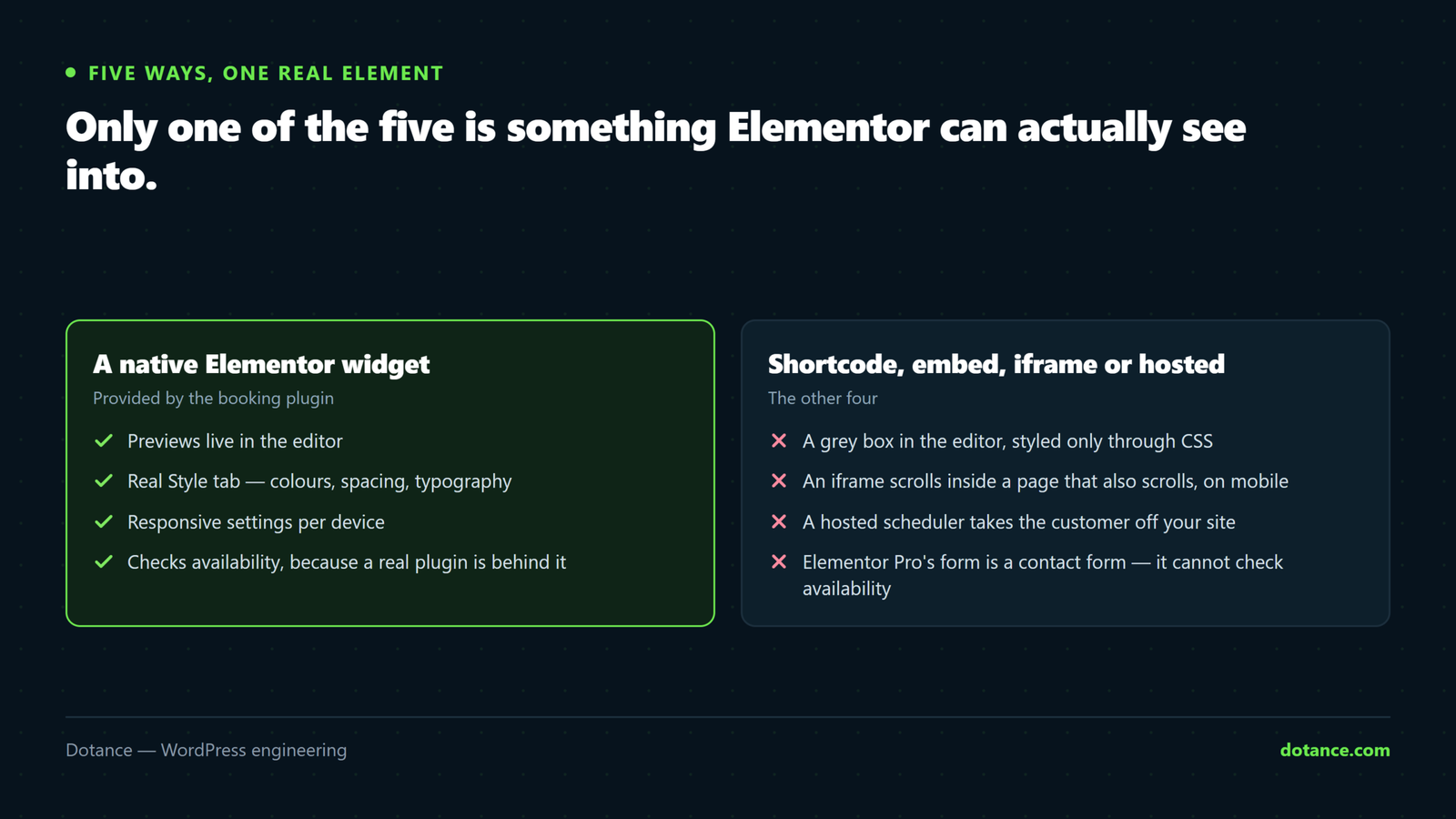
| # | Method | Previews in the editor | Elementor style controls | Checks availability | Monthly cost |
|---|---|---|---|---|---|
| 1 | Shortcode in a Shortcode or Text widget | Usually a grey box | No — CSS only | Yes, if the plugin does | Plugin’s price |
| 2 | Hosted scheduler embed (HTML widget) | Sometimes | No — their theme settings | Yes | Per seat, monthly |
| 3 | Iframe | Yes, as a frame | No — only the frame’s size | Yes | Depends on what is framed |
| 4 | The booking plugin’s own Elementor widget | Yes, the real form | Yes | Yes | Plugin’s price |
| 5 | Elementor Pro Form + add-ons | Yes | Yes | No | Elementor Pro, plus add-ons |
1. A shortcode inside a widget
Every booking plugin ships a shortcode, and dropping it into Elementor’s Shortcode widget takes thirty seconds. It is also why so many people believe an Elementor booking form has to look out of place: the editor shows a placeholder, the form’s styling comes entirely from the plugin, and the only way to change a colour is custom CSS that fights the plugin’s own. It works. It is the method to use when the plugin has no widget and you do not mind the form looking like the plugin rather than the page.
2. A hosted scheduler’s embed code
Calendly, Acuity, Cal.com and the rest give you a snippet for Elementor’s HTML widget. Setup is minutes and the scheduling logic is excellent. The costs are the ones the pricing page does not lead with: a monthly fee per user that climbs with the team, the customer leaving your domain to complete the booking, and a form styled by their theme editor rather than yours. For a solo consultant who books three calls a week it is a fine Elementor booking form; for a clinic with six practitioners it is a growing subscription and a branded-elsewhere experience.
3. An iframe
The iframe is the shortcode’s uglier cousin, and the weakest Elementor booking form of the five. It previews, in the sense that a rectangle appears, and it isolates the form’s CSS from the theme’s — which is sometimes the point. What it cannot do is size itself to its content, so on phones you get a form inside a scrollbar inside a page, and the two scroll separately. Avoid it unless the thing you are embedding offers nothing else.
4. The booking plugin’s own Elementor widget
This is the method that makes an Elementor booking form a real part of the page. A plugin that registers a native widget gives you an element in the panel, under its own category, that renders the actual form in the editor. Its options sit in the Content tab; its colours, typography, radius and spacing sit in the Style tab like every other element; responsive settings work; and the form inherits nothing accidental from the theme.
Two more things follow from a native widget that are easy to miss. The form takes part in Elementor’s global styles, so a site-wide change to the accent colour or the button radius reaches it without a second edit. And it appears in the editor’s Navigator like any other element, which means it can be conditionally hidden per device or duplicated across pages without copying a shortcode around.
It is rarer than it should be. Many booking plugins stop at the shortcode and call the Shortcode widget “Elementor support”. Check for the widget by name before choosing a plugin: open the Elementor panel, search for the plugin’s name, and see whether a widget appears. If it does not, you are back to method one.
5. Elementor Pro’s Form with add-ons
Elementor Pro’s Form widget is a good contact form: fields, conditions, actions after submit, integrations. People build an Elementor booking form from it by adding a date field, a time dropdown and a payment action. The result collects a request. It does not know the calendar, so it will accept the same slot from ten people and leave you to sort it out by email. For “request a callback” that is fine; for anything where the time is the product, it is not a booking system.
The Elementor booking form we use: Bookance
We built Bookance because the free plugins with native widgets were paid, and the free plugins were shortcodes. It is free, and its form is a real Elementor widget under a “Bookance” category, with the layout, service and staff options in the Content tab and forty-odd style controls in the Style tab. The same form is a Gutenberg block, a Beaver Builder module and a Breakdance element, so a site that changes builders keeps its booking form.
Placing it
1. Install Bookance and run the wizard once (services, hours, a booking page).
2. Edit any page in Elementor. Search the panel for "Bookance".
3. Drag the Booking Form widget in. Pick a layout:
   step by step · single page · calendar-first · popup button
4. Style tab: colours, radius, fonts, button style — or leave the Design
   screen's preset in charge and skip the tab entirely.
What it does behind the form is the part a page builder cannot see and the part that matters. Each reservation commits inside a database transaction with a per-staff lock, so two people confirming the same slot in the same second cannot both get it — one is offered the next free time. Confirmation, reminder and cancellation emails run on a background scheduler with retries and a delivery log, which is the difference between reminders that send and reminders that depend on WP-Cron having run and on mail leaving the server at all. Unlimited services, staff and locations, no paid tier hiding the basics. The seven checks for a booking plugin are the list we built it against.
Where it is not the answer. Bookance does not take payments yet; deposits and online payment are planned for a separate Pro add-on. If the booking must be paid at the moment it is made, a hosted scheduler with payments, or a paid plugin with a native widget, is the honest recommendation today.
Styling an Elementor booking form so it matches the page
With a native widget, styling is the Style tab. With a shortcode, it is CSS, and the trick is to scope it so the plugin’s own rules do not win by specificity. Two rules cover most of it:
Scoped CSS for a shortcode-based form (Elementor › Custom CSS on the widget)
/* Scope to this widget only — "selector" is Elementor's placeholder */
selector .booking-form {
	font-family: inherit;
	--accent: #1a5aa6;
}
selector .booking-form .button,
selector .booking-form button[type="submit"] {
	background: var(--accent);
	border-radius: 8px;
}
Two cautions. First, !important is a last resort, not a first move; if you need it on more than one rule the plugin’s CSS is fighting you and a native widget would be less work. Second, on a phone, check the time-slot grid: shortcode forms often lay slots out in a fixed number of columns that were chosen for a desktop. The specific fix is a widget that has responsive controls built in; the general one is a media query in the same scoped block.
Booking from a button: the popup pattern
A form in the middle of a services page pushes the content down and shows a calendar to people who were only reading. The pattern that converts better on most sites is a button — “Book a consultation” — that opens the Elementor booking form in a modal. Three ways to build it:
| Approach | Needs | Note |
|---|---|---|
| Elementor Pro popup with the form widget inside | Elementor Pro | Works with any of the five methods; Pro licence |
| A free popup builder with the form’s shortcode | A popup plugin | Shortcode limits apply inside the popup too |
| The booking widget’s own popup layout | Nothing extra | Bookance’s “popup button” layout renders the trigger and an accessible modal itself |
Whichever you use, check that the modal traps focus and closes on Escape, and that the Elementor booking form inside it still fetches availability live rather than from the cached page. A popup that opens instantly but shows yesterday’s slots is worse than no popup: the visitor picks a time, submits, and is told it is gone. Test the popup path on a phone as well, where a modal taller than the screen needs to scroll inside itself without trapping the page behind it. A booking form that a keyboard user cannot leave is an accessibility failure and, on some sites, a legal one.
Choosing the plugin behind an Elementor booking form
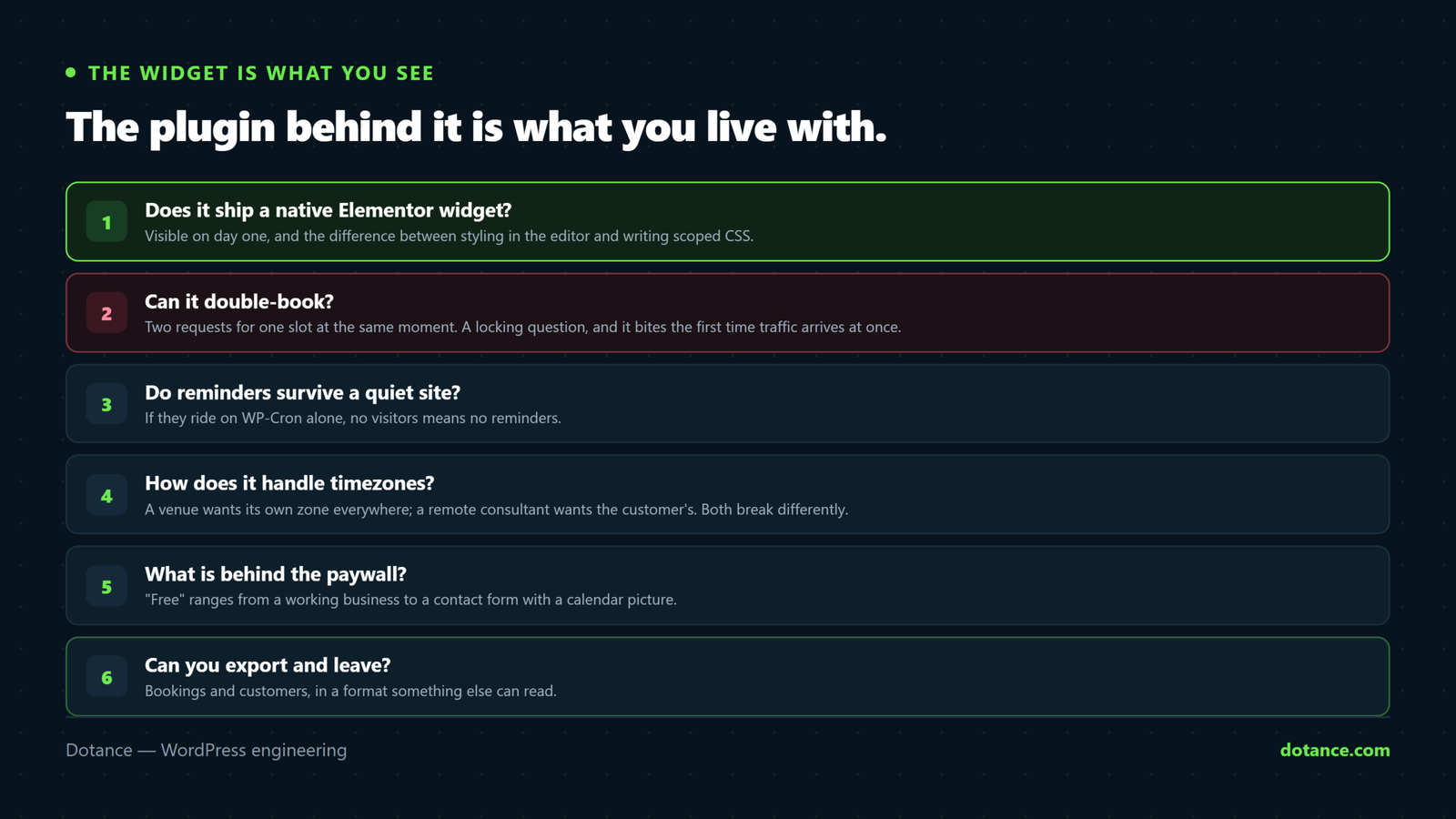
The widget is what you see; the plugin behind it is what you live with. Six things to check before committing an Elementor booking form to a plugin, in the order they cause pain later.
| Check | Why it matters | How to test |
|---|---|---|
| A real Elementor widget | Style tab, preview, responsive controls | Search the panel for the plugin name |
| Availability fetched live | Cached pages otherwise show taken slots | Book a slot in one tab; reload the form in another |
| Locking on confirm | Two people, one slot, same second | Read the plugin’s notes on double bookings; test with two browsers |
| Background scheduler for email | Reminders on quiet sites | Look for a delivery log with retries |
| Importers | Moving from what you have now | Dry run on a staging copy |
| Free-tier limits | Staff or booking caps that appear later | Read the comparison table, not the headline |
The second row is the one that makes an Elementor booking form look broken a month after launch, when a caching plugin is added and nobody connects the two. Test it deliberately: with the page cache on, book a slot, then open the page in a private window and see whether the slot is still offered. If it is, the form prints availability into the HTML and the page must be excluded from caching.
Then test the whole Elementor booking form on a phone, not the editor’s phone preview — a real device on a slow connection. Tap through every step, pick a slot, fill the details, and confirm. Check the confirmation email arrives, then cancel through the link in it. That ten-minute run finds more than an hour of reading. It is the same discipline as the booking-plugin checks, applied to the one page a customer will actually use, and it costs nothing on a stack that is free Elementor plus a free plugin.
Where an Elementor booking form goes wrong
| Mistake | What you see | Fix |
|---|---|---|
| Iframe on mobile | A form scrolling inside a page scrolling | Native widget or shortcode; never iframe |
| Treating Elementor Pro Form as a scheduler | Double bookings sorted out by email | A plugin that owns the calendar |
| Styling with page-wide CSS | The theme’s buttons change too | Scope with selector in the widget’s Custom CSS |
| Reminders on WP-Cron alone | Reminders arrive late or not at all on quiet sites | A plugin with a background scheduler, or a real cron job |
| Cached booking page | Slots shown that were taken an hour ago | Exclude the booking page from page caching; the plugin should fetch availability live |
| Form rendered by JS only | Blank box in the editor; blank page for some crawlers | A widget that server-renders the first step |
The cache row catches sites that did everything else right with their Elementor booking form. A page cache stores the HTML with yesterday’s free slots in it. An Elementor booking form that fetches availability by AJAX when the visitor picks a date is immune; one that prints the slots into the page is not. If your plugin does the latter, exclude the booking page from the cache and accept the slower load.
Questions about Elementor booking forms
Does Elementor have a built-in Elementor booking form?
No. Elementor Free has no form widget at all, and Elementor Pro’s Form widget is a contact form — it can collect a requested date but it does not manage a calendar or prevent double bookings. Every Elementor booking form comes from a booking plugin or a hosted scheduler.
Is there a free Elementor booking form?
Yes: free Elementor plus a free booking plugin with a native widget. Bookance is one, with unlimited services and staff; there are others with limits on staff or bookings in their free tier, so read the comparison table on each plugin’s page before choosing.
Why does my booking form look broken in the Elementor editor?
Because it is a shortcode or an embed, and the editor shows a placeholder for those. Only a plugin that registers an Elementor widget renders the real form in the editor. It usually looks fine on the live page; check there before assuming a fault.
Can I put an Elementor booking form in a popup?
Yes, with Elementor Pro’s popup builder, a free popup plugin, or a booking plugin whose widget has a popup layout of its own. The third option needs nothing extra and handles focus and keyboard closing itself.
Which is better, Calendly or a WordPress booking plugin?
Calendly for a solo operator who wants zero maintenance and does not mind a monthly fee and a booking that happens off-site. A plugin for teams, for keeping the customer on your domain, for owning the data, and for avoiding a per-seat subscription. The break-even is usually around two or three staff.
Will an Elementor booking form slow the page?
A hosted embed loads their script and often their fonts; that is measurable. A native widget loads its own small CSS and JS only on pages that contain it. Either way, keep the form off the home page unless booking is the home page’s job, and measure with the usual tools.
Can I move my bookings from Bookly or Amelia?
Bookance has importers for both, with a dry run, and a CSV importer for everything else. The Elementor booking form itself does not change; the appointments, customers and staff move underneath it. Keep the old plugin installed but deactivated during the import, check the appointments screen, then remove it.