Every hosting company sells speed, and almost none of them explain which part of the wait they are responsible for. Before you move host, it is worth knowing what your visitors are actually waiting on — because WordPress hosting speed is a smaller share of that number than the marketing suggests, and the parts nobody sells you are usually the larger ones. Here is a real measurement, broken down, and what each piece means.
What you are actually waiting for
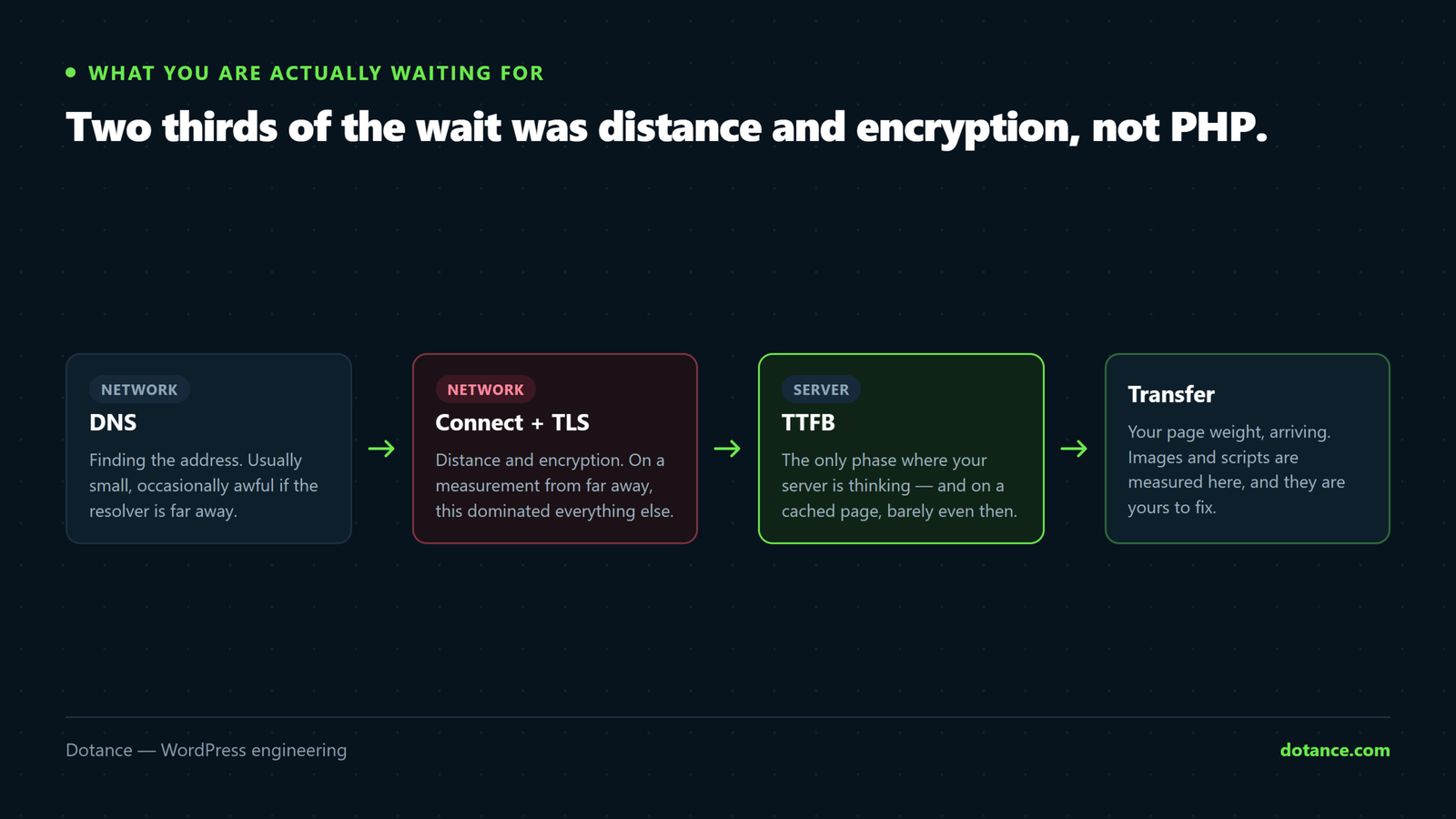
WordPress hosting speed is easiest to understand as a stack of phases. We measured this site from a machine some distance away. Three runs, in seconds:
              dns      connect   tls      ttfb     total
run 1         0.2337   0.3605    0.6029   0.7315   1.1687
run 2         0.0067   0.1291    0.3602   0.5049   0.8175
run 3         0.0061   0.1184    0.3399   0.4673   0.8523
Read run 3, where DNS was already cached. Time to first byte was 0.467 seconds. Of that:
| Phase | Time | Who controls it |
|---|---|---|
| DNS lookup | 0.006s | Your DNS provider — negligible once cached |
| TCP connect | 0.112s | Physical distance. Nobody can beat physics |
| TLS handshake | 0.222s | Distance again — more round trips |
| Server response | 0.127s | The host, and your site |
| Total TTFB | 0.467s |
Look at the proportions. Roughly 0.33 seconds of that wait was the network — opening a connection and negotiating encryption across a long distance. Only about 0.13 seconds was the server doing anything at all.
That is the single most important thing to understand about WordPress hosting speed: for a visitor far from your server, most of the delay happened before your host was even asked for a page.
The first run is instructive too. A cold DNS lookup added 0.23 seconds and everything else was slower — that is what a genuinely first-time visitor experiences. Repeat measurements flatter you, which is why single tests from your own browser are not evidence of anything.
The one number that moved the most
Caching is the biggest WordPress hosting speed lever most sites already own. On the same site, same moment, we requested the page again with a query string to bypass the cache:
| Request | TTFB |
|---|---|
Cached (X-Litespeed-Cache: hit) | 0.467s |
| Cache bypassed | 0.865s |
| Difference | 0.398s |
Nearly four tenths of a second, from one setting. That is more than you would gain from any realistic hardware upgrade, and it is free on most hosting.
So before comparing plans, confirm your cache is actually working. A great many sites paying for premium WordPress hosting speed are serving uncached pages because a plugin conflict quietly disabled the cache, and nobody checked.
# Is your page cache doing anything?
curl -sI https://example.com/ | grep -iE 'x-litespeed-cache|x-hcdn-cache-status|cf-cache-status|x-cache'

# You want HIT. MISS on every request means it is not working.
Six WordPress hosting speed factors, in order of size

| # | Factor | Typical impact | Hosting can fix? |
|---|---|---|---|
| 1 | Page weight — images and scripts | Seconds | No |
| 2 | Distance to the visitor | 0.1–0.4s | Partly, with a CDN |
| 3 | Whether the page cache works | ~0.4s here | Yes |
| 4 | Database and autoloaded options | 0.1–1s+ | Partly |
| 5 | PHP version and worker count | 0.05–0.2s | Yes |
| 6 | Object cache | Only at scale | Yes |
Note that the largest item is not a WordPress hosting speed factor at all. A page carrying four megabytes of unoptimised images will feel slow on the finest server ever built, because the server finished its job in a tenth of a second and the browser then spent six seconds downloading pictures.
That is why “we moved host and it is still slow” is such a common story. The move addressed rows two to six and the actual problem was row one — the full diagnosis is in why WordPress sites get slow.
Distance, and what a CDN really does
Distance is the WordPress hosting speed factor nobody can engineer away. Our measurement showed 0.33 seconds lost to connection and encryption. A CDN reduces that by terminating the connection near the visitor rather than at your origin — which is genuinely valuable and is often sold as “faster hosting” when it is a different product entirely.
| Situation | Does a CDN help? |
|---|---|
| Visitors worldwide, server in one country | Substantially |
| Visitors and server in the same city | Barely |
| Image-heavy site anywhere | Yes — assets more than HTML |
| Logged-in dynamic pages | No — those cannot be edge-cached |
Pick your server location by where your customers are, not by where you are. A UK business serving UK customers from a US datacentre is paying a tax on every request for no reason, and no plan upgrade recovers it.
Database, PHP and workers
These are the WordPress hosting speed levers a plan genuinely controls, and they matter most on uncached requests — logged-in users, carts, checkouts, the admin.
- PHP version. Newer is modestly faster and uses less memory. Real, undramatic — see upgrading to PHP 8.5.
- PHP workers. How many requests can be processed at once. This is what “handles traffic spikes” means.
- Database performance. Slow queries and bloated autoloaded options cost more than CPU on most sites.
- Disk type. Any modern host uses SSD or better. Not a differentiator any more.
- Object cache. Genuinely useful above a few thousand sessions a month, unnecessary below it.
Item three is where most uncached slowness actually lives, and it is usually your site rather than your host. A megabyte of autoloaded options is read on every single request, and the query that finds it is covered in auditing plugin bloat.
What WordPress hosting speed marketing measures
| The claim | What it usually means |
|---|---|
| “20x faster” | Against their own cheapest plan, on a cached page |
| “NVMe storage” | True, and rarely your bottleneck |
| “Unlimited bandwidth” | A billing policy, not a speed figure |
| “99.9% uptime” | Availability, unrelated to speed |
| “Built-in caching” | Genuinely valuable — this one matters |
| “Optimised for WordPress” | Varies from meaningful to marketing |
The fifth row is the only WordPress hosting speed claim on that list worth paying for. Everything else on that list is either unmeasurable from outside or irrelevant to WordPress hosting speed as your visitors experience it.
Benchmarks you did not run are close to worthless. A published comparison tells you how someone else’s test site performed from a location that is not yours, on a plan that may have changed. Measure your own site with the command below and you have a number that is actually about you.
Measuring your own WordPress hosting speed properly
# Full breakdown. Run it five times and ignore the first.
curl -s -o /dev/null -w \
 "dns %{time_namelookup}  connect %{time_connect}  tls %{time_appconnect}  ttfb %{time_starttransfer}  total %{time_total}\n" \
 https://example.com/

# Then bypass the cache and compare
curl -s -o /dev/null -w "uncached ttfb %{time_starttransfer}\n" \
"https://example.com/?nocache=$RANDOM"| What you find | What it means |
|---|---|
| Connect + TLS is most of your TTFB | Distance. Consider a CDN or a closer server |
| Cached and uncached are the same | Your cache is not working |
| Uncached TTFB over 1.5s | Database or plugin weight — investigate before moving |
| TTFB fine, page still feels slow | Page weight. Not a hosting problem |
| Occasional very slow requests | Worker contention or a noisy neighbour |
Row two is the most common WordPress hosting speed finding and the cheapest fix. Row four is the second most common, and moving host will not touch it.
Shared, VPS or managed
| Shared | VPS | Managed WordPress | |
|---|---|---|---|
| Cached page speed | Good | Good | Good |
| Uncached and admin speed | Variable | Predictable | Usually good |
| Traffic spikes | Weakest | Depends on sizing | Usually handled |
| Noisy neighbours | Yes | Less so | No |
| Who maintains the server | Them | You | Them |
| Plugin restrictions | Few | None | Some — check the banned list |
| Best for | Brochure sites, small blogs | Anyone with a sysadmin | Shops and busy sites |
Notice that the first row of WordPress hosting speed is the same across all three. For a cached page served to an anonymous visitor, cheap shared hosting and expensive managed hosting perform similarly — which is exactly the measurement most comparison articles run.
The difference appears in rows two and three: logged-in users, checkout, the admin, and behaviour under load. If your site is a brochure with a contact form, you are buying insurance you may not need. If it is a shop, those rows are the whole reason to pay more — as is the case in speeding up a WooCommerce store.
When moving host actually helps
| Move | Do not move |
|---|---|
| Your server is on another continent from your customers | Your pages are heavy with unoptimised images |
| Uncached TTFB is consistently over 1.5s after optimising | You have not checked whether the cache works |
| You hit worker limits during normal traffic | One slow plugin is doing it |
| The host cannot offer a supported PHP version | You just want a bigger number in a marketing claim |
| Support cannot answer basic questions | A competitor’s benchmark impressed you |
The right-hand column is where most WordPress hosting speed migrations come from, and every one of them ends with a faster-sounding plan and an unchanged experience. If you do move, the process itself carries risk and is worth doing carefully — the checklist is in changing WordPress hosting.
The half of WordPress hosting speed nobody measures
Every WordPress hosting speed benchmark measures an anonymous visitor loading a cached home page. Almost nobody measures the experience of the people who use the site all day.
| Who | Cached? | What they feel |
|---|---|---|
| Anonymous visitor, blog post | Yes | Fast, on almost any host |
| Logged-in editor, post list | No | Every plugin’s admin code, every request |
| Customer with items in a cart | No | Full PHP and database work |
| Anyone at checkout | No | The slowest path on the site |
| Search results page | Usually not | An expensive query every time |
Rows two to five are where WordPress hosting speed genuinely differentiates, because no cache is protecting you. A shop whose checkout takes three seconds loses money in a way that a blog post loading in 0.4 seconds does not compensate for.
Measure the admin as well as the front end. Load the posts list, time it, and compare against a page nobody is logged in for. If the gap is large, the problem is plugin code running on every admin request rather than anything a hosting plan will solve — and the same weight is slowing down every cart on the site.
# Time an uncached, logged-out but dynamic page — search is a good proxy
curl -s -o /dev/null -w "search ttfb %{time_starttransfer}\n" \
 "https://example.com/?s=example"
What happens under load
The other thing a single WordPress hosting speed measurement hides is behaviour when several people arrive at once. This is the part of WordPress hosting speed that plans are genuinely sold on, and it is invisible in any test you run alone.
| Scenario | Cached pages | Uncached pages |
|---|---|---|
| One visitor | Fast anywhere | Fast on most hosts |
| Twenty at once, reading | Fine — cache serves them | Not applicable |
| Twenty at once, in carts | Not applicable | Workers become the limit |
| A newsletter send | Fine | Queues if workers run out |
| A bot crawl on uncached URLs | Not applicable | Can exhaust workers entirely |
Row five surprises people. An aggressive crawler hitting URLs with query strings bypasses your page cache entirely and consumes PHP workers, which is why a site can be slow for real customers while a speed test reports excellent numbers. Check your access log if slowness is intermittent and correlates with nothing you changed.
It is also worth confirming your scheduler is not competing for the same resources. A backlog of overdue cron events firing all at once consumes workers exactly when a spike does, which is one more reason to keep that queue clean — see WordPress cron not running for how to check.
Where this goes wrong
| The mistake | What happens | Do this instead |
|---|---|---|
| Buying a bigger plan to fix page weight | Same slow site, larger bill | Optimise images first |
| Testing once from your own browser | A cached, warm, unrepresentative number | Five runs, ignore the first |
| Trusting published benchmarks | Someone else’s site, someone else’s location | Measure your own |
| Not checking the cache is working | Paying for speed you already had | One curl for the header |
| Server on the wrong continent | A permanent latency tax | Host near your customers |
| Adding an object cache to a quiet site | A service to maintain, no gain | Only above real traffic |
| Moving during a busy period | Migration risk at the worst moment | A quiet week, with a rollback |
The sixth row is the WordPress hosting speed advice that gets recommended by a screen rather than a person. Site Health will suggest a persistent object cache regardless of whether your traffic justifies one, and how to read that screen sensibly is covered in which Site Health warnings actually matter.
The order that actually works
- Measure. The
curlbreakdown above, cached and uncached. - Confirm the cache is hitting. Free, and worth 0.4s in our test.
- Fix page weight. Images first, then scripts. Usually the largest win available.
- Check autoloaded options and plugin count. Cheap, and often dramatic.
- Move to current PHP. Modest, free, and overdue on most sites.
- Add a CDN if your audience is spread out.
- Only then consider a different host.
Those first five steps cost nothing but time and resolve the majority of complaints about WordPress hosting speed. Anyone recommending step seven before step one is guessing — including the hosting company, which has an obvious interest in the answer.
For the underlying metric and how browsers experience it, web.dev’s guide to Time to First Byte is the clearest short reference, and it is explicit that TTFB is one component of perceived speed rather than the whole of it.
At the other end of the scale: when uncached response time and behaviour under load genuinely are the business risk, the answer stops being a bigger plan and becomes a platform. Our WordPress VIP services cover builds held to VIP platform standards — code review, caching discipline and the performance budget enforced rather than hoped for.
Frequently asked questions
How do I know if WordPress hosting speed is my problem at all?
Compare cached TTFB against uncached. If both are under a second and your pages still feel slow, the server is doing its job and the weight is in your images and scripts. That one comparison redirects most speed projects before any money is spent.
What is a good TTFB?
Under 0.8 seconds is generally considered good, under 0.5 excellent. But judge it against your visitors’ location — 0.47 seconds from far away is a better result than 0.47 seconds from the next city.
Does WordPress hosting speed affect SEO?
Indirectly. WordPress hosting speed feeds Core Web Vitals, which are a ranking input, but page weight and layout stability usually dominate. A fast server serving a heavy page still scores badly.
Is managed WordPress hosting worth the premium?
For shops and busy sites, the WordPress hosting speed premium is often worth it, for the uncached performance, the support and not maintaining a server yourself. For a brochure site with modest traffic, usually not.
Will a CDN fix a slow server?
It will hide it for cached pages and not at all for logged-in ones. A CDN is a distance solution, not a capacity solution, and the two get conflated constantly.
How many PHP workers do I need?
More than the number of simultaneous uncached requests you get. Most brochure sites need very few; shops need considerably more, because carts and checkouts cannot be cached.
My host says my site is slow because of plugins. Are they right?
Frequently, yes — and it is also a convenient answer. Measure uncached TTFB, then check autoloaded options and query counts. That evidence settles it either way in about twenty minutes.
Should I use a caching plugin if my host already caches?
Usually not — two caching layers produce confusing invalidation bugs, and a stale page is worse than a slightly slower one. Pick the layer that works and disable the other.