You drag an image into the media library, the progress bar fills, and then a red box appears saying “HTTP error.” That is the entire message. No code, no file, no reason. A WordPress image upload error phrased this way is not one bug — it is seven different faults wearing the same shirt, and the trick is narrowing down which one you have before you start changing things.
Why a WordPress image upload error tells you nothing
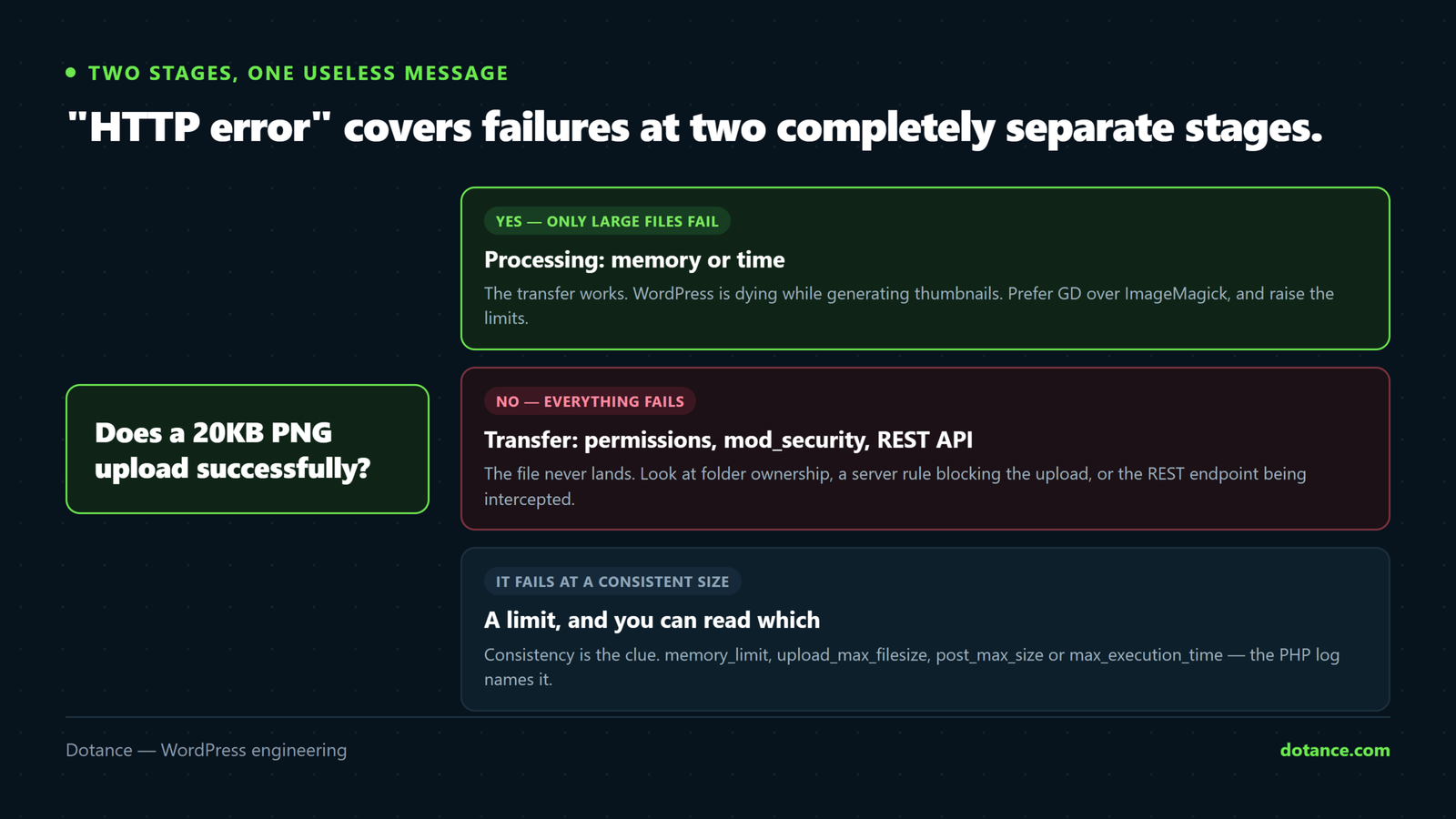
A WordPress image upload error can come from either of two stages, and the message covers failures in either.
| Stage | What happens | How it fails |
|---|---|---|
| 1. Transfer | The browser posts the file to the server | Rejected by size limits, a firewall or permissions |
| 2. Processing | PHP generates the thumbnail sizes | Runs out of memory or time, or the image library crashes |
The browser only knows that the request did not come back with a success response. Whether PHP died halfway through resizing or a firewall blocked the request at the door, the editor shows the same red box. So the first job with any WordPress image upload error is deciding which stage broke.
The thirty-second test: upload a tiny image — a 20KB logo. If that succeeds and a 4MB photo fails, the transfer is fine and the resizing is dying. If even the tiny one fails, the file never got processed at all. Those are two different articles’ worth of causes, and this test picks the right half.
Two commands before you change anything
Every WordPress image upload error leaves a trace somewhere, and that somewhere is the PHP log rather than anywhere the admin will point you.
On the server
# What did PHP actually say?
tail -50 error_log

# What are the limits it has to work within?
wp eval 'echo "memory: ".ini_get("memory_limit")."\n";
echo "upload_max: ".ini_get("upload_max_filesize")."\n";
echo "post_max: ".ini_get("post_max_size")."\n";
echo "time: ".ini_get("max_execution_time")."\n";
echo "imagick: ".( extension_loaded("imagick") ? "yes" : "no" )."\n";'
That second command answers four of the seven causes on its own. A memory limit of 40M with a 12-megapixel camera photo is a diagnosis, not a mystery, and the presence of ImageMagick tells you whether cause one applies to you at all.
The seven causes of a WordPress image upload error
| # | Cause | Tell | Fix |
|---|---|---|---|
| 1 | ImageMagick misbehaving | Large images fail, small ones work | Prefer GD with one filter |
| 2 | Memory limit | Fails at a consistent image size | Raise memory_limit |
| 3 | Execution time | Fails after a long pause | Raise max_execution_time |
| 4 | mod_security or a WAF | Everything fails instantly | Allow the upload endpoint |
| 5 | Uploads folder permissions | Everything fails, including tiny files | Fix ownership, not 777 |
| 6 | REST API blocked | Block editor fails, classic works | Unblock /wp-json/ |
| 7 | Disk or quota full | Sudden onset, no config change | Free space |
1. ImageMagick is the usual suspect
This is the first thing to try on any WordPress image upload error. WordPress prefers ImageMagick over GD when both are available. ImageMagick produces better results and uses considerably more memory, and on shared hosting it is frequently configured with thread limits that make it fall over on larger files.
Switching the preference is one filter, and it fixes more WordPress image upload error reports than every other item here:
wp-content/mu-plugins/prefer-gd.php
<?php
// GD first. Slightly lower quality, far fewer upload failures.
add_filter( 'wp_image_editors', function ( $editors ) {
	return array( 'WP_Image_Editor_GD', 'WP_Image_Editor_Imagick' );
} );
Test immediately with the image that was failing. If it uploads, you have your answer and a trade-off to consider: GD’s resizing is marginally softer on photographs. For most business sites nobody will ever notice. For a photography portfolio, fix ImageMagick’s configuration instead.
The other ImageMagick fix is capping its threads, which is what the hosting-forum advice is usually getting at:
.htaccess
SetEnv MAGICK_THREAD_LIMIT 12 and 3. Memory and time
These two produce the most confusing WordPress image upload error of the set, because the same file works on one server and not another. Resizing a photograph is the most memory-hungry thing a normal WordPress site does. A 6000×4000 JPEG expands to roughly 96MB in memory while being processed, regardless of the fact that the file on disk is 4MB.
| Image dimensions | Rough memory needed |
|---|---|
| 1920 × 1080 | ~8MB |
| 3000 × 2000 | ~24MB |
| 4000 × 3000 | ~48MB |
| 6000 × 4000 | ~96MB |
Now add WordPress itself, your plugins, and the fact that several thumbnail sizes are generated in one request. A 256M limit is a sensible floor for a site whose users upload camera images, and a WordPress image upload error at 128M is arithmetic rather than a fault.
// wp-config.php, above the "stop editing" line
define( 'WP_MEMORY_LIMIT', '256M' );
If raising it does not help, the ceiling is above WordPress — see allowed memory size exhausted for where the real limit lives, and maximum execution time exceeded if the failure comes after a long wait rather than instantly.
The cheapest fix of all: resize before uploading. An 8-megapixel photo for a 1200px-wide content area is waste at every stage — upload, storage, processing and page weight. Export at 2000px on the long edge and most of this article stops applying to you.
4. mod_security or a web application firewall
A WordPress image upload error that fires instantly on every file, including a tiny one, is not PHP at all — something is rejecting the request before PHP sees it. Server-level firewalls frequently treat a multipart POST to admin-ajax.php or async-upload.php as suspicious.
# Does the endpoint answer at all?
curl -sI https://example.com/wp-admin/async-upload.php | head -1
A 403 there is your answer, and it is not a WordPress problem — ask your host to whitelist the rule for your account. Do not disable the firewall wholesale to make an upload work; that trades a nuisance for a genuine exposure, as covered in hardening WordPress security.
5. Permissions on the uploads folder
Rarer than the internet suggests as a WordPress image upload error cause, but real after a migration or a restore from backup.
ls -ld wp-content/uploads
# Directories 755, files 644, owned by the web user
The correct fix is ownership, not permissions. If you find advice telling you to chmod 777 the uploads directory, close the tab — that makes every file on your site writable by any process on the server, which is how a shared-hosting compromise spreads.
6. The REST API is blocked
The block editor uploads through the REST API rather than the old admin-ajax path. So a WordPress image upload error that appears only in the block editor, while the classic media screen works fine, points at /wp-json/ being blocked or rewritten.
curl -sI https://example.com/wp-json/wp/v2/types | head -1A 200 or 401 is fine; a 403 or 404 is the fault. The full diagnostic path is in WordPress REST API errors, which covers the eight things that intercept that route.
7. The disk is full
Unglamorous, and a surprisingly common WordPress image upload error on hosting with a fixed quota. It arrives suddenly, with no configuration change to blame, and often just after a backup plugin wrote its fourth archive into wp-content.
df -h .
du -sh wp-content/uploads wp-content/*backup* 2>/dev/null
What the 7.1 editor changed about a WordPress image upload error
7.1 moved the block editor into an iframe. That did not change how uploads work, but it did change what you see when one fails — errors from inside the frame are less likely to surface in the console where you are looking.
If you are chasing a WordPress image upload error on 7.1, open the browser’s network tab rather than the console, and watch the request to /wp-json/wp/v2/media. Its response body usually contains the real message that the red box swallowed, and that message is worth more than the rest of this article.
| Response | Meaning |
|---|---|
500 with an empty body | PHP died — memory or ImageMagick |
413 | The file is larger than the server accepts |
403 | A firewall or security plugin |
rest_upload_unknown_error | Usually permissions or disk |
rest_upload_sideload_error | The file moved but could not be processed |
| No response at all | The request timed out — cause three |
Other editor oddities on this release are usually a different problem entirely — if blocks themselves look wrong rather than uploads failing, see custom blocks broken after 7.1.
The order to work through it
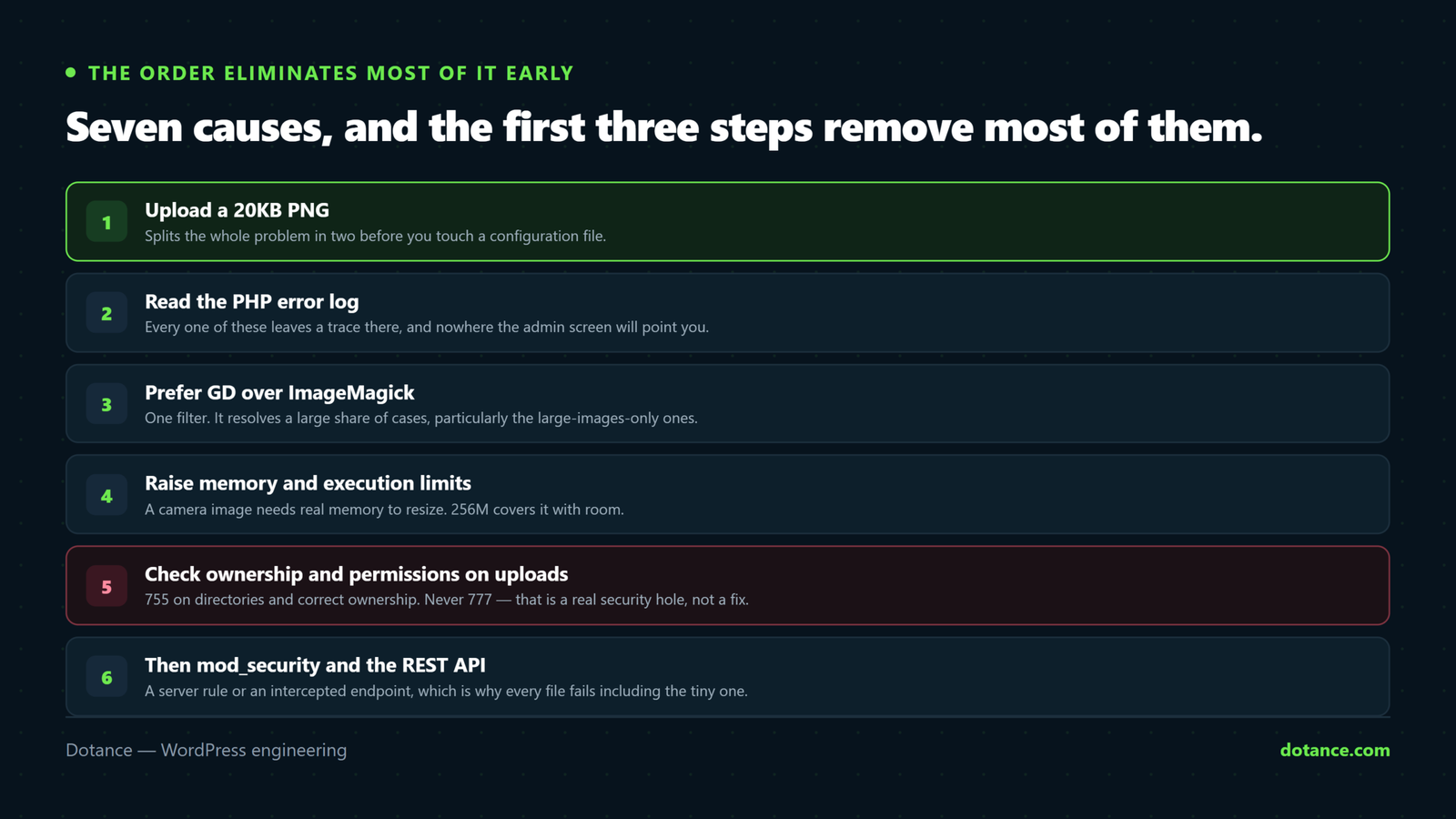
Seven causes for one WordPress image upload error sounds like a long afternoon. It is not, because the order eliminates most of them in the first three steps.
- Upload a 20KB image. Works? The transfer is fine, go to step three. Fails? Go to step five.
- Read the last fifty lines of the PHP log. A fatal error names the cause outright.
- Add the GD filter and retry the failing image. This resolves the single largest share of cases.
- Check memory and execution limits against the dimensions of the image that failed.
- Curl the upload endpoint and the REST route. A 403 on either is a firewall, not WordPress.
- Check ownership on
wp-content/uploadsand the free disk space. - Watch the network request in the editor and read the response body.
Step one is doing most of the work. A WordPress image upload error that spares small files is a processing failure and steps five and six cannot possibly apply; one that kills a 20KB PNG is a transfer failure and steps three and four cannot. Half the list is gone in thirty seconds.
Step two is the one people skip, usually because nobody told them where the log is. It is worth finding once — on most hosting it is error_log in the site root or a Logs section in the control panel. A single line there beats an hour of substitution.
The scaled-image behaviour nobody expects
Since 5.3 WordPress downsizes anything larger than 2560 pixels on its longest edge and keeps the original alongside a -scaled copy. That is usually helpful and occasionally the direct cause of a WordPress image upload error, because the downsizing itself is a full image-processing pass that has to succeed before anything else happens.
So a 6000-pixel photo on a memory-starved server fails during a step you did not know existed, which is why the failure can feel arbitrary. You can move or remove the threshold:
// Raise the threshold, or return false to disable scaling entirely.
add_filter( 'big_image_size_threshold', function () {
	return 2048;
} );
Lowering it makes the first pass cheaper and usually helps. Disabling it altogether is the wrong instinct — you then store full-size camera originals and serve them where a browser wanted 800 pixels, which is a page-weight problem rather than an upload one, and it is high on the list in why WordPress sites get slow.
It also matters when you are picking a URL for a full-size image later. The original and the scaled copy are different files with different URLs, and reaching for the wrong one is an easy mistake to make in a template.
Where this goes wrong
| The mistake | What happens | Do this instead |
|---|---|---|
chmod 777 on uploads | A real security hole | Fix ownership, keep 755 |
| Installing a “fix HTTP error” plugin | Another plugin, same fault | Read the PHP log |
| Raising limits blindly | Masks an oversized-image habit | Resize before uploading |
| Disabling the firewall entirely | Exposure, to fix a nuisance | Whitelist the one rule |
| Assuming it is the host’s fault | A support ticket that goes nowhere | Bring the log line with you |
| Testing with the same huge file every time | No information gained | Test small, then large |
| Ignoring it because “most images work” | Editors silently stop adding images | Fix it — the cost is invisible |
The last row is worth dwelling on. A WordPress image upload error that happens on one image in five does not generate a support ticket; it generates an editor who quietly stops adding images. You find out months later when the blog has gone grey.
Preventing a WordPress image upload error
| Measure | Why |
|---|---|
| Memory limit at 256M | Covers camera images with room to spare |
| A documented maximum upload size | Editors know before they try |
| Resize on export, not on upload | Cheaper at every stage |
| Check disk space monthly | Backups fill quotas quietly |
| Test uploads after every migration | Permissions and paths change |
| Keep the GD filter if it fixed it | It costs nothing to leave in place |
The migration row earns its place. Uploads are one of the three things that reliably break when a site moves — alongside cron and email — and none of them announce themselves. Add an upload test to your post-move list, which is the rest of the story in changing WordPress hosting.
WordPress documents the image editor classes and the wp_image_editors filter in the developer reference, which is worth reading before you change the preference permanently on a site where image quality matters.
Frequently asked questions
Why does the same image upload sometimes and fail other times?
Because you are near a limit rather than past it, which makes a WordPress image upload error look random when it is not. Shared hosting memory available to your process varies with what else is running, so a borderline image succeeds on a quiet server and fails on a busy one. Intermittency is evidence for cause two, not against it.
Does switching to GD reduce image quality?
Slightly, on photographs, at the sizes most sites use. On screenshots, logos and graphics the difference is not visible. Compare one image both ways before deciding it matters for your site.
Is a WordPress image upload error ever caused by the image itself?
Yes, and it is worth ruling out early. A corrupt file, a CMYK JPEG from print software, or a format WordPress does not accept will all fail. Open the file, re-export it as sRGB, and try again before blaming the server.
Should I raise upload_max_filesize?
Only to a number you actually need — 32M or 64M covers almost everything. On its own it rarely resolves a WordPress image upload error, and raising it to 512M does not help: it just encourages uploading files that then fail at the resizing stage instead.
Does this affect other file types too?
PDFs and videos hit the transfer causes — size limits, firewalls, permissions — but not the processing ones, because nothing is resized. A site where only images fail and PDFs upload fine has narrowed itself to causes one, two and three without you doing anything.
Can a caching plugin cause this?
Not directly, but an optimisation plugin that hooks into image processing can. If you have an image-compression plugin, deactivate it and retry — it runs on the same request and inherits the same memory ceiling.
Why did it start after a PHP version change?
Because extension availability changes with the PHP version. ImageMagick may have disappeared, or appeared, and your limits are set per version. Re-run the diagnostic command above after any PHP change.
Is there a way to see the real error in the admin?
Turn on WP_DEBUG_LOG temporarily and the fatal error will be written to wp-content/debug.log. Turn it off again afterwards — leaving debug output enabled on a live site is its own problem, and Site Health will tell you so.