Every Wix to WordPress project starts at the same wall: there is no export button for the site. Squarespace hands you a WordPress file; Wix does not. Once you accept that, the rest of the move is straightforward and mostly manual.
This article is the practical route through a Wix to WordPress migration — what you can automate, what you cannot, what each stage realistically takes, and the URL work that decides whether your search traffic survives the switch.
The constraint everything else follows from

Wix stores your content in its own system and renders it with its own code. There is no format in which it hands the whole site back. Any Wix to WordPress guide promising a one-click transfer is describing a tool that reads your published pages, not an export.
| What you want to move | Available route |
|---|---|
| Blog posts | Wix’s own blog export produces a WordPress import file |
| Pages and their copy | Copy by hand, or scrape the rendered HTML |
| Images | Download from static.wixstatic.com, or re-upload originals |
| Products | Wix Stores CSV export, then a WooCommerce import |
| Forms and submissions | Rebuild; export stored responses before you cancel |
| Design and layout | Rebuilt from scratch, always |
| Members and bookings | No export path — plan a replacement |
That table is the whole scope of a Wix to WordPress project. Everything below is about doing each row without losing anything on the way.
Inventory before you touch anything
A Wix to WordPress rebuild starts with a list, and Wix will not give you one. Build one from the outside.
From any terminal
# Wix publishes a sitemap — start there
curl -s https://yoursite.com/sitemap.xml | grep -oP '(?<=<loc>)[^<]+' | sort -u > sitemap-urls.txt

# Then crawl, because the sitemap misses pages nothing links to
wget --spider -r -l inf --no-verbose \
  --reject-regex '\.(png|jpe?g|gif|svg|css|js|woff2?)$' \
  https://yoursite.com/ 2>&1 | grep -oP '(?<=URL: )\S+' | sort -u > crawl-urls.txt

cat sitemap-urls.txt crawl-urls.txt | sort -u > all-urls.txt
wc -l all-urls.txt
Add every URL with impressions in Search Console. On a Wix to WordPress move this matters more than usual, because you are retyping pages and a page nobody remembers is a page nobody retypes.
The hashbang problem
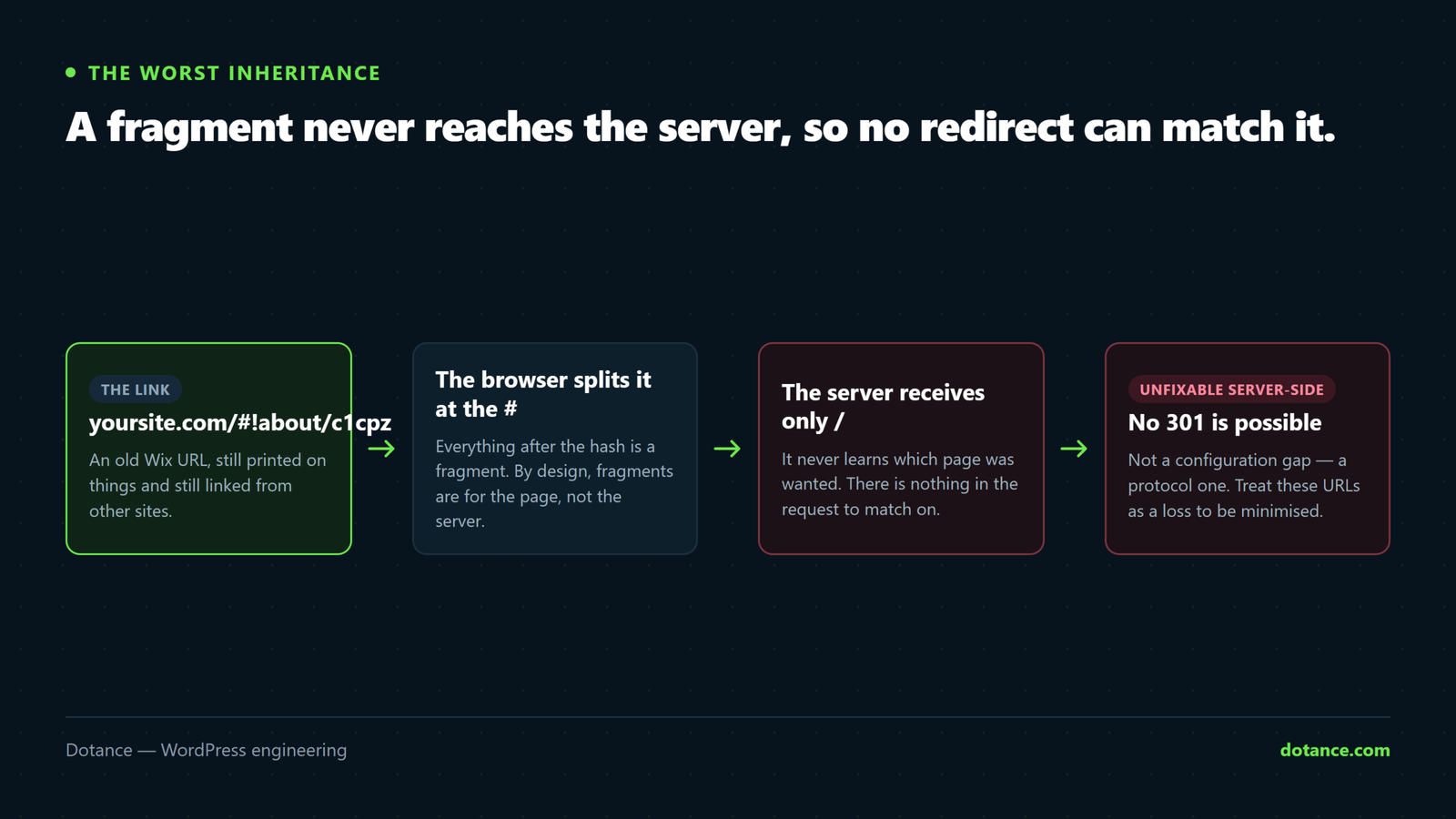
Wix sites built before roughly 2017 served URLs like yoursite.com/#!about/c1cpz. If yours still has any, this is the hardest part of your Wix to WordPress move and it deserves its own paragraph.
Everything after the # is a fragment. Fragments are never sent to the server. Your server literally cannot see which page was asked for, which means a 301 redirect at the server is impossible — there is nothing to match on.
The only workaround is JavaScript on the destination: read location.hash in the browser and redirect client-side. It works, Google generally follows it, and it is strictly worse than a real 301. Treat those URLs as a loss to be minimised, not a problem to be solved.
Modern Wix sites use ordinary paths — /about, /services/kitchens — and those map cleanly. Check which you have before promising anyone a clean Wix to WordPress migration.
Automated converters, honestly
Several services will move a Wix site to WordPress for a fee, and people search for them by name. They are not a scam and they are not magic. Here is what they actually do.
| They do | They do not |
|---|---|
| Read your live pages and create matching WordPress posts or pages | Recreate your design |
| Pull images across into the media library | Build a content model |
| Preserve page titles and body copy | Rebuild forms, bookings or members |
| Save you a great deal of typing | Decide which pages should be entries of a type |
For a content-heavy Wix to WordPress move — dozens of similar pages, a lot of text — a converter earns its fee in saved hours. For a ten-page brochure site, copy and paste is faster than configuring one. Either way you are still doing the template, the URLs and the forms yourself.
The one thing Wix does export
Wix’s blog has an export that produces a standard WordPress import file. Use it; it is the only free structured data you get in a Wix to WordPress project.
After importing on the new site
# Did the posts land, and how many?
wp post list --post_type=post --post_status=publish --format=count

# Are images still hotlinking Wix?
wp db search 'wixstatic.com' --stats 2>/dev/null | tail -3
curl -s https://staging.yoursite.com/blog/ | grep -c 'wixstatic\.com'
That second command matters. Imported posts routinely keep pointing at static.wixstatic.com, which works perfectly until the Wix subscription lapses — at which point every image disappears at once, long after anyone connects it to the migration. WordPress’s own documentation on importing content covers the importer’s behaviour in detail.
Mapping the URLs
For a modern Wix site the mapping is mostly one-to-one, which makes this the cheapest part of a Wix to WordPress move to get right and an expensive one to skip.
redirect-map.csv
# old,new — one row per URL from all-urls.txt
/about,/about/
/services/kitchens,/services/kitchens/
/post/why-we-use-oak,/blog/why-we-use-oak/
/shop/oak-table,/product/oak-table/
Note the blog row. Wix serves posts at /post/slug; WordPress will not unless you tell it to. Decide the permalink structure before importing, then redirect the difference. Then test every row:
while IFS=, read -r old new; do
  code=$(curl -sI -o /dev/null -w '%{http_code}' "https://yoursite.com$old")
  [ "$code" = "301" ] || echo "FAIL $code  $old"
done < redirect-map.csv
Anything that prints is broken. Never bulk-redirect to the homepage — Google treats it as a soft 404 and it passes nothing, as our guide to WordPress redirects without losing rankings explains.
The domain, and the mail behind it
Wix sells domains, so yours may be registered with them. That is fine, and it is also the step most likely to go wrong on cutover morning.
# Who holds it, and is it locked?
whois yoursite.com | grep -iE 'registrar:|status:|expiry'

# Web and mail are different records — check both before changing either
dig +short yoursite.com A
dig +short yoursite.com MX
Two rules. Unlock the domain and request the auth code several days ahead — transfers are not instant and Wix will email a confirmation someone has to click. And read the MX records before you touch the A record, because if mail runs through a Wix-provided mailbox, moving the website must not take the email with it. The sequence is in our WordPress domain migration guide.
Seven steps, in order
- Build the URL inventory from the sitemap, a crawl and Search Console.
- Export what Wix will give you: blog posts, a products CSV, form submissions.
- Stand WordPress up on staging, noindexed and password-protected.
- Build the template and the content model first, then move content into it.
- Rebuild forms and send real test submissions to an external address.
- Write and test the redirect map against staging, every row.
- Lower DNS TTL 48 hours ahead, cut over quietly, re-test everything live.
Do all of it on a staging copy — setting one up takes an afternoon and removes most of the risk. And test the forms properly, because WordPress email fails silently more often than anything else on a new install.
The chance Wix never gave you
There is one genuine upside to retyping your pages, and it is worth planning for rather than stumbling into. On Wix, every page is a canvas. Five service pages that look identical are five separate hand-built layouts, and changing the shared bit means editing all five.
WordPress can hold a content model instead: a type, with fields, rendered by one template. A Wix to WordPress rebuild is the one moment when adopting that costs nothing extra, because you are recreating the pages anyway.
| On Wix | In WordPress | What changes for you |
|---|---|---|
| Six service pages, hand-built | One template, six entries | Restyle once, not six times |
| A staff page with names typed in | A “person” type | A new hire is a form, not a layout job |
| Location pages copied and edited | One template, one entry per town | A seventh town is five minutes |
| A genuinely unique homepage | A page with sections | Nothing to model — leave it |
Skip this and you get a WordPress site with Wix’s problem inside it: editable in theory, unchangeable in practice. Most of the difference between two Wix to WordPress quotes is whether the higher one is doing this work, which is also the argument in our WordPress website cost breakdown.
What Wix was doing that you now have to arrange
This is the part of a Wix to WordPress move that arrives after launch, when the project feels finished. Wix was quietly running a platform for you. WordPress is software; the platform is now your responsibility, or somebody’s.
| Wix handled it | After the move |
|---|---|
| Hosting and scaling | Your hosting plan, and its limits |
| SSL certificate, renewed silently | Usually automatic — verify, do not assume |
| Software updates | Core, theme and plugins, on a schedule you keep |
| Backups | Yours to set up, and to restore at least once |
| Security patching | Yours, and it is the main reason sites get hacked |
| Uptime monitoring | Nobody is watching unless you arrange it |
None of this is difficult and all of it is relentless, which is why it stops happening around month three. Decide now whether that is your time or a maintenance plan, and put the number in the comparison — otherwise the saving you calculated against your Wix bill is not the saving you will get.
Performance is worth a word too. A lean Wix site replaced by a heavy builder-driven WordPress site can genuinely be slower, which surprises people who expected the opposite from a Wix to WordPress upgrade. Measure both, and see the seven causes of a slow WordPress site for what to watch.
A worked example
Here is the shape of one real Wix to WordPress project: a physiotherapy clinic, 19 pages, a blog with 40 posts, online booking through a Wix app.
| Stage | Time | Note |
|---|---|---|
| Inventory | 2 hours | 27 URLs, not 19 — eight were old blog category paths |
| Blog export and import | 1 hour | All 40 posts, images hotlinked until rewritten |
| Pages retyped | 1.5 days | 19 pages became 4 templates plus content |
| Template build | 4 days | The whole design, rebuilt |
| Booking replacement | 2 days | Wix app had no export; staff and hours re-entered |
| Redirects | 3 hours | 27 rows, all one-to-one, all tested |
The booking row is the one to notice. It was not in anyone’s estimate, because on Wix it had always just been there. Every Wix to WordPress quote should ask what apps the site runs before it names a number.
Where a Wix to WordPress move goes wrong
| The mistake | What it costs | Do this instead |
|---|---|---|
| Expecting an export | A plan built on a button that does not exist | Scope the rebuild honestly from day one |
| Leaving images on wixstatic.com | Every picture vanishes when the subscription lapses | Rewrite paths, then grep the database to confirm |
| Cancelling Wix at launch | No reference copy; form submissions gone | Keep it a month, export responses first |
| Ignoring hashbang URLs | Old inbound links land nowhere | Client-side hash redirect, and accept the partial loss |
| Forgetting the Wix apps | Bookings or a shop discovered missing at launch | List every app during the inventory |
| Moving domain and site the same morning | Web and mail break together | Separate them by several days |
What normal looks like after the switch
Expectations matter after a Wix to WordPress switch, because the fortnight after a Wix to WordPress cutover is when people panic and start changing things that were fine.
| Timing | Normal | Investigate |
|---|---|---|
| Day 1 | Every mapped URL returns one 301 | Any 404, or a chain of two hops |
| Week 1–2 | A visible dip while Google recrawls | Pages reported as “not found” in Search Console |
| Week 3–4 | Impressions recovering | Still falling, or flat at half |
| Week 6 | At or above the old baseline | No recovery — go back to the redirect map |
| Month 2 | Old Wix URLs fading from the index | Both versions indexed — check canonicals |
A dip in the first two weeks is expected after any platform change and is not evidence that the Wix to WordPress move went wrong. A dip still there at week six is, and it is nearly always a redirect row nobody tested rather than anything about the content.
One extra check specific to this move: search site:yoursite.com a month in and look for old Wix paths still listed. If both versions are in the index, something is serving both — usually a page that was rebuilt at a new slug while the old one was never redirected.
When to stay on Wix
An honest Wix to WordPress article has to say it: if the site is small and stable, one person maintains it, nothing unusual has to integrate and the bill is not painful, moving buys you maintenance work and little else.
WordPress does not look after itself. The move earns its cost when you need a real content model, an integration Wix will not allow, or ownership you can take elsewhere. If you have not decided yet, our honest Wix versus WordPress comparison is the article for that decision — this one assumes you have already made it.
Frequently asked questions
Can you export a Wix site to WordPress?
Not the site. Wix exports blog posts in WordPress format, and Wix Stores will produce a products CSV. Pages, design, forms, bookings and members have no export. Every Wix to WordPress project is therefore a rebuild with some imported content, and anyone describing it as a transfer has not done one.
Will I lose my Google rankings?
Not if the URLs map and the redirects are tested. Modern Wix paths translate almost one-to-one, so this move is gentler than most. The exception is hashbang URLs from older Wix sites, which cannot be redirected server-side at all — those will lose whatever they were earning.
Are the automated Wix to WordPress converters worth it?
For a content-heavy site, often yes: they save real hours of retyping. For a ten-page brochure site, no — you will spend as long configuring one as copying the text. Neither case avoids building the template, the forms and the redirect map yourself.
What happens to my Wix bookings or shop?
The shop moves as a CSV into WooCommerce, minus customer accounts and order history. Bookings do not move at all — whatever app you used is a Wix app, and you are choosing a WordPress replacement and re-entering the configuration. Budget it as its own piece of work.
Can I keep my domain?
Yes. Transfer it away from Wix’s registrar, or leave it there and repoint the DNS at your new host. Transferring gives cleaner ownership; repointing is faster on the day. Either way, handle email separately — the MX records are not the website.
How long does it take?
A small brochure site is a week or two of elapsed time, most of it template work. Add a shop, a booking system or a hundred pages and it becomes a month or more — not because the content is hard to move, but because each Wix app you were relying on is a separate replacement decision.