Importing a catalogue looks like the easy part. You have a spreadsheet, WooCommerce has an importer, the columns even seem to match. Then the accented characters come out as question marks, half the prices are empty, and there are now three categories called “Tools” with different amounts of whitespace. A WooCommerce product import goes wrong in seven predictable ways, and all seven are avoidable if you know them before you start.
Start here: there is no undo
The WooCommerce product import tool has no rollback. It creates and updates products as it goes, and if it goes wrong halfway there is no button that puts things back.
# Before every import. Not negotiable.
wp db export backup-before-import.sql
That is the whole safety net for a WooCommerce product import, and it takes seconds. If your backups are a plugin you have never restored from, this is a good moment to read backups done right — an import is precisely the event that finds out whether you have backups or merely backup software.
Rehearse on staging with the real file. Not a ten-row sample — the actual spreadsheet. Most of the traps below only appear at row 400, in the one product whose description contains a comma and a quotation mark. If you have no copy to practise on, set up a staging site first.
Seven WooCommerce product import traps
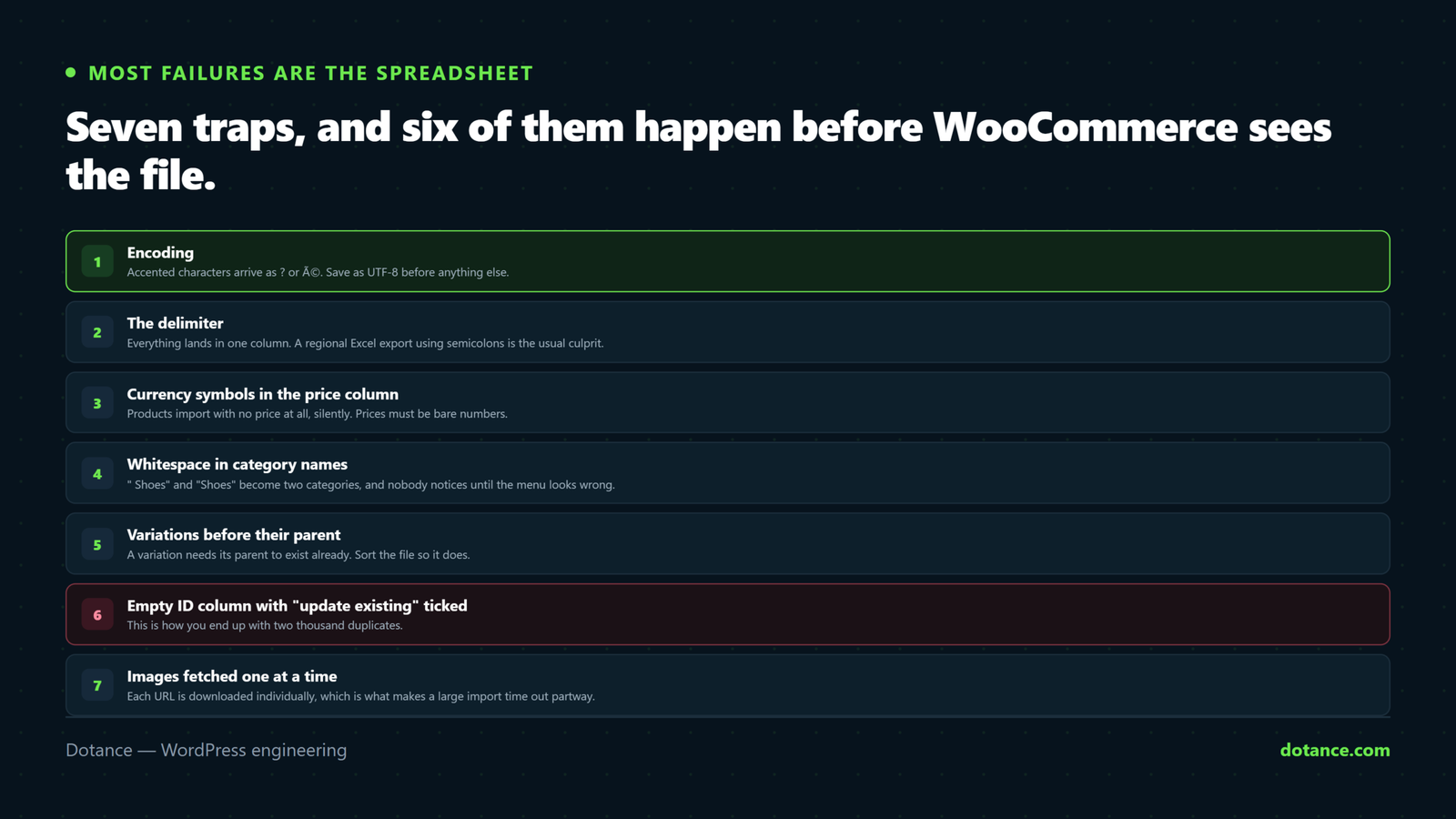
| # | Trap | Symptom |
|---|---|---|
| 1 | Encoding | Accented characters become ? or é |
| 2 | Delimiter | Everything lands in one column |
| 3 | Price formatting | Products import with no price |
| 4 | Category whitespace | Duplicate categories that look identical |
| 5 | Variations before parents | Orphaned variations, or none at all |
| 6 | Blank ID with “update existing” | Duplicates instead of updates |
| 7 | Images by URL | Timeouts on anything large |
1 and 2. The file itself
Two file-level faults account for most failed runs. Save as CSV UTF-8, not plain CSV. Excel’s default export on many systems is a regional encoding, and the result is a catalogue full of mangled accents that you then have to fix product by product.
# What encoding is this file actually?
file -I products.csv

# Convert if needed
iconv -f WINDOWS-1252 -t UTF-8 products.csv > products-utf8.csv
The delimiter catches European exports in particular, where Excel writes semicolons rather than commas. The importer lets you set the delimiter on the upload screen — check it rather than assuming, because a WooCommerce product import with the wrong delimiter puts every field into the first column and the preview makes that obvious in two seconds.
3. Prices that are not numbers
This is the most common WooCommerce product import fault that still reports success: the product imports and cannot be bought.
| In the spreadsheet | What WooCommerce stores |
|---|---|
£24.99 | Nothing usable — strip the symbol |
1,299.00 | Risky — the comma is a delimiter problem too |
24,99 | Depends on locale. Ambiguous, avoid |
24.99 (trailing space) | Often fine, sometimes not |
24.99 | Correct |
Plain numbers, full stop for decimals, no currency symbols, no thousands separators. Format the price columns as text in the spreadsheet first, or Excel will helpfully reformat them again on save.
4. Categories and the invisible space
A WooCommerce product import creates categories that do not exist, which is convenient until it creates one you did not mean.
| Value | Result |
|---|---|
Tools | Category “Tools” |
Tools | Possibly a second “Tools” |
Hand Tools > Saws | “Saws” nested under “Hand Tools” |
Tools, Offers | Both categories |
Tools > Saws, Offers | Nested “Saws”, plus “Offers” |
Trim every category cell before importing. A WooCommerce product import that produces three categories with the same visible name is almost always whitespace, and cleaning it up afterwards means re-assigning products one at a time.
5. Variations need their parents first
This is where a WooCommerce product import most often goes structurally wrong. Variable products are two kinds of row: the parent, with Type set to variable, and each variation with Type set to variation and a Parent pointing at the parent’s SKU or ID.
Type,SKU,Name,Parent,Attribute 1 name,Attribute 1 value(s)
variable,SHIRT,Cotton Shirt,,Size,"Small, Medium, Large"
variation,SHIRT-S,,SHIRT,Size,Small
variation,SHIRT-M,,SHIRT,Size,Medium
Sort the file so every parent appears above its variations. The importer processes in order, and a variation whose parent has not been created yet has nothing to attach to. On a large WooCommerce product import this is the difference between a clean catalogue and several hundred orphaned rows.
Note the parent’s Attribute 1 value(s) lists every option, while each variation names only its own. Getting that backwards produces variable products with no selectable options — the second most common variation failure.
6. Update or create? The ID column decides
Ticking “update existing products” tells a WooCommerce product import to match rows against products you already have. It matches on ID first, then SKU.
| Your file has | What happens |
|---|---|
ID populated | Updates that exact product |
No ID, SKU matches | Updates the matching product |
No ID, no matching SKU | Creates a new product |
No ID, blank SKU | Creates a new product — every time |
That last row is how stores end up with duplicated catalogues. Somebody exports, edits in Excel, Excel drops the ID column or blanks the SKUs, and the re-import creates everything again. Export first, edit that export, and never delete the ID column.
7. Images are downloaded, one at a time
Images are what make a WooCommerce product import slow. The Images column takes URLs, comma-separated, with the first becoming the featured image. WooCommerce then fetches each one, downloads it, and generates every thumbnail size — which is the same expensive work described in WordPress image upload errors, repeated once per image.
Two thousand products with three images each is six thousand downloads and six thousand rounds of image processing. That is where imports time out.
- Import in batches of a few hundred rows rather than one enormous file.
- Pre-size the images to something sensible before they are ever fetched.
- Check the source URLs are reachable from your server, not just your browser.
- Raise execution limits if you can — see maximum execution time exceeded.
- Import products first, images second on very large catalogues.
The WooCommerce product import columns worth knowing
| Column | Notes |
|---|---|
ID | Leave it in. It is how updates find the product |
SKU | Your real identifier. Unique, and worth enforcing |
Type | simple, variable, variation, grouped, external |
Published | 1 live, 0 private, -1 draft |
Parent | Required on variations |
In stock? | 1 or 0 |
Categories | > nests, , separates |
Images | URLs, first one is featured |
Meta:key | Any custom field, one column each |
The Published column is the one to use deliberately. Importing a large WooCommerce product import as drafts, checking a sample, then bulk-publishing is far safer than putting two thousand unchecked products straight onto a live shop.
Export before you import. Even on a fresh catalogue, create one product by hand, export it, and use that file as your template. Every column name will then be exactly what your version of WooCommerce expects, which removes an entire category of mapping problems.
Verifying the WooCommerce product import afterwards
| Check | How | Looking for |
|---|---|---|
| Count | Products screen | The number you expected, not double |
| Prices | Sort by price, ascending | Anything blank or zero at the top |
| Categories | Product categories screen | Near-duplicate names |
| Variations | Open three variable products | Options selectable, prices present |
| Images | Sort the media library by date | Missing or broken thumbnails |
| A real purchase | Buy one, then refund it | The only complete test |
Sorting by price is the fastest useful check there is: every product that failed to parse its price sorts to the top together. One glance tells you whether trap three caught you.
# Products with no price at all
wp db query "SELECT p.post_title FROM wp_posts p
  LEFT JOIN wp_postmeta m ON m.post_id = p.ID AND m.meta_key = '_price'
  WHERE p.post_type = 'product' AND p.post_status = 'publish'
    AND ( m.meta_value IS NULL OR m.meta_value = '' );"
Products remain posts even on stores that have completed an HPOS migration — that change moved orders, not products — so this query works either way.
Preparing the spreadsheet properly
Most of the work in a successful WooCommerce product import happens before you open WordPress at all. Half an hour in the spreadsheet saves a day of correcting products afterwards.
- Create one product by hand and export it. That file is your column template, generated by your own installation.
- Trim every text column. Leading and trailing spaces cause traps four and their attribute equivalents.
- Format price columns as text, then type plain numbers, so the spreadsheet stops reformatting them.
- Check SKUs are unique. Conditional formatting finds duplicates in seconds.
- Sort so parents precede variations.
- Set
Publishedto-1so everything arrives as a draft. - Save as CSV UTF-8 and confirm with
file -I.
Step four is worth more than it looks. Duplicate SKUs in a WooCommerce product import do not always error — depending on settings, the second row may quietly overwrite the first, so two different products become one and nobody notices until stock reconciliation.
Step six is the one that converts a stressful import into a calm one. Everything lands invisible, you check twenty products properly, and only then does the catalogue go live. It costs one bulk action and removes the entire category of “customers saw it broken” problems.
Attributes: the trap behind the trap
Attributes have their own version of the WooCommerce product import whitespace problem of the whitespace and ordering problems, and they are harder to spot because the symptom is a filter that half works.
| Column | Meaning | Common error |
|---|---|---|
Attribute 1 name | The attribute, e.g. Size | Inconsistent capitalisation across rows |
Attribute 1 value(s) | All options on a parent, one on a variation | Reversed between the two |
Attribute 1 visible | 1 shows it on the product page | Left blank, so nothing displays |
Attribute 1 global | 1 uses a global taxonomy | Mixed within one file |
The global column decides whether “Size” becomes a site-wide attribute that layered navigation can filter on, or a per-product custom attribute that cannot. Mixing both in one WooCommerce product import gives you a shop where filtering finds some products and not others, and the products look identical in the admin.
Decide up front which attributes are global — anything customers will filter by — and set that column consistently for every row. Correcting it afterwards means editing each product, because converting a custom attribute to a global one is not a bulk operation.
Where this goes wrong
| The mistake | What happens | Do this instead |
|---|---|---|
| No backup first | No way back from a bad import | wp db export, every time |
| Importing straight to live | Customers see a broken catalogue | Staging, with the real file |
Deleting the ID column in Excel | Duplicates instead of updates | Export, edit the export |
| Currency symbols in prices | Unbuyable products | Plain numbers only |
| One enormous file | Timeout halfway, partial state | Batches of a few hundred |
| Variations above their parents | Orphans | Sort parents first |
| Publishing immediately | Errors are public while you fix them | Import as drafts, check, publish |
| Not trimming whitespace | Duplicate categories and attributes | Trim every text column |
The timeout row deserves a note about what “partial” means. A WooCommerce product import that stops halfway has genuinely created everything up to that point — so re-running the same file without an ID column creates all of those a second time. Restore the backup, fix the cause, start again.
When the CSV importer is the wrong tool
| Situation | Better approach |
|---|---|
| Under ~5,000 simple products | The built-in importer, in batches |
| Tens of thousands of products | WP-CLI, or a queued import |
| Nightly supplier feed | A scheduled integration, not a person with a spreadsheet |
| Complex custom fields and relationships | A purpose-built import script |
| Migrating from another platform | A migration tool, then a CSV for the gaps |
The third row is the one to watch for commercially. If a client is doing a manual WooCommerce product import every week, the spreadsheet is not the problem — the absence of an integration is, and the hours they spend on it usually pay for building one within a quarter.
Very large catalogues bring their own consequences after the import finishes, because a store with fifty thousand products behaves differently from one with five hundred; the relevant effects are in speeding up a slow WooCommerce store.
WooCommerce documents every supported column and its accepted values in the product CSV importer and exporter guide, which is the reference to check when a column name in an old template no longer behaves as expected.
The safe sequence, start to finish
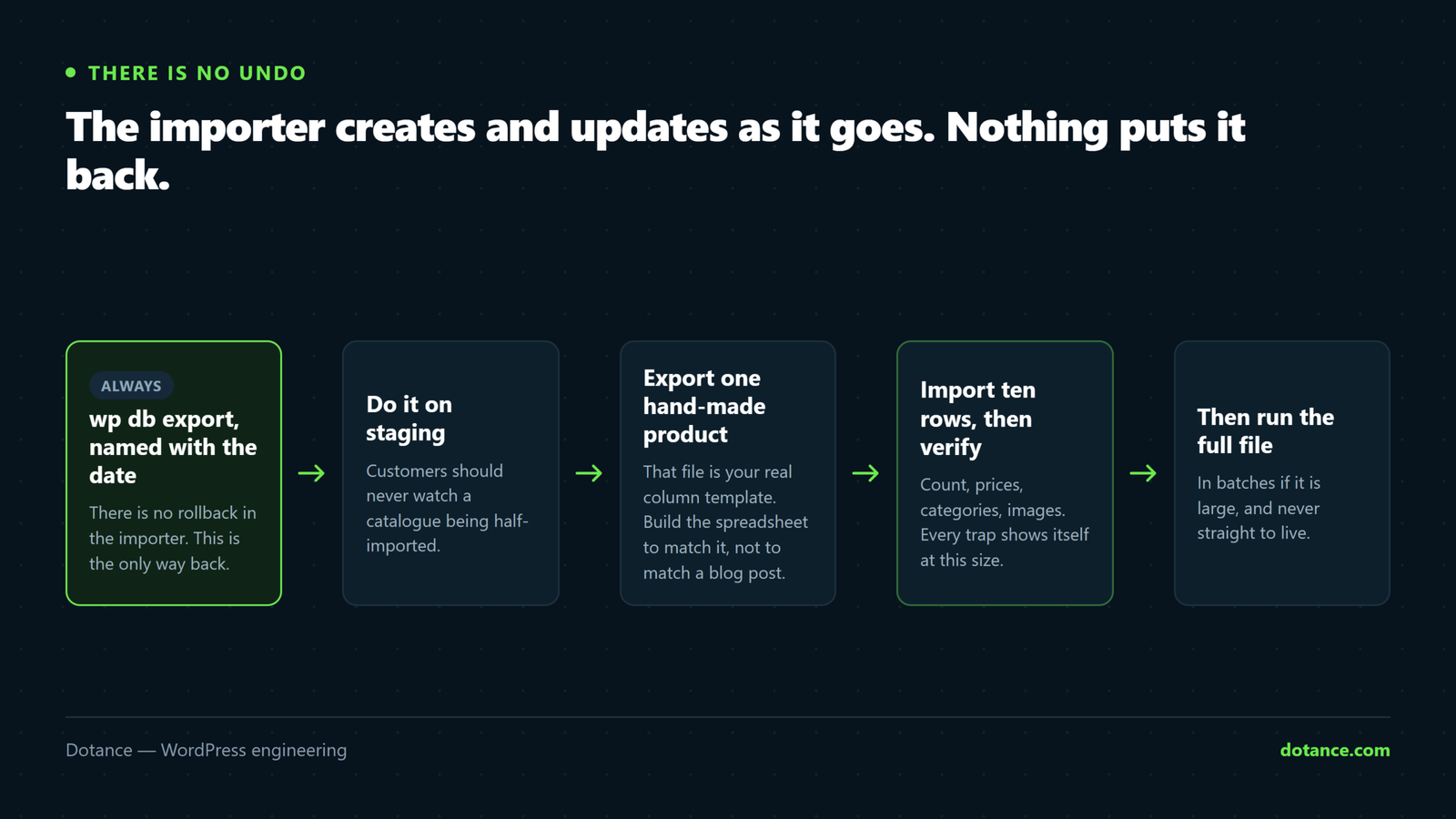
- Back up the database.
wp db export, named with the date. - Copy to staging and do everything there first.
- Export one hand-made product to get your real column template.
- Clean the spreadsheet — encoding, trimming, prices, SKUs, sort order.
- Import as drafts, in batches of a few hundred.
- Check twenty products by hand, and run the missing-price query.
- Publish, then repeat the same run on live.
- Buy one product and refund it.
Eight steps, and only two of them involve the importer. That ratio is the point: a WooCommerce product import is a data-preparation job with an upload at the end, not an upload with some tidying afterwards. Teams that treat it the other way round are the ones who spend a week correcting products by hand.
Frequently asked questions
Can I undo a WooCommerce product import?
Not through WooCommerce. Your only rollback is the database backup you took beforehand, which is why that instruction comes before everything else in this article.
Does a WooCommerce product import affect existing orders?
No. Orders store their own copies of product names and prices at the time of purchase, so changing a catalogue does not rewrite history. What it can affect is reporting that joins orders back to current products.
Why are my accented characters broken?
The file is not UTF-8. Re-save it as CSV UTF-8 and import again. Fixing the products afterwards is far more work than re-importing correctly, so restore and redo rather than patching.
How many products can I import at once?
It depends on images far more than on product count. A few hundred rows with images per batch is comfortable on typical shared hosting; text-only rows can go much higher.
Will importing overwrite my stock levels?
Yes, if your file has stock columns and you are updating existing products. Remove those columns if you do not intend to change stock — an import that silently resets availability causes exactly the problems described in handling out of stock products.
Can I import to a specific product type?
Yes, through the Type column. Set it per row; there is no global setting, and a missing Type defaults to simple, which is why variations sometimes arrive as standalone products.
Do images have to be publicly accessible?
They have to be reachable from your server. A URL that loads in your browser but sits behind basic auth, a firewall or an internal network will fail silently and leave products without images.
What is the safest possible process?
Backup, staging, real file, import as drafts, check a sample of twenty by hand, publish, verify with a real purchase. That sequence has never let us down, and every step in it exists because skipping it cost somebody a day.