The gateway says Apple Pay is enabled. The documentation says it should appear. Your checkout shows nothing. An Apple Pay WooCommerce setup has more moving parts than any other payment method, and the failure is always silent — no error, no warning, just a button that is not there. Here is how to find which part is missing, in the order that takes the least time.
How Apple Pay WooCommerce support actually works
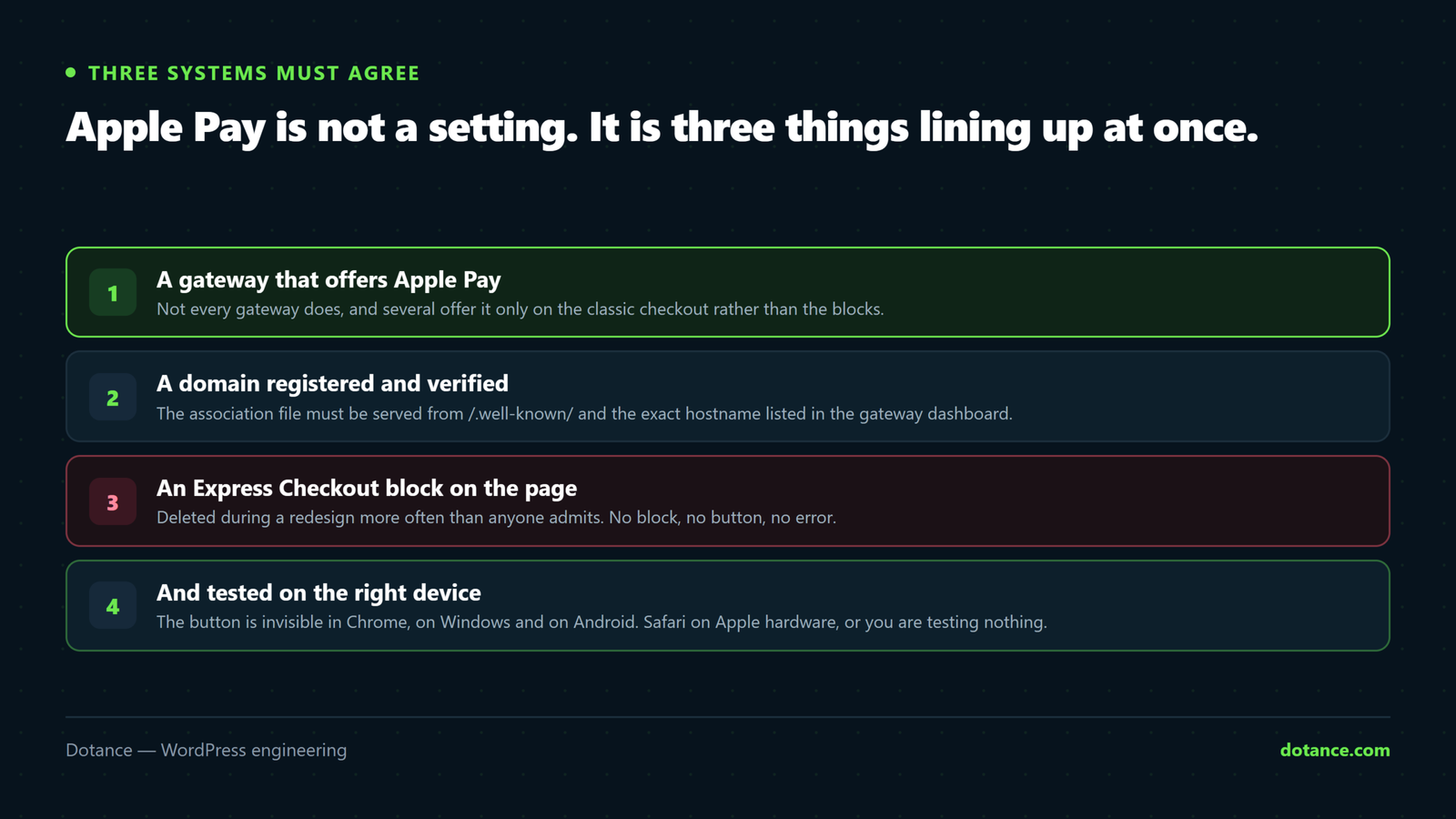
Apple Pay WooCommerce is not a single setting. Three separate systems have to agree before a button appears. Knowing which is which halves the diagnosis time.
| Layer | What it does | Where it breaks |
|---|---|---|
| The gateway | Stripe, Square, Mollie and others offer Apple Pay as a wallet on top of card processing | Wallet not enabled in the gateway dashboard |
| Domain verification | Apple checks that you control the domain by fetching a file from it | The file 404s, or the domain was never registered |
| The checkout front end | An express payment area renders the button, before the normal form | The block was removed, or the shortcode checkout has no hook for it |
Every Apple Pay WooCommerce problem we have been called in for sits in one of those three rows. The layers do not report each other’s failures, which is exactly why the symptom is a blank space rather than a message.
Before anything else: open the site in Safari, on a Mac or an iPhone, signed into iCloud with a card in Wallet. Apple Pay is not rendered in Chrome on Windows, in Firefox, or on Android under any configuration. A remarkable share of “it is broken” reports end here.
The five-minute Apple Pay WooCommerce check
Run these four in order before you touch any Apple Pay WooCommerce setting. Each one rules out a whole layer.
- Is the association file served? The single most useful command, below.
- Is the domain registered in your gateway’s Apple Pay settings? Not just enabled — registered, with this exact hostname.
- Is the express payment area present on the checkout page? Edit the page and look at the block tree.
- Does the cart qualify? Try a single simple product with normal shipping, nothing else.
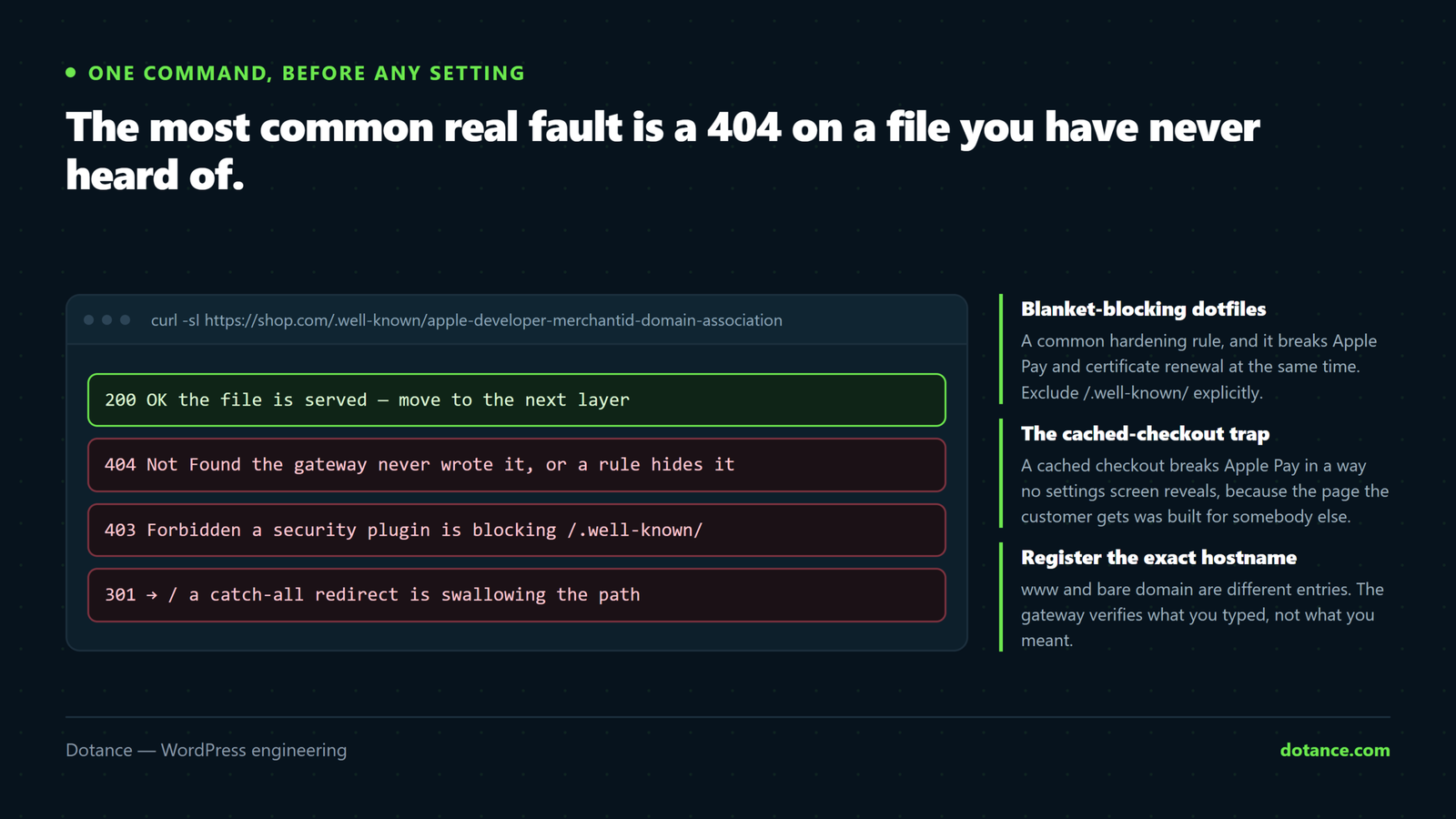
The one command that settles half of it
curl -sI https://example.com/.well-known/apple-developer-merchantid-domain-association | head -1You want 200. A 404 means Apple cannot verify you and the button will never render, no matter what the gateway dashboard says. A 403 means something is deliberately blocking the path. Either way you now know the Apple Pay WooCommerce fault is in layer two and you can stop looking at payment settings.
Six causes, in the order they occur
| # | Cause | Tell |
|---|---|---|
| 1 | Testing in the wrong browser | Works on an iPhone, not on your desktop |
| 2 | Domain association file 404s | The curl above returns 404 or 403 |
| 3 | Domain never registered with the gateway | File serves fine, still no button |
| 4 | Express Checkout block removed | Button missing on checkout, present on cart |
| 5 | Wallet disabled in the gateway | No express area renders at all |
| 6 | The cart is not eligible | Works with one product, not with another |
1. You are testing in a browser that will never show it
Worth repeating because it costs the most wasted hours of any Apple Pay WooCommerce fault. Apple Pay renders in Safari on macOS and iOS, and in some embedded Apple webviews. Chrome on a Mac does not qualify. A staging URL opened on a Windows laptop does not qualify. Before escalating an Apple Pay WooCommerce issue to anyone, confirm on a real iPhone.
2. The domain association file is not being served
This is the big one, and it accounts for more broken Apple Pay WooCommerce setups than the other five combined. Apple fetches a file from a path beginning with a dot-directory, and dot-directories are exactly what security tooling blocks by default.
| What blocks it | Why |
|---|---|
| Security plugin hardening rules | Blanket deny on /.well-known/ or on dotfiles |
.htaccess or nginx dotfile rule | A standard hardening snippet, copied in years ago |
| A host migration | The file lives on disk, not in the database, so it does not travel |
| A redirect plugin | Catch-all rules can swallow the path |
| A CDN or firewall rule | Blocked before it ever reaches WordPress |
The host-migration row deserves emphasis because it is so undramatic. Apple Pay WooCommerce worked for two years, you moved hosts, the database came across perfectly, and a single file in a hidden directory did not. Nothing errors. The button simply stops appearing, and nobody notices until a customer mentions it. This belongs on the post-move checklist alongside everything in our guide to changing WordPress hosting.
If the file is genuinely missing, re-run the domain registration from your gateway’s settings — most gateways write the file for you. If your hardening rules block the path, allow it explicitly:
.htaccess, above the WordPress block
<IfModule mod_rewrite.c>
	RewriteEngine On
	# Let Apple and the certificate authority reach .well-known
	RewriteRule ^\.well-known/ - [L]
</IfModule>
3. The domain is enabled but never registered
Enabling Apple Pay WooCommerce payments in a gateway dashboard and registering a domain are two different actions, and the wording rarely makes that clear. Register the exact hostname customers use. If you serve both example.com and www.example.com, register the one that actually resolves — a mismatch there produces the same silent blank as a missing file.
Staging counts as a separate domain. An Apple Pay WooCommerce button that works on live and not on staging is usually correct behaviour, not a bug. Register the staging hostname too if you need to test there, and remember to remove it when the site is retired.
4. The Express Checkout block was deleted
This is the cause that has grown with the blocks migration. The Cart and Checkout blocks render express payments through their own inner block. If a designer tidied the checkout template and removed it — or rebuilt the page from scratch — the wallet buttons have nowhere to render.
Edit the checkout page, open the list view, and look for the express payment block inside the Checkout block. If it is not there, re-insert it. The rest of the blocks migration story, including what else silently changes, is in our guide to WooCommerce checkout blocks.
On a classic shortcode checkout the equivalent is a gateway-provided hook or setting for where the buttons appear. Same failure, different mechanism: nothing renders and nothing complains.
5. The wallet is off at the gateway
An Apple Pay WooCommerce toggle inside WordPress is not the whole story. Check the gateway’s own payment-method list rather than the WooCommerce settings screen. Many gateways have a per-method toggle — cards on, wallets off — that WooCommerce has no visibility of. Some also require you to accept Apple’s terms once inside the gateway dashboard before any Apple Pay WooCommerce traffic is allowed at all.
6. The cart is not eligible
Some carts cannot use express checkout at all, and an Apple Pay WooCommerce button correctly hides itself rather than failing at payment:
- An unsupported currency for your merchant account.
- Subscriptions or deposits, depending on the gateway’s support.
- Mixed physical and downloadable items with conflicting shipping rules.
- A shipping destination your rates do not cover.
- A test-mode cart being opened with a live card, or the reverse.
Test with the plainest possible cart: one simple product, standard shipping, your own country. If the Apple Pay WooCommerce button appears there and not on a real cart, you have an eligibility rule rather than a configuration fault, and the fix is in your shipping or product setup.
The seventh cause nobody lists: caching
Cart and checkout pages must never be cached, and a cached checkout breaks Apple Pay WooCommerce in a way no settings screen will reveal. When they are, a cached copy of the page is served to everyone, and any element that depends on the visitor’s browser — which is precisely what an express payment button is — either never appears or appears for people who cannot use it.
# Checkout should never come back as a cache hit
curl -sI https://example.com/checkout/ | grep -iE 'x-litespeed-cache|cf-cache-status|x-cache'
A hit there is your answer. Exclude cart, checkout and account pages in your cache plugin, then purge. The same class of problem causes the broader slowness and staleness issues covered in speeding up a slow WooCommerce store.
While you are in the console, check for a mixed content warning too. Apple Pay requires a fully secure page, and an insecure asset on the checkout will block the wallet script along with everything else.
Is it worth the trouble?
Honestly: on a store with meaningful mobile Safari traffic, an Apple Pay WooCommerce button earns its keep. On a store whose customers are ninety per cent desktop Windows, it is a nice-to-have you should not spend a day on.
| Situation | Worth prioritising? |
|---|---|
| Over half your sessions are iOS Safari | Yes — this is the highest-value checkout change available |
| Consumer goods, low order value, impulse purchase | Yes — typing a card is where those carts die |
| B2B, invoiced orders, purchase orders | No — your buyers are not paying by wallet |
| Mostly desktop Windows traffic | Set it up, but do not schedule a project around it |
The mechanism is simple enough: the slowest step in any checkout is typing a card number on a phone, and an Apple Pay WooCommerce button removes that step entirely. Check your own analytics for the iOS Safari share before deciding — that number, not a case study, is what tells you the size of the prize. The wider set of levers is in WooCommerce checkout optimisation.
Which gateway you are on changes the answer
The three layers are the same everywhere, but the settings screens are not, and knowing where to click saves a support ticket.
| Gateway | Where the domain is registered | Common gotcha |
|---|---|---|
| Stripe | Settings → Payment methods → Apple Pay → domains | Registered on the wrong Stripe account, or in test mode only |
| Square | Developer dashboard, per application | Sandbox and production are separate registrations |
| Mollie | Automatic once the method is activated | Activation needs manual approval and can take days |
| PayPal | Wallet handled through its own express flow | Not an Apple Pay WooCommerce path in the usual sense |
The test-versus-live split in the first two rows is responsible for a genuinely unreasonable number of wasted afternoons. A domain registered while the gateway was in test mode does not carry over when you go live, so an Apple Pay WooCommerce button that worked perfectly all through development disappears on launch day. Register the domain again in live mode and it returns immediately.
The PayPal row is worth stating plainly because the two get conflated. PayPal’s express buttons are its own product with its own eligibility rules; they are not an Apple Pay WooCommerce integration and they do not use Apple’s domain verification at all. If your store offers both, expect two independent sets of settings and two independent ways to fail.
The order to work through it
Sequence saves more time here than knowledge does, because each step eliminates a whole layer rather than a single setting.
- Confirm the device. Safari, Apple hardware, card in Wallet. Thirty seconds.
- Curl the association file. A 404 or 403 ends the investigation here.
- Check live versus test mode in the gateway, then the registered hostname.
- Open the checkout in list view and confirm the express payment block exists.
- Check the cache headers on the checkout URL.
- Simplify the cart to one plain product and retest.
- Place a real order and refund it.
Working top-down like this, most Apple Pay WooCommerce faults are identified inside ten minutes. Working bottom-up — starting with gateway settings, because that is where the feature lives — is how the same fault takes an afternoon, because the settings screen looks correct in every one of the six cases above.
Where this goes wrong
| The mistake | What happens | Do this instead |
|---|---|---|
| Testing in Chrome | Hours spent on a non-problem | Safari on an Apple device, every time |
| Blanket-blocking dotfiles for security | Kills Apple Pay and certificate renewal | Allow /.well-known/ explicitly |
| Caching the checkout page | The button appears for nobody, or for the wrong people | Exclude cart, checkout, account |
Registering www when the site is bare | Verification silently fails | Register the hostname that resolves |
| Rebuilding the checkout template from scratch | Express payment block is lost | Check list view before publishing |
| Assuming a host move carried everything | A hidden file does not travel | Re-run domain verification after any move |
| Debugging with a subscription in the cart | Correct behaviour mistaken for a fault | Test with one simple product |
Verifying it properly
| Check | How | Pass |
|---|---|---|
| Association file | The curl above | 200 |
| Domain registered | Gateway dashboard | Exact hostname listed, verified |
| Express block present | Checkout page, list view | Inside the Checkout block |
| Not cached | Response headers on /checkout/ | No cache hit |
| Real device | iPhone, Safari, card in Wallet | Button renders above the form |
| A real order | Small live purchase, then refund it | Order created, correct total |
Do the last row. A rendered Apple Pay WooCommerce button is not proof of a working one. An Apple Pay WooCommerce button that renders is not the same as one that completes, and the difference — a shipping rate that does not resolve, a total that is a penny out — only shows up on a real transaction. Check afterwards that the order tracked correctly too; express checkout is one of the paths where analytics quietly stops reporting, as covered in WooCommerce tracking broken after blocks.
Apple’s own requirements for serving the association file and the supported browser list are at Apple’s Apple Pay developer pages, which is the authority when a gateway’s documentation and your results disagree.
Frequently asked questions
Why does the button show on the cart but not the checkout?
Because an Apple Pay WooCommerce button renders inside whichever express payment block is present, and they are separate blocks with separate express payment areas. The cart’s was left in place and the checkout’s was removed during a redesign. Check the checkout page’s list view.
Is an Apple Pay WooCommerce button worth it on a small store?
If any meaningful share of your traffic is iPhone Safari, yes — it is an afternoon of configuration rather than a project, and it removes the single slowest step in a mobile checkout. If your analytics show almost no iOS traffic, set it up when convenient and spend the time elsewhere.
Do I need an Apple Developer account?
No, not when you use a gateway. Stripe, Square and the rest hold the merchant relationship with Apple; you only need to verify your domain through their dashboard. A direct Apple Pay integration is a different and much larger project.
It worked yesterday and stopped today. What changed?
In order of likelihood: a security plugin updated its rules, a certificate or domain changed, the checkout page was edited, or the site moved. Run the curl first — it rules in or out the most common cause in one second.
Does Apple Pay work on a staging site?
Only if you register the staging hostname separately, and only over HTTPS. Most staging environments also sit behind basic authentication, which blocks Apple’s fetch of the association file.
Will adding it slow my checkout down?
Marginally — it is one more script on one page. Set against removing the card-entry step on mobile, that trade is not close. It is nowhere near the top of the list of things making a store slow.
Can I show Apple Pay only to Apple users?
That is the default. The gateway’s script checks whether the browser can actually pay before rendering anything, which is why the button is invisible rather than disabled elsewhere. You do not need a device-detection plugin, and adding one usually breaks caching.
Does Apple Pay WooCommerce support work with the classic checkout?
Yes. The gateway hooks its buttons into the classic template instead of an express payment block, so causes two, three, five and six apply unchanged — only cause four is specific to the blocks. The diagnosis order above works either way.
Does it reduce abandoned carts?
It removes one of the biggest causes of them on mobile, which is manual card entry. It does not touch the others — unexpected shipping costs, forced account creation, a slow page. Those are covered in reducing WooCommerce cart abandonment, and they are usually worth more than the wallet button on its own.