Every WordPress site we take over has a backup plugin installed. Perhaps one in three has backups that would actually restore. The gap is not laziness — it is that a WordPress backup plugin reports success at the wrong moment. It says “backup complete” when it has finished writing a file, not when it has proven that file can rebuild the site.
This is the six-point check we run before we trust any WordPress backup plugin on a client site, in the order that finds problems fastest. Each one is something you can test this afternoon.
The one-sentence version: if you have never restored from your backups, you do not have backups — you have files whose contents you are guessing at.
What a WordPress backup plugin actually has to do
Before judging any WordPress backup plugin it helps to be precise about what it is copying. A WordPress site is two things that must stay in step. The files — WordPress core, your theme, plugins, and the uploads folder — and the database, which holds every post, page, option, user, order and page-builder layout. Take one without the other and you have nothing you can rebuild from.
| Part | Where it lives | What is lost without it |
|---|---|---|
| Database | MySQL / MariaDB | All content, settings, users, orders, Elementor layouts |
wp-content/uploads | Filesystem | Every image and document ever uploaded |
| Themes and plugins | Filesystem | Design and functionality, including anything customised |
wp-config.php | Filesystem | Database credentials, salts, constants |
| WordPress core | Filesystem | Replaceable — the only part you can redownload |
Note the last row. Core is the only part that is genuinely replaceable, and it is also the largest chunk of files — which is why a WordPress backup plugin that lets you exclude it can cut a package dramatically. The official WordPress backup documentation walks through the same split by hand, and is worth reading once so you know what the plugin is doing on your behalf.
Check 1: does it capture the database and the files together?
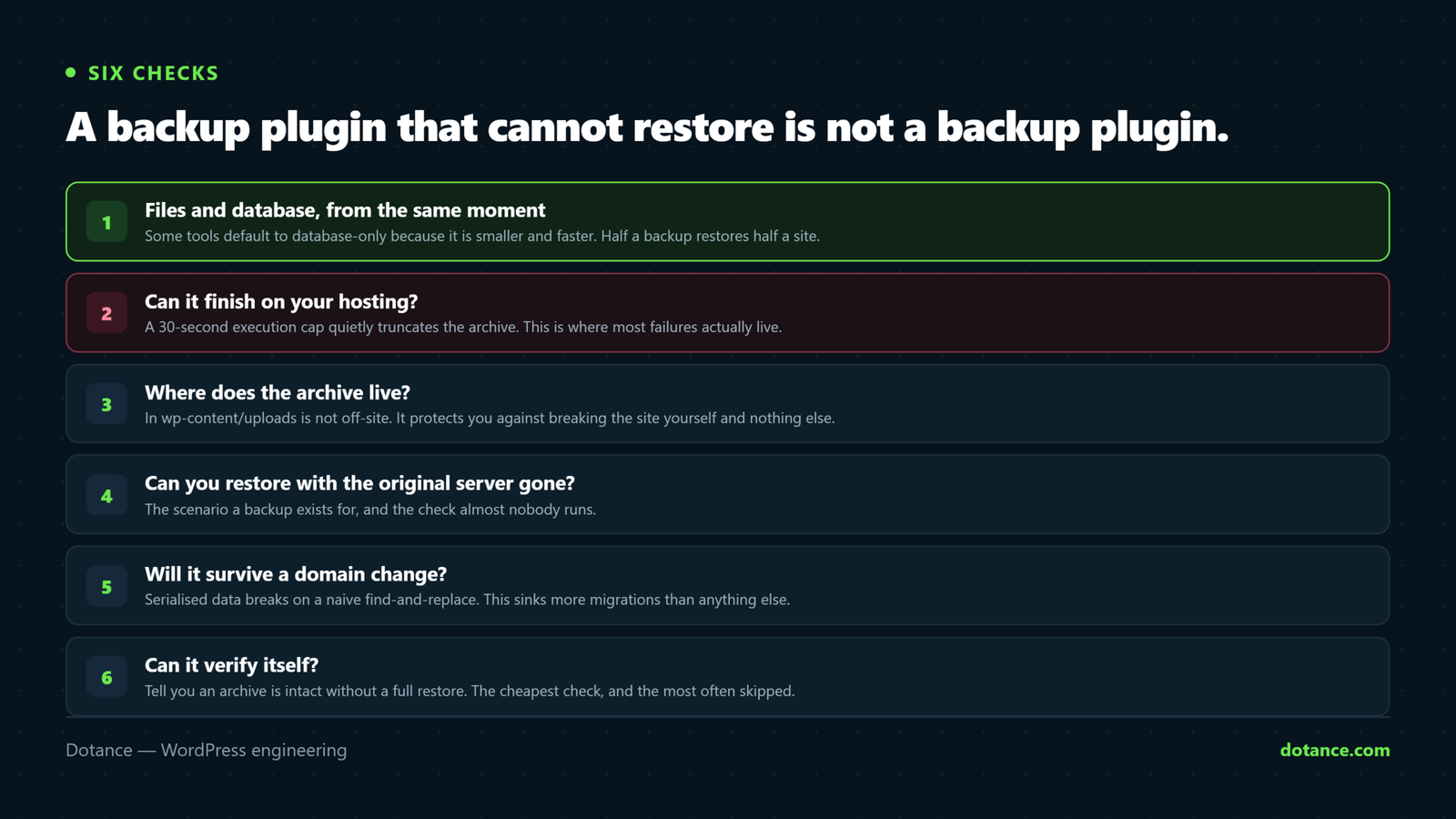
The first question to ask any WordPress backup plugin is whether one backup contains both halves, taken at the same moment. Some tools default to database-only because it is fast and small. That is a useful thing to have hourly — but it is not a backup of your site, and a database-only archive restored onto a server with no uploads folder gives you a site full of broken images.
The opposite failure is subtler. Some hosting backups snapshot the filesystem on one schedule and the database on another. Restore both and you can end up with a database that references media files the filesystem copy does not contain yet, or an order that exists in one and not the other.
What to check, concretely: create a backup with your WordPress backup plugin, then open the archive on your own machine and look inside. You should see a .sql file and a recognisable wp-content tree. If you cannot open the archive, that is itself the answer.
Check 2: can the WordPress backup plugin finish on your hosting?
This is where most WordPress backup plugin failures live, and it is almost invisible. Shared hosting caps how long a single PHP request may run — commonly 30 seconds, sometimes 60. It is the same ceiling behind the maximum execution time exceeded error. A backup of a 4GB site cannot finish inside that. So the plugin has to work in slices, save its position, and pick up exactly where it stopped.
The ones that do not do this fail in one of two ways. Either the request is killed and you get a visible error, which is annoying but honest. Or the request is killed partway through writing the archive, the plugin never gets to record that it failed, and you are left with a file that looks like a backup, has a size, appears in the list — and is truncated.
A truncated ZIP often still opens. Archive tools read the central directory at the end of the file; when that is missing they will happily reconstruct what they can and show you a partial file list. “It opened” is not the same as “it is complete”.
Two things make this dramatically worse on larger sites. The first is that many plugins rebuild the whole archive on each batch of files, so the work grows with the square of the site size — a build that took two minutes at 1GB takes far longer than twenty at 5GB. The second is compression: squeezing a folder full of JPEGs and MP4s costs a great deal of processor time and saves almost nothing, because those formats are already compressed.
How to test it: run a backup and watch. If it completes in a browser tab and the tab must stay open, ask what happens when it does not. A WordPress backup plugin that can run from WP-CLI sidesteps the whole problem, because the command line has no execution limit and no tab to close. If the site is already slow enough that a backup times out, the causes in why is my WordPress site slow are usually the same ones.
# No execution limit, nothing to keep open, and it exits non-zero on failure
wp sitecarry backup

# Prove the site is protected at all — schedule, destination, last run
wp sitecarry status
Check 3: where does the backup actually live?
A backup stored in wp-content/uploads on the same server as the site protects you against exactly one thing: you breaking the site yourself. It does not survive the server failing, the account being suspended, the host losing a disk, or ransomware that encrypts everything it can reach — which includes the uploads folder and every WordPress backup plugin package sitting in it. If you are reading this because something already went wrong, the signs your WordPress site is hacked is the faster place to start.
The rule people quote is 3-2-1: three copies, on two kinds of media, one of them off-site. For a WordPress site the practical version is simpler.
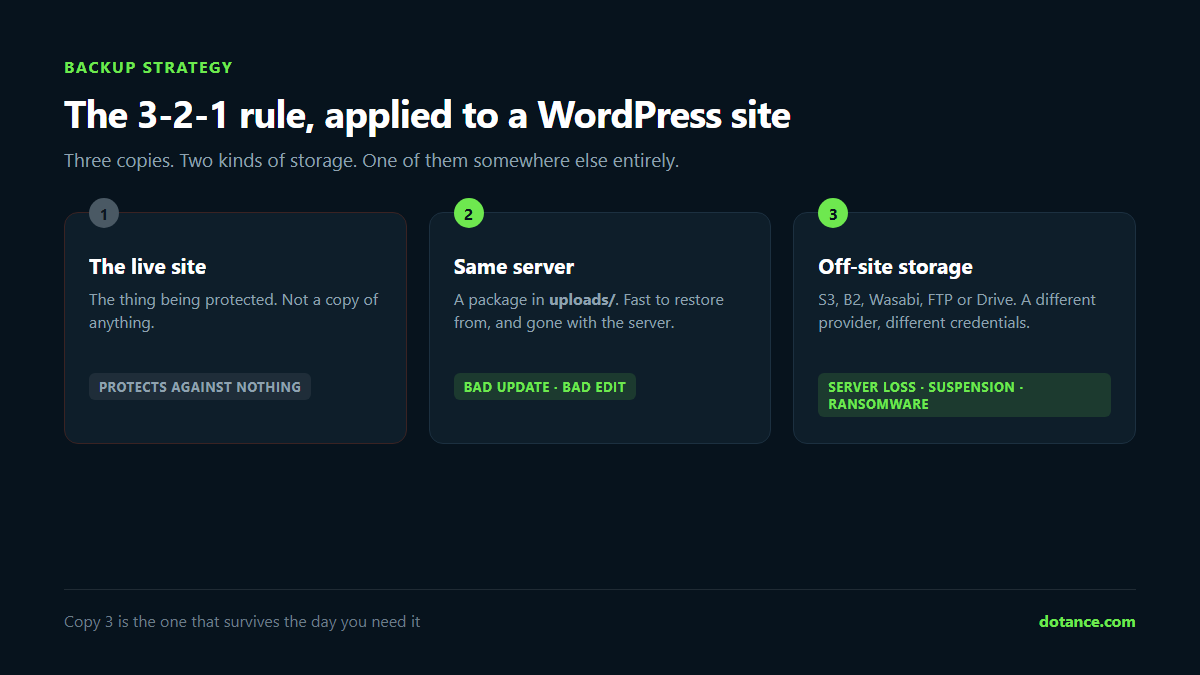
| Copy | Where | Protects against |
|---|---|---|
| 1 | The live site | Nothing — this is the thing being protected |
| 2 | Same server, uploads/ | Bad update, bad edit, failed migration |
| 3 | Object storage or another provider | Server loss, suspension, ransomware, host going under |
Object storage is the cheap, boring answer, and every serious WordPress backup plugin supports it. Amazon S3 and the services that speak the same protocol — Backblaze B2, Wasabi, DigitalOcean Spaces, MinIO — cost a few dollars a month for the volumes a normal site produces. The important detail when you set this up is the credentials: create a key restricted to one bucket with permission to put, get and delete objects, and nothing else. A key with full account access, stored in your WordPress database, ends up inside every backup that database is dumped into.
Better still, keep the keys out of the database entirely by defining them as constants in wp-config.php. The database goes into every package; wp-config.php is one file you control separately.
There is a second reason off-site matters that has nothing to do with disasters. Backups fill disks, and this is the one failure a WordPress backup plugin causes rather than prevents. A schedule with no retention limit will quietly consume every gigabyte your hosting plan has, and a full disk takes the site down as effectively as any hack. Whatever WordPress backup plugin you choose, set a retention count and check it is being honoured.
Check 4: can you restore when the original server is gone?
This is the check almost nobody runs, and it is the scenario a backup exists for — the one where the WordPress backup plugin has to work without the site it was installed on. Your host has suspended the account, or the server is unreachable, or you are simply moving to somewhere better. You have an archive. What now?
If the answer is “install WordPress on the new server, install the backup plugin, then use its import screen”, that works — but notice what it requires. A working WordPress, a working PHP upload path large enough for a multi-gigabyte file, and the plugin installing cleanly on a server you have not configured yet. Any of those failing leaves you holding an archive you cannot open.
The stronger design is a standalone installer: a single PHP file you upload alongside the archive, which rebuilds the site without WordPress being present at all. It unpacks the files, imports the database, rewrites the URLs and writes a new wp-config.php. There is a good structural reason it has to work this way — a restore replaces the very files WordPress would be running from, so anything doing that from inside WordPress is pulling the floor out from under itself partway through.
Keep a copy of that installer somewhere other than the site it protects. It is small, and without it you have only the archive.
Check 5: will it survive a domain change?
Moving a site to a new domain, or to a staging subdomain, breaks more migrations than any other single thing — and the reason is invisible unless you know to look for it. It is also the check that separates a real WordPress backup plugin from a plain file archiver. The same trap catches redesigns, which is why redesigning without losing SEO spends so long on URLs.
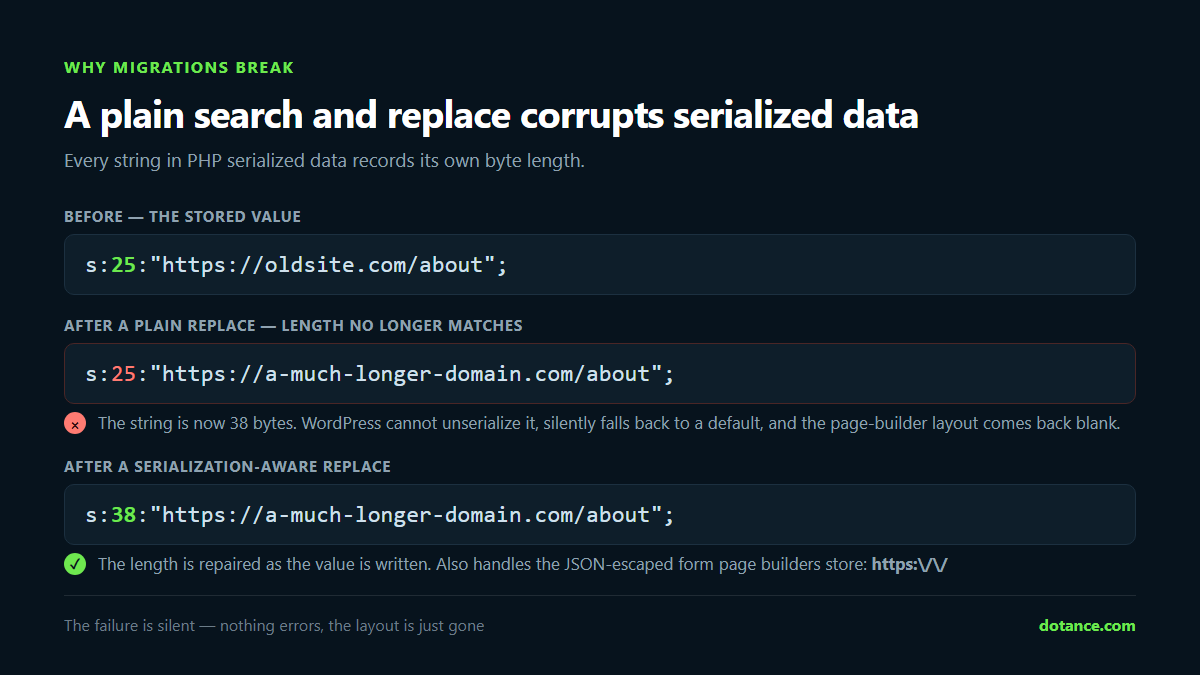
WordPress stores a lot of settings as PHP serialized data. Widget settings, theme options, and every Elementor layout are stored this way. In serialized form, each string records its own byte length: s:21:"https://oldsite.com/x". Run a plain search and replace to a longer domain and the text changes but the number does not. WordPress can then no longer read the value, and it silently falls back to a default — which is how a migration quietly wipes a page-builder layout that looked fine an hour earlier.
| Method | What happens to serialized data | Safe? |
|---|---|---|
SQL REPLACE() on the dump | Lengths left wrong, values become unreadable | No |
| Find-and-replace in a text editor | Same, plus the file may be too large to open | No |
wp search-replace | Unserialises, replaces, re-serialises correctly | Yes |
| Serialization-aware replacer in the installer | Repairs lengths as it writes | Yes |
There is a second form that catches people out even when the first is handled. Page builders often store their content as JSON inside the database, and JSON escapes forward slashes — so the URL appears as https:\/\/oldsite.com, which a replacer looking for https://oldsite.com will walk straight past. If you use Elementor, Divi or Beaver Builder, ask specifically whether the tool handles the escaped form.
The command-line version is worth knowing regardless of which WordPress backup plugin you use, because it is the safety net when something has gone wrong. It is documented in full in the WP-CLI handbook:
# Always dry-run first — it reports what it would change, and changes nothing
wp search-replace 'https://oldsite.com' 'https://newsite.com' --all-tables --dry-run

# Then for real, skipping the revisions table to save time
wp search-replace 'https://oldsite.com' 'https://newsite.com' --all-tables --skip-columns=guid
Leave guid alone. It looks like a URL and it is not one — it is a permanent identifier for feed readers, and rewriting it makes every post look new to anything subscribed.
Check 6: can the WordPress backup plugin verify itself?
The last check is the cheapest and the most often skipped. Can the WordPress backup plugin tell you, without a full restore, that a given archive is intact?
Verification is not the same as restoring, and any tool claiming otherwise is overselling. What a good verification does is compare the archive against what was recorded when it was written — size and checksum — confirm it still opens and is structurally sound, and confirm the files a restore cannot start without are inside it. That catches truncated uploads, disks that filled mid-write, and silent corruption. What it cannot tell you is whether the database inside will import cleanly on a different server.
# Check every package; exits non-zero if any fails, so it works in a monitor
wp sitecarry verify --all
Put that in a weekly cron job with an alert on failure and you have converted “I hope the backups are fine” into something that tells you when they are not. Which is the whole point.
The check behind all six: does anything tell you when it breaks?
Backups do not usually fail loudly. They fail on a Tuesday, quietly, because a disk filled or a storage key expired, and then they keep failing for four months until the day you need them. Every WordPress backup plugin worth using can email you or post to a webhook when a run fails. Monitoring is the part people skip and then regret, which is why it sits near the top of what a maintenance plan should include.
Set it to failures only. A message after every successful backup stops being read within a fortnight, and the one that mattered goes unread with it.
Where a WordPress backup plugin goes wrong
| Symptom | Actual cause | Fix |
|---|---|---|
| Backup “completes” in seconds | Database-only, or excluding uploads | Open the archive and look for wp-content/uploads |
| Archive is there but will not restore | Truncated by the execution limit | Run from WP-CLI; verify after every run |
| Site restores but images are missing | Files and database taken at different times | One package containing both |
| Layouts blank after a domain change | Serialized string lengths broken | Serialization-aware replace, including the JSON-escaped form |
| Disk full, site down | Schedule with no retention limit | Set a retention count; send packages off-site |
| Backups stopped months ago | Nothing was watching | Failure notifications plus a weekly verify |
| Restore works, but on the old domain | URLs not rewritten during restore | Check the installer rewrites, or run wp search-replace after |
The one-hour test that settles it
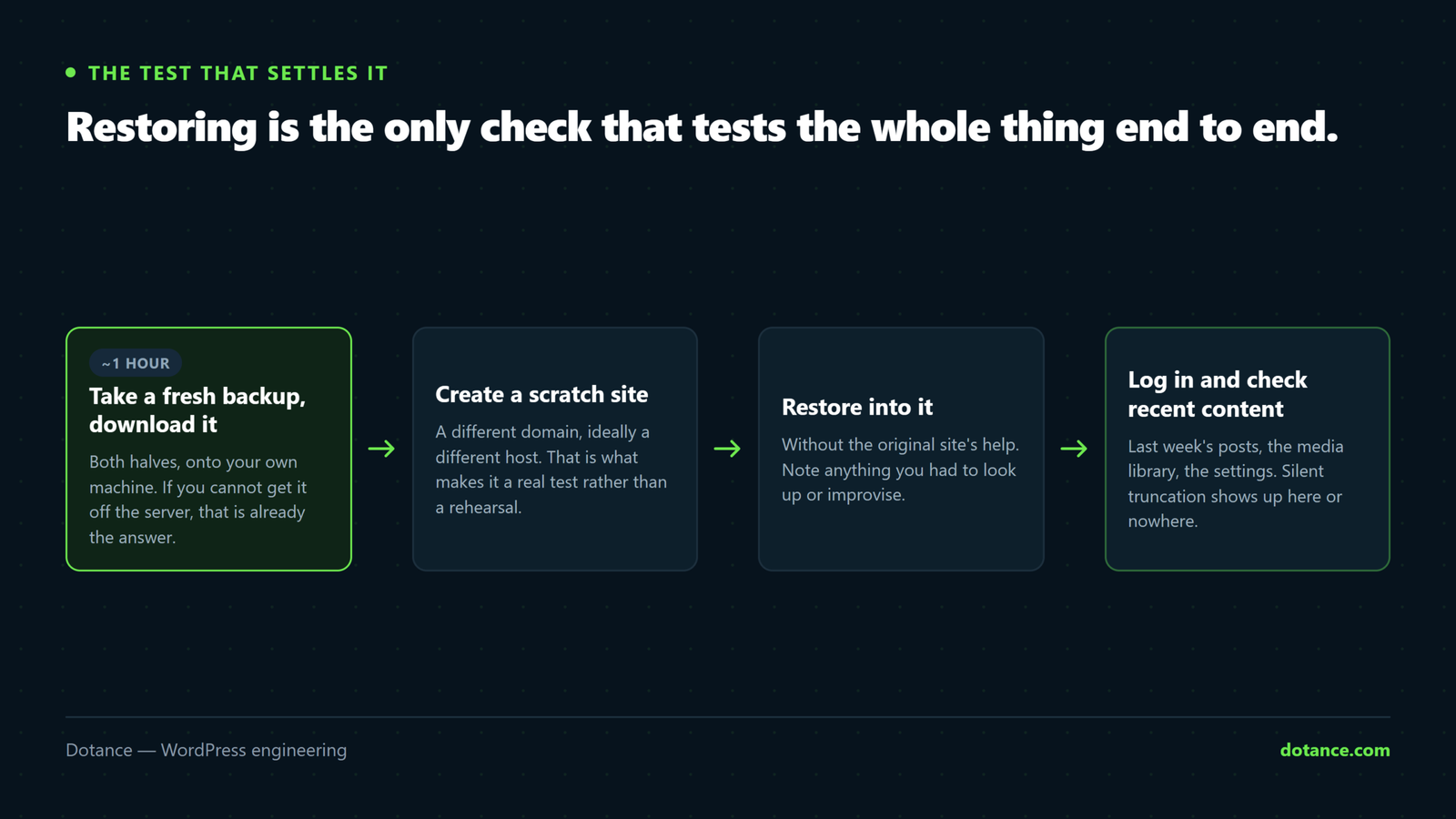
Reading about a WordPress backup plugin is not the same as having working backups. Here is the test, and it takes about an hour.
- Take a fresh backup and download both the archive and, if the tool provides one, the installer.
- Create an empty subdomain or a local site — anywhere that is not the live site.
- Restore into it. Note every step you had to look up.
- Open the restored site and click through five pages, including one built with your page builder, and one with a form.
- Log in to the restored admin. Check that plugins are active and media loads.
If all five pass, your WordPress backup plugin is doing its job. If step three needed a support ticket, you have a problem that would have been much worse at 2am on the day the live site went down. Either way you now know, which you did not this morning.
Frequently asked questions
Is my host’s backup enough on its own?
It is a good second copy and a poor only copy, and it is not a substitute for a WordPress backup plugin you control. Host backups are usually server-level snapshots restored by support, on their timetable, and they sit inside the same account that might be suspended. They also tend to be all-or-nothing: recovering one deleted page can mean rolling the whole site back a day. Keep them, and keep your own as well.
How often should a WordPress backup plugin run?
Match the schedule to how much work you are willing to redo. A brochure site that changes monthly is fine on weekly. A blog publishing several times a week wants daily. A shop taking orders wants hourly, because every missed hour is real orders that no longer exist anywhere.
Do incremental backups make sense?
On a site with a large uploads folder, yes — a WordPress backup plugin packaging only the files that changed turns a nightly 6GB job into a nightly 40MB one. The trade is that an incremental package is a difference, not a backup on its own: restoring one needs every archive back to the last full package. Any tool offering incrementals should take a full backup automatically every so often and should refuse to start a restore while any archive in the set is missing, rather than restoring half a site.
How much does off-site storage cost?
Less than people expect. At typical object-storage pricing, keeping seven daily copies of a 2GB site is a few dollars a month. The number that surprises people is egress — downloading the data back out — which is free or near-free on some providers and charged on others. Since you download backups rarely and only in a bad week, it is a minor cost, but worth knowing before the bad week.
Should backups be excluded from caching and security plugins?
The backup folder should never be publicly reachable, cached or not. This is the one security question to ask of any WordPress backup plugin before you trust it. A package contains a complete copy of your database, including user records and password hashes. Any WordPress backup plugin storing packages in a web-accessible folder should be blocking direct access with an .htaccess or web.config rule and serving downloads only through an authenticated admin request. Check this yourself: paste the archive URL into a private browser window. If it downloads, so can anyone who guesses the filename.
What is the single most common cause of an unusable backup?
The execution limit, by a wide margin. A site grows past what one PHP request can package, the request is killed, and the WordPress backup plugin never gets to record that it failed. Everything after that point looks normal — there is a file, it has a plausible size, it is listed with today’s date — right up until the day someone tries to restore it.
Where to start
If you do one thing from this article, restore a backup to a scratch site. It is the only check that tests a WordPress backup plugin end to end. Not because the restore will fail — it may well work — but because you will find out today, at a moment of your choosing, rather than during an outage.
Then set two things running: failure notifications, and a weekly verify. Those two convert a WordPress backup plugin from something you installed once into something that tells you when it needs attention. If a broken site is what brought you here, the white screen of death and a PHP upgrade breaking the site are the two we are asked about most, and both stop being frightening once a restore is one command away.