Most site owners only look at their WordPress contact form when someone says “I sent you a message last week”, and there is nothing in the inbox. By then the lead is gone. The form looked fine, the button worked, the visitor saw a thank-you message, and still the enquiry vanished somewhere between the browser and your email.
This guide covers the nine fixes that make a WordPress contact form reliable and worth having, in the order we apply them on client sites. Most take minutes. None needs a developer, though a few commands at the end make testing faster if you have WP-CLI or a terminal.
Why a WordPress contact form loses leads
A WordPress contact form has more moving parts than it looks. The browser sends the answers to your server. WordPress validates them, checks for spam, perhaps saves them, and hands an email to PHP. PHP passes the email to your host’s mail system, which sends it on to your inbox, where your mail provider decides whether it is spam. Then a person has to read it and reply.
Every one of those steps can fail without telling anyone. The most common failures we see:
- The email is sent with PHP mail. Many hosts limit or block it, and messages from a generic server address land in spam or nowhere.
- The entry is not saved. Several popular plugins only email the answers by default, so when the email fails there is no copy at all.
- Spam protection is too strict. A puzzle that real people fail, or a filter that blocks a real enquiry, costs more than the spam it stops.
- The form is too long. Every extra field gives people a reason to leave before they press Send.
- Nobody replies in time. The enquiry arrives, but it sits unread for a day, and the visitor has already called someone else.
The nine fixes at a glance
| Fix | What it prevents | Time to apply |
|---|---|---|
| 1. Save every entry | Leads lost when an email fails | 5 minutes |
| 2. Send through SMTP | Form email in spam or missing | 15 minutes |
| 3. Quiet spam protection | Spam, and real people blocked by puzzles | 10 minutes |
| 4. Fewer fields | People leaving half-way | 10 minutes |
| 5. Conditional logic | Long forms that ask everyone everything | 15 minutes |
| 6. Track reply time | Leads going cold in the inbox | 5 minutes |
| 7. Accessible fields and errors | People who cannot finish the form | 20 minutes |
| 8. Track where leads come from | Guessing which pages and ads work | 15 minutes |
| 9. Test every month | Silent breakage after an update | 5 minutes a month |
1. Save every entry, not only the email
The first rule for any WordPress contact form: the answers must be stored in your WordPress database, not only emailed. Email is a notification, not a record. If it bounces, lands in spam or is deleted by mistake, a saved entry is the only proof the enquiry ever existed.
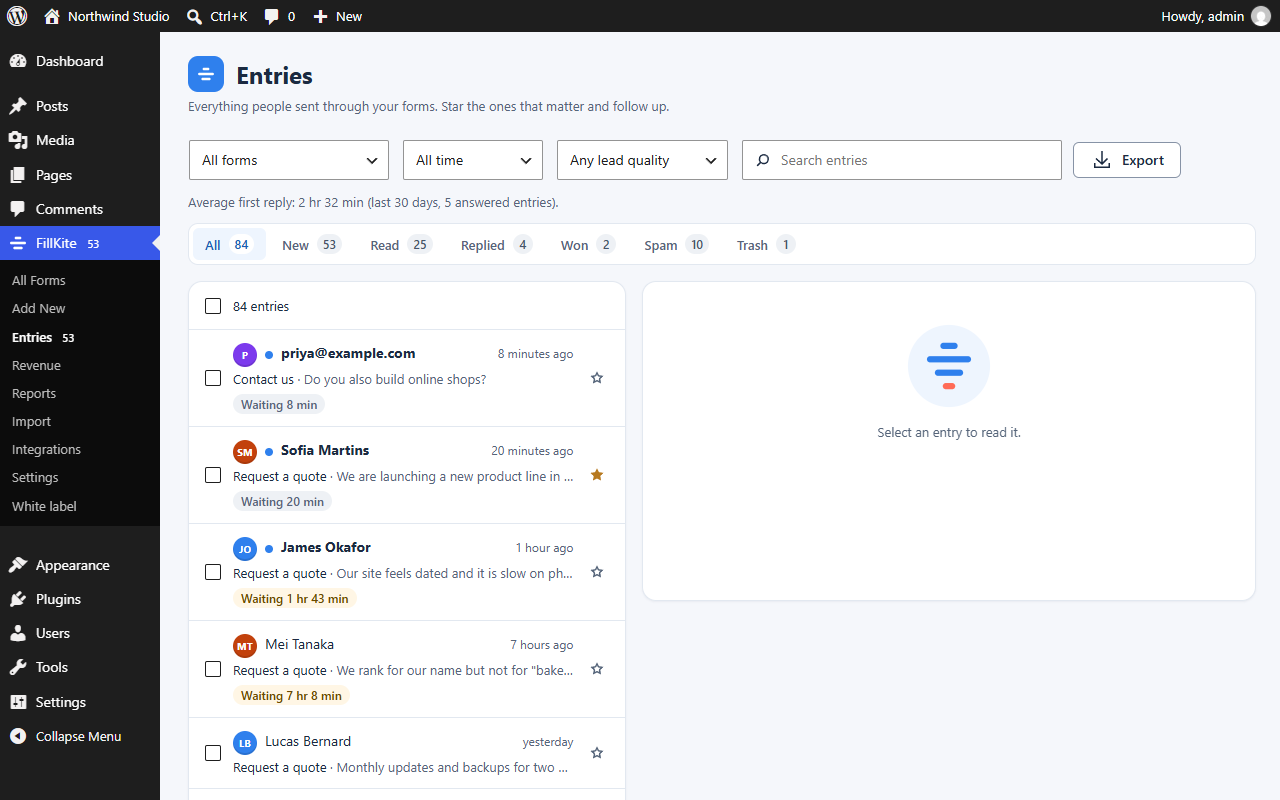
Check what your WordPress contact form plugin does today. Contact Form 7 does not save entries unless you add the separate Flamingo plugin. The free version of WPForms only emails the answers; saved entries start on its paid plans. Fluent Forms, Formidable Forms and most newer plugins save entries in their free versions.
Saving entries also gives you something email cannot: a list you can search, filter and export. When a client asks how many enquiries the site brought in last quarter, the answer should take seconds, not an afternoon in the inbox.
2. Send WordPress contact form email through SMTP
By default WordPress sends email with PHP’s mail function, from an address like wordpress@yourdomain.com, through whatever mail system your host provides. That message has no proof it came from you, so Gmail and Outlook treat it with suspicion. On some hosts it never leaves the server at all.
SMTP fixes this. Your WordPress contact form email is sent through a real mailbox or a sending service, signed with your domain’s SPF, DKIM and DMARC records. Use a sending address on your own domain, such as hello@yourdomain.com, and set the visitor’s email as the Reply-To, not the From. Putting the visitor’s address in From is the classic reason form email lands in spam.
You can add SMTP with a dedicated plugin, or use a form plugin that has an SMTP sender built in. Either way, test it before you trust it. Our guide to WordPress emails not sending walks through the checks in detail.
Send a test email from WordPress and see whether it was accepted
wp eval 'var_dump( wp_mail( "you@example.com", "Contact form test", "If you can read this, WordPress mail works." ) );'
# bool(true) means WordPress handed the email on. It does not prove it arrived: check the inbox and spam folder.
Check that your domain publishes SPF and DMARC records
dig TXT yourdomain.com +short | grep spf
dig TXT _dmarc.yourdomain.com +short
3. Stop spam without a puzzle in front of every visitor
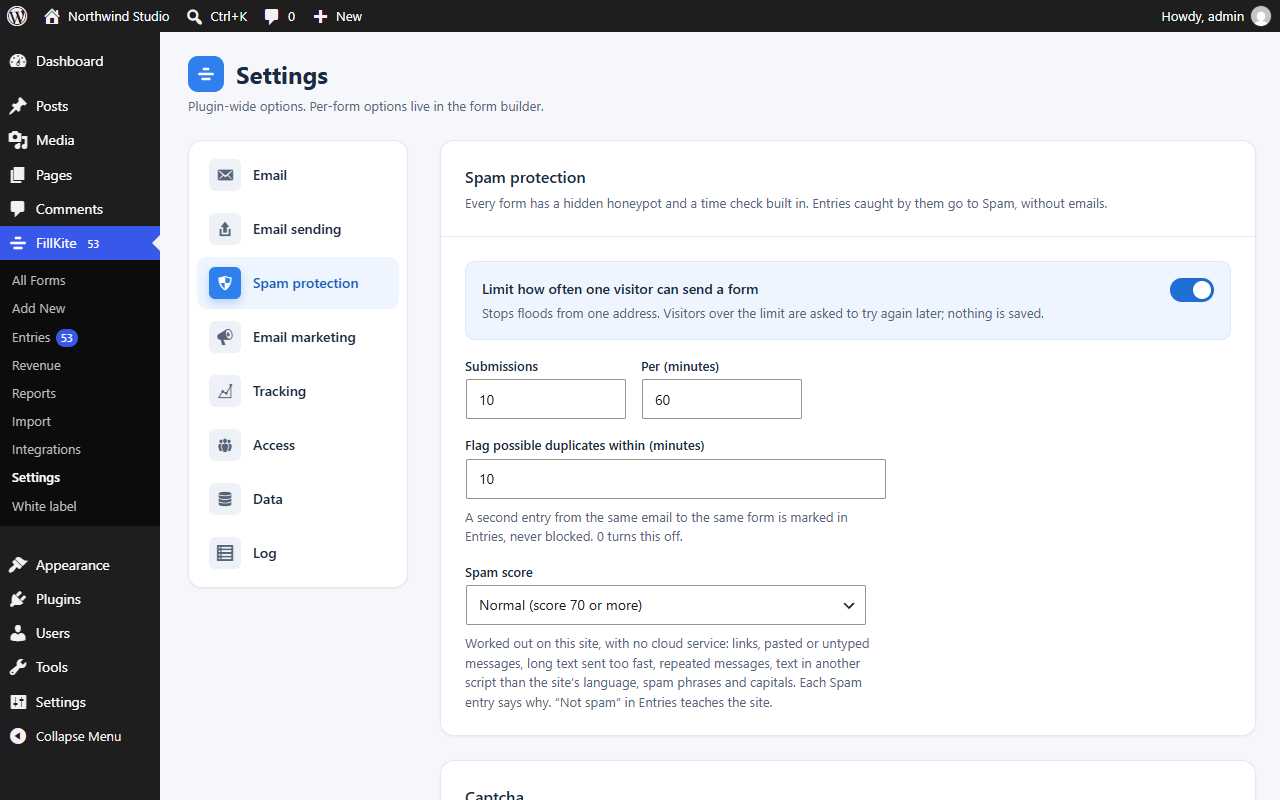
Spam is the reason many site owners give up on their WordPress contact form, and the reason others bolt on a CAPTCHA that real visitors fail. There is a better order. Start with protection the visitor never sees, and only add a challenge if spam still gets through.
- A honeypot: a hidden field that people never fill in and bots usually do.
- A time check: forms sent within a second or two of loading are almost always bots.
- A rate limit: no more than a set number of entries from one visitor in a set number of minutes.
- An invisible challenge: Cloudflare Turnstile or reCAPTCHA v3 run in the background without a puzzle.
- Disposable email blocking: refuse throwaway addresses that real customers rarely use.
Keep anything caught as spam in a spam folder for a few weeks rather than deleting it at once. Now and then a real enquiry will be flagged, and you want to be able to find it. For the wider picture of protecting logins as well as forms, see how to stop WordPress brute force attacks.
4. Ask fewer questions
Every field on a WordPress contact form is a small cost to the visitor. Name, email and message are usually enough for a first contact. Phone, company, budget and “how did you hear about us” can wait until you reply, or can be optional.
A useful test is to ask, for each field, what you will do differently with the answer. If the answer is “nothing until we talk”, remove the field. If you truly need it to route or qualify the enquiry, keep it, and say why in the label or help text. People fill in fields they understand.
Small details count too, and they matter on a WordPress contact form more than anywhere else. Use the right input types, so phones show a number pad for phone numbers and an email keyboard for email. Mark optional fields as optional instead of marking required ones with an asterisk nobody explains. These are the same design mistakes that hurt conversions on the rest of a site.
5. Use conditional logic instead of one long form
When different visitors need different questions, conditional logic keeps one WordPress contact form short for everyone. A field appears only when an earlier answer makes it relevant. Choose “Request a quote” and the budget and timeline fields appear. Choose “General question” and they stay hidden.
Two rules keep logic from causing trouble. Hidden fields should not be required, or the form can never be sent. And the logic should also run on the server, not only in the browser, so a hidden field cannot sneak a value through. Most form plugins handle both, but test the paths yourself: fill the form in once for each choice.
Conditional logic is free in some plugins and a paid feature in others. Contact Form 7 needs a third-party add-on, WPForms keeps it for paid plans, while Fluent Forms and FillKite include it in their free versions.
6. Track how long each enquiry waits
The fastest way to get more out of a WordPress contact form is not on the form at all. It is the reply. People who fill in a contact form usually contact more than one business, and the first useful answer often wins the work. An enquiry answered in an hour is worth far more than the same enquiry answered tomorrow.
So treat every WordPress contact form entry like a queue item, not like email. Mark each one as new, read or replied. Know which enquiries have waited longest. Some form plugins now build this in: FillKite, for example, shows a reply timer on every entry and sends a reminder when a lead has waited too long. If your plugin does not, a shared inbox with a simple rule, such as “every enquiry answered by 5pm”, does much of the same job.
An auto-reply helps as well. A short, plain message that says what happens next and when sets an expectation and buys you a little time. Keep it honest: if you promise a reply within two hours, the real reply has to keep that promise.
7. Make the WordPress contact form accessible
An accessible WordPress contact form is easier for everyone to finish, not only for people who use a screen reader or a keyboard. The basics take minutes and fix the most common barriers.
- Every field has a real label, not only placeholder text that disappears when you start typing.
- Errors are specific and next to the field, such as “Enter an email address like name@example.com”, not a red box at the top that says “There was a problem”.
- The form works with a keyboard alone, in a sensible tab order, with a visible focus outline.
- Colour is not the only signal. A red border alone does not tell a colour-blind visitor what is wrong.
- Any challenge has an accessible fallback, which is one more reason to prefer invisible spam protection.
The W3C forms tutorial is the clearest reference. For the site-wide view, see our guide to WordPress accessibility.
8. Track where your leads come from
If your WordPress contact form brings in ten enquiries a month, you want to know which pages, searches and ads sent them. Without that, every marketing decision is a guess.
Two pieces of data do most of the work. First, capture UTM parameters and the referring page with each entry, so you can see that an enquiry came from a particular campaign or blog post. Second, send a conversion event to your analytics when the form is sent, such as GA4’s generate_lead, so the numbers line up with your traffic reports. Count the event on a real submission, not on a click of the button, or failed sends will inflate the figure.
Some plugins capture UTM values automatically; with others you add hidden fields yourself. If your tracking has broken after a theme or plugin change, our guide to fixing broken tracking covers the usual causes, and most of it applies to forms as well as shops.
9. Test the form every month
A WordPress contact form that worked in January can be broken by a plugin update, a host migration, a new cache rule or an expired SMTP password, and nobody will notice until a customer complains. A five-minute test once a month prevents that.
- Fill the form in on a phone and on a desktop, as a visitor would.
- Check that the thank-you message or page appears.
- Check that the entry is saved in WordPress.
- Check that the notification arrived in the inbox, not in spam, and that Reply-To is the visitor’s address.
- Check that the visitor’s auto-reply arrived too.
Check that the contact page is not served from a stale full-page cache
curl -sI https://yourdomain.com/contact/ | grep -i -E "cache|age|x-litespeed"
# A form inside a cached page can carry an expired security token. Exclude the contact page from full-page caching if submissions fail at random.
Put the WordPress contact form test in the same calendar as your other routine work. It belongs on any WordPress maintenance checklist, next to backups and updates.
Where a WordPress contact form goes wrong, and the fix
| Symptom | Likely cause | Fix |
|---|---|---|
| Visitor sees “thank you”, no email arrives | PHP mail blocked or marked as spam | Send through SMTP from an address on your domain |
| Email arrives in spam | Visitor’s address used as From; no SPF or DKIM | Use your own From address, visitor as Reply-To; publish SPF, DKIM, DMARC |
| No record of an enquiry a customer says they sent | Entries not saved; email lost | Turn on saved entries, or switch to a plugin that saves them |
| Form fails at random with a security error | Page cached with an expired token | Exclude the contact page from full-page cache |
| Real people complain they cannot send | A CAPTCHA they fail, or a hidden required field | Use invisible spam checks; never require hidden fields |
| Hundreds of spam entries a day | No honeypot, time check or rate limit | Add the quiet layers first, then an invisible challenge |
| Analytics shows more leads than the inbox | Conversion counted on button click | Count the event only after a successful submission |
Which WordPress contact form plugin fits your site
Almost any modern plugin can run a good WordPress contact form once the fixes above are in place. The differences that matter for leads are what the free version saves, whether conditional logic is free, and what happens after the entry arrives.
| Plugin | Saves entries for free | Conditional logic for free | Worth knowing |
|---|---|---|---|
| Contact Form 7 | No (needs Flamingo) | No (needs an add-on) | Free and light, but built with tags rather than a visual builder |
| WPForms | No (paid plans) | No (paid plans) | Very polished builder; paid plans from $99 a year |
| Fluent Forms | Yes | Yes | Many features; Stripe on the free version takes a fee |
| FillKite | Yes | Yes | Free inbox with reply timers, webhooks and built-in SMTP |
| Gravity Forms | No free version | Paid only | Long established; from $59 a year per site |
If you already have dozens of forms in one plugin, switching is rarely worth it just for one feature. Apply the nine fixes first. If you are starting fresh, or your current plugin does not save entries, choose one that does, and do not add a second form plugin on top of the first. Every extra plugin is one more thing to update, as our piece on WordPress plugin bloat explains.
Frequently asked questions about a WordPress contact form
Why is my WordPress contact form not sending emails?
Usually because WordPress is sending with PHP mail, which many hosts limit and many inboxes distrust. Send through SMTP from an address on your own domain, publish SPF, DKIM and DMARC records, and use the visitor’s address as Reply-To rather than From.
Does a WordPress contact form save submissions?
It depends on the plugin. Contact Form 7 does not save them without the Flamingo add-on, and the free WPForms only emails them. Fluent Forms, FillKite and most newer plugins save entries in their free versions.
How many fields should a contact form have?
As few as you can act on. Name, email and message are enough for most first contacts. Add a field only when the answer changes what you do next, and use conditional logic to show extra questions only to the people who need them.
Do I need a CAPTCHA on my WordPress contact form?
Usually not at first. A honeypot, a time check and a rate limit stop most spam without anything visible. Add an invisible challenge such as Cloudflare Turnstile only if spam still gets through.
How fast should I reply to a contact form enquiry?
Within the hour if you can, and the same working day at the latest. People often contact several businesses at once, and the first clear answer tends to win. Tracking how long each entry has waited makes that target realistic.
How do I test a WordPress contact form?
Send a real entry from a phone and a desktop, then check the thank-you message, the saved entry, the notification email, the Reply-To address and the visitor’s auto-reply. Do it once a month and after every major update.