The first round of client feedback on a new website usually arrives as a long email. Somewhere in it is “the photo on the second page looks dark” and “can the button be bigger”, and you spend the afternoon working out which photo and which button. A website feedback plugin fixes that by letting the client leave the note on the page itself, pinned to the exact element, with a screenshot of what they saw.
A disclosure first. We make Dotance Website Feedback, the plugin used in the steps below, and it is free. That makes this guide practical and also not neutral, so where a hosted tool is the better choice we say so. The workflow itself applies to whichever website feedback plugin you pick.
Why feedback by email and screenshots breaks down
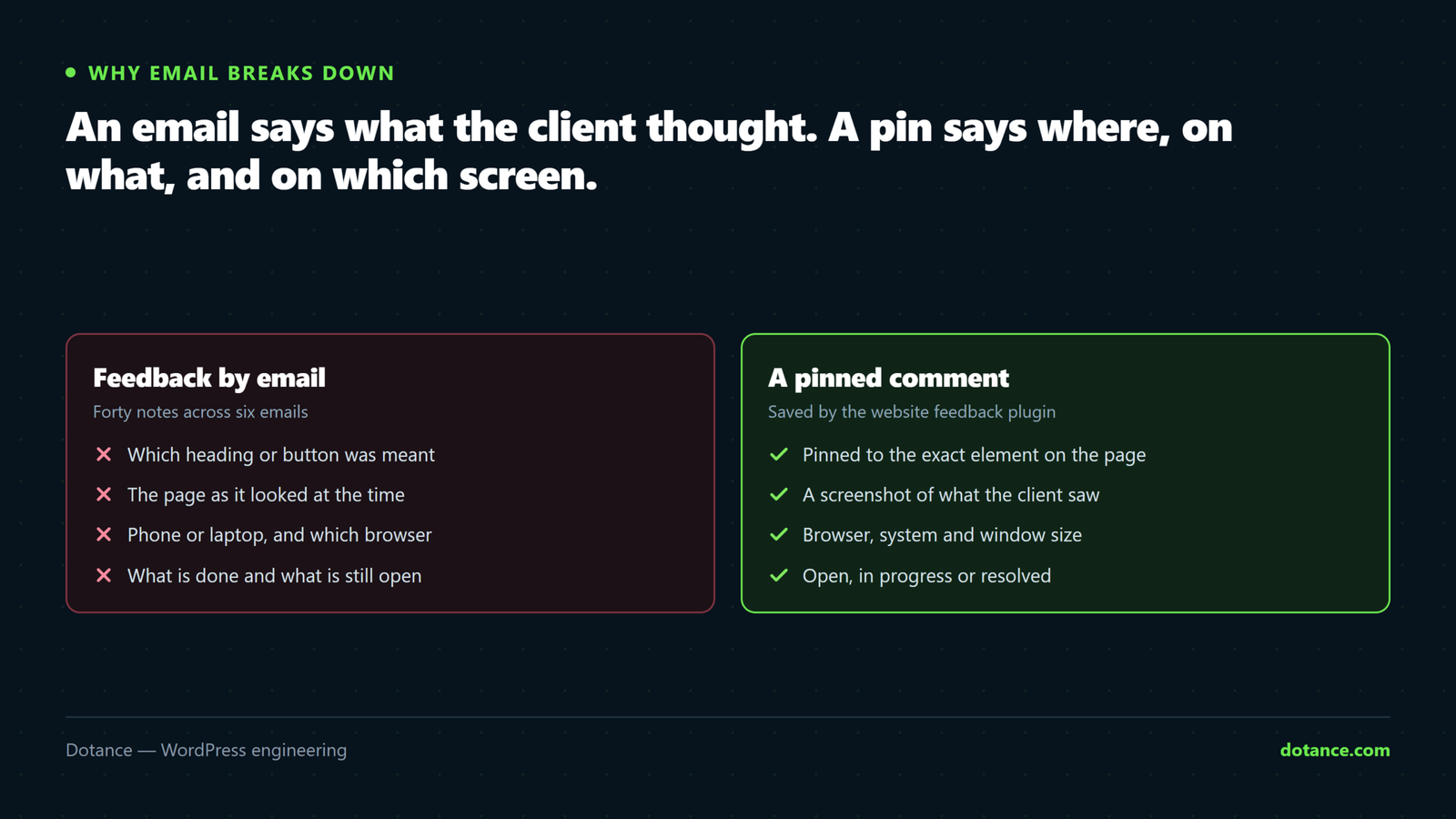
Email feedback works for a five-page brochure site and one person on each side. It stops working as soon as there is a second reviewer, a second round, or a page that changes between the two. Three things go wrong, and they compound.
The first is location. “The heading on the services page” could be any of four headings, and the client is looking at a phone while you are looking at a laptop. The second is state: by the time you read the note, you have already changed the page it describes, so the screenshot no longer matches anything. The third is tracking. Forty notes spread across six emails and a shared document have no status, so nobody knows what is done, what is waiting, and what was quietly dropped.
If you have written a good brief, most of this is avoidable at the design stage; our guide to briefing a website design project covers that end. But even a perfect brief meets real content and real screens at some point, and that is where a website feedback plugin earns its place.
What a website feedback plugin actually does
Every website feedback plugin works on the same idea: an overlay on top of the live site that turns “click” into “comment”. The client presses a Comment button, the cursor becomes a target, and whatever they click gets a numbered pin. They type the note, and the plugin stores it with enough context that you never have to ask a follow-up question.
That context is the real value. A good website feedback plugin records the page address, the element (by a stable selector, so the pin survives small layout changes), a screenshot of the visible screen, the browser and operating system, and the window size. When a client says a button overlaps on their phone, you can see that they were on a 390-pixel screen in Safari, which is usually the whole answer.
On the other side sits an inbox. Comments arrive in one list with their screenshots; you reply, assign them to a colleague, mark them in progress or resolved, and the client gets an email when something changes. The conversation stays attached to the element it is about, which is what email could never do.
Hosted tool or self-hosted website feedback plugin
There are two families of tools, and the choice between them matters more than the brand. Hosted services run the comments and screenshots on their own servers and connect to your site with a script or a browser extension. A self-hosted website feedback plugin runs inside WordPress and keeps everything in your own database.
| Email and screenshots | Hosted service (BugHerd, Marker.io and similar) | Self-hosted website feedback plugin | |
|---|---|---|---|
| Client needs an account | No | Often, or a browser extension | No, only the review link |
| Where comments and screenshots live | Your mailbox | The vendor’s servers | Your WordPress database and uploads |
| Pricing model | Free | Monthly subscription, often per seat or per project | Free or a one-off licence |
| One inbox for many client sites | No | Yes, this is where they are strongest | One inbox per site |
| Integrations with Jira, Trello, Slack | No | Yes, mature | Varies; often a paid add-on |
| Works on non-WordPress sites | Yes | Yes | No |
Be honest about which column you are in. If you are an agency with thirty active client sites, a project-management tool you already live in, and budget for a subscription, a hosted service is the sensible choice and we would not talk you out of it. If you run a handful of projects, want nothing to sign up for on the client’s side, or work for clients who care where their data goes (common in the UK and EU), a self-hosted website feedback plugin is simpler and cheaper.
A middle ground exists: some agencies keep a hosted tool for internal QA and send clients a self-hosted review link, because the client-facing part is where accounts and extensions cause the most friction.
Set up a website feedback plugin in 7 simple steps
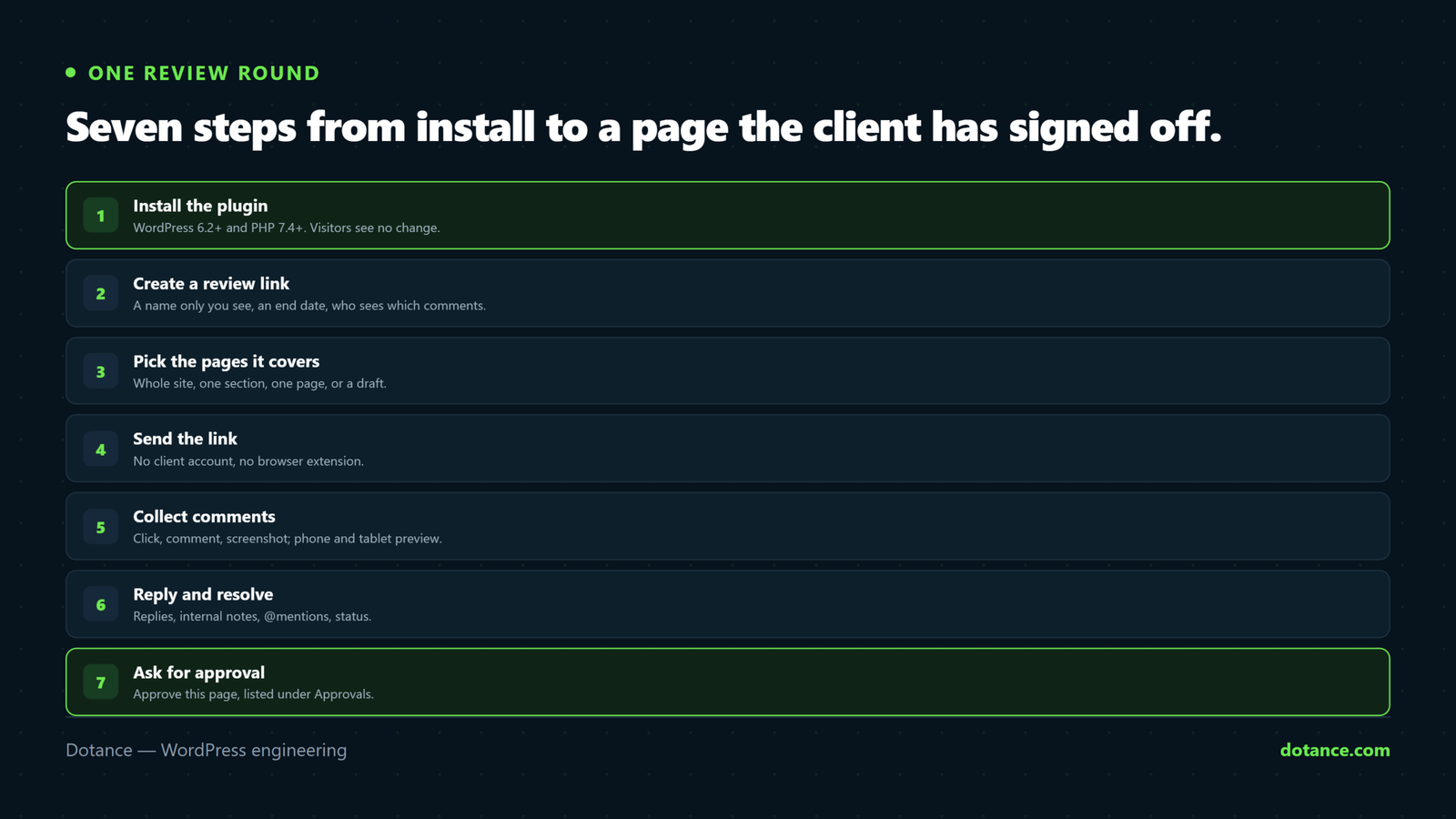
The steps below use Dotance Website Feedback because it is the one we know line by line. The shape is the same in any website feedback plugin: install, share a link, collect, reply, sign off. Do the first run on a staging copy if the site is already live; our guide to setting up a WordPress staging site takes about twenty minutes.
Step 1: Install the plugin
Download the zip from the Dotance Website Feedback page and upload it under Plugins, Add New, or install it from the command line. It needs WordPress 6.2 or newer and PHP 7.4 or newer.
Terminal, on the server
wp plugin install dotance-website-feedback-1.0.0.zip --activate
wp plugin get dotance-website-feedback --field=version   # 1.0.0
Activation creates its own tables and adds two capabilities to administrators. Nothing changes on the front end yet: until a review link exists, visitors get exactly the same page as before.
Step 2: Create a review link
Open Feedback, Review links. Give the link a name only you will see (“Client review, round 2” is a good pattern, because you will want a fresh link per round), choose how long it lasts, and choose what clients see: every comment on a page, or only their own. The second option matters when several people at the client review separately and should not be influenced by each other. In any website feedback plugin, one link per round keeps the rounds apart.
Step 3: Pick the pages it covers
In “Pages it covers”, start typing a page name. The picker lists every page, post and product that matches, with its status next to it, and “Whole site” always sits first. Picking a page limits the link to that page and the pages under it; picking the home page limits it to the home page only.
Drafts appear in the list too, and this is the part most tools skip. If you pick a draft, people holding the link can open and comment on it before it is published, while everyone else still gets “not found”. That is how you get sign-off on a new landing page without putting it live first.
Step 4: Send the link
Press Copy link and send it however you normally talk to the client. When they open it, the plugin sets a cookie for their browser and removes the token from the address bar, so a forwarded screenshot does not leak access. The link keeps working while a coming-soon or maintenance page is switched on, which is useful before launch.
You can check from the command line that the link is live and that ordinary visitors still get a clean page:
Terminal
wp option get dotfb_link_until                     # a timestamp while any link is active
curl -s https://example.com/ | grep -c dotfb        # 0 for a visitor without the link cookie
Step 5: Collect comments
Your client sees a small toolbar at the bottom of the page. They press Comment, click the heading, photo or button they mean, and write the note. The first time, they type their name and, if they want replies, an email address. A screenshot is taken automatically, and they can mark it up with a box, an arrow or a pen before sending.
The phone icon in the toolbar shows the same page at phone and tablet width, and comments made there are saved for that screen size. That removes the most common back-and-forth of all: “it looks fine on my laptop”. This is the moment a website feedback plugin pays for the time it took to set up.
Step 6: Reply and resolve
Comments arrive in Feedback, Inbox: the list on the left, the selected comment with its screenshot, browser and window size on the right. Reply to the client, or switch to Internal note for things only your team should read. Type @ and a colleague’s name to email them. Set status, priority and who is working on it, and press Resolve when it is done. The inbox is where a website feedback plugin gives you the afternoon back.
Emails are batched: two minutes after the first update, each person gets one email with everything that changed, sent from your site’s name. Because they are sent by your own WordPress, they depend on its mail setup; if your site’s email already struggles, fix that first with our guide to WordPress emails not sending.
Step 7: Ask for approval
When a page is right, the client presses Approve this page in the comments panel. You get an email, and Feedback, Approvals lists every approved page with who approved it and when. That list is the closest thing to a signed-off scope you will get without a PDF, and it settles “I thought we agreed that page was finished” in one screen. Approval is the step most website feedback plugin comparisons leave out.
A website feedback plugin should not slow the site down
Any tool that injects a script into every page is a performance and privacy cost, and a website feedback plugin is no exception if it is built carelessly. The rule to check for is simple: visitors without a review link should receive no extra bytes at all. Ours loads nothing for them; the toolbar only loads for logged-in team members and for browsers holding a link.
Page caches are the usual complication. A cached page does not know about the review-link cookie, so the plugin clears LiteSpeed Cache, WP Rocket, W3 Total Cache and WP Super Cache when the first link goes live, and adds a tiny loader that checks the cookie in the browser. If you run a cache we do not clear, purge it once after creating the link. Our note on WordPress plugin bloat explains why “loads on every page” is the question to ask of any plugin.
Where this goes wrong
Most support questions about a website feedback plugin come down to the same handful of causes. Here they are with the fix for each in this plugin.
| Symptom | Cause | Fix |
|---|---|---|
| Client opens the link but sees no toolbar | A page cache served a copy made before the link existed | Purge the cache once; it is cleared automatically for the four caches listed above |
| A draft picked for the link shows “not found” | The draft has no address yet | Pick it from the page picker (it saves the slug), or set a slug in the editor |
| Nobody receives the emails | Site mail goes to spam or is not sent at all | Send WordPress mail through an SMTP plugin; check spam for “your site name” |
| A comment shows under “Moved or removed” | The element it was pinned to changed a lot | Open it from the panel; the screenshot still shows what was meant |
| Clients see each other’s comments | The link shows all comments on a page | Create the link with “Only their own comments” |
| An old link still works | It has no end date | Revoke it; access stops at once and the comments stay |
To see what is queued before an email goes out, or to check the scheduled send, WP-CLI helps:
wp option get dotfb_mail_queue --format=json    # who is about to get an email
wp cron event list | grep dotfb                  # dotfb_send_mail and the daily clean-up
Privacy and client data
A review round collects personal data: names, email addresses, and screenshots that can show anything on the screen. With a hosted tool that data sits with the vendor, which means another processor in your privacy notice and, for EU clients, a data processing agreement. A self-hosted website feedback plugin keeps it in your own database, and WordPress’s own personal data export and erase tools include it.
Screenshots are stored in a private folder and only shown through the plugin to people allowed to see that comment. You can also have the website feedback plugin delete resolved feedback automatically after a set number of days. If you are handing the site over at the end of the project, that clean-up belongs on the same checklist as the rest; see what a maintenance plan should include.
When a website feedback plugin is the wrong tool
It is not a bug tracker for your developers, and it is not a replacement for a design review in Figma before anything is built. Feedback on layout and structure is cheaper at the mock-up stage; a website feedback plugin is for the moment real content meets real screens. It also cannot help on a site that is not WordPress, and if your client insists on reviewing a PDF, no plugin will change their mind.
Nor is it a reason to skip deciding what “done” means. The fastest review rounds we run have a short list of pages in scope, a date, and one person on the client side who approves. The tool keeps that honest; it does not create it. If you are weighing whether to build this kind of workflow yourself, our piece on custom plugin or off-the-shelf covers the trade-off.
FAQ
Do clients need an account to use a website feedback plugin?
Not with this one. The review link is all they need; they type their name the first time they comment. Some hosted tools ask for an account or a browser extension, which is where most client friction comes from.
Does a website feedback plugin work with Elementor?
Yes. Comments pin to elements on Elementor pages and block-editor pages alike, because the plugin works on the rendered page rather than inside the editor. It never appears inside the Elementor editor itself.
Can clients review a page that is not published yet?
Yes. Pick the draft in the page picker when you create the link. Only browsers holding that link can open it, and the page is marked no-index and is never cached.
Is a website feedback plugin safe to leave on a live site?
Yes, if it adds nothing for normal visitors and every link can be revoked. Revoke links when a round finishes, and give new ones an end date so they stop by themselves.
How is this different from WordPress comments?
WordPress comments are public and attached to posts. Review comments are private, attached to an element on any page, carry a screenshot and a status, and are only visible to your team and the people holding the link.