WordPress 7.1 “Mary Lou” landed on 19 August 2026, on the closing day of WordCamp US. It is a bigger release than the version number suggests, and the part that matters to you is not the one in the announcement post. This guide walks the nine checks we run before applying the WordPress 7.1 update to a client site, in the order we run them, with the commands.
What actually changed in the WordPress 7.1 update
Four things ship in the WordPress 7.1 update that a site owner will notice, and one that only a developer will.
| Change | Who notices | Risk to an existing site |
|---|---|---|
| Block editor runs in an iframe | Developers | High — custom blocks and admin CSS can break |
| Tabs block | Editors | None. New block, nothing replaced |
| Audio Playlist block | Editors | None |
| Per-device responsive styling | Editors, designers | Low |
| Notes with @mentions | Teams reviewing drafts | None |
| Rebuilt image editor | Editors | Low |
| Layout settings moved to the Styles tab | Editors | Confusion only — nothing lost |
Real-time collaboration was expected in this release and did not make it. If you were planning around it, plan around 7.2 instead.
Everything in that table except the first row is additive. You can ignore the new blocks and nothing changes. The first row is the one that decides whether the WordPress 7.1 update is a five-minute job or a fortnight of small repairs.
The iframe change, and why it breaks things
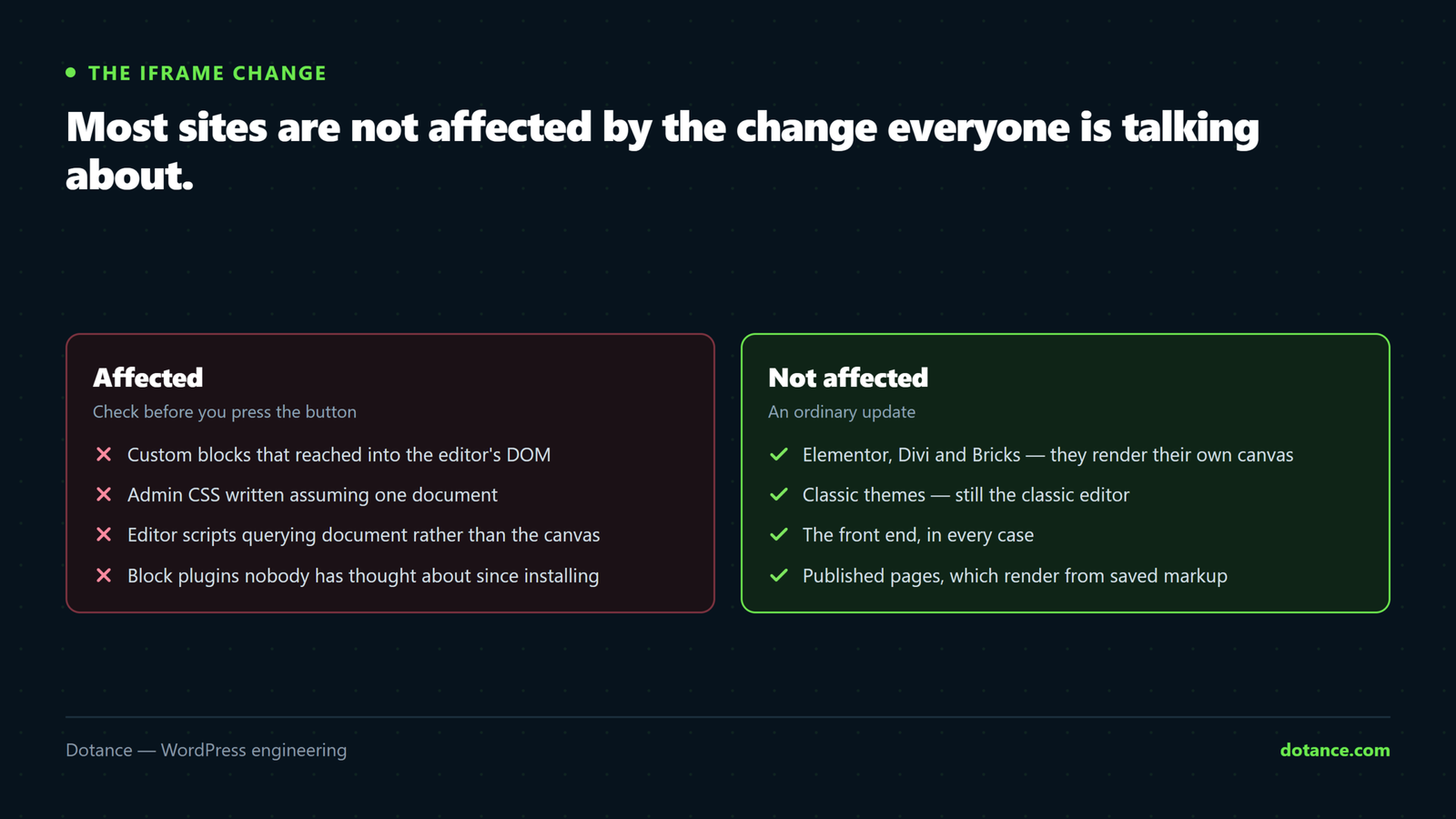
Before the WordPress 7.1 update, the block editor rendered your post inside the same document as the admin screen. One page, one document, one set of styles. From 7.1 the canvas is an iframe — a separate document nested inside the admin page.
That is the right decision. It is how the editor stops your admin CSS leaking into the preview and how it finally shows a block at the real viewport width. It also means three assumptions that used to hold now do not.
The rule to remember: anything that walked the page with document.querySelector to find a block, or styled a block from an admin stylesheet, is now looking at the wrong document.
1. Scripts that query the editor’s DOM
A custom block whose JavaScript did document.querySelector( '.my-block' ) found nothing, because the block now lives in the iframe’s document, not the parent’s. The block still saves; it just stops behaving in the editor.
2. Admin CSS enqueued with enqueue_block_editor_assets
That hook loads styles into the parent document. Block styling belongs in enqueue_block_assets, which WordPress injects into the iframe as well. Blocks that looked right before the WordPress 7.1 update can come out unstyled in the editor and perfect on the front end — which is exactly the confusing half-failure that costs an afternoon.
3. Third-party editor plugins
Anything that draws into the editor canvas — a custom sidebar that positions itself against a block, a review tool that highlights text — is written against a document that is now one level away.
None of this affects the front end. A visitor sees no difference at all. That is worth saying plainly, because it narrows the blast radius: the WordPress 7.1 update can only break your editing experience, not your live pages, unless a plugin fails hard enough to fatal.
Nine checks before you run the WordPress 7.1 update
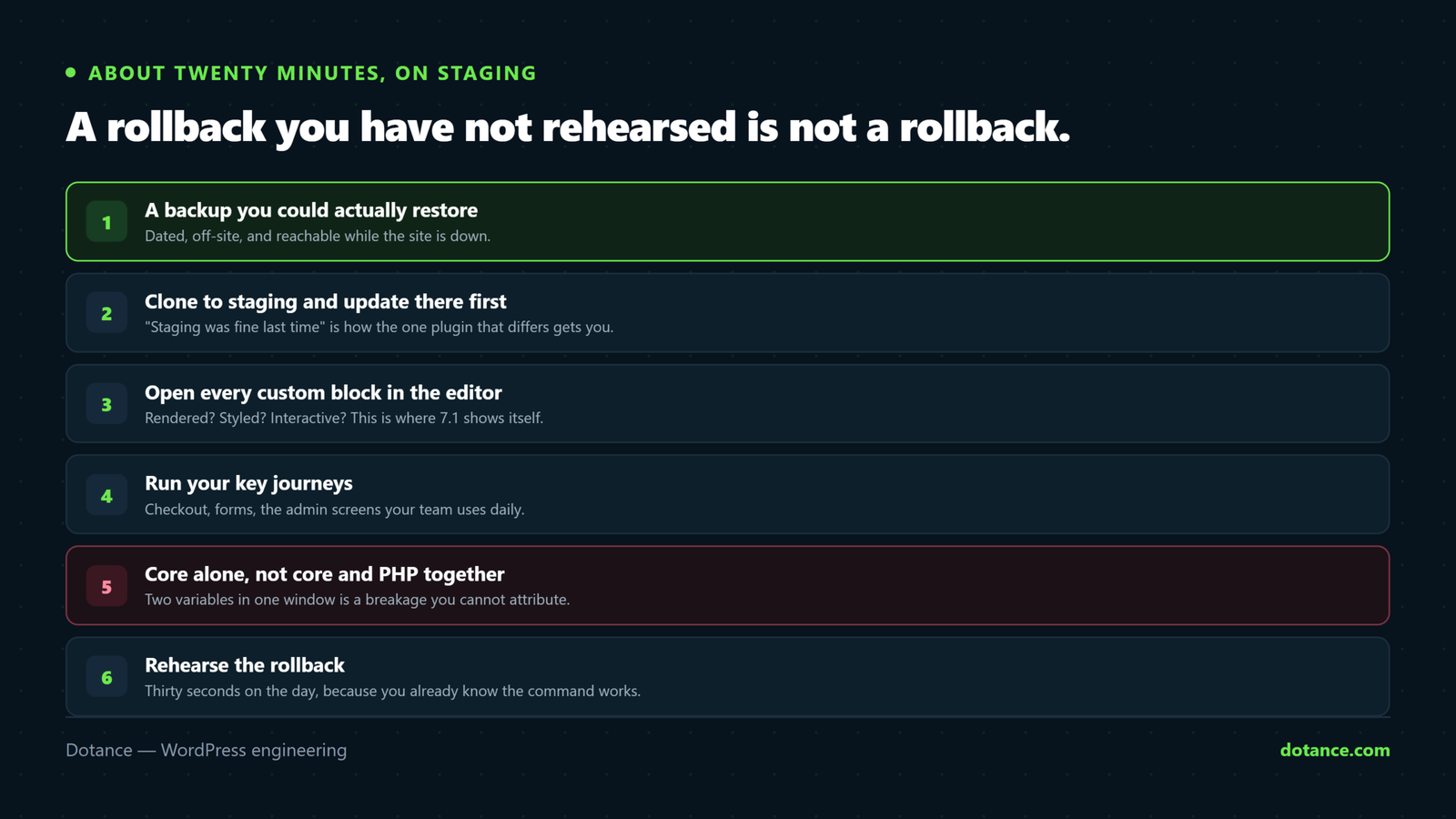
Run these on a staging copy before the WordPress 7.1 update goes anywhere near live. If you do not have one, set one up first — it is the single habit that turns updates from an event into a routine.
Check 1 — Take a backup you have actually restored
Not a backup. A restored backup. The difference is everything, and it is the reason our backup guide spends more words on restoring than on making them.
# Files and database, before anything else
wp db export ~/pre-71-$(date +%F).sql
tar czf ~/pre-71-files-$(date +%F).tgz wp-content/
Check 2 — Find your custom blocks
The WordPress 7.1 update only threatens blocks you own, so start by listing the ones registered by your own theme or a bespoke plugin, not by a vendor.
# Every registered block, and who registered it
wp eval '
foreach ( WP_Block_Type_Registry::get_instance()->get_all_registered() as $n => $b ) {
    if ( 0 !== strpos( $n, "core/" ) ) { echo $n . "\n"; }
}'
Anything in that list that your team wrote needs the iframe check. Anything from a maintained plugin is the vendor’s problem — check their changelog for a 7.1 note.
Check 3 — Grep for the assumption
# Editor scripts that query the top-level document
grep -rn "document.querySelector" wp-content/themes/your-theme/ wp-content/plugins/your-plugin/

# Block styles on the wrong hook
grep -rn "enqueue_block_editor_assets" wp-content/themes/ wp-content/plugins/
Hits are not automatically failures. They are the list of things to open the editor and look at.
Check 4 — PHP version
WordPress 7.1 wants PHP 8.1 or newer and behaves best on 8.3. If you are still on 8.0, deal with that separately and first — a PHP jump and a core jump in the same afternoon means you cannot tell which one broke the site. We wrote up what a PHP upgrade breaks for exactly this reason.
wp eval 'echo PHP_VERSION . "\n";'Check 5 — Plugin compatibility, honestly
“Tested up to” in a plugin header is a claim, not a test. Sort by what would hurt most if it stopped.
wp plugin list --fields=name,version,status --format=table| Plugin type | Check before the WordPress 7.1 update |
|---|---|
| Page builder | Vendor’s 7.1 statement. Usually unaffected |
| Custom block library | Changelog must mention the iframe |
| SEO plugin | Editor sidebar still renders |
| Forms | Editor preview, then a real submission |
| WooCommerce extensions | Checkout end to end, with a live payment |
| Anything unmaintained for 12+ months | Assume it is a liability, not an asset |
Check 6 — Your own editor styles
If your theme has editor-style.css or enqueues editor CSS by hand, open three different post types in the editor after the update and compare against the front end. The failure mode is subtle — a font that falls back, spacing that collapses — not a crash.
Check 7 — Run Site Health first
wp site-health check --format=tableClear whatever it flags before you add a variable. An update that lands on an already-unhealthy site is a diagnosis problem for the rest of the week.
Check 8 — Note what the site looks like now
Screenshot the five pages that matter — home, a service page, a post, the shop, the checkout — before you touch anything. “It looks different” is a much easier conversation when you can put the two images side by side.
Check 9 — Pick the hour
Not Friday afternoon. Not the hour before a campaign email goes out. For most business sites in the UK or US, early morning is quiet enough that a twenty-minute problem is invisible.
Then run it. wp core update on staging, walk the five pages, open the editor on each post type, and submit one form. If nothing surprises you in ten minutes, do the same on live.
If you use Elementor, Divi or Bricks
The iframe change does not reach you. Page builders render their own canvas and their own front end; the block editor is a screen you rarely open. The WordPress 7.1 update is, for a builder-driven site, an ordinary core update.
That is not the same as no risk. Builders sit close to core and a major release occasionally exposes something — which is why the safe-update routine applies regardless of what you build with. Check the builder’s own compatibility post, then treat it as any other update.
One genuine upside: 7.1’s per-device responsive styling narrows the gap between the block editor and a builder for simple sites. If you are choosing today, our page builder or custom theme comparison is worth a read before you commit either way.
If you run a classic theme
Classic themes keep working after the WordPress 7.1 update. WordPress has broken remarkably little in this area, deliberately, and 7.1 continues that. Your editor is still the block editor unless you have disabled it, so the iframe change still applies to the editing experience — but your templates, hooks and functions are untouched.
The thing to watch on a classic theme is the widget screen and the customiser, both of which have been quietly deprioritised across the 6.x and 7.x line. Nothing is removed in 7.1. It is simply a good moment to know how much of your site depends on them.
Rolling back, properly
If the WordPress 7.1 update goes wrong, you want the decision to take thirty seconds, not thirty minutes of hoping.
# Back to the previous minor, files only
wp core update --version=7.0.4 --force

# If the database also needs to go back
wp db import ~/pre-71-2026-09-11.sql
Two things people get wrong here. First, --force replaces core files but does not reverse a database upgrade routine — which is why the export in check 1 is not optional. Second, rolling back core while leaving plugins on their post-update versions can produce a worse site than either state. Roll back together or not at all.
Where this goes wrong
| Mistake | What it costs |
|---|---|
| Updating live because staging “was fine last time” | The one plugin that differs is always the one that breaks |
| PHP and core in the same window | Two variables, no way to attribute the failure |
| Trusting “Tested up to” | A header field, self-reported, often stale |
| No pre-update screenshots | Every layout argument becomes memory against memory |
| Backup never restored | You find out it was incomplete at the worst moment |
| Auto-updates left on for major releases | A major release arrives while nobody is watching |
That last row is worth dwelling on. WordPress’s automatic updates are excellent for minor and security releases and a poor idea for major ones on a site that earns money. Minor on, major off, is the setting most business sites should be running.
# Minor and security automatically, majors by hand
add_filter( 'allow_major_auto_core_updates', '__return_false' );
add_filter( 'allow_minor_auto_core_updates', '__return_true' );
The new blocks actually worth your time
Most release notes list everything and rank nothing. Having run the WordPress 7.1 update across a set of client sites, two of the additions earn their place and the rest are pleasant.
Per-device responsive styling
This is the meaningful one. Until now, making a heading smaller on mobile inside the block editor meant a custom class and a stylesheet, which is why so many sites reached for a page builder for what was fundamentally a two-line problem. In 7.1 you set the value per breakpoint in the panel, the way designers have expected since roughly 2014.
It does not turn the block editor into Elementor. It does remove one of the three reasons small sites installed a builder they then had to maintain for a decade.
The Tabs block
Native tabs, with any block allowed inside each panel, and separate styling for the tab list, the panel and the outer block. For FAQ-shaped content and specification tables this replaces a plugin — and every plugin you can remove after the WordPress 7.1 update is one fewer thing to patch. Our note on what a maintenance routine should cover makes the case that plugin count is a maintenance cost, not a feature count.
Notes with @mentions
Useful if more than one person touches a draft. You type @ inside a note, pick a collaborator, and they are tagged. For a solo site it is noise; for a team with an editor and an approver it removes a round of email.
Worth knowing: real-time collaboration was widely expected in this release and was postponed. If a workflow decision was waiting on it, it is still waiting.
When to delay the WordPress 7.1 update
Updating promptly is usually right. There are four situations where waiting is the better call, and none of them is “we are nervous”.
| Situation | Wait until |
|---|---|
| Custom blocks written before 2026, no developer available | Someone can do the iframe checks |
| A critical plugin has no 7.1 statement | The vendor publishes one |
| You are mid-campaign or mid-launch | The campaign ends |
| Still on PHP 8.0 or older | PHP is sorted, then update core separately |
Waiting is not the same as never. A site left three majors behind accumulates a WordPress 7.1 update that is no longer one update — it is three, applied at once, with three sets of changes to attribute a failure to. The case for a maintenance plan is mostly this: small, frequent, boring updates beat one frightening one.
If you delay, write down why and when you will revisit. A deferred WordPress 7.1 update with a date is a decision; one without a date is just drift.
What we did on our own site
We ran the WordPress 7.1 update on dotance.com the week it shipped, and the order was the same nine checks above. Two things surfaced, both small, both worth naming because they are the shape of what you should expect.
The first was a set of editor styles loaded on the wrong hook — exactly the failure described earlier, discovered by opening a post rather than by any error message. The fix was a one-line hook change. The second was a plugin whose editor sidebar positioned itself against the canvas and ended up offset by the height of the admin bar; its vendor had shipped a fix nine days after the release, so the answer was an update rather than a workaround.
Neither was visible to a single visitor. That is the pattern: the WordPress 7.1 update is an editing-experience release, and its problems arrive as things that look slightly wrong to the person writing, not as a broken home page.
Common questions about the WordPress 7.1 update
Is the WordPress 7.1 update safe to run now?
For most sites, yes — it has been out since 19 August 2026 and the obvious problems have surfaced. The exception is any site with custom blocks written before 2026, which needs the iframe checks above first. WordPress documents each release at wordpress.org.
Will it break my page builder?
Almost certainly not. Elementor, Divi and Bricks do not use the block editor canvas, so the iframe change passes them by. Check the vendor’s compatibility note, then treat it as a normal update.
My custom block looks wrong in the editor but fine on the site. Why?
Its styles are being enqueued into the parent document instead of the iframe. Move them from enqueue_block_editor_assets to enqueue_block_assets and the editor catches up with the front end.
Do I have to use the new Tabs block?
No. Nothing was replaced. If your accordion or tabs come from a plugin or a builder today, they keep working exactly as they did.
How long should the WordPress 7.1 update actually take?
Twenty minutes of checks, two minutes of updating, ten minutes of walking the site. If it is taking longer than that on a routine site, the time is going into something that was already wrong before you started.
What if I skipped 7.0 entirely?
The WordPress 7.1 update will take you straight there and run every database routine in order. It works, but you are absorbing two releases of change at once — so read 7.0’s notes too, and give yourself a longer look at the site afterwards.