Being locked out of WordPress feels like losing the keys to your own business, and the panic pushes people into destructive fixes — reinstalling, restoring old backups, changing hosts. Almost none of that is necessary.
This article works through the causes in the order they actually happen, and every fix here works from outside the admin area — no dashboard access required at any point.
First: which kind of locked out are you?
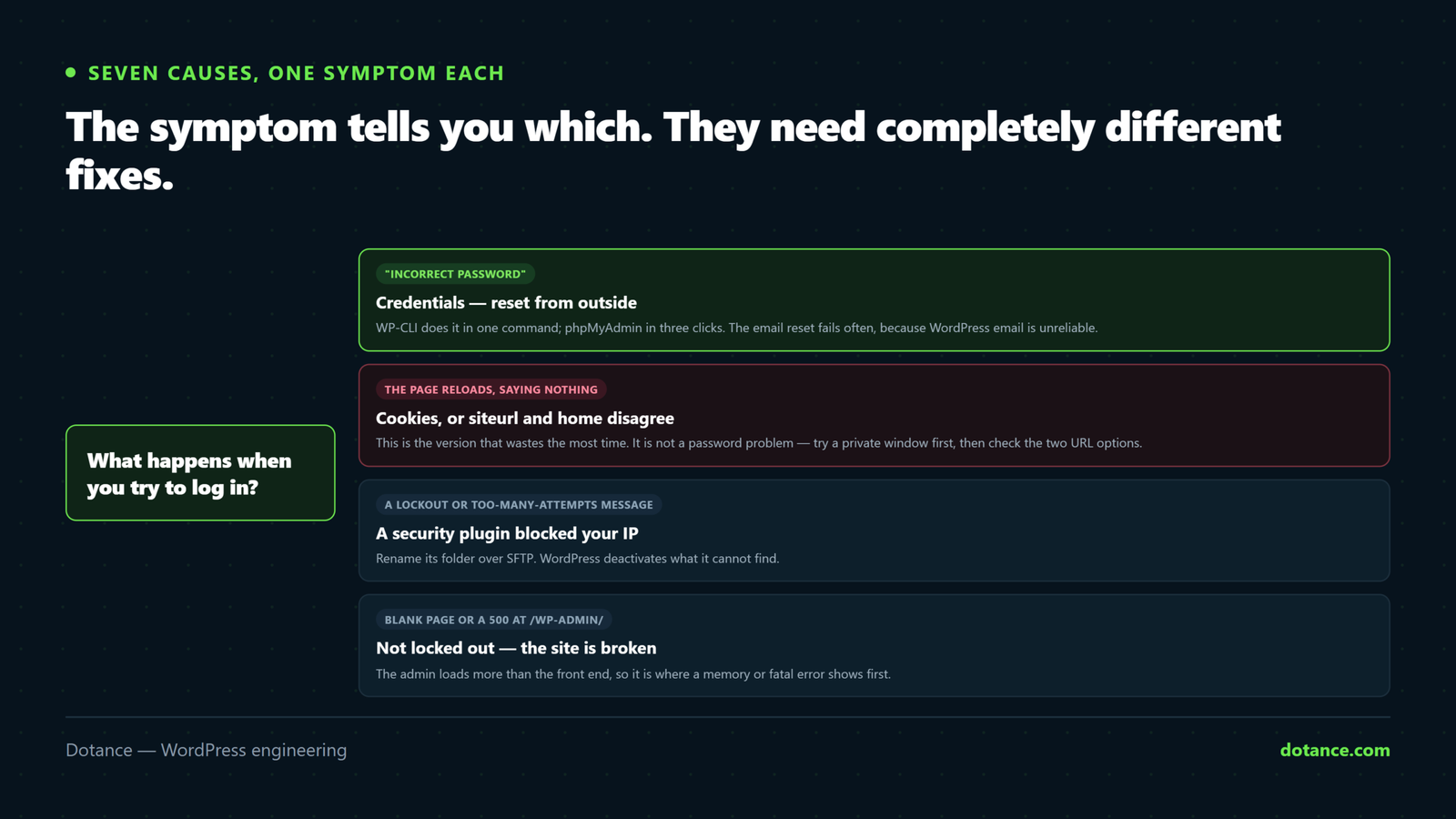
Being locked out of WordPress has seven distinct causes. The symptom tells you which, and they need completely different fixes.
| What happens | Cause | Section |
|---|---|---|
| “Incorrect password” | Genuinely the password | 1 |
| Login page reloads, no error | Cookies or the site URL | 2 |
| Redirect loop, or “too many redirects” | URL or SSL mismatch | 3 |
| “Too many failed attempts” | A security plugin | 4 |
| Logs in, then bounces straight back out | Role or capabilities lost | 5 |
| 2FA code rejected or device gone | Two-factor plugin | 6 |
White screen at /wp-admin/ | A fatal error, not a lockout | 7 |
What you need for all of them: SFTP or SSH access to the files, and ideally your host’s database tool. If you have neither, that is the first thing to get — being locked out of WordPress with no server access is the only genuinely hard version of this problem.
1. Reset the password from outside
When you are locked out of WordPress the email reset is the obvious route, and it fails often — because WordPress email is unreliable, or the address on the account is one nobody reads. Skip it.
With WP-CLI, one command:
wp user list --role=administrator --fields=ID,user_login,user_email
wp user update 1 --user_pass='a-long-new-password'
WordPress documents several ways to reset a password; this is the one that works with no email and no admin. With phpMyAdmin (hPanel, cPanel and Plesk all include it):
- Open the database and find
wp_users(your prefix may differ). - Edit your row.
- In
user_pass, choose MD5 from the function dropdown and type the new password in the value box. - Save, then log in and change it again from your profile.
WordPress accepts an MD5 hash on login and immediately upgrades it to its own stronger format. Do not paste a hash from another site, and do not leave the MD5 one as your permanent password.
If no administrator exists at all — it happens after a bad import, and after a compromise — create one:
wp user create rescue you@example.com --role=administrator --user_pass='...'
If an admin account you do not recognise is already there, you are not locked out of WordPress by accident. Read the signs of a hacked site first.
2. The login page reloads and says nothing
This is the version of being locked out of WordPress that wastes the most time. You enter correct details, the page refreshes, and you are back at the login form with no error at all — and it is not the password.
WordPress sets a cookie on login and reads it back on the next request. If the URL WordPress thinks it lives at does not match the URL in the browser, the cookie is written for the wrong domain and never comes back.
wp option get siteurl
wp option get home
Both must match exactly what you type in the browser — same protocol, and consistent about www. If they are wrong:
wp option update siteurl 'https://yoursite.com'
wp option update home 'https://yoursite.com'
No WP-CLI? Force it from wp-config.php, which overrides the database:
wp-config.php
define( 'WP_HOME', 'https://yoursite.com' );
define( 'WP_SITEURL', 'https://yoursite.com' );
Then clear your browser cookies for the domain and try again. Also test in a private window — a stale cookie from the old URL will keep you locked out of WordPress even after the setting is right.
3. A redirect loop
Being locked out of WordPress by “ERR_TOO_MANY_REDIRECTS” is the same family of problem, usually an SSL or www mismatch fighting itself.
See what is actually happening:
curl -sIL https://yoursite.com/wp-admin/ | grep -i '^HTTP/\|^location:'A chain that bounces between http and https, or between www and bare, is your answer. Common sources:
siteurlsayshttpwhile the server forceshttps.- A redirect in
.htaccessor at the CDN that contradicts WordPress. - A plugin forcing SSL while the server already does.
- A reverse proxy not passing
HTTPSthrough, so WordPress thinks the request is insecure and redirects forever.
For that last one, this in wp-config.php — above the “stop editing” line — is the standard fix:
if ( isset( $_SERVER['HTTP_X_FORWARDED_PROTO'] ) && 'https' === $_SERVER['HTTP_X_FORWARDED_PROTO'] ) {
	$_SERVER['HTTPS'] = 'on';
}
4. A security plugin locked you out
Login limiters block by IP after failed attempts, so you end up locked out of WordPress by the thing meant to protect it. Your address changed, or a bot hammered your login from your network, and the plugin cannot tell you apart from the attacker.
Turn off all plugins without the admin:
wp plugin deactivate --allOr over SFTP, rename the folder — WordPress deactivates what it cannot find:
mv wp-content/plugins wp-content/plugins-offLog in, rename it back, then reactivate plugins one at a time. Once you are in, find the security plugin’s lockout list and allow your IP, or raise the threshold. Then work out which IP was blocked and why — brute-force protection covers doing this without locking yourself out again.
5. You log in, then get thrown straight back out
A subtle way to be locked out of WordPress: credentials accepted, then you land on the login page or see “You do not have sufficient permissions”. Your account exists but has lost its administrator capabilities — a bad import, a role plugin, or a botched migration.
wp user list --field=user_login --role=administrator
wp user add-role 1 administrator
If the administrator role itself has been damaged, reset the whole set of roles:
wp role reset --allAnother version of this: the user meta capabilities key is prefixed with the table prefix. If the prefix changed during a migration but the meta keys did not, every user silently loses their role — which is a very confusing way to be locked out of WordPress. Check that $table_prefix in wp-config.php matches the prefix on the meta keys in wp_usermeta.
6. Two-factor is in the way
Phone replaced, authenticator app wiped, codes rejected — locked out of WordPress by your own second factor. Deactivate just that plugin:
wp plugin list --status=active --field=name | grep -i -E 'two|2fa|auth'
wp plugin deactivate the-2fa-plugin
Log in, set 2FA up again, and save the recovery codes somewhere other than the phone. This is the single most common avoidable way to end up locked out of WordPress.
7. wp-admin is blank or errors
If /wp-admin/ shows a white screen or a 500, you are not locked out of WordPress — the site is broken and the admin is where it shows first, usually because the admin loads more code.
curl -s -o /dev/null -w "%{http_code}\n" https://yoursite.com/wp-admin/
tail -30 ~/logs/error.log
Follow the white screen guide or the memory guide instead — resetting your password will do nothing for it.
8. The admin email is one you no longer control
An old agency’s address, a departed employee, a domain that changed. You are locked out of WordPress and the reset link goes somewhere you cannot read.
Change the address on the account directly:
wp user update 1 --user_email='you@yourdomain.com'Note there are two separate emails and people fix the wrong one. The user’s own address is on the account; the site’s administrative address lives in options:
wp option get admin_email
wp option update admin_email 'you@yourdomain.com'
Changing admin_email through the dashboard normally requires confirmation from the old address — which is exactly what you cannot do. Setting the option directly skips that, which is the point.
9. The server is blocking you, not WordPress
Sometimes you are not locked out of WordPress at all — the request never reaches it. A server firewall or ModSecurity rule can block your IP after repeated failed logins, and the symptom looks like a WordPress problem.
Tell them apart:
curl -s -o /dev/null -w "%{http_code}\n" https://yoursite.com/wp-login.php| Response | Means |
|---|---|
| 200 with the login form | WordPress is answering — a WordPress-level lockout |
| 403 Forbidden | Blocked before WordPress. Server firewall or ModSecurity. |
| Connection times out | IP blocked at the network level |
| 401 with a browser prompt | HTTP auth on the directory, separate from WordPress |
For 403 and timeouts, only your host can lift it — ask them to check the firewall for your IP. A quick confirmation: try from mobile data rather than your usual connection. If it works there, it is your IP that is blocked, and nothing inside WordPress will help.
That last row catches people too. A .htpasswd prompt on /wp-admin/ is often left over from a staging setup. Look for an .htaccess in wp-admin/ containing AuthType Basic and remove it if it was not deliberate.
Multisite lockouts
On a network, being locked out of WordPress has one extra dimension: there are site administrators and there are super administrators, and losing the second is the one that matters.
wp super-admin list
wp super-admin add your-username
wp user list --network --fields=ID,user_login,roles
Also check DOMAIN_CURRENT_SITE and PATH_CURRENT_SITE in wp-config.php. If those do not match the domain you are visiting, a network login will fail in exactly the silent, no-error way described earlier — and the cause is not the password.
If you have no WP-CLI and no SSH
Every fix for being locked out of WordPress is still possible with only SFTP and your host’s database tool:
| Task | Without WP-CLI |
|---|---|
| Reset a password | phpMyAdmin, wp_users, MD5 function |
| Deactivate all plugins | Rename wp-content/plugins over SFTP |
| Switch theme | Rename the active theme’s folder |
| Fix the site URL | WP_HOME / WP_SITEURL in wp-config.php |
| Create an admin | A one-off snippet in the theme’s functions.php, removed immediately after |
| Read errors | Control panel error log |
If you use a snippet to create an admin user, delete it the moment you are in. Code that creates an administrator on every page load is exactly what an attacker would leave behind, and forgetting it is worse than being locked out of WordPress was.
Work it in this order
- Identify the symptom in the first table — the fix depends on it.
- Try a private window first. It costs ten seconds and rules out cookies.
- Check
siteurlandhome. - Reset the password from WP-CLI or phpMyAdmin.
- Deactivate plugins wholesale, then bisect.
- Check the role and capabilities.
- If wp-admin errors rather than rejecting you, stop — it is a fatal error, not a lockout.
Not being locked out of WordPress again
- Keep a second administrator account with a different email, on a different provider. It converts most of this article into a two-minute login.
- Store recovery codes off the device that generates them.
- Make sure WordPress can actually send email — the reset link only works if mail leaves the server.
- Allow-list your own IP in the security plugin before you need to.
- Keep SFTP or SSH details somewhere you can reach without the site. Every fix here depends on them.
- Test the login after every migration, before you consider the move finished.
The recovery kit, written down before you need it
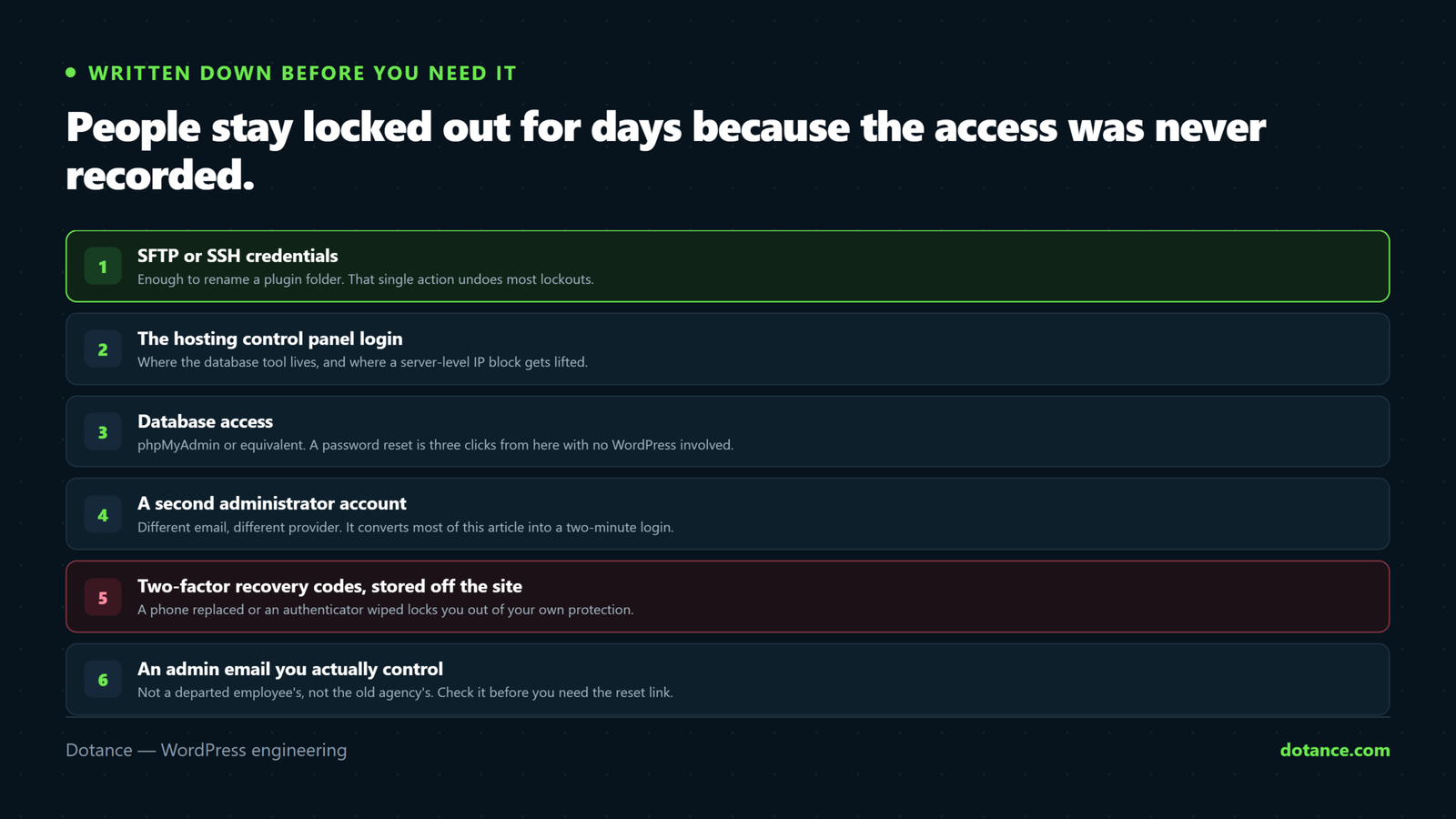
Every fix in this article assumes you can reach something other than wp-admin. The reason people stay locked out of WordPress for days is not that the fixes are hard — it is that the credentials for the server are themselves lost.
Keep these six in a password manager, not on the site:
| What | Why it matters |
|---|---|
| Hosting control panel login | File manager, database tool, error logs |
| SFTP or SSH details | Renaming folders, editing wp-config.php |
| Database name, user and password | Resetting a password directly |
| Domain registrar login | DNS, and proving ownership |
| 2FA recovery codes | The most common avoidable lockout |
| A second admin account’s details | Turns most of this article into one login |
Test the kit once a year. Log in to the control panel, connect over SFTP, open the database tool. Finding out that the hosting login belongs to a former employee is far better done on a quiet Tuesday than while you are locked out of WordPress with a campaign running.
Being locked out of WordPress is a five-minute problem when you hold these and a multi-day one when you do not — and which of those it turns out to be is decided months in advance, not on the day.
Common questions
Will resetting the password lose anything?
No. Recovering from being locked out of WordPress this way changes one field on your user record. Posts, settings and plugins are untouched.
Why does the reset email never arrive?
Because WordPress email is unreliable by default — no proper sender, no authentication, so it lands in spam or is rejected. Fix it properly with SMTP; resetting from the database is faster today either way.
Can I be locked out of WordPress by an update?
Indirectly. An update can trigger a fatal error, and a broken admin looks like a lockout. Check whether wp-admin errors or simply refuses you — that distinction points at completely different fixes.
I changed my domain and now nothing works.
Classic cause of being locked out of WordPress. siteurl and home still point at the old domain, so login cookies are set for a domain you are not on. Set them, then clear cookies.
Should I restore a backup?
Only as a last resort. A password reset takes two minutes; a restore loses everything published since the backup. Try the steps here first.
Is being locked out of WordPress a sign of a hack?
Usually not — the everyday causes are cookies, a security plugin and lost 2FA. It becomes a security question if your password stopped working with no explanation, or if an administrator account exists that you did not create.
Can my host get me back in?
Often, yes. They can reset a database password, disable a firewall rule or restore a backup. What they usually will not do is change your WordPress user password for you, so the steps here are still faster.
How do I stop it happening to a client site?
Hold a second administrator account and the recovery kit above for every site you look after. Being locked out of WordPress on someone else’s site, with no server access, is the version that genuinely cannot be fixed quickly.