Start in the console, not the server
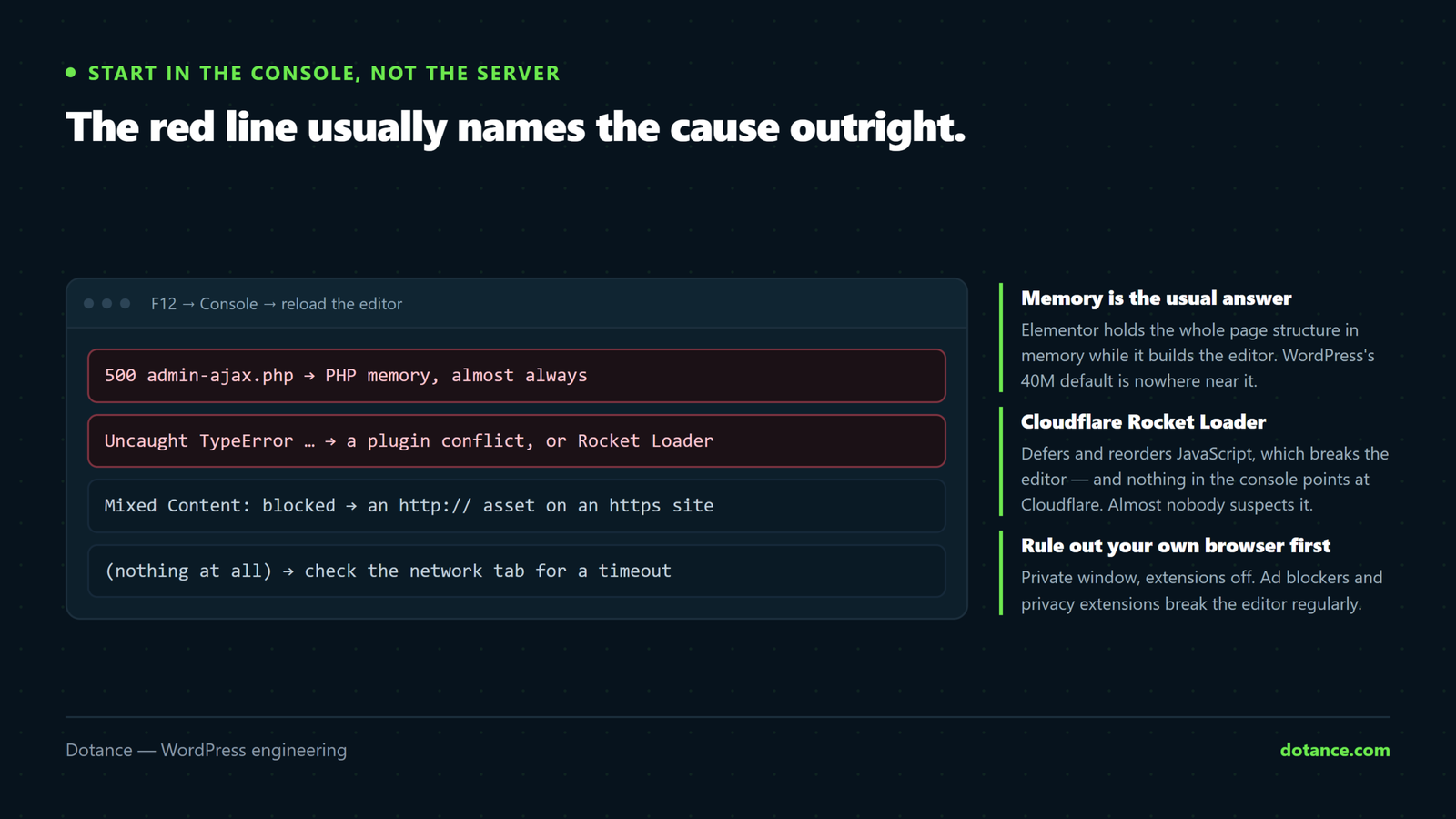
Press F12 → Console → reload the editor. The failure is usually named for you, and it saves an hour of changing settings at random.
| Console error | What it actually means |
|---|---|
500 (Internal Server Error) on admin-ajax.php | PHP crashed while building the editor. Memory, or a plugin fatal — check debug.log. |
403 (Forbidden) | A firewall or mod_security is blocking the request, not WordPress. |
net::ERR_BLOCKED_BY_CLIENT | Your own ad blocker. Not the site at all. |
Uncaught SyntaxError: Unexpected token '<' | A PHP error was returned where JavaScript was expected — the HTML of the error is being parsed as JS. |
jQuery is not defined | A JS optimiser reordered or deferred scripts. Turn JS combine/defer off. |
| Nothing at all, spinner forever | The request never completed — server limits, or a timeout. |
Rule out your own browser
Before blaming the site: hard refresh (Ctrl/Cmd + Shift + R), open the editor in a private window, and disable extensions. Ad blockers, privacy extensions and some password managers block editor requests routinely — and the symptom is identical to a server problem.
If it loads in a private window, it is an extension. That is a two-minute answer to what looks like a server fault.
1. Memory — the most common cause
Elementor holds the whole page structure in memory while it builds the editor. WordPress’s default of 40M is nowhere near enough:
wp-config.php
define( 'WP_MEMORY_LIMIT', '256M' );
define( 'WP_MAX_MEMORY_LIMIT', '256M' );
Then confirm it applied — Elementor → System Info, or:
wp eval "echo ini_get('memory_limit');"If it still reads 128M, your host caps PHP and the constants cannot override it. Raise it from the hosting panel; the detail is in “Allowed memory size exhausted”.
2. Safe Mode — is it a conflict?
Elementor → Tools → Safe Mode loads the editor with only Elementor running and a default theme, without deactivating anything for your visitors.
- Loads in Safe Mode — a plugin or your theme is conflicting. Reactivate in halves to find it.
- Still stuck in Safe Mode — it is the server or the browser, not a conflict. Skip to the next section.
The usual offenders are optimisation plugins that combine or defer JavaScript, security plugins that block admin AJAX, and other page-builder addons.
3. Cloudflare Rocket Loader
This one deserves its own heading because the symptom is a perfect blank editor and nothing in the console points at Cloudflare.
Rocket Loader defers and reorders JavaScript to speed up pages. Elementor’s editor depends on script order, so Rocket Loader breaks it — silently.
Cloudflare dashboard → Speed → Optimization → Rocket Loader → Off. If you want it on for visitors, add a Page Rule disabling it for /wp-admin/*.
Auto Minify and Mirage cause similar trouble. If the editor works with Cloudflare paused (Overview → Pause), one of those three is your answer.
4. Server limits that break saving
These usually let the editor open but break saving — often on long pages only:
| Setting | Raise to | Symptom when too low |
|---|---|---|
max_input_vars | 3000+ | Long pages save partially. Widgets vanish, settings revert. |
post_max_size | 64M | Save fails outright on big pages. |
max_execution_time | 120+ | Save spins, then times out. |
max_input_vars is the cruel one. PHP silently discards everything past the limit — so the save “succeeds” and quietly drops half your page. If widgets disappear after saving a long layout, this is almost certainly why, and no error is logged anywhere.
Also ask your host to check mod_security. It can reject the editor’s save as if it were an attack, which shows as a 403 in the console. Only the host can read those logs.
5. Regenerate, then clear everything
Elementor → Tools → Regenerate CSS & Data, then clear every cache layer — plugin, host, and CDN. If a stale cache is involved, our guide to changes not showing covers the order that actually works.
The order to work through
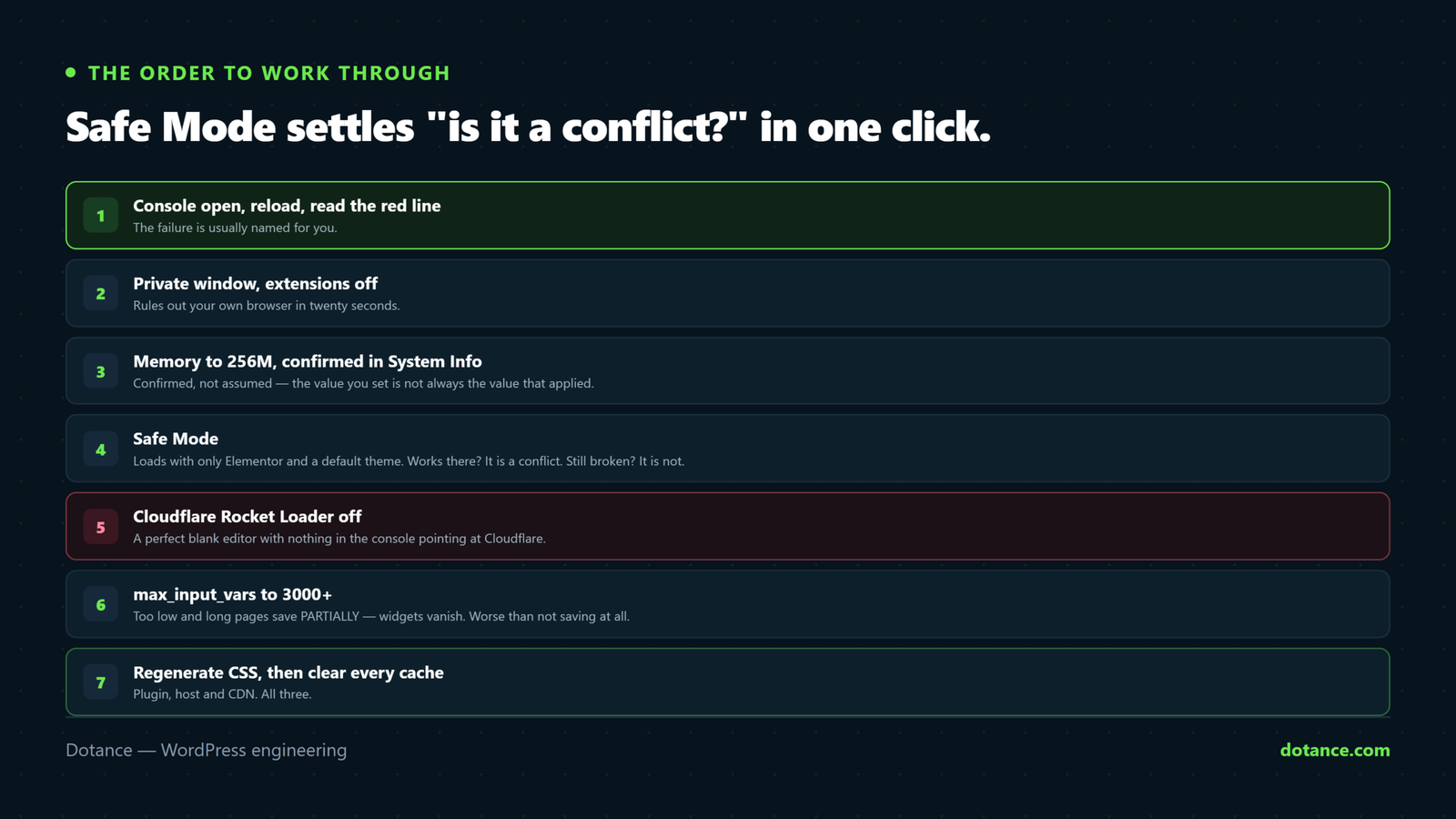
- Console open, reload, read the red line.
- Private window with extensions off — rules out your browser.
- Memory to 256M, confirmed in System Info.
- Safe Mode — conflict or not.
- Cloudflare: Rocket Loader off.
max_input_varsand friends.- Regenerate CSS, clear all caches.
Stop at whichever step fixes it. If you reach the end still stuck, the console error from step one is what a developer needs — it turns an afternoon of guessing into a five-minute fix.
One cause worth ruling out is addon weight. Addon packs that register fifty widgets load fifty scripts into the editor. Elemance registers fourteen and loads only what a page uses; if the editor recovers with your addon pack disabled, that is the fix.
Common questions
It loads on my laptop but not the client’s.
Browser side — an extension, or their own cache. Have them try a private window first.
Only one page will not open.
That page is heavier than the rest. Memory or max_input_vars, in that order. A page with hundreds of widgets can exceed limits the others never approach.
The spinner appears after a plugin update.
Then you already know the suspect. Roll it back — most hosts keep a backup, or use a rollback plugin — and report the conflict.
Safe Mode will not turn on either.
Deactivate plugins over SFTP instead: rename /wp-content/plugins to plugins-off, confirm the editor loads, then reinstate them in halves.