Thirty seconds that halves the problem
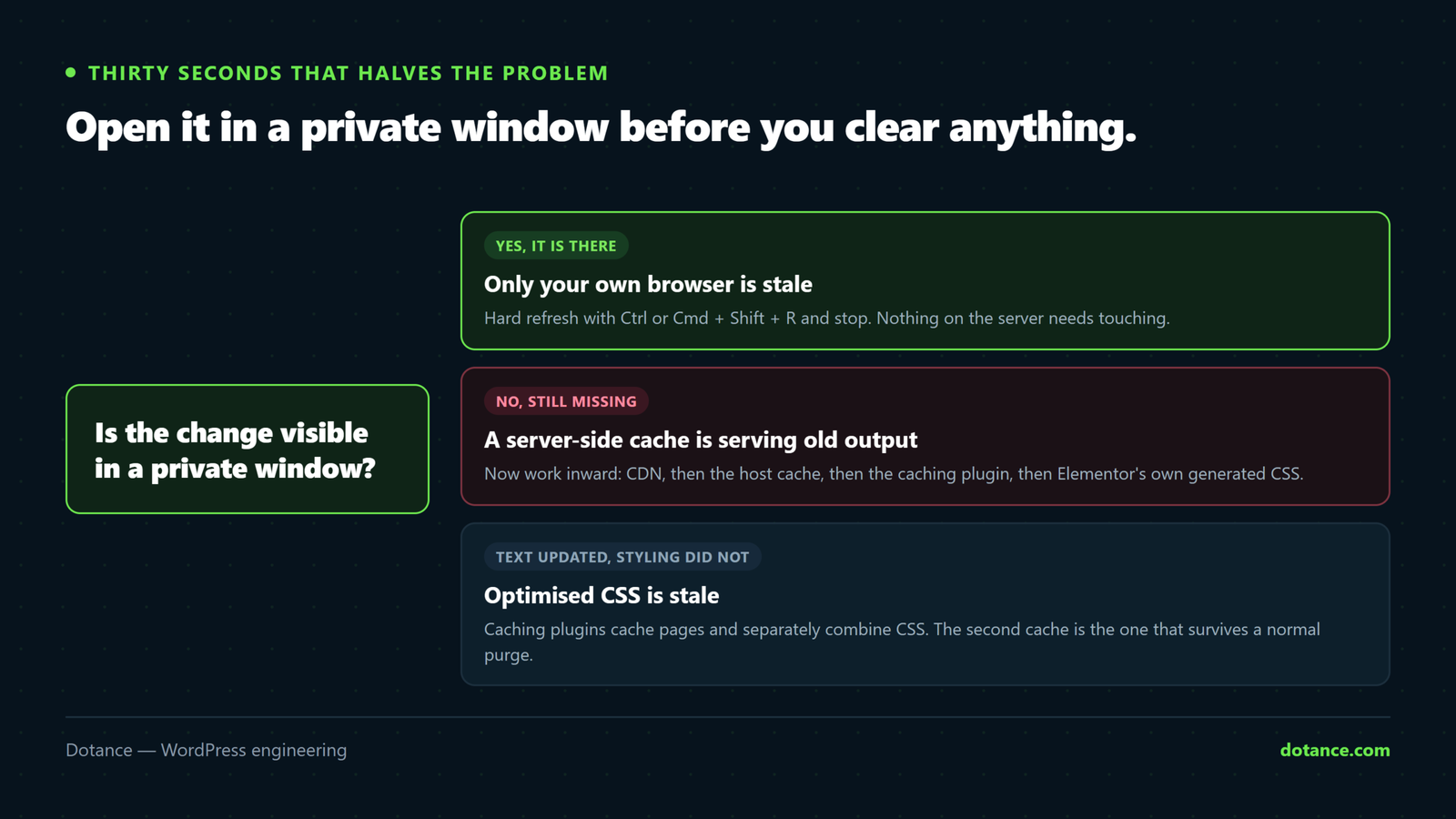
Open the page in a private window.
| In incognito | Means | Do this |
|---|---|---|
| Change is there | Only your own browser is stale. | Hard refresh: Ctrl/Cmd + Shift + R. Done. |
| Change is missing | A server-side cache is serving the old page. | Work down the layers below. |
A private window still uses your DNS and your CDN edge, so it is not a perfect test — but it removes the most common cause in one click.
The layers, in the order they sit
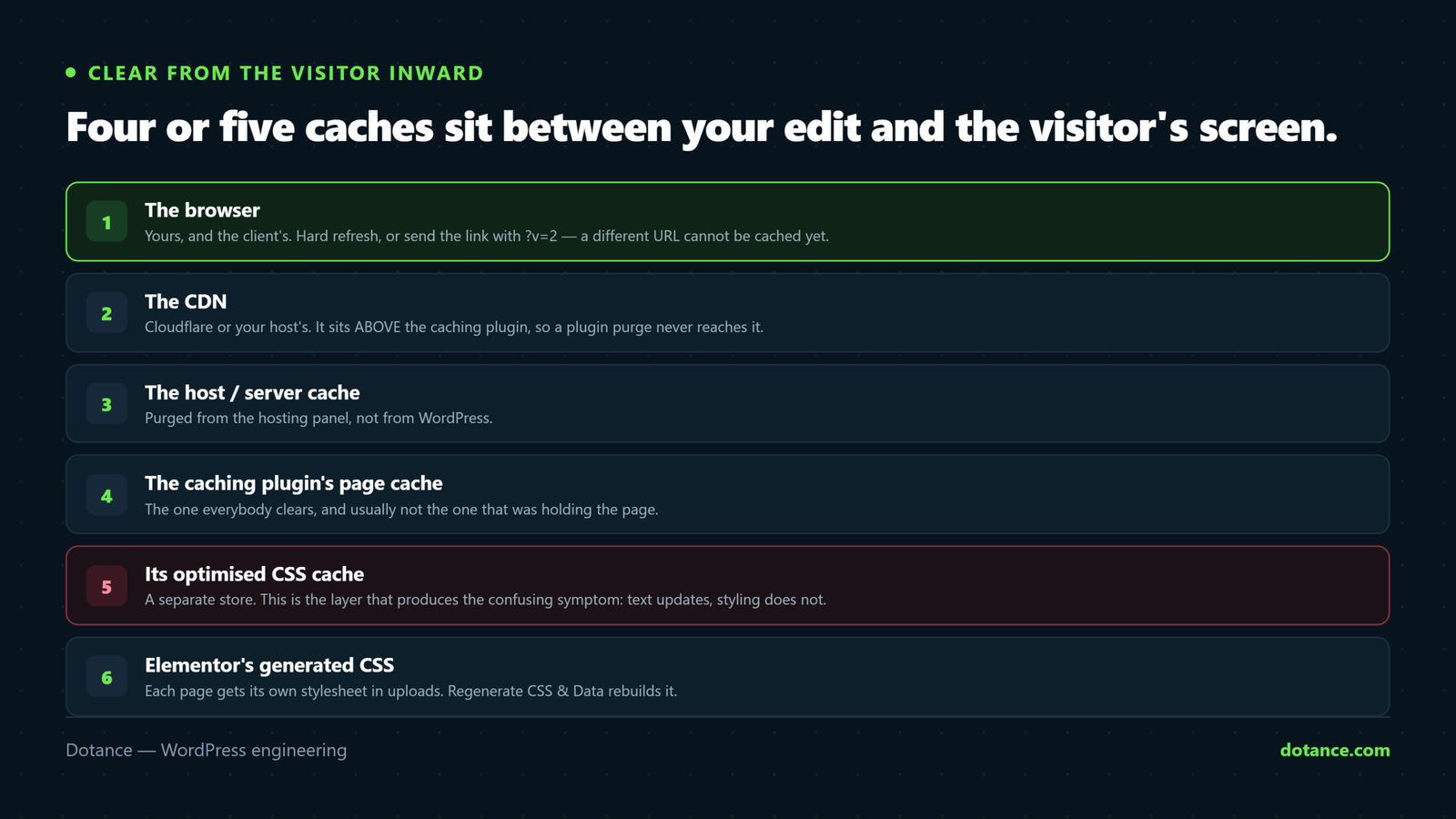
A modern WordPress site has four or five caches stacked between your edit and the visitor’s screen. Clearing one is why “I cleared the cache” so often fails.
| Layer | Where | Cleared by |
|---|---|---|
| 1. Browser | The visitor’s machine | Hard refresh — you cannot clear it for anyone else |
| 2. CDN / edge | Cloudflare, host CDN | The CDN dashboard. Not your caching plugin |
| 3. Server page cache | LiteSpeed, Varnish, host cache | Host panel, or the plugin if it integrates |
| 4. Caching plugin | WP Rocket, W3TC, LiteSpeed Cache | Its own “clear all” |
| 5. Optimised CSS/JS | Minified, combined files on disk | Often a separate button from “clear cache” |
| 6. Elementor CSS | Per-page files in uploads | Elementor → Tools → Regenerate CSS & Data |
| 7. PHP OPcache | The PHP process itself | Host panel, or a PHP restart |
Clear them from the outside in: 2, then 3, then 4, then 5, then 6. Clearing the plugin while the CDN still holds the old HTML achieves nothing.
The layer that catches everyone: optimised CSS
This is worth its own section because it produces the most confusing symptom of all — the text updates but the styling does not.
Caching plugins do two separate jobs: cache whole pages, and minify or combine your CSS and JS into new files. Those are different caches with different buttons, and “Purge All” does not always rebuild the optimised files.
We have watched a LiteSpeed site serve a stale minified stylesheet through repeated full purges, deletion of the generated files on disk, and a plugin version bump — while the source file on the server was demonstrably correct the whole time.
The give-away: curl and your browser disagree. If fetching the URL from a terminal shows the new CSS but the browser still shows the old, you are not fighting Elementor or your own cache — an optimiser is serving different output to different clients. Look for /wp-content/litespeed/css/, /cache/min/ or similar in the page source.
When that happens, in order:
- Use the plugin’s separate CSS/JS purge, not just “purge all”.
- Delete the generated files on disk —
wp-content/litespeed/css/*,wp-content/cache/min/*. - If it still serves stale, turn CSS minification off and confirm the styling is correct. That separates “my CSS is wrong” from “my optimiser is stale” for good.
On a site being actively worked on, leaving minification off until launch is often the right trade. Serving what you actually deployed is worth more than a few compressed kilobytes.
When it saved but never rendered
If every cache is clear and the change still is not on the page, Elementor’s own generated CSS is stale. Each page gets its own stylesheet in /wp-content/uploads/elementor/css/, written when you save.
Elementor → Tools → Regenerate CSS & Data rebuilds them all from your saved content.
With WP-CLI:
wp elementor flush-cssElementor also caches rendered widget HTML when Element Caching is enabled, stored as _elementor_element_cache post meta. If a widget’s markup — not its styling — is stuck, that is why. Regenerating CSS does not clear it; re-saving the page does.
Prove where it is stuck
Rather than clearing everything hopefully, find the layer:
# A cache-buster bypasses most page caches. Different result = page cache.
curl -s "https://yoursite.com/page/?cb=12345" | grep "your new text"

# Cache headers name the layer that answered
curl -sI "https://yoursite.com/page/" | grep -iE "cache|age|cf-|x-litespeed|x-lsadc"
cf-cache-status: HIT means Cloudflare answered from its own store — purge there. x-litespeed-cache: hit means the server did. age: tells you how many seconds old the copy is.
The routine that works every time
- Check incognito. If it is fine, hard refresh and stop.
- Purge the CDN — Cloudflare or your host’s.
- Purge the host/server cache from the hosting panel.
- Clear the caching plugin, including its separate CSS/JS purge.
- Elementor → Regenerate CSS & Data.
- Recheck in a fresh incognito window with
?cb=1on the URL.
If the change survives all six, it genuinely is not saving — and that is a different problem: memory and server limits during save. See Elementor won’t load for those.
Common questions
It shows for me but not for the client.
Their browser, almost certainly. Ask them to hard refresh, or send the link with ?v=2 appended — a different URL cannot be cached yet.
Do I have to clear the cache after every edit?
Most caching plugins purge automatically when a post is saved. The ones that usually do not are the CDN and the optimised CSS — which is exactly why those two are the usual suspects.
The change appears, then disappears again.
You are being served by more than one cached copy — often several CDN edge nodes, some updated and some not. Purge at the CDN rather than reloading and hoping.
Everything is cleared and half the styling is missing.
Stop clearing and check whether the page is loading combined or minified CSS at all. A half-styled page usually means one optimised file is stale while the rest rebuilt — turn minification off, confirm, then decide whether to turn it back on.