Work out which side is slow first
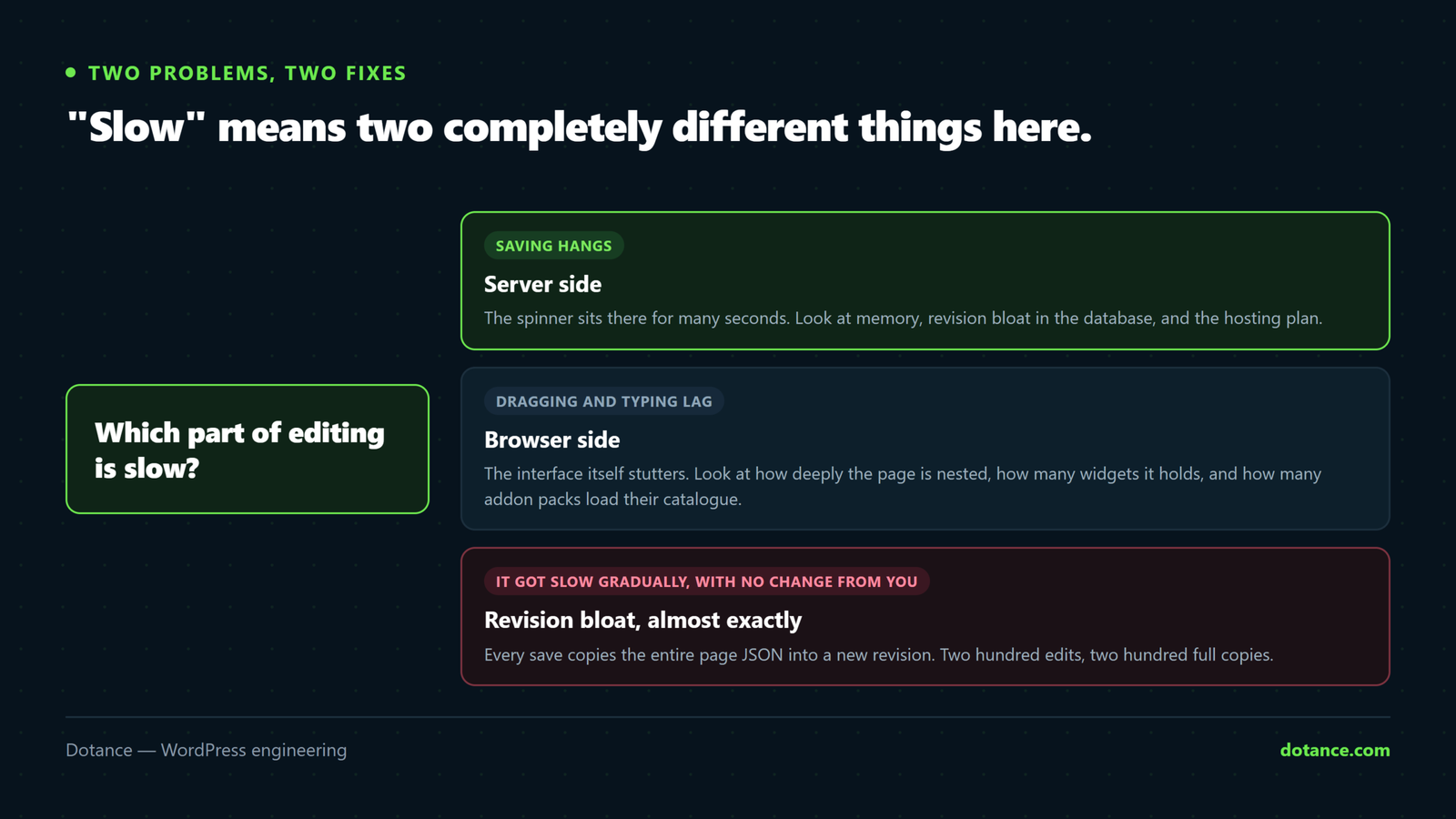
“Slow” means two different problems with two different fixes.
| Symptom | Side | Look at |
|---|---|---|
| Saving takes many seconds; the spinner hangs | Server | Memory, database, host |
| Dragging and typing lag, but saves are quick | Browser | Widget count, nesting, addons |
| The editor takes an age to open | Both | Page size and memory |
Open DevTools → Network, hit Update, and watch the admin-ajax.php request. If that one request takes eight seconds, the server is your problem and no amount of widget tidying will help.
1. Memory — the highest-impact single change

wp-config.php
define( 'WP_MEMORY_LIMIT', '256M' );
define( 'WP_MAX_MEMORY_LIMIT', '512M' );
WP_MAX_MEMORY_LIMIT is the one that matters here — it governs admin screens, which is where the editor lives. Confirm it actually applied in Elementor → System Info; if it has not moved, your host caps PHP and you need the panel. The full explanation is in “Allowed memory size exhausted”.
2. The one nobody checks: revision bloat
Elementor stores the entire page as JSON in post meta. Every save copies all of it into a new revision — so a page edited two hundred times carries two hundred full copies, and every query touching that post drags them along.
See the damage:
wp post list --post_type=revision --format=countCap it so it cannot happen again:
wp-config.php
// Keep the last 5 revisions per post, not all of them.
define( 'WP_POST_REVISIONS', 5 );
Then clear the backlog:
# Back up the database first. This cannot be undone.
wp db export backup-before-revisions.sql
wp post delete $(wp post list --post_type=revision --format=ids) --force
Take the backup, genuinely. That command deletes every revision on the site permanently — including ones you might have wanted. On a site with tens of thousands of revisions it is also the single biggest speed win available, which is why it is worth doing carefully rather than not at all.
3. Autoloaded options
WordPress loads every option marked autoload = yes on every single request. Plugins that never clean up leave megabytes there, and each editor save pays the cost.
# Total autoloaded size in bytes — under ~800KB is healthy
wp eval "global \$wpdb; echo \$wpdb->get_var(
  \"SELECT SUM(LENGTH(option_value)) FROM \$wpdb->options WHERE autoload='yes'\"
);"

# The ten worst offenders
wp eval "global \$wpdb; foreach ( \$wpdb->get_results(
  \"SELECT option_name, LENGTH(option_value) len FROM \$wpdb->options
   WHERE autoload='yes' ORDER BY len DESC LIMIT 10\"
) as \$r ) { echo \$r->option_name . ' — ' . round(\$r->len/1024) . \"KB\n\"; }"
Transients and leftovers from deleted plugins are the usual bulk. Delete only what you recognise as abandoned — and back up first.
4. Turn on Elementor’s own optimisations
Under Elementor → Settings → Features, several performance features ship inactive on older installs:
- Improved Asset Loading — only loads the CSS and JS a page actually uses
- Improved CSS Loading — inlines small stylesheets instead of separate requests
- Optimized DOM Output — removes redundant wrapper divs
- Element Caching — caches rendered widget HTML
Enable them one at a time on staging. Optimized DOM Output changes the markup, so a theme with CSS written against the old wrapper structure can break. Element Caching also means a widget’s HTML is stored — if something looks stuck later, that cache is why.
5. Structure: containers over nested sections
Every widget and every nesting level is more for the editor to render and re-render on each interaction. Two changes do most of the work:
- Use containers (flexbox) rather than section → column → inner section. The same layout with fewer DOM nodes — lighter for the editor and for visitors.
- Split monster pages. A page with several hundred widgets will lag whatever the server. Break it into templates.
Check the page’s actual size:
wp eval "echo round( strlen( get_post_meta( 123, '_elementor_data', true ) ) / 1024 ) . 'KB';"Replace 123 with the page ID. Under 100KB is comfortable; past ~500KB the editor will feel it no matter what else you fix.
6. Audit addon packs
Addon libraries load their whole widget catalogue into the editor whether you use three widgets or none. Keep the one pack you rely on and remove the rest — each one dropped is CSS and JavaScript the editor stops carrying on every session.
7. When it is simply the hosting
The editor runs on your server. If memory is generous, revisions are trimmed and the page is lean, and it is still slow, the constraint is the plan. Two numbers matter more than the marketing: PHP workers (how many requests run at once) and whether you share a CPU with hundreds of other accounts.
A quick sanity check — time a trivial admin request:
curl -s -o /dev/null -w "%{time_total}s\n" https://yoursite.com/wp-admin/admin-ajax.phpConsistently over a second for that, on an idle site, is a hosting answer rather than a WordPress one.
Addons are the usual weight. Every registered widget costs editor time whether the page uses it or not. If you run an addon pack for a handful of widgets plus a header/footer plugin plus a popup plugin, Elemance replaces all three with one plugin and fourteen widgets — a measurable difference in the panel.
Common questions
It got slow gradually, with no change from me.
That is the revision-bloat signature almost exactly. Every save added weight until it became noticeable.
Only one page is slow to edit.
That page is bigger than the rest. Check its _elementor_data size with the command above, and split it if it is large.
Does a caching plugin speed up the editor?
No. Page caches serve logged-out visitors; the editor is a logged-in admin request that bypasses them entirely. Object caching (Redis) does help, because it reduces the database round trips behind each save.
Is disabling revisions safe?
Capping them is. Setting WP_POST_REVISIONS to false means no undo history at all — keep a few rather than none.