Match the symptom first
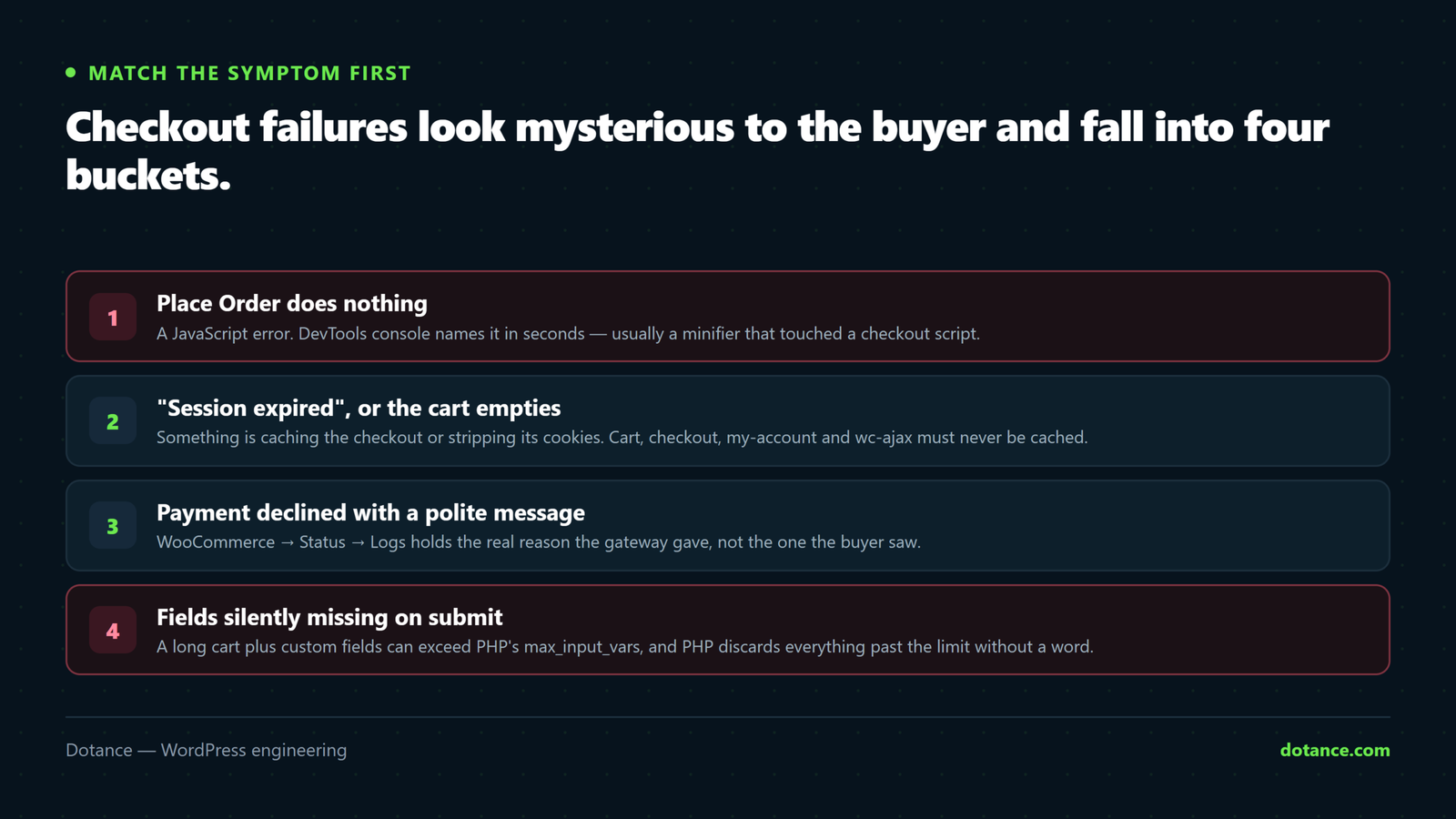
Checkout failures look mysterious to the buyer but fall into a few buckets. Find yours before changing anything.
| What the buyer sees | Almost always |
|---|---|
| Place Order does nothing at all | A JavaScript error — check the console |
| Spinner forever, no message | An AJAX request failing or timing out |
| “Your session has expired” | Checkout is being cached, or cookies stripped |
| The cart empties by itself | Session cookie not persisting — cache or CDN |
| “Payment could not be processed” | The gateway declined. Its log says why |
| Order placed but not paid / stuck pending | A webhook is not reaching your server |
| Fields blank out on submit | max_input_vars too low |
1. Dead button: read the console
Open DevTools (F12) → Console, then try to place an order. A red error naming a script is your answer nine times in ten.
| Console error | Cause |
|---|---|
jQuery is not defined | A JS optimiser reordered or deferred scripts |
Uncaught TypeError in a plugin’s file | That extension conflicts with checkout |
Unexpected token '<' | A PHP error is being returned where JSON was expected |
403 on ?wc-ajax=checkout | A firewall or mod_security is blocking the submit |
| Nothing at all | The button is not bound — usually a theme override |
Exclude checkout from every JS optimisation. Minify, combine, defer and “delay JavaScript until interaction” all break checkout regularly — the last one especially, because it stops payment scripts from initialising. You are saving a few kilobytes on the one page where failure costs an order.
Most caching plugins have a “never optimise these pages” list. Add /checkout/, /cart/ and /my-account/.
2. Sessions and carts: caching is the culprit
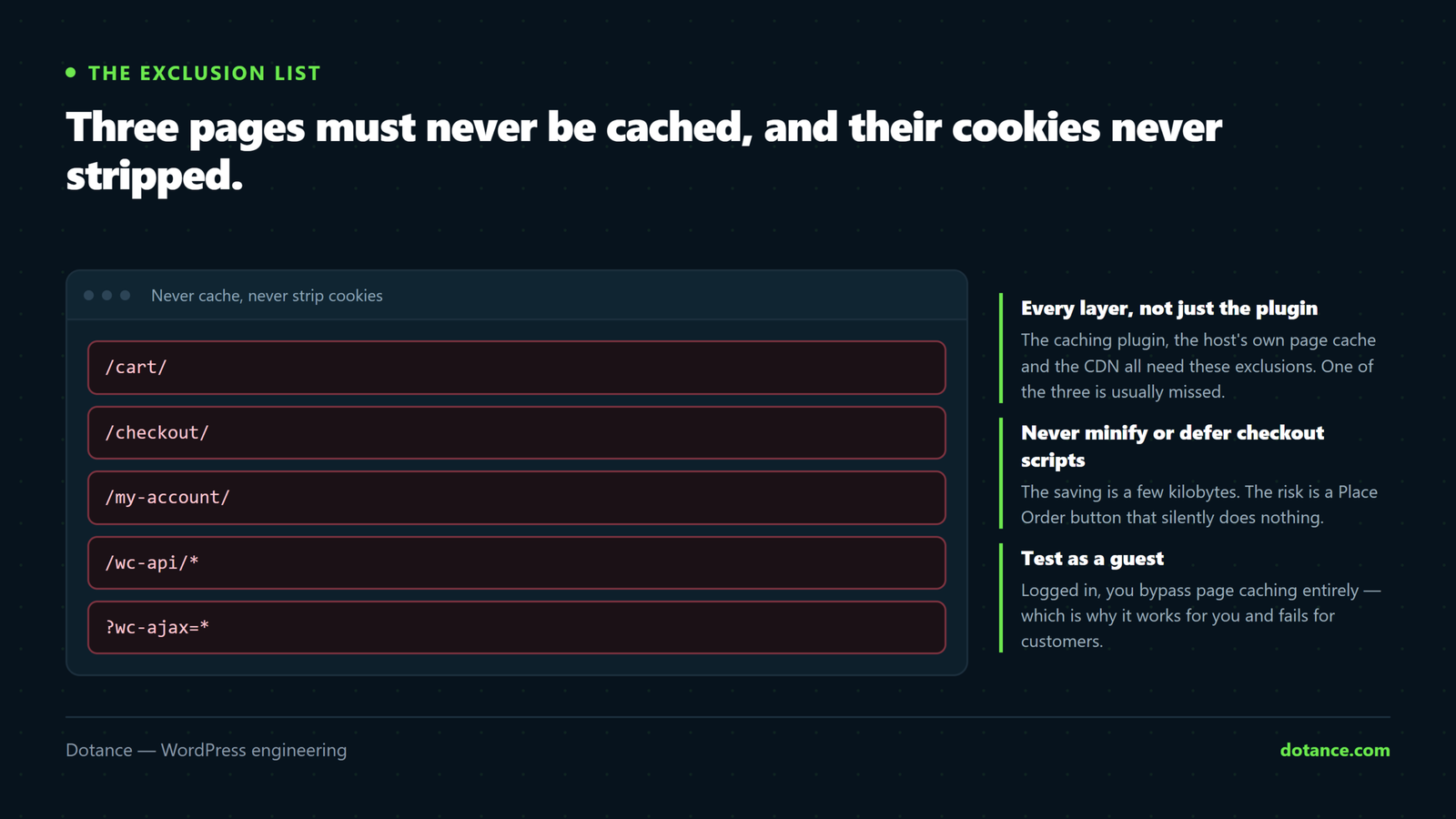
Those three pages must never be cached, and their cookies must never be stripped. Exclude all of these:
/cart/
/checkout/
/my-account/
/wc-api/*
?wc-ajax=*
Check what your server is actually doing:
curl -sI https://store.com/checkout/ | grep -iE "cache|x-litespeed|cf-cache|age"Anything reporting a cache hit on that URL is your bug.
The CDN is the layer people forget. A CDN that strips or ignores woocommerce_cart_hash and wp_woocommerce_session_* cookies will hand one visitor another’s cached page — or empty the cart on every navigation. On Cloudflare, ensure those cookies bypass the cache. This is also how “customer saw someone else’s order” happens.
WooCommerce ships a helper that sets the right no-cache headers — if a plugin is overriding them, that is worth checking too.
3. Payment failures: read the gateway log
WooCommerce → Status → Logs, then pick the gateway’s file from the dropdown. It states the real reason rather than the polite message the buyer saw.
| In the log | Fix |
|---|---|
| Invalid API key / authentication failed | Keys rotated, or test keys live. Re-enter them. |
| Currency not supported | Store currency does not match the gateway account. |
| Webhook signature failed | The webhook secret does not match the one in the gateway dashboard. |
| Nothing logged at all | The request never reached the gateway — the failure is earlier, in JS or the firewall. |
For orders that stay pending after payment, the webhook is not arriving. Confirm the URL in the gateway dashboard matches your live domain, and that nothing blocks incoming POSTs to /wc-api/ — server firewalls block those routinely.
4. The silent one: max_input_vars
A checkout with many fields — several shipping options, custom fields, a long cart — can exceed PHP’s limit on submitted variables. PHP then discards everything past the limit without an error, so the submit “works” and arrives incomplete.
wp eval "echo ini_get('max_input_vars');"The default of 1000 is thin for a real store. Raise it to 3000+ from your hosting panel, or:
php.ini
max_input_vars = 3000Suspect this when the failure only happens on large orders, or only for customers with many items.
5. Isolate a conflict properly
If nothing above matches, bisect — on staging, never live:
- Switch to Storefront and deactivate everything but WooCommerce and the gateway.
- Place a test order. Works? The fault is in what you turned off.
- Reactivate in halves, testing each time. Twenty plugins takes five tests, not twenty.
- The last thing you switched on is your conflict.
Enable WooCommerce logging while you do it — WooCommerce → Settings → Advanced → Debug — so failures leave a trail.
6. Test it like a customer, on a schedule
Most checkout breakages arrive with an update, and are found by a customer rather than by you.
- Put the gateway in test mode on staging and place a real end-to-end order after every update.
- Check Status → Logs weekly, not only during an incident.
- Monitor the checkout page, not just the homepage — uptime tools usually watch the root URL and would never notice.
- Watch for a sudden drop in orders. That is often the first real signal.
Common questions
It works for me but customers report failures.
You are probably logged in, which bypasses page caching. Test in a private window as a guest — that is the path they take.
It broke after a plugin update with no changes from me.
Roll that plugin back, confirm checkout returns, then report the conflict. Most hosts keep a pre-update backup.
Only some payment methods fail.
Then it is that gateway, not checkout. Read its log; the others working is proof the checkout itself is fine.
Should I use the block checkout or the classic one?
Blocks are the future and faster, but extension support still lags. If a critical extension does not support blocks yet, staying on classic is a legitimate decision — not a failure to keep up.