First: get the site back up
If the site is down, stop reading and roll PHP back one version. Diagnosis can wait; an outage cannot.
- Hostinger: hPanel → Advanced → PHP Configuration → PHP version
- cPanel: Select PHP Version (or MultiPHP Manager)
- Plesk: Websites & Domains → PHP Settings
- SiteGround: Site Tools → Devs → PHP Manager → change to Manual
- Cloudways: Server Management → Settings & Packages → Packages
- WP Engine, Kinsta: from the platform dashboard, per environment
Going from 8.2 back to 8.1 usually restores the site within a minute. Now you have time to fix the cause instead of improvising in public.
Rolling back is temporary, not a fix. Old PHP versions stop receiving security patches, and your host will force the upgrade eventually. Treat the rollback as breathing room with a deadline.
Which error did you get?
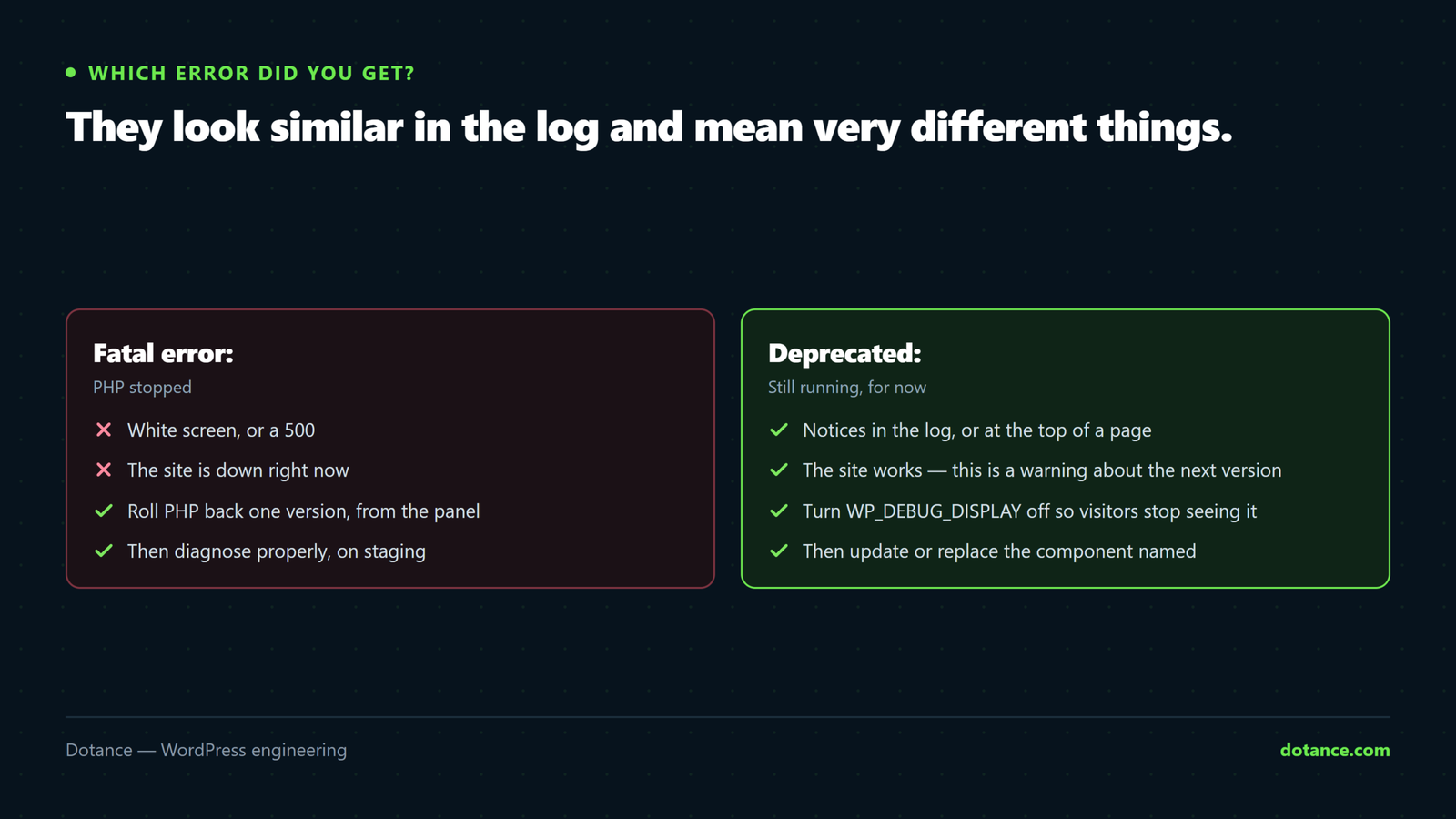
The two look similar in the log and mean very different things.
| Message starts with | Means | Urgency |
|---|---|---|
Fatal error: | PHP stopped. White screen or 500. | Now — the site is down. |
Deprecated: | Still works, will break in a future release. | Soon, not tonight. |
Warning: | Something failed but PHP carried on. Often a broken feature rather than a broken site. | This week. |
Find the culprit in the log
Switch logging on, load the site on the new PHP version, then read the file:
wp-config.php
define( 'WP_DEBUG', true );
define( 'WP_DEBUG_LOG', true );
define( 'WP_DEBUG_DISPLAY', false );
@ini_set( 'display_errors', 0 );
Errors collect in /wp-content/debug.log. A typical entry:
PHP Deprecated:  Creation of dynamic property WC_Cache_Helper::$cache
is deprecated in /home/user/public_html/wp-content/plugins/old-plugin/
includes/class-helper.php on line 88
The path after “in” is the answer. wp-content/plugins/old-plugin/ — that plugin is what needs updating or replacing.
Over SSH, watch it live while you reload the page:
tail -f wp-content/debug.logTurn debug logging off when you are done. A readable debug.log on a live site exposes file paths and sometimes more. Switch it on, reproduce, read, switch it off.
What each PHP version actually broke
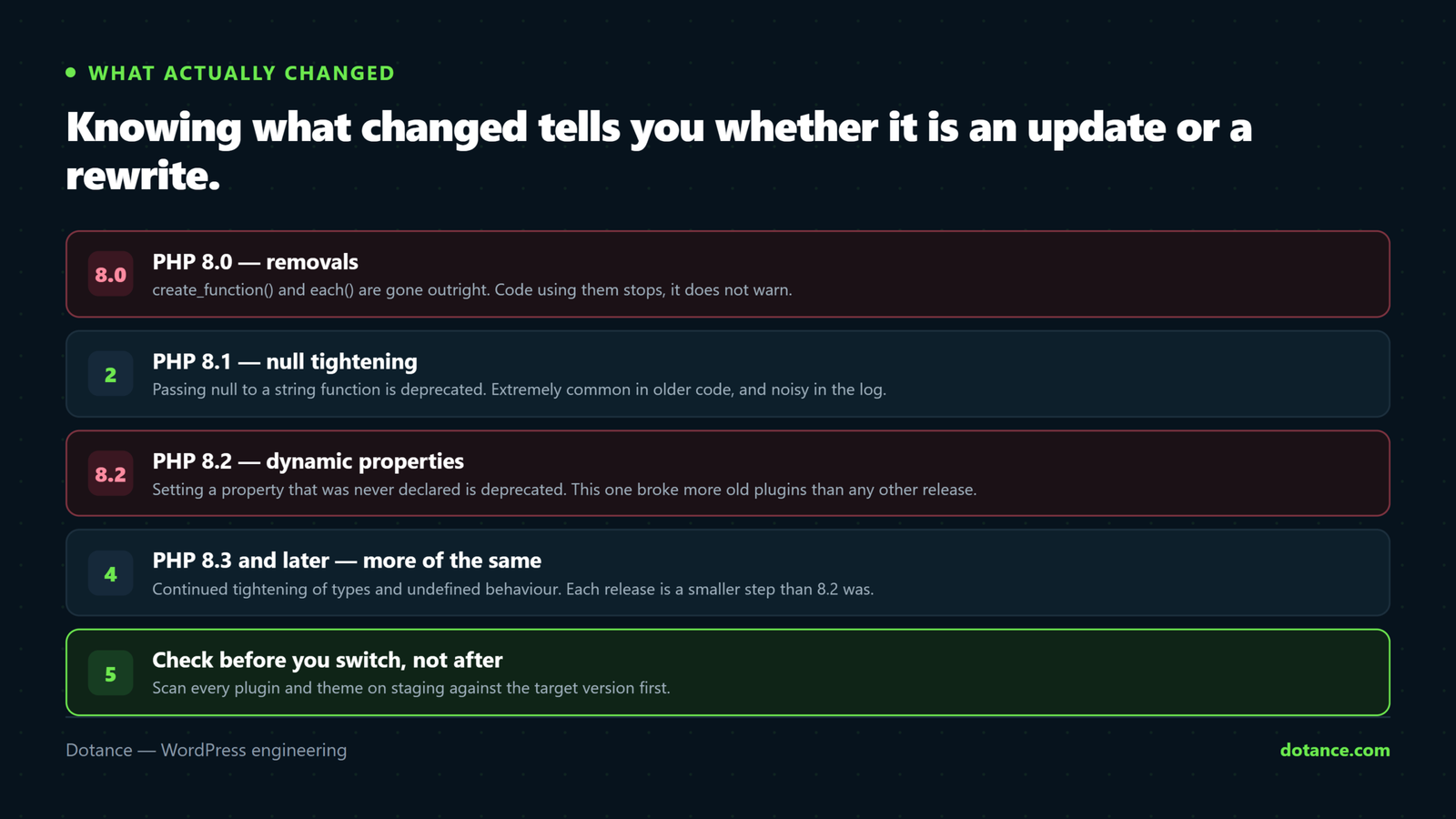
Knowing what changed tells you whether a plugin is a quick update or a rewrite.
| Version | The changes that break old WordPress code |
|---|---|
| 8.0 | Removed create_function() and each(). String offsets with {} gone. Many warnings became fatal errors — code that limped along now stops. |
| 8.1 | Passing null to a non-nullable internal parameter is deprecated — this fires constantly in older plugins. strftime() deprecated. |
| 8.2 | Dynamic properties deprecated. Setting $obj->whatever on a class that never declared it now warns — and old plugins do this everywhere. Expect log floods. utf8_encode() / utf8_decode() deprecated. |
| 8.3 | get_class() with no arguments deprecated. Stricter constant and range handling. |
If your log is thousands of identical “dynamic property” lines after moving to 8.2, that is expected. It is noise, not an outage — but it names the plugins that have stopped being maintained.
Fix the component, not the symptom
- Update it. If the plugin or theme is still maintained, the current release almost certainly supports modern PHP. Update, retest.
- Check whether it is abandoned. On the plugin’s WordPress.org page, look at Last updated and Tested up to. Two years without an update means it will break again on the next PHP release, whatever you do now.
- Replace it. Abandoned code is a standing liability. Swapping it is work once; carrying it is work every year.
- Patch it only as a last resort — and never by editing the plugin directly, or the next update erases your fix. If it must be patched, fork it properly.
Do this before the next upgrade
Check compatibility before switching versions, not after:
- Install PHP Compatibility Checker on staging to scan every plugin and theme against your target version.
- Read Tested up to on each active plugin. Anything years behind is your risk list.
- Count what you actually use. The fastest PHP upgrade is one where you deleted the eleven plugins nobody needed first.
The upgrade that does not break anything
- Copy the site to staging.
- Set staging to the target PHP version.
- Turn on debug logging and click through everything that matters — checkout, forms, admin screens, cron-driven jobs.
- Fix or replace whatever the log names.
- Only then change PHP on live, with a backup taken first.
Most hosts include staging on any decent plan. The difference between a planned upgrade and an emergency is entirely this list.
Common questions
My host upgraded PHP without telling me.
Common, and usually announced by email you missed. Roll back from the panel if the option is still there — many hosts leave the old version available for a grace period, then remove it.
The site works but the log is enormous.
Deprecation notices, most likely from 8.2 dynamic properties. Nothing is broken yet. Do not silence them — they are a list of the plugins to replace before the next release makes them fatal.
Can I stay on an old PHP version?
For a while, and at a cost. Unsupported PHP stops receiving security fixes, and hosts eventually drop it. It is a deadline you can move, not one you can remove.
Will a newer PHP make the site faster?
Usually yes, and noticeably — PHP 8.x is substantially quicker than 7.4 on typical WordPress workloads. That is a good reason to do the upgrade properly rather than avoid it.